
Zavedení
Welcome to the user manual for your new TABWEE T50 11-inch Android Tablet. This guide provides essential information on setting up, operating, maintaining, and troubleshooting your device. The TABWEE T50 combines the latest Android 16 system with Gemini AI for a fast, intelligent, and smooth user experience. It features an Unisoc T7250 Octa-Core processor, 24GB RAM, 128GB ROM (expandable to 2TB), an 8000mAh battery, a 90Hz HD+ display, and 13MP rear and 8MP front cameras.
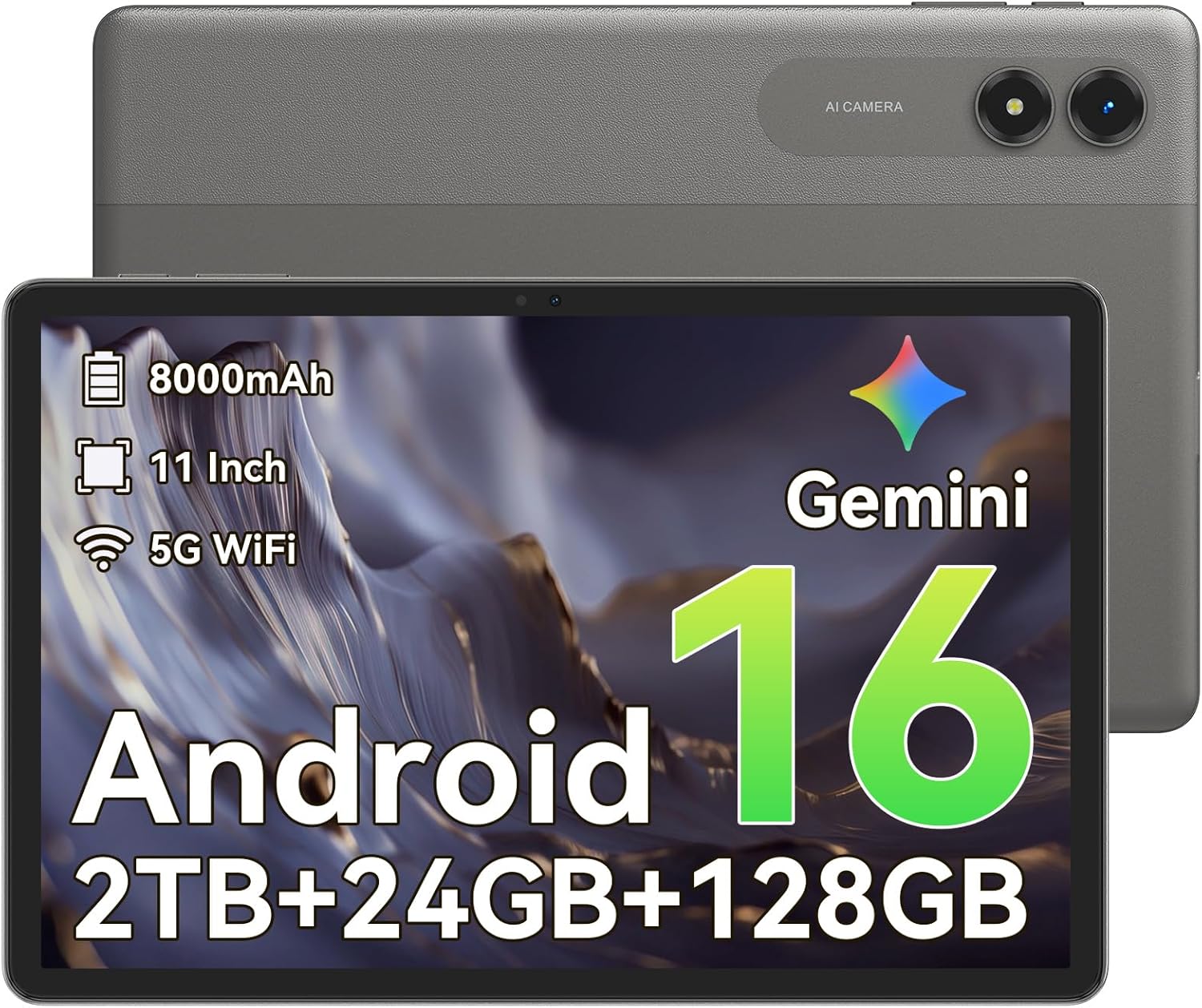
Obrázek: Přední strana view of the TABWEE T50 Tablet.
Obsah balení
Po otevření balení se ujistěte, že jsou přítomny všechny položky:
- TABWEE T50 Tablet
- USB nabíjecí kabel
- Nástroj pro vysunutí SIM karty
- Rychlý průvodce (tento návod)
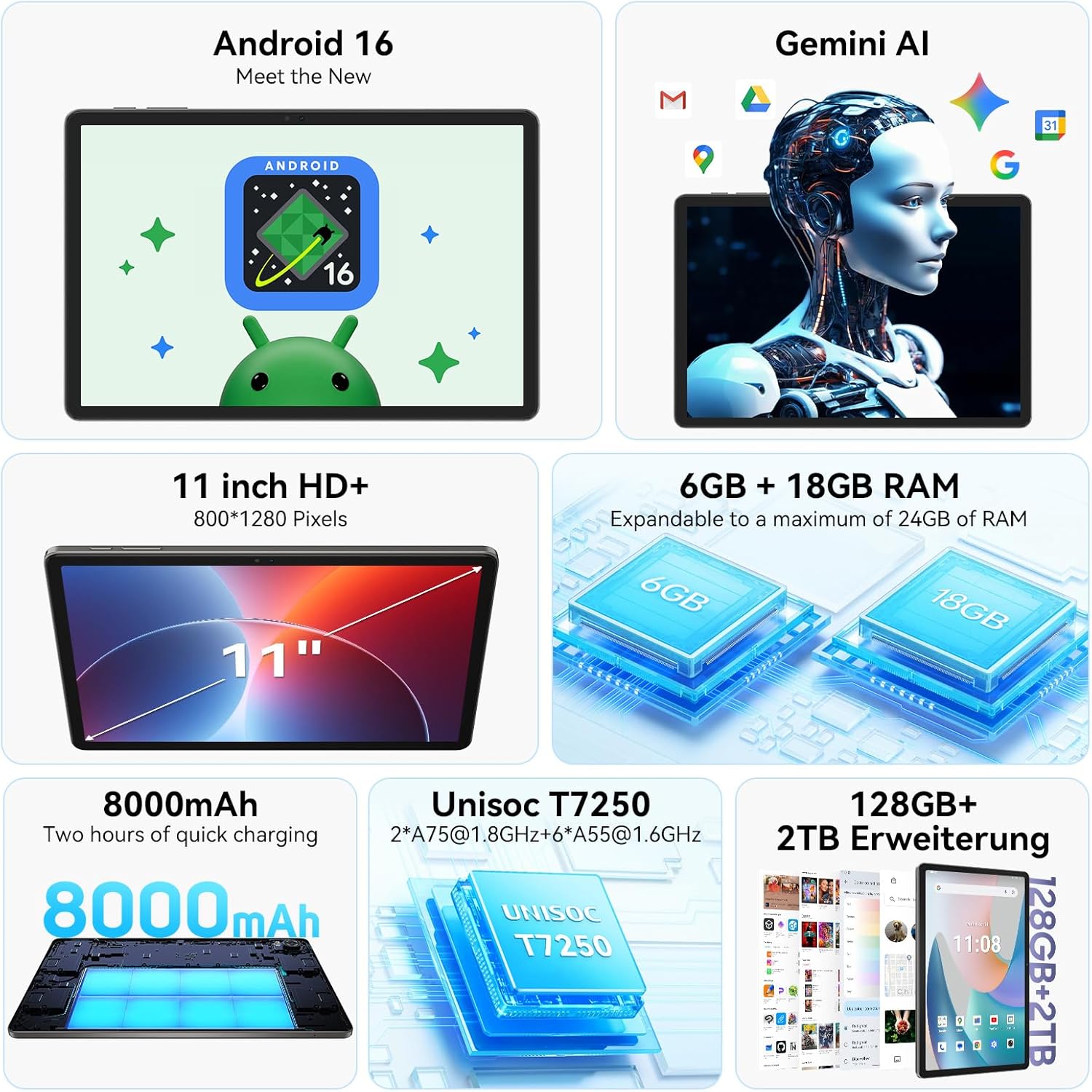
Image: The TABWEE T50 Tablet along with its standard accessories, including a charging cable and SIM ejector tool.
Nastavení
1. Počáteční nabíjení
Before first use, fully charge your TABWEE T50 Tablet.
- Připojte nabíjecí kabel USB k nabíjecímu portu tabletu.
- Druhý konec kabelu připojte ke kompatibilnímu napájecímu adaptéru USB (není součástí balení) a zapojte jej do elektrické zásuvky.
- Allow the tablet to charge until the battery indicator shows 100%. This may take approximately 5 hours for a full charge.

Image: Illustration of the tablet's 8000mAh battery and charging process.
2. Zapnutí a počáteční konfigurace
Press and hold the power button until the TABWEE logo appears. Follow the on-screen prompts to complete the initial setup:
- Vyberte svůj jazyk.
- Připojte se k síti Wi-Fi.
- Přihlaste se pomocí svého účtu Google nebo si vytvořte nový.
- Review a přijměte obchodní podmínky.
- Set up screen lock (PIN, pattern, password, or facial unlock).
3. Vložení karty MicroSD (volitelné)
To expand storage up to 2TB, insert a microSDXC card.
- Vyhledejte slot pro kartu SIM/microSD na boku tabletu.
- K otevření zásuvky použijte dodaný nástroj pro vysunutí SIM karty.
- Place the microSD card into the designated slot with the gold contacts facing down.
- Jemně zatlačte zásobník zpět do tabletu, dokud nezacvakne na místo.
Návod k obsluze
Displej a navigace
The TABWEE T50 features an 11-inch HD+ IPS display with a 1280x800 resolution and a 90Hz refresh rate for smooth visuals. It includes eye protection features to reduce blue light and minimize eye strain.

Image: The tablet's 11-inch HD+ display showcasing a vibrant mountain landscape.
- Gesta na dotykové obrazovce: Tap, swipe, pinch-to-zoom, and long-press for various interactions.
- Domovská obrazovka: Přizpůsobte si ho pomocí widgetů, zkratek aplikací a tapet.
- Panel oznámení: Přejetím prstu dolů od horního okraje obrazovky získáte přístup k rychlému nastavení a oznámením.
Android 16 s umělou inteligencí Gemini
Your tablet runs on Android 16, offering enhanced privacy controls, adaptive battery optimization, and an intuitive user interface. Gemini AI provides intelligent assistance for tasks, content creation, and learning.

Image: The tablet displaying the Gemini AI interface with various AI-powered features.
- Multitasking: Utilize split-screen mode for running multiple applications simultaneously.
- Ovládací prvky ochrany osobních údajů: Manage app permissions and data access through system settings.
- Adaptivní baterie: The AI-powered battery management optimizes power consumption based on your usage patterns.
Funkce fotoaparátu
The TABWEE T50 is equipped with an 8MP front camera and a 13MP rear camera.
- Otevřete aplikaci Fotoaparát z domovské obrazovky nebo ze zásuvky aplikací.
- Přepínejte mezi předním a zadním fotoaparátem pomocí ikony fotoaparátu.
- Tap the shutter button to take photos or the video icon to record videos.
- Prozkoumejte různé režimy a nastavení fotoaparátu pro dosažení optimálních výsledků.

Image: The tablet's screen displaying the camera interface, capturing a selfie.
Konektivita
The tablet supports WiFi 5G and Bluetooth 5.0 for seamless connectivity.
- Wi-Fi: Pro připojení k dostupným sítím přejděte do Nastavení > Síť a internet > Wi-Fi.
- Bluetooth: Go to Settings > Connected devices > Bluetooth to pair with Bluetooth accessories like headphones or keyboards.
- OTG (Na cesty): The tablet supports OTG for connecting USB devices or for reverse charging other devices.

Image: Visual representation of the tablet's Bluetooth 5.0 and 5G WiFi connectivity features.

Image: The tablet connected to a smartphone, illustrating its power-sharing capability via OTG.
Údržba
- Čištění: K čištění obrazovky a těla přístroje používejte měkký hadřík, který nepouští vlákna. Nepoužívejte abrazivní materiály ani agresivní chemikálie.
- Aktualizace softwaru: Pravidelně kontrolujte aktualizace systému v Nastavení > Systém > Aktualizace systému, abyste zajistili optimální výkon a zabezpečení.
- Péče o baterie: To prolong battery life, avoid extreme temperatures and do not let the battery drain completely frequently.
- Správa úložiště: Pravidelně odstraňujte nepotřebné files and apps to maintain performance. Go to Settings > Storage to manage your storage.
Odstraňování problémů
- Tablet se nezapne: Ensure the tablet is sufficiently charged. If it doesn't respond, press and hold the power button for 10-15 seconds to force a restart.
- Pády/zamrzání aplikací: Zavřete a znovu otevřete aplikaci. Pokud problém přetrvává, vymažte mezipaměť aplikace (Nastavení > Aplikace > [Název aplikace] > Úložiště a mezipaměť > Vymazat mezipaměť).
- Problémy s připojením Wi-Fi: Restartujte tablet a Wi-Fi router. Zapomeňte na síť a znovu se připojte.
- Pomalý výkon: Close background apps, clear cache, or consider a factory reset if issues persist (backup data first).
- Obrazovka nereaguje: Restart the tablet. If the problem continues, contact customer support.
Specifikace
| Funkce | Detail |
|---|---|
| Název modelu | TABWEE T50 |
| Operační systém | Android 16 s umělou inteligencí Gemini |
| Procesor | Osmijádrový Unisoc T7250 |
| BERAN | 24 GB (6 GB fyzického + 18 GB virtuálního) |
| Interní úložiště | 128 GB |
| Rozšiřitelné úložiště | Up to 2 TB via microSDXC |
| Velikost displeje | 11palcový HD+ IPS displej |
| Rozlišení displeje | 1280x800 pixelů |
| Obnovovací frekvence | 90 Hz |
| Zadní kamera | 13 MP |
| Přední kamera | 8 MP |
| Kapacita baterie | 8000 XNUMX mAh |
| Typ baterie | Lithium Polymer |
| Průměrná životnost baterie | Až 8 hodin (streamování videa) |
| Konektivita | WiFi 5G (802.11ac), Bluetooth 5.0, GPS, OTG |
| Hmotnost | 640 gramů |
| Barva | Šedá |
| Modelový rok | 2026 |
| UPC | 721718099727 |

Image: Diagram illustrating the Unisoc T7250 Octa-Core processor architecture.

Image: The tablet displaying its storage and RAM specifications, including 24GB RAM and 128GB ROM with 2TB expansion.
Záruka a podpora
The TABWEE T50 Tablet comes with a 2letá omezená záruka. TABWEE also provides doživotní zákaznická podpora to assist with any questions or issues you may encounter.
- Záruční krytí: Kryje výrobní vady po dobu dvou let od data nákupu.
- Zákaznická podpora: For technical assistance, troubleshooting, or warranty claims, please contact TABWEE customer service. Refer to the official TABWEE webstránky pro kontaktní údaje.
- Náhradní díly: EU spare part availability is guaranteed for 2 years.

Image: A badge indicating TABWEE's warranty and lifetime support. Please note that the warranty duration is 2 years as per product specifications.