
1. Úvod
The FOXWELL NT201 is an On-Board Diagnostics II (OBDII) and European On-Board Diagnostics (EOBD) scanner designed to diagnose engine-related issues in vehicles. This device allows users to read and clear diagnostic trouble codes (DTCs), view live data streams, perform I/M readiness tests, and more. This manual provides detailed instructions for the proper use and maintenance of your NT201 scanner and its accompanying portable carrying case.
2. Bezpečnostní informace
Při práci na vozidle vždy dodržujte bezpečnostní opatření. Nesprávné použití diagnostických nástrojů může vést ke zranění osob nebo poškození vozidla. Přečtěte si prosím a dodržujte tyto pokyny:
- Ujistěte se, že je vozidlo zaparkované na rovném povrchu se zataženou parkovací brzdou.
- Používejte vhodnou ochranu očí.
- Keep clothing, hair, hands, tools, and test equipment away from moving engine parts.
- Operate the vehicle in a well-ventilated area to prevent carbon monoxide poisoning.
- Nepřipojujte ani neodpojujte testovací zařízení, když je zapnuté zapalování nebo běží motor.
- Keep the scanner dry and clean. Avoid exposure to extreme temperatures.
3. Obsah balení
Ověřte, zda jsou v balení přítomny všechny položky:
- Skener FOXWELL NT201 OBD2
- Integrated OBDII Cable
- Přenosné pouzdro
- Uživatelská příručka (tento dokument)
4. Konec produktuview
The NT201 scanner features a clear display and intuitive button layout for easy navigation and operation.

Obrázek 4.1: Přední view of the FOXWELL NT201 OBD2 Scanner. This image displays the scanner's screen, which shows 'I/M Readiness' status indicators, and the control buttons including ESC, UP, DOWN, and ENTER, along with the I/M readiness hotkey.
4.1. Uspořádání zařízení
- LCD displej: Shows test results, menu options, and operational information.
- Tlačítko ESC: Exits current screen or returns to the previous menu.
- Tlačítka NAHORU/DOLŮ: Navigates through menu options or data.
- Tlačítko ENTER: Potvrdí výběr nebo vstoupí do nabídky.
- I/M Readiness Hotkey: Provides quick access to the I/M Readiness status.
- OBDII konektor: Připojuje skener k datovému konektoru (DLC) vozidla.
5. Nastavení
To begin using your NT201 scanner, follow these steps:
- Vyhledejte 16pinový datový konektor (DLC) vozidla. Obvykle se nachází pod palubní deskou na straně řidiče.
- Otočte zapalování vozidla do polohy „ON“ (vypnutý motor).
- Plug the NT201's OBDII connector into the vehicle's DLC. The scanner will power on automatically.
- The scanner will perform a system check and display the main menu.
6. Návod k obsluze
6.1. Read and Clear Fault Codes
This function allows you to retrieve Diagnostic Trouble Codes (DTCs) from the vehicle's engine control unit (ECU) and clear them after repairs.
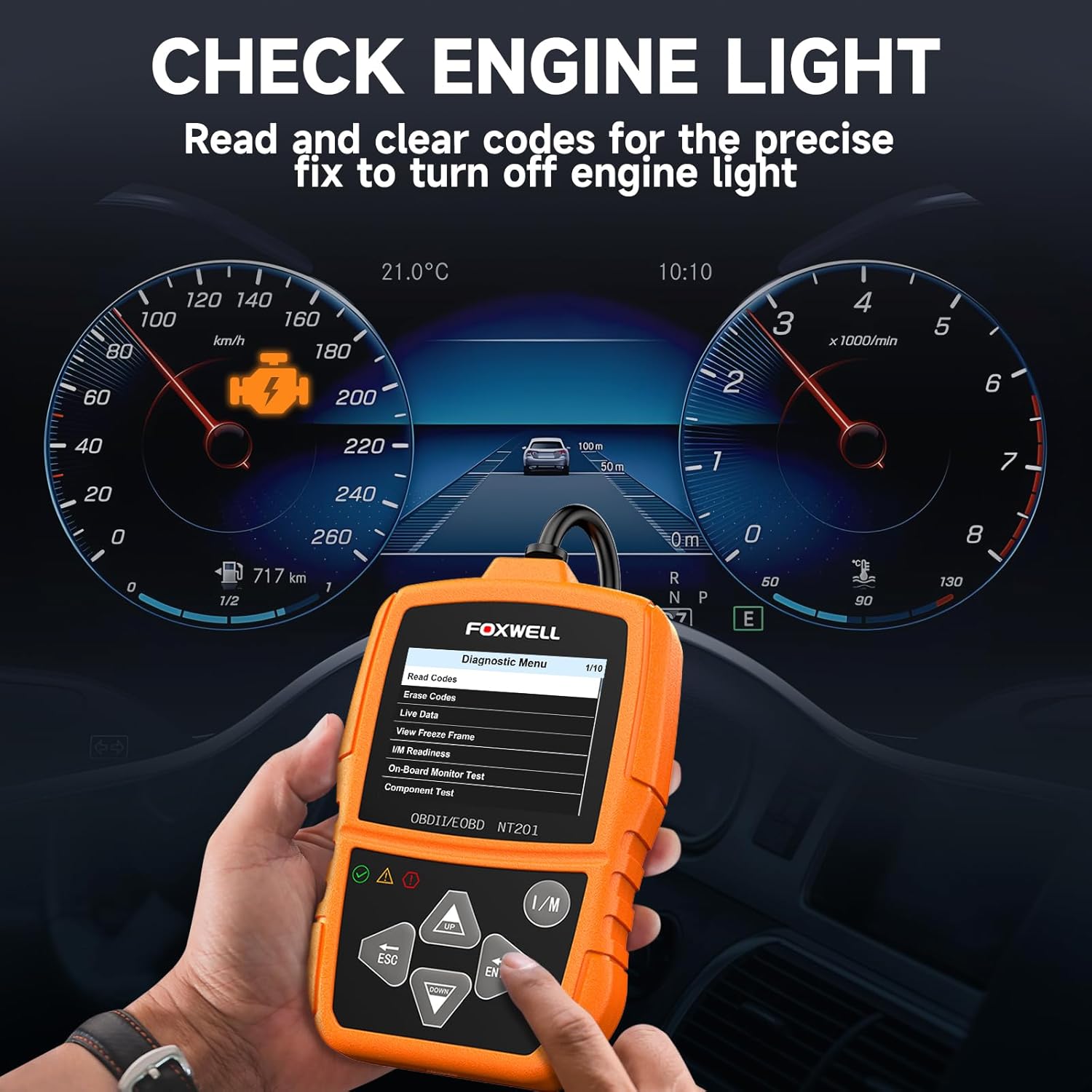
Obrázek 6.1: The FOXWELL NT201 scanner in use, displaying the diagnostic menu with 'Read Codes' highlighted. A vehicle dashboard is visible in the background, showing the check engine light illuminated.
- Z hlavní nabídky použijte NAHORU/DOLŮ buttons to select "Diagnostic Menu" and press ENTER.
- Vyberte možnost „Číst kódy“ pro view current, pending, and permanent DTCs. The scanner will display the codes and their definitions.
- After addressing the underlying issue, select "Erase Codes" from the Diagnostic Menu and press ENTER. Confirm the action when prompted. This will turn off the Malfunction Indicator Lamp (MIL) or 'Check Engine Light'.
6.2. Živý datový tok
View real-time operational parameters of the vehicle's engine, such as engine RPM, vehicle speed, coolant temperature, and more.

Obrázek 6.2: The FOXWELL NT201 scanner displaying a live data stream. The screen shows various parameters like Engine RPM and Vehicle Speed Sensor data, presented both numerically and graphically, with a car interior visible in the background.
- From the Diagnostic Menu, select "Live Data" and press ENTER.
- Můžete view data in text format or graphical format. Use the NAHORU/DOLŮ buttons to scroll through parameters.
- Stiskněte ENTER to select a parameter for detailed viewing or graphing.
6.3. One-Key I/M Readiness Test
Quickly check the vehicle's emission readiness status to determine if it's ready for an emissions test.

Obrázek 6.3: The FOXWELL NT201 scanner with its 'I/M' hotkey prominently displayed and highlighted, indicating its function for a quick smog check. An exhaust pipe is visible in the background, suggesting emissions testing.
- With the scanner connected and powered on, press the dedicated I/M klávesová zkratka.
- The scanner will display the status of various emission-related monitors (e.g., MIL, MIS, FUE, CCM, CAT, O2S, EGR).
- Green indicates the monitor has completed its test, Yellow indicates pending, and Red indicates not ready or a fault.
6.4. Test senzoru O2
This function retrieves O2 sensor monitor test results for the most recently completed tests from the vehicle's on-board computer. This helps in diagnosing fuel efficiency and emission-related issues.
- From the Diagnostic Menu, select "O2 Sensor Test" and press ENTER.
- Postupujte podle pokynů na obrazovce view výsledky testů.
7. Údržba
7.1. Čištění skeneru
Použijte měkký, damp cloth to clean the scanner's exterior. Do not use abrasive cleaners or solvents. Keep the screen free of dust and smudges for optimal visibility.
7.2. Skladování
When not in use, store the NT201 scanner in its portable carrying case to protect it from dust, moisture, and physical damage. Store in a cool, dry place away from direct sunlight.

Obrázek 7.1: An open portable carrying case designed for the FOXWELL NT201 scanner, showing the scanner and its cable neatly organized within the case's compartments. The case provides organized protection for the device.

Obrázek 7.2: A diagram illustrating the dimensions of the portable carrying case, showing its length, width, and height. This case is suitable for the FOXWELL NT201 and similar diagnostic tools.
8. Řešení problémů
If you encounter issues with your NT201 scanner, refer to the following common problems and solutions:
| Problém | Možná příčina | Řešení |
|---|---|---|
| Skener se nezapne. | Loose connection to DLC; Vehicle ignition not ON; Vehicle battery low. | Ensure the OBDII cable is securely connected. Turn vehicle ignition to 'ON'. Check vehicle battery voltage. |
| Chyba komunikace s vozidlem. | Incorrect protocol; Faulty DLC; Vehicle not OBDII compliant. | Verify vehicle is OBDII compliant (1996 or newer for most regions). Check DLC for damage. Try on another compliant vehicle. |
| Obrazovka je tmavá nebo nečitelná. | Environmental conditions; Screen damage. | Move to a better lit area. If damaged, contact support. |
9. Specifikace
- Zobrazit: Podsvícený LCD
- Provozní teplota: 0 až 60 °C (32 až 140 °F)
- Skladovací teplota: -20 až 70 °C (-4 až 158 °F)
- Externí napájení: Napájení 8.0 až 18.0 V z autobaterie
- Podporované protokoly: KWP2000, J1850 VPW, ISO9141, J1850 PWM, CAN
- Kompatibilita: Most 1996 and newer OBDII compliant vehicles (cars, light trucks, SUVs, minivans, hybrids). Does not support electric vehicles or 24V heavy-duty trucks.
10. Záruka a podpora
For warranty information or technical support, please refer to the FOXWELL official webnebo se obraťte přímo na jejich zákaznický servis. Uschovejte si doklad o koupi pro případ reklamace.
FOXWELL Official Webmísto: www.foxwelltech.com