
Zavedení
Welcome to the Thunderobot Zero 16 Pro user manual. This document provides essential information for setting up, operating, maintaining, and troubleshooting your new gaming laptop. The Thunderobot Zero 16 Pro is engineered for high-performance gaming and demanding applications, featuring an Intel Core Ultra 9 275HX processor, NVIDIA GeForce RTX 5080 graphics, a 16-inch QHD+ 360Hz display, 32GB DDR5 RAM, and a 1TB PCIe M.2 SSD.
Pro optimální výkon a dlouhou životnost si před použitím zařízení pečlivě přečtěte tuto příručku.
Obsah balení
Ověřte, zda jsou v balení přítomny všechny položky:
- Thunderobot Zero 16 Pro Gaming Laptop
- Napájecí adaptér a kabel
- Uživatelská příručka (tento dokument)
- Záruční list
Nastavení
1. Počáteční zapnutí
- Připojte napájení: Zapojte napájecí adaptér do napájecího portu notebooku a poté do zásuvky ve zdi.
- Otevřený notebook: Opatrně otevřete víko notebooku.
- Zapnutí: Stiskněte tlačítko napájení, které se obvykle nachází nad klávesnicí nebo na boku.
- Počáteční nastavení: Postupujte podle pokynů na obrazovce a dokončete nastavení systému Windows 11 Home, včetně jazyka, regionu, síťového připojení a vytvoření uživatelského účtu.
2. Připojení periferií
The Thunderobot Zero 16 Pro offers various ports for connecting external devices:
- Porty USB-A: Connect mice, keyboards, external hard drives, and other USB accessories.
- USB-C Port (Thunderbolt 5): Pro vysokorychlostní přenos dat, externí displeje a napájení.
- Port HDMI 2.1: Připojte se k externím monitorům nebo televizorům pro rozšířené zobrazení.
- Ethernetový port RJ-45: Pro stabilní kabelové síťové připojení.
- 3.5mm audio jack: Připojte sluchátka nebo externí reproduktory.
Obrázek: Boční view of the Thunderobot Zero 16 Pro, highlighting the RJ-45, USB3.2 Gen2 Type-A, HDMI 2.1, Thunderbolt 5 Type-C, Power, USB3.2 Gen1 Type-A, and 3.5mm audio jack ports.

Image: Detailed diagram illustrating the location and type of ports available on the Thunderobot Zero 16 Pro, including USB, HDMI, Ethernet, and audio connections.
Návod k obsluze
1. Keyboard and Lighting
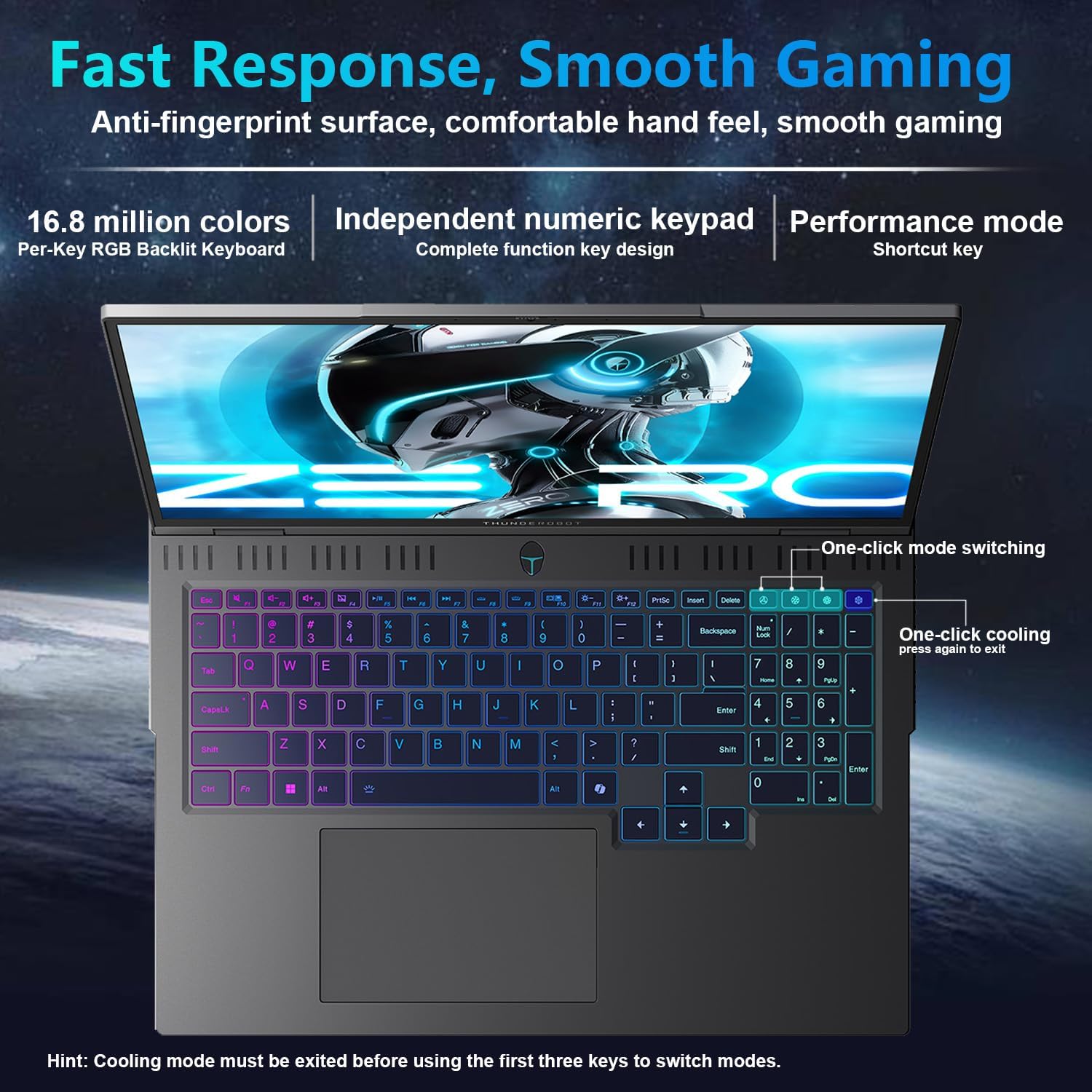
The laptop features a full-size, per-key RGB backlit keyboard with a numeric keypad. You can customize the RGB lighting effects through the Thunderobot Control Center software.
- Performance Mode Switching: Use dedicated shortcut keys to switch between performance profiles (e.g., Quiet, Balance, Turbo).
- One-Click Cooling: A dedicated key allows for instant activation of maximum cooling.
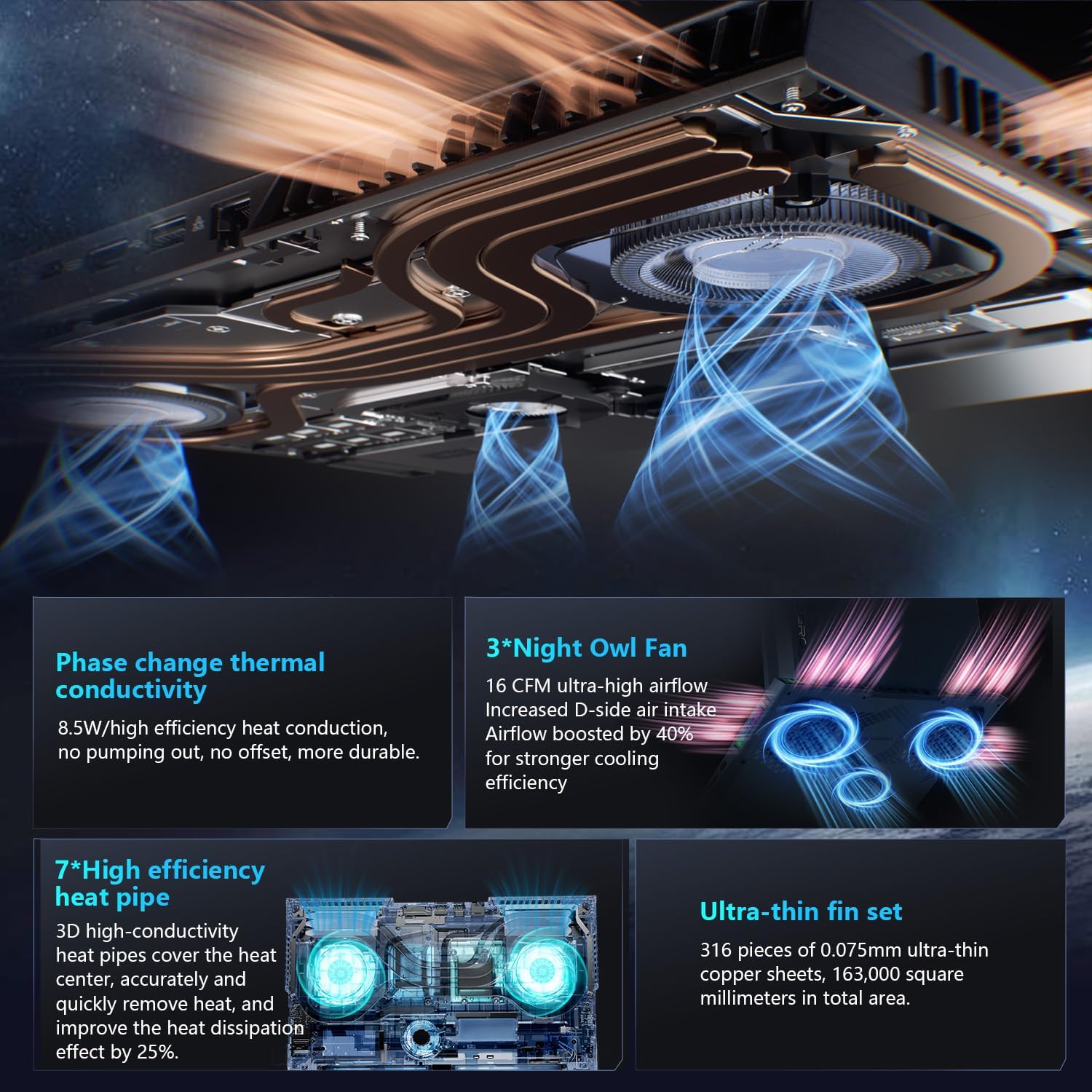
Image: The RGB backlit keyboard of the Thunderobot Zero 16 Pro, showing the full layout and numeric keypad.

Image: Visual guide to the keyboard's one-click mode switching and cooling activation keys.
Video: This video demonstrates the RGB lighting system and keyboard features of the Thunderobot Zero 16 Pro, including performance mode switching and one-click cooling.
2. Funkce displeje
The 16-inch QHD+ (2560x1600) display offers a 360Hz refresh rate and eye-care technology. To utilize the highest refresh rate, ensure the dedicated graphics direct connection mode is enabled in the Control Center.
- Antireflexní a protislzná úprava: Reduces distractions from ambient light.
- Anti-Blue Light: Helps reduce eye strain during prolonged use.
- Stejnosměrné stmívání: Provides flicker-free eye protection.
- Profesionální kalibrace barev: Zajišťuje přesnou reprodukci barev.

Image: The 16-inch QHD+ display of the Thunderobot Zero 16 Pro, showcasing its high refresh rate and eye-care features.

Image: Infographic detailing the display's features such as 2.5K resolution, 360Hz refresh rate, 500 nits brightness, and various eye protection technologies.
3. Thunderobot Control Center
The AI Intelligent Control Center software allows for comprehensive management of your laptop's performance, lighting, and system settings. It is recommended to connect the device to a power source for full functionality of system mode switching.
- Performance Tuning: Adjust CPU and GPU settings for optimal performance or power saving.
- Intelligent Light Adjustment: Customize keyboard, strip, and logo RGB lighting.
- Comprehensive Adjustment: Monitor system status, fan speeds, and manage other personalized settings.
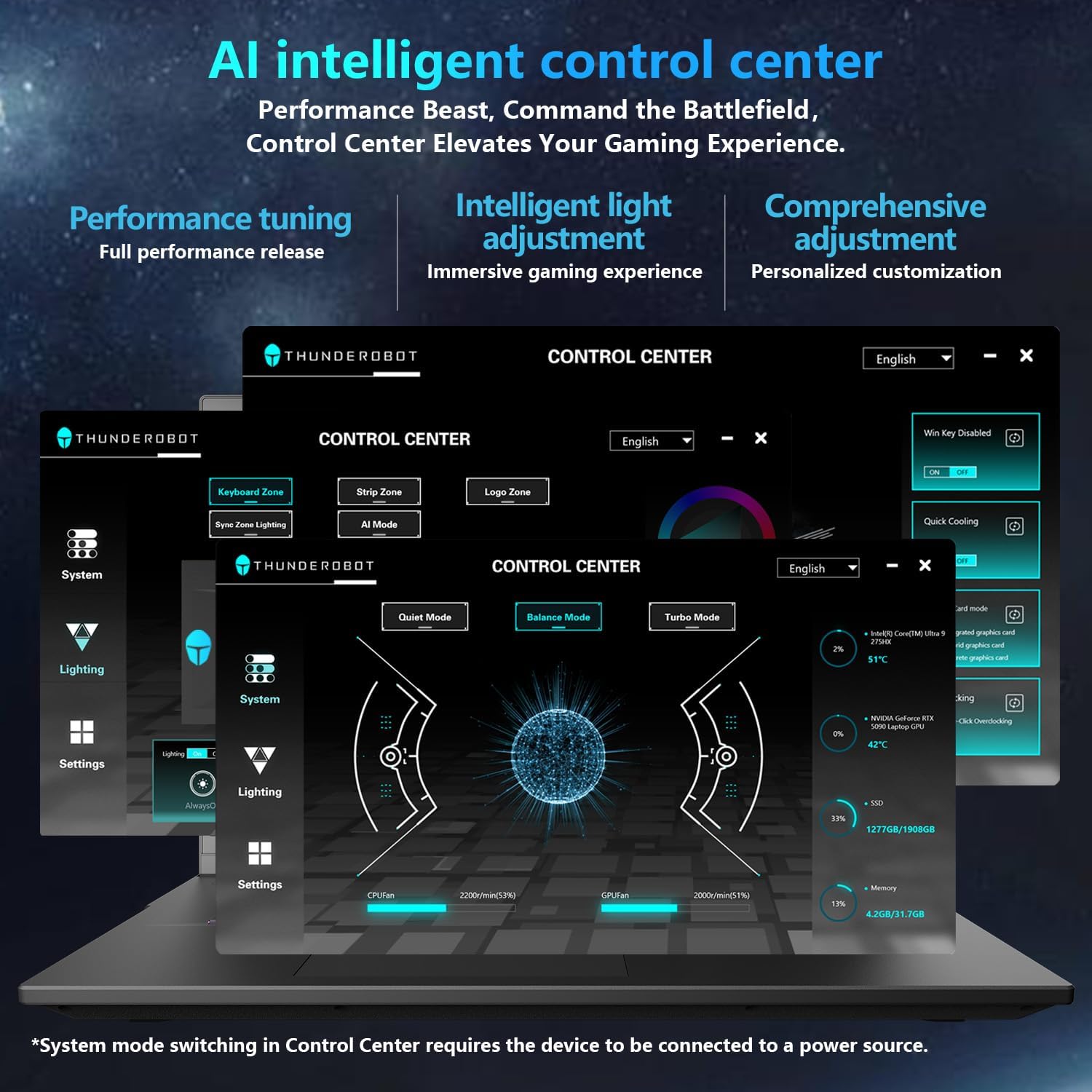
Image: A visual representation of the Thunderobot Control Center interface, showing options for system monitoring, lighting control, and performance settings.
Image: Infographic explaining the capabilities of the AI Intelligent Control Center, including performance tuning, intelligent light adjustment, and comprehensive system management.
4. Audiosystém
The laptop is equipped with a Soundstage Full audio system, featuring 4 speakers and Nahimic high-quality sound effects for an immersive audio experience.

Image: A graphic illustrating the Soundstage Full audio system with sound waves, emphasizing the immersive experience.
Video: This video showcases the display quality and overall design of the Thunderobot Zero series, including the Zero 16 Pro.
Údržba
1. Chladicí systém
The Thunderobot Zero 16 Pro features a robust cooling system designed to maintain performance under heavy loads. This includes dual Night Owl fans, 7 enlarged heat pipes, and 316 ultra-thin copper fins.
- Udržujte průduchy volné: Ensure that the air intake and exhaust vents are not obstructed to allow for proper airflow.
- Pravidelný úklid: Periodically clean dust from the vents using compressed air.

Obrázek: Explodoval view of the laptop's internal cooling components, showing the dual fans, heat pipes, and fin set.

Image: Infographic explaining the Night Hawk fans, high-efficiency heat pipes, phase-change thermal conduction, and ultra-thin fin array.
2. Obecná péče
- Čištění: K čištění obrazovky a šasi používejte měkký hadřík, který nepouští vlákna. Nepoužívejte agresivní chemikálie.
- Podmínky prostředí: Operate the laptop within recommended temperature ranges (-20°C to 60°C) and humidity (up to 90%).
- Výdrž baterie: To prolong battery life, avoid frequently discharging the battery completely and store the laptop with a partial charge if not used for extended periods.
Video: This video highlights the robust build quality and testing of Thunderobot gaming products, demonstrating their durability.
Odstraňování problémů
Běžné problémy a řešení
| Problém | Možná příčina | Řešení |
|---|---|---|
| Display not reaching 360Hz refresh rate. | Dedicated graphics direct connection mode is not enabled. | Enable the dedicated graphics direct connection mode in the Thunderobot Control Center. |
| Laptop performance is lower than expected. | Laptop is not connected to power, or is in a power-saving mode. | Connect the laptop to its power adapter. Adjust performance settings to "Turbo Mode" or "Performance Mode" in the Thunderobot Control Center. Ensure cooling vents are clear. |
| Keyboard RGB lighting is not working or customizable. | Lighting settings are disabled or not configured in the Control Center. | Open the Thunderobot Control Center and navigate to the "Lighting" section to enable and customize RGB effects. |
| Z reproduktorů ani sluchátek není slyšet žádný zvuk. | Audio drivers are outdated, volume is muted, or incorrect output device selected. | Check volume levels and audio output settings in Windows. Update audio drivers if necessary. Ensure headphones are fully plugged into the 3.5mm jack. |
Specifikace
| Funkce | Detail |
|---|---|
| Značka | Thunderobot |
| Název modelu | ZERO 16 Pro |
| Velikost obrazovky | 16 palce |
| Rezoluce | 2560x1600 pixels (QHD+) |
| Obnovovací frekvence | 360 Hz |
| Model CPU | Intel Core Ultra 9 275HX (24 Cores, up to 5.4 GHz) |
| Grafický koprocesor | NVIDIA GeForce RTX 5080 (12 GB GDDR7) |
| Velikost nainstalované paměti RAM | 32 GB DDR5 (4800 MHz) |
| Velikost pevného disku | 1 TB SSD (PCIe x4) |
| Operační systém | Windows 11 Home |
| Technologie připojení | Wi-Fi 6E, Bluetooth, USB-A, USB-C (Thunderbolt 5), HDMI, Ethernet, Audio Jack |
| Celkový počet portů USB | 4 |
| HDMI porty | 1 |
| Klávesnice | Backlit, Full-size with Numeric Keypad |
| Webcam Capability | Ano |
| Rozměry položky (D x Š x Tloušťka) | 14.09"D x 10.52"Š x 1.03"V |
| Specifické použití pro produkt | Hraní |
Záruka a podpora
Informace o záruce
Every Thunderobot laptop includes a Záruka 12 měsíců, offering expert support, thorough diagnostics, and genuine parts if a repair is needed. Additionally, a 90denní záruka is provided on all warranty replacement parts, ensuring hassle-free repairs. Your complete satisfaction is our commitment.
Zákaznická podpora
For technical assistance, warranty claims, or product inquiries, please visit the official Thunderobot website or contact their customer support. Refer to the warranty card included in your package for specific contact details and terms.
Můžete také navštívit Thunderobot Store on Amazon pro další informace o produktu a zdroje podpory.