
1. Úvod
This manual provides detailed instructions for the AOOSTAR MACO PRO 6850H Mini PC. Please read this guide thoroughly before using the device to ensure proper operation and to maximize its performance and lifespan. This mini PC is designed for a variety of tasks, including office work, creative projects, gaming, and home theater applications, offering high performance in a compact form factor.

The AOOSTAR MACO PRO 6850H Mini PC is versatile for various applications, from professional use to entertainment.
2. Obsah balení
Ověřte, zda jsou v balení přítomny všechny položky:
- 1 × AOOSTAR MACO PRO 6850H Mini PC
- 1 × kabel HDMI
- 1× napájecí adaptér

Ensure all listed components are included in your package.
3. Fyzický overview
Familiarize yourself with the ports and features of your AOOSTAR MACO PRO 6850H Mini PC.
Přední panel
- Power Button with Fingerprint Sensor: For powering on/off and secure login via Windows Hello.
- 3.5mm audio jack: Pro sluchátka nebo externí reproduktory.
- Porty USB 3.2 2. generace (x2): Pro připojení USB zařízení.
- USB4 Port (x1): Vysokorychlostní přenos dat a zobrazení.
Zadní panel
- Vstup DC napájení: Připojte přiložený napájecí adaptér.
- 2.5G LAN porty (x2): Pro vysokorychlostní kabelové síťové připojení.
- Port HDMI 2.1 (x1): For connecting to a display.
- DisplayPort 1.4 (x1): For connecting to a display.
- Porty USB 2.0 (x2): For connecting peripherals like keyboard and mouse.
- USB4 Port (x1): Vysokorychlostní přenos dat a zobrazení.
Boční panel
- OCuLink Port (x1): Dedicated port for external GPU connection.

Front and rear panel connectivity options for the AOOSTAR MACO PRO 6850H Mini PC.
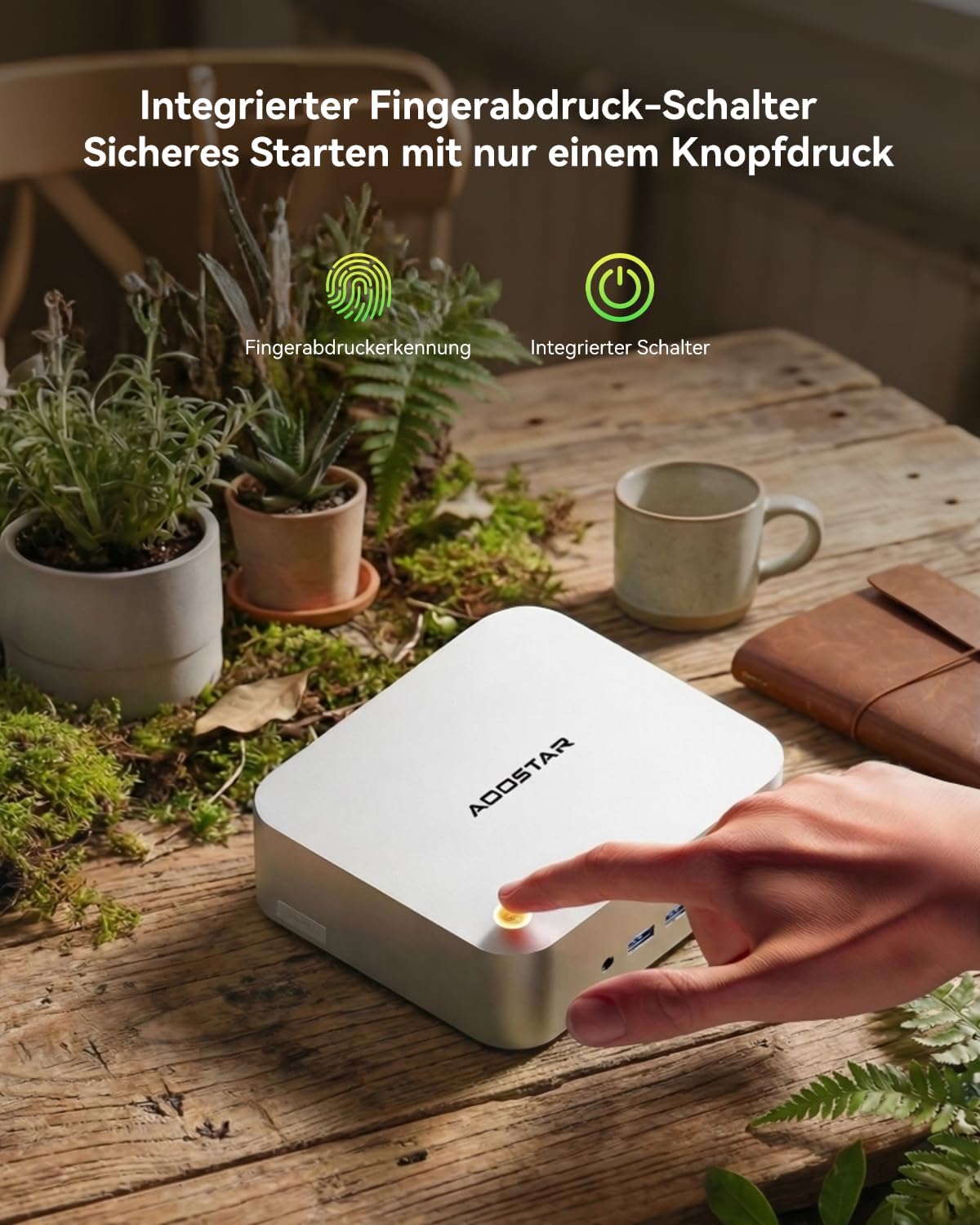
Integrated fingerprint sensor for secure one-button startup.
4. Pokyny k nastavení
Follow these steps to set up your AOOSTAR MACO PRO 6850H Mini PC:
- Připojení k displeji: Use the included HDMI cable or a DisplayPort cable to connect the Mini PC to your monitor or TV. You can also use a USB4 port for display output.
- Připojení periferií: Zapojte klávesnici a myš do dostupných USB portů.
- Připojit k síti: For a wired connection, connect an Ethernet cable to one of the 2.5G LAN ports. For wireless, the device supports Wi-Fi 6 and Bluetooth 5.2, which can be configured after initial boot.
- Připojte napájení: Plug the power adapter into the DC power input on the rear panel, then connect it to a power outlet.
- Zapnutí: Stisknutím tlačítka napájení na předním panelu zapněte Mini PC.
- Počáteční nastavení Windows: The Mini PC comes with Windows 11 Pro pre-installed. Follow the on-screen instructions to complete the initial setup, including language, region, and user account creation.

The Mini PC is ready for use after connecting essential peripherals and power.
5. Návod k obsluze
Základní operace
- Zapnutí/vypnutí: Press the power button to turn on the device. To shut down, use the Windows Start menu. A short press on the power button can put the PC to sleep.
- Fingerprint Login: Utilize the integrated fingerprint sensor for quick and secure login via Windows Hello. Register your fingerprint in Windows Settings > Accounts > Sign-in options.
Pokročilé funkce
- Nastavení více displejů: The Mini PC supports up to four 4K displays simultaneously via HDMI, DisplayPort, and two USB4 ports. Connect your displays to the respective ports.

Achieve enhanced productivity with a quad-display setup.
- OCuLink External GPU: For demanding graphical tasks, connect an external GPU (eGPU) using the dedicated OCuLink port (PCIe 4.0 x4, 64 Gbit/s). This provides high bandwidth for improved graphics performance. Poznámka: Hot-plugging is not supported for OCuLink. Ensure the system is powered off before connecting or disconnecting an eGPU.

Expand graphics capabilities with an OCuLink external GPU.
- Rozšíření úložiště: The Mini PC features three M.2 PCIe 4.0 x4 slots, allowing for storage expansion up to 8TB (in addition to the pre-installed 1TB SSD). Refer to the specifications for compatible M.2 SSD types.

Expand storage with additional M.2 SSDs.
6. Údržba
Správná údržba zajistí dlouhou životnost a optimální výkon vašeho Mini PC.
- Čištění: Regularly clean the exterior of the Mini PC with a soft, dry cloth. Use compressed air to gently clear dust from ventilation openings to prevent overheating. Do not use liquid cleaners directly on the device.
- Větrání: Ensure the Mini PC is placed in a well-ventilated area. Do not block the air vents.
- Aktualizace softwaru: Keep your Windows operating system and drivers updated to ensure system stability and security.
- Teplota: Operate the Mini PC within recommended temperature ranges. Avoid exposing it to extreme heat or cold.

The Glacier cooling system ensures efficient heat dissipation.
7. Řešení problémů
Pokud se s Mini PC setkáte s problémy, podívejte se na následující běžné problémy a jejich řešení:
- Bez napájení:
- Ujistěte se, že je napájecí adaptér bezpečně připojen k Mini PC i k funkční zásuvce.
- Ověřte funkčnost elektrické zásuvky zapojením jiného zařízení.
- Žádný výstup na displej:
- Check that the HDMI or DisplayPort cable is securely connected to both the Mini PC and the monitor.
- Ujistěte se, že je monitor zapnutý a nastavený na správný vstupní zdroj.
- Zkuste jiný kabel displeje nebo monitor, pokud je k dispozici.
- System Does Not Boot / No Operating System Detected:
- If the system boots directly into BIOS or reports no boot device, ensure the internal SSD is properly seated. If you are comfortable, you may open the case to check the M.2 SSD connection.
- Contact support if the issue persists, as it may indicate a hardware problem or an issue with the pre-installed OS.
- Hluk ventilátoru je hlasitý:
- Ensure the Mini PC has adequate ventilation and is not obstructed.
- Dust accumulation can cause fans to work harder; clean the vents as described in the Maintenance section.
- Advanced users may adjust fan curves in the BIOS settings, though this requires caution and testing to avoid overheating.
- Problémy s připojením k Wi-Fi/Bluetooth:
- Ujistěte se, že jsou v nastavení systému Windows povoleny Wi-Fi a Bluetooth.
- Check for updated wireless drivers from the AOOSTAR support webmísto.
- Restartujte router/modem.
8. Specifikace
Detailed technical specifications for the AOOSTAR MACO PRO 6850H Mini PC:
| Funkce | Detail |
|---|---|
| Značka | AOOSTAR |
| Model | MACO PRO 6850H |
| Operační systém | Windows 11 Pro (Pre-installed) |
| Model CPU | AMD Ryzen 7 PRO 6850H (8 Cores/16 Threads, up to 4.7 GHz) |
| Model GPU | Integrated AMD Radeon 680M Graphics (2200 MHz) |
| BERAN | 24GB LPDDR5 6400 MHz (Non-expandable) |
| Skladování | 1TB M.2 NVMe PCIe 4.0 SSD |
| Rozšíření úložiště | 3 × M.2 2280 PCIe 4.0 x4 slots (up to 8TB total) |
| Video výstup | 1 × HDMI 2.1 (8K@60Hz), 1 × DisplayPort 1.4 (8K@60Hz), 2 × USB4 (4K@120Hz) - Supports Quad 4K Displays |
| USB porty | 2 × USB4 (40 Gbps, 100W PD), 2 × USB 3.2 Gen 2, 2 × USB 2.0 |
| Síť | 2 × 2.5G LAN, Wi-Fi 6, Bluetooth 5.2 |
| Zvuk | 1 × 3.5mm audio konektor |
| Speciální funkce | OCuLink Port (PCIe 4.0 x4 for eGPU), Fingerprint Recognition (Windows Hello) |
| Způsob chlazení | Air Cooling (Glacier cooling system with vapor chamber) |
| Rozměry | 13 × 15 × 5.5 cm |
| Hmotnost | 0.66 kg |
9. Záruka a podpora
Your AOOSTAR MACO PRO 6850H Mini PC comes with a Záruka 12 měsíců from the date of purchase. AOOSTAR also provides lifetime technical support for this product.
If you encounter any issues or have questions that are not covered in this manual, please contact AOOSTAR customer support:
- E-mail: Refer to your product packaging or the official AOOSTAR webwebu, kde najdete nejaktuálnější e-mailovou adresu podpory.
- Online podpora: Visit the AOOSTAR official website for FAQs, driver downloads, and further assistance.
When contacting support, please have your product model (MACO PRO 6850H) and purchase information readily available.