
Zavedení
This manual provides detailed instructions for the setup, operation, maintenance, and troubleshooting of your Pisichen 24-inch Touchscreen Monitor with Built-in Webcam (Model 238TS-CMR). This monitor features a 2K QHD (2560x1440) resolution display with a 100Hz refresh rate, 10-point multi-touch functionality, and an integrated pop-up webcam, designed to enhance your productivity and interactive experience.
Bezpečnostní informace
- Monitor vždy umisťujte na stabilní, rovný povrch, abyste zabránili jeho náhodnému pádu.
- Nevystavujte monitor dešti, vlhkosti ani extrémním teplotám.
- Neblokujte ventilační otvory, aby nedošlo k přehřátí.
- Používejte pouze napájecí adaptér dodaný s monitorem.
- Před čištěním nebo pokud monitor nebudete delší dobu používat, odpojte napájecí kabel ze zásuvky.
- Nepokoušejte se monitor rozebírat ani opravovat sami. Veškerý servis svěřte kvalifikovanému personálu.
Obsah balení
Zkontrolujte prosím, zda jsou v balení přítomny všechny položky:
- Pisichen 24-inch Touchscreen Monitor (Model 238TS-CMR)
- Stojan na monitor (základna a rameno)
- Napájecí adaptér a kabel
- HDMI kabel
- Kabel USB-C na USB-C
- USB-A to USB-B Cable (for touch functionality with non-USB-C devices)
- Uživatelská příručka (tento dokument)
Nastavení
1. Montáž stojanu
- Opatrně vyjměte monitor z obalu a položte jej displejem dolů na měkký, čistý povrch, abyste zabránili poškrábání.
- Attach the stand arm to the back of the monitor using the provided screws.
- Connect the stand base to the stand arm and secure it with the designated screw.
- Once assembled, carefully lift the monitor and place it upright on your desk.

Figure 1: Monitor stand assembly and adjustment capabilities.
2. Připojení k vašemu zařízení
The monitor supports multiple connection types. Choose the appropriate cable for your device.
- Připojení napájení: Connect the power adapter to the monitor's DC power port and then plug it into a power outlet.
- USB-C Connection (Recommended for full functionality): If your device has a USB-C port that supports DisplayPort Alternate Mode, connect the monitor using the provided USB-C to USB-C cable. This single cable can transmit video, audio, and touch signals, and may also provide power delivery to your laptop.
- HDMI or DisplayPort Connection: Connect an HDMI or DisplayPort cable from your device to the corresponding port on the monitor for video and audio. For touch functionality, you must also connect the USB-A to USB-B cable from your device's USB port to the monitor's USB-B upstream port.
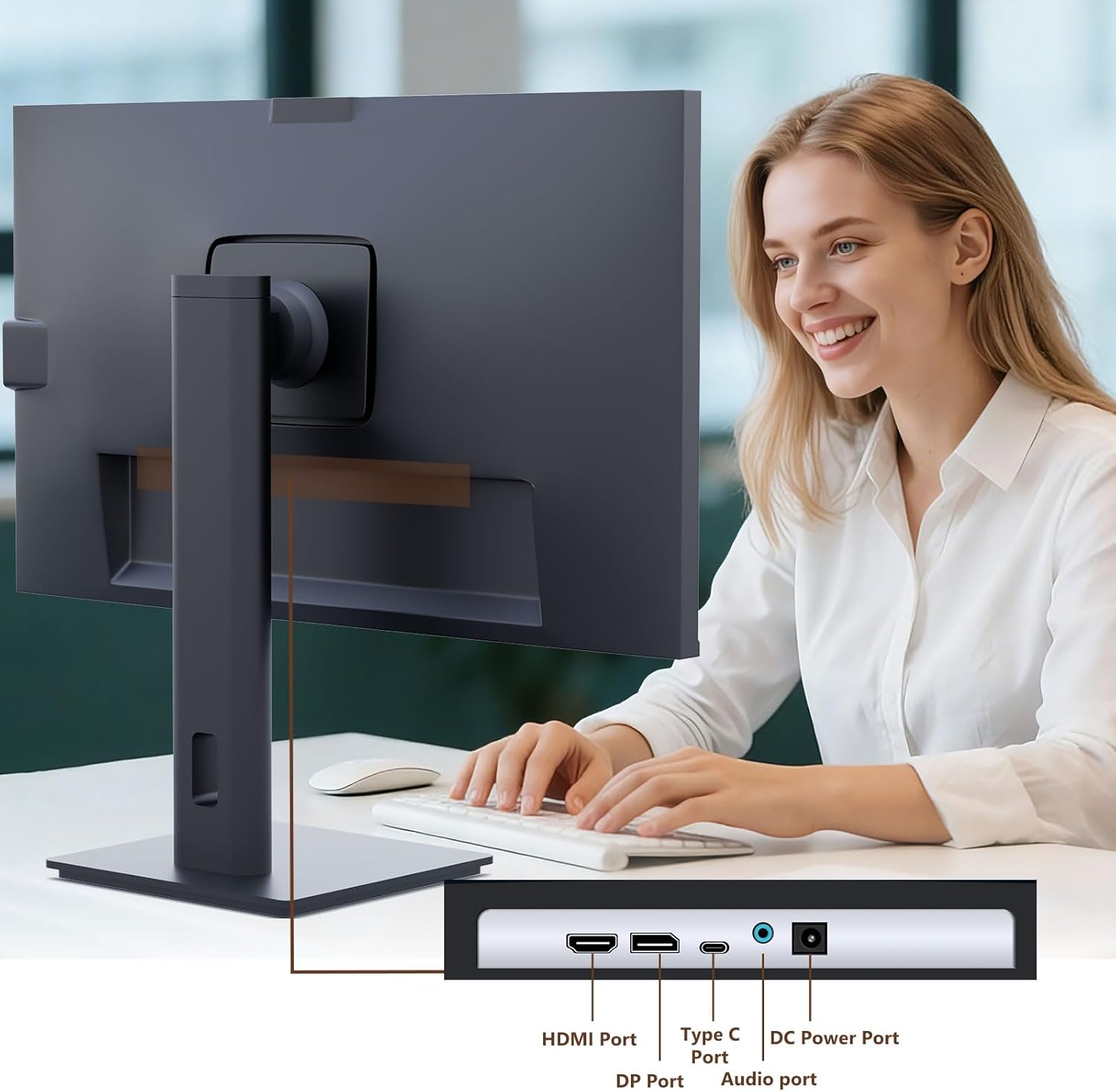
Figure 2: Available ports on the Pisichen monitor.

Figure 3: USB-C one-cable connection for simplified setup.

Figure 4: Connection options for desktop and laptop devices.
3. Počáteční zapnutí
Press the power button located on the monitor to turn it on. The monitor will automatically detect the active input source. If multiple sources are connected, you may need to select the correct input via the On-Screen Display (OSD) menu.
Návod k obsluze
1. Funkce dotykové obrazovky
The monitor supports 10-point multi-touch. Ensure the USB-C cable is connected (for full functionality) or the USB-A to USB-B cable is connected in addition to your video cable for touch input to work. Touch gestures are similar to those used on tablets or smartphones.
- Klepněte na: Single touch for selection or activation.
- Táhnout: Touch and hold, then move your finger to move items.
- Štípnutí/roztažení: Pro přiblížení nebo oddálení použijte dva prsty.
- Výpad: Pohybem prstu po obrazovce můžete posouvat nebo navigovat.

Figure 5: Demonstrating intuitive touch interaction.

Figure 6: Collaborative use of the multi-touch display.
2. Built-in WebPoužití kamery
The monitor features a pop-up webcam for privacy and convenience. To use the webcam, gently press the top center of the monitor frame where the webcam is located. It will pop up. To retract it, gently press it down until it clicks into place.
Ensure your operating system and video conferencing software recognize the webkamera. Pro základní funkce obvykle nejsou vyžadovány žádné další ovladače.

Figure 7: The monitor with its built-in pop-up webcam in use during a video conference.

Figure 8: High-definition video calls using the integrated webvačka.
3. Nabídka na obrazovce (OSD).
The OSD menu allows you to adjust various monitor settings. Use the buttons on the back or bottom of the monitor to navigate and select options.
- Jas/kontrast: Upravte úroveň jasu a kontrastu displeje.
- Nastavení barev: Upravte teplotu barev, gamu a další parametry související s barvami.
- Vstupní zdroj: Manually select between HDMI, DisplayPort, or USB-C inputs.
- Zvuk: Nastavení hlasitosti vestavěných reproduktorů nebo připojených sluchátek.
- Režim obrazu: Vyberte přednastavené režimy zobrazení (např. Standardní, Hra, Film).
- HDR: Enable or disable High Dynamic Range settings for improved dark detail optimization.

Figure 9: HDR feature for enhanced visual detail.
4. Ergonomické úpravy
Stojan monitoru umožňuje různá nastavení pro optimalizaci viewpohodlí:
- Nastavení výšky: Jemně zatlačte nebo zatáhněte monitor nahoru nebo dolů.
- Náklon: Tilt the screen forward or backward to find the ideal angle.
- Otočný: Otočte monitor doleva nebo doprava na jeho základně.
- Pivot: Otočení obrazovky o 90 stupňů pro režim na výšku viewIng.
Obrázek 10: Ergonomické nastavení pro optimální viewIng.
Údržba
- Čištění obrazovky: Jemně otřete obrazovku měkkým hadříkem, který nepouští vlákna. V případě odolných skvrn dampHadřík lehce navlhčete vodou nebo neabrazivním čističem obrazovek. Nestříkejte tekutinu přímo na obrazovku.
- Čištění těla: K otření povrchu monitoru použijte měkký, suchý hadřík.asing. Nepoužívejte silné čisticí prostředky nebo abrazivní čisticí prostředky.
- Skladování: Pokud monitor skladujete delší dobu, odpojte všechny kabely a uložte jej na chladném a suchém místě, nejlépe v originálním obalu.
Odstraňování problémů
Žádná síla
- Ujistěte se, že je napájecí kabel bezpečně připojen k monitoru i k elektrické zásuvce.
- Ověřte funkčnost elektrické zásuvky zapojením jiného zařízení.
- Zkontrolujte, zda je napájecí adaptér správně připojen k monitoru.
Žádný signál / Prázdná obrazovka
- Confirm the video cable (HDMI, DP, or USB-C) is securely connected to both the monitor and your device.
- Ujistěte se, že je v nabídce OSD monitoru vybrán správný vstupní zdroj.
- Zkontrolujte nastavení zobrazení počítače a ujistěte se, že je monitor detekován a povolen.
- Zkuste jiný video kabel nebo port, pokud je k dispozici.
Dotyková funkce nefunguje
- If using HDMI or DisplayPort, ensure the USB-A to USB-B cable is connected from your device to the monitor.
- If using USB-C, ensure your device's USB-C port supports DisplayPort Alternate Mode and touch data transmission.
- Check your operating system's touch settings.
- Note that some devices, such as game consoles (PS3/4/5, Xbox, Steam Deck, Fire TV Cube) and certain Apple products (iPhone, iPad, Switch), do not support touch functionality with this monitor.

Figure 11: Touch compatibility chart for various devices.
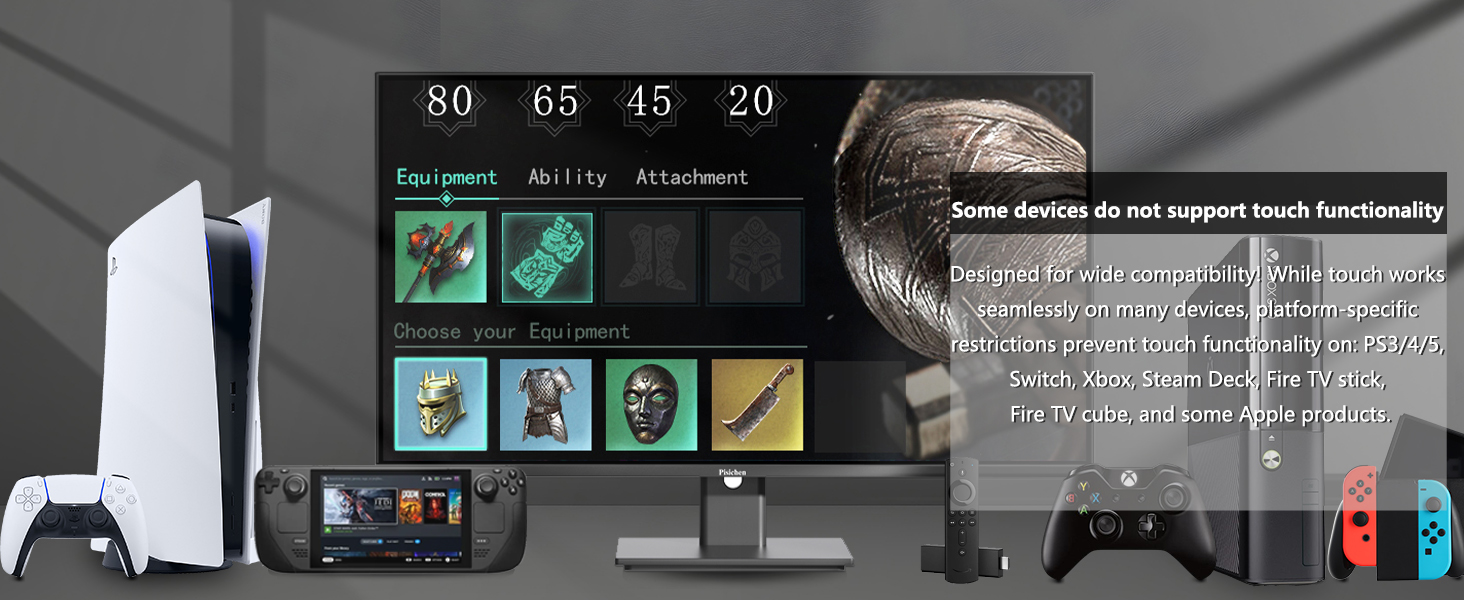
Figure 12: Devices that do not support touch functionality.
WebKamera nebyla detekována
- Zajistěte webcam is fully popped up.
- Verify that the USB connection (either USB-C or USB-A to USB-B) is properly established.
- Zkontrolujte nastavení soukromí operačního systému a ujistěte se, že aplikace mají přístup k fotoaparátu.
- Restartujte počítač.
Specifikace
| Funkce | Popis |
|---|---|
| Číslo modelu | 238TS-CMR |
| Velikost obrazovky | 23.8 palce |
| Rezoluce | 2560 x 1440 (QHD širokoúhlý 1440p) |
| Obnovovací frekvence | 100 Hz |
| Jas | 400 kandel (nitů) |
| Kontrastní poměr | 3000:1 |
| Dotyková technologie | 10bodový vícedotykový |
| Webvačka | Built-in Pop-up Camera |
| Konektivita | HDMI, DisplayPort (DP), USB Type-C, USB-B (upstream), Audio Out, DC Power |
| Poměr stran | 16:9 |
| Povrch obrazovky | Lesklý |
| Rozměry produktu | 1.97 x 21.26 x 12.6 palce |
| Hmotnost položky | 11.53 libry |
| Výrobce | Shenzhen Konowa Electronics Co., LTD |
Záruka a podpora
Your Pisichen monitor is covered by a limited warranty. Please refer to the warranty card included in your package for specific terms and conditions, including the warranty period and coverage details.
For technical support, troubleshooting assistance, or warranty claims, please contact Pisichen customer service. Contact information can typically be found on the manufacturer's webna webu nebo na záručním listu.
When contacting support, please have your monitor's model number (238TS-CMR) and purchase information readily available.