
1. Úvod
This manual provides detailed instructions for the setup, operation, maintenance, and troubleshooting of your ASHATA Business IP Phone. Designed for small to medium-sized businesses, this 2-line VoIP phone offers advanced features such as a 2.4-inch color display, dual 1000M Ethernet ports, Bluetooth 5.0 connectivity, noise cancellation, and integrated Power over Ethernet (PoE) for a streamlined communication experience.
2. Konec produktuview
2.1 Klíčové vlastnosti
- Dual Service Lines: Supports two service lines, ideal for managing multiple calls efficiently.
- 2.4palcový barevný displej: A clear, backlit graphical LCD for easy call management and information display.
- Integrované PoE: Power over Ethernet support simplifies installation by delivering power and data through a single cable.
- Bluetooth 5.0: Enables wireless connectivity for compatible headsets, offering greater mobility.
- Zrušení hluku: Minimizes background noise to ensure clear and uninterrupted conversations.
- Všestranná konektivita: Includes USB A, RJ9, and EHS ports for various headset options.
- Ergonomický design: Features an adjustable stand for optimal viewing angles and user comfort.
2.2 Obsah balení
Ověřte, zda jsou v balení přítomny všechny položky:
- ASHATA Business IP Phone Unit
- Sluchátko
- Kabel sluchátka
- Ethernetový kabel
- Stolní stojan
- Stručný průvodce (pokud je k dispozici)
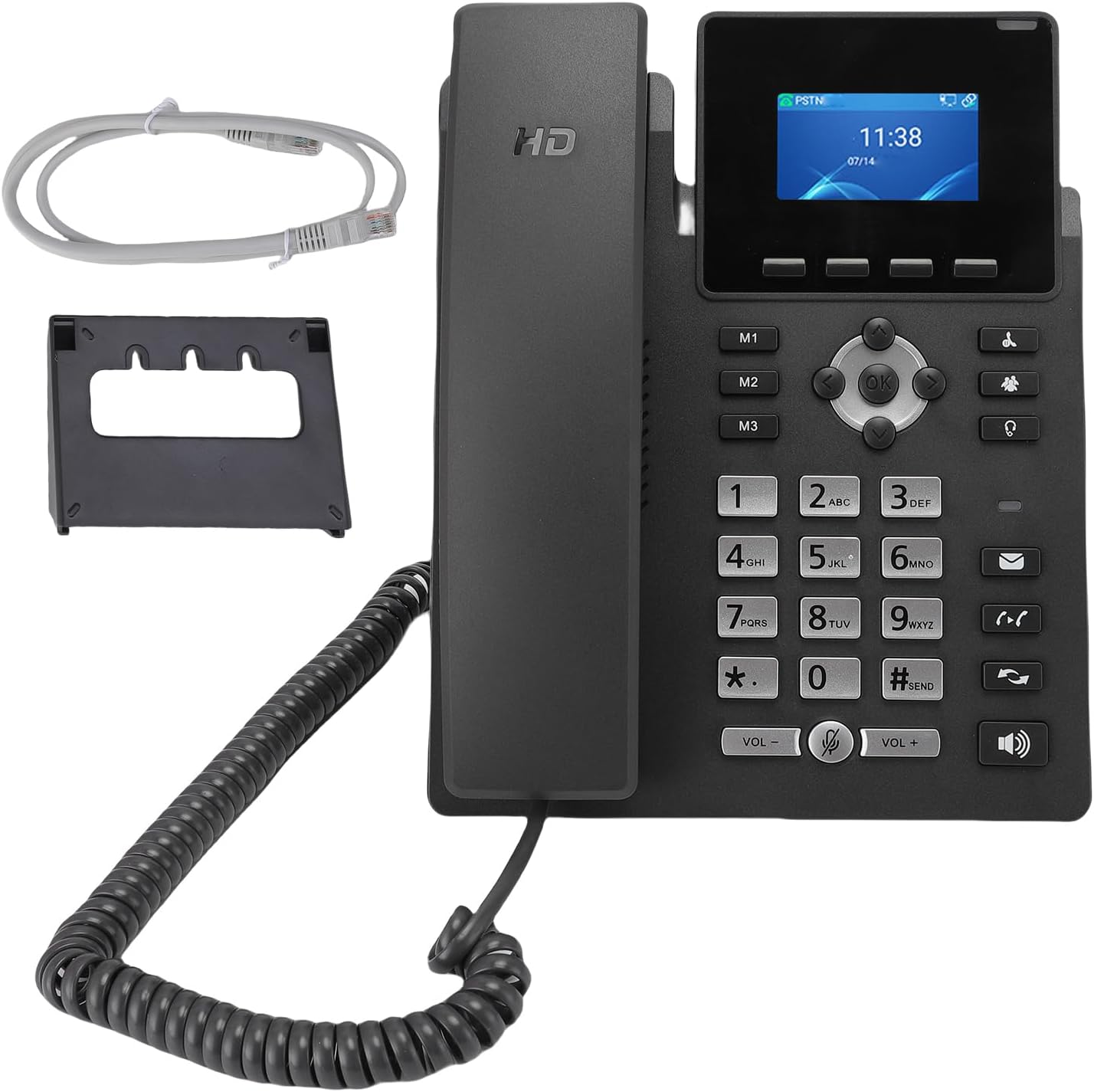
Image: The ASHATA Business IP Phone, showing the main unit, handset, coiled cord, desk stand, and an Ethernet cable, indicating the complete package contents.
3. Nastavení
3.1 Fyzická připojení
- Připojení sluchátka: Plug one end of the coiled handset cord into the handset and the other end into the handset port on the phone unit.
- Připojení k síti (PoE): If using Power over Ethernet, connect one end of the Ethernet cable to the LAN port on the back of the phone and the other end to a PoE-enabled network switch or router. The phone will power on automatically.
- Připojení k síti (bez PoE): If PoE is not available, connect one end of the Ethernet cable to the LAN port on the back of the phone and the other end to your network. Then, connect a compatible 5V DC power adapter (not included) to the DC 5V power port on the phone.
- Připojení počítače (volitelné): If you wish to connect a computer through the phone, use another Ethernet cable to connect the PC port on the phone to your computer's Ethernet port.
- Attach Desk Stand: Securely attach the included desk stand to the bottom of the phone unit. The stand allows for adjustable viewing úhly.

Obrázek: Zadní view of the ASHATA Business IP Phone, highlighting the LAN, PC, headset, and DC 5V power input ports for various connections.

Obrázek: Boční view of the ASHATA Business IP Phone, demonstrating the adjustable desk stand that allows for different viewing úhly.
3.2 Počáteční konfigurace
Upon first power-up, the phone will initiate its boot sequence. The 2.4-inch color display will show the boot progress. Once fully booted, the phone will attempt to obtain network settings via DHCP. If your network requires static IP configuration or specific VoIP server settings, these can be configured via the phone's menu system or a web interface (refer to your network administrator for details).
4. Návod k obsluze
4.1 Uskutečňování a přijímání hovorů
- Chcete-li zavolat: Pick up the handset or press the Speaker button. Dial the desired number using the keypad. Press the 'Send' or 'Dial' button (if available) or wait for the call to connect automatically.
- Chcete-li přijmout hovor: When the phone rings, pick up the handset or press the Speaker button. The display will show caller ID information if available.
- Použití displeje: The 2.4-inch color display provides information such as caller ID, call duration, and menu options. Use the navigation buttons (up, down, left, right, OK) to navigate through menus.
- Přenos hlasové schránky: During an active call, you can transfer the call to voicemail by following the on-screen prompts or using a dedicated 'Voicemail' or 'Transfer' button, then selecting the voicemail option.
4.2 Bluetooth 5.0 Připojení
The ASHATA Business IP Phone supports Bluetooth 5.0 for connecting wireless headsets.
- Povolit Bluetooth: Navigate to the phone's menu, find the Bluetooth settings, and enable it.
- Spárovat sluchátka: Put your Bluetooth headset into pairing mode. On the phone, select 'Scan for Devices' and choose your headset from the list. Follow any on-screen prompts to complete pairing.
- Use Headset: Once paired, you can typically answer/end calls using the headset's controls or by selecting the headset option on the phone.
4.3 Headset Compatibility
In addition to Bluetooth, the phone supports wired headsets via USB A, RJ9, and EHS ports. Connect your compatible headset to the appropriate port for hands-free communication.
4.4 Potlačení hluku
The integrated noise cancellation technology actively reduces background noise during calls, ensuring that your voice is transmitted clearly and that you can hear the other party without distraction. This feature is always active to provide optimal audio quality.

Obrázek: Shora dolů view of the ASHATA Business IP Phone, showing the 2.4-inch color display, numerical keypad, and various function buttons for call management.
5. Údržba
5.1 Čištění
- K čištění povrchu a displeje telefonu použijte měkký, suchý hadřík, který nepouští vlákna.
- Pro odolné skvrny lehce otřeteampnavlhčete hadřík vodou nebo jemným neabrazivním čisticím prostředkem.
- Avoid using harsh chemicals, abrasive cleaners, or aerosol sprays directly on the phone.
- Ensure the phone is powered off and unplugged before cleaning.
5.2 Obecná péče
- Chraňte telefon před přímým slunečním zářením, zdroji tepla a nadměrnou vlhkostí.
- Zabraňte pádu telefonu na zem nebo jeho vystavování silným nárazům.
- Nepokoušejte se telefon rozebírat, ztratíte tím záruku.
6. Řešení problémů
If you encounter issues with your ASHATA Business IP Phone, refer to the following common problems and solutions:
| Problém | Možná příčina | Řešení |
|---|---|---|
| Žádný oznamovací tón | Network cable loose or disconnected; Phone not powered; VoIP registration failed. | Check Ethernet cable connection. Ensure power adapter (if not PoE) is connected. Verify network connectivity and VoIP account registration status on the display. |
| Nelze uskutečňovat/přijímat hovory | VoIP account not registered; Incorrect network settings; Firewall blocking VoIP traffic. | Check VoIP account status on the display. Verify network settings (IP address, gateway, DNS). Consult your network administrator regarding firewall settings. |
| Poor audio quality (echo, static) | Network congestion; Faulty handset/headset; Environmental noise. | Check network bandwidth. Try a different handset or headset. Ensure noise cancellation is active (it is by default). |
| Bluetooth headset not connecting | Headset not in pairing mode; Bluetooth disabled on phone; Interference. | Ensure headset is in pairing mode. Verify Bluetooth is enabled on the phone. Move closer to the phone and away from other wireless devices. |
7. Specifikace
| Funkce | Detail |
|---|---|
| Značka | ASHATA |
| Model | Firemní IP telefon |
| Barva | Černý |
| Typ telefonu | Kabelové |
| Zobrazit | 2.4-inch Color Graphical LCD (Backlit) |
| VoIP Lines | 2 Service Lines |
| Ethernetové porty | Dual 1000M (Gigabit) Ethernet Ports (LAN, PC) |
| Moc | Power over Ethernet (PoE) or DC 5V Power Adapter (not included) |
| Bluetooth | Bluetooth 5.0 |
| Headset Ports | USB A, RJ9, EHS |
| Potlačení hluku | Integrovaný |
| Konferenční funkce | Základní |
| ID volajícího | No (as per specifications, though display shows it if provided by service) |
| Multiple Simultaneous Calls | Multi-line operation |
| Země původu | Čína |
| ASIN | B0FX1R3R15 |
8. Záruka a podpora
For warranty information and technical support, please refer to the documentation provided with your purchase or contact your vendor. Keep your purchase receipt as proof of purchase for any warranty claims.