
1. Konec produktuview
The KEFEYA KX2 is a portable 14-inch Full HD 1080P IPS dual laptop monitor extender designed to enhance productivity by providing additional screen real estate. It features a lightweight, ultra-portable design with versatile connectivity options for a seamless multi-screen experience.
- Ultra přenosný a lehký: Weighing only 1.9lb, this screen extender is designed for easy transport, making it ideal for mobile workstations.
- Živý FHD IPS displej: Enjoy sharp, clear visuals with a 14-inch IPS panel, 1080P FHD resolution, 60Hz refresh rate, 300CD/M² brightness, and 1000:1 contrast ratio.
- Wide Compatibility & Plug-Play: Supports one-cable connectivity via USB-C and is compatible with Windows, MacBook, Switch, PS5, and more. Also supports HDMI + USB-A connections.
- Stable Clip-On Design: Features top dual clips and a side retractable clip for secure attachment to 13-17 inch laptops, preventing slippage.
- Flexibilní Viewing: The screen rotates 226° and the retractable stand adjusts 90° for ergonomic positioning. Supports Extended, Duplicated, and Portrait modes.

Image: The KEFEYA KX2 14-inch Dual Laptop Screen Extender attached to a laptop, showcasing jeho funkci dvou obrazovek.
2. Pokyny k nastavení
2.1. Vybalení a komponenty
Před instalací se ujistěte, že jsou přítomny všechny komponenty:
- KX2 Monitor (Item 1)
- USB-A to USB-C Cable (Item 2)
- USB-C to USB-C Cable (Item 3)
- HDMI to Mini HDMI Cable (Item 4)
- User Manual (Item 5)

Image: A visual representation of the KEFEYA KX2 packing list, detailing the monitor, cables, and documentation.
2.2. Attaching to Your Laptop
- Open the screen extender. The screen is facing up.
- Slide out the outrigger arms to fit your laptop's width (compatible with 13 to 17.3 inch laptops).
- Adjust the kickstand: First, open the support rod and stretch it to the appropriate size. The support rod only supports counter-clockwise rotation of 90 degrees. The maximum opening angle of the support rod is 90 degrees; excessive folding may damage it.
- Securely clip the extender onto the top edge of your laptop screen using the top dual clips and side retractable clip.
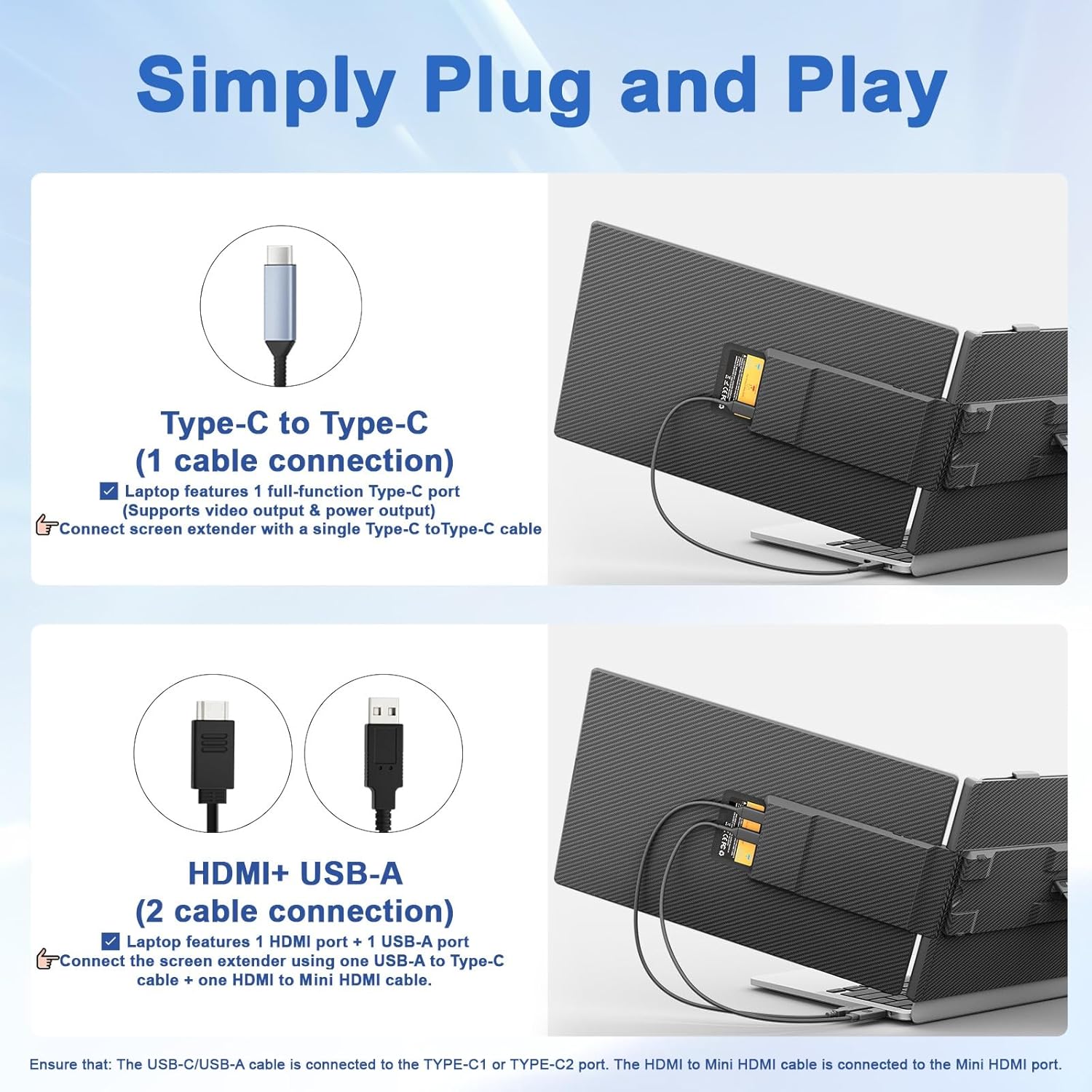
Image: The KEFEYA KX2 extender showcasing its ultra-portable design, including the wider and thicker kickstand with 0-90° adjustment and non-slip top clamps.
2.3. Připojení k notebooku
The KX2 offers flexible connection options:
- Type-C (1 cable connection): If your laptop has a full-functional Type-C port (supporting video output & power output), use one USB-C to USB-C cable to connect the product to your laptop. Connect the USB-C cable to the screen extender's port with "TYPE-C1" or "TYPE-C2" marked.
- HDMI + USB-A (2 cable connection): If your laptop has 1 HDMI port + 1 USB-A port, use two cables: one USB-A to USB-C cable to connect the screen extender using one USB-A to Type-C cable + one HDMI to Mini HDMI cable. The HDMI-to-Mini HDMI cable must be connected to the MINI HDMI port of the video screen extender. Please connect the USB-C cable to the screen extender's port with "TYPE-C1" or "TYPE-C2" marked.
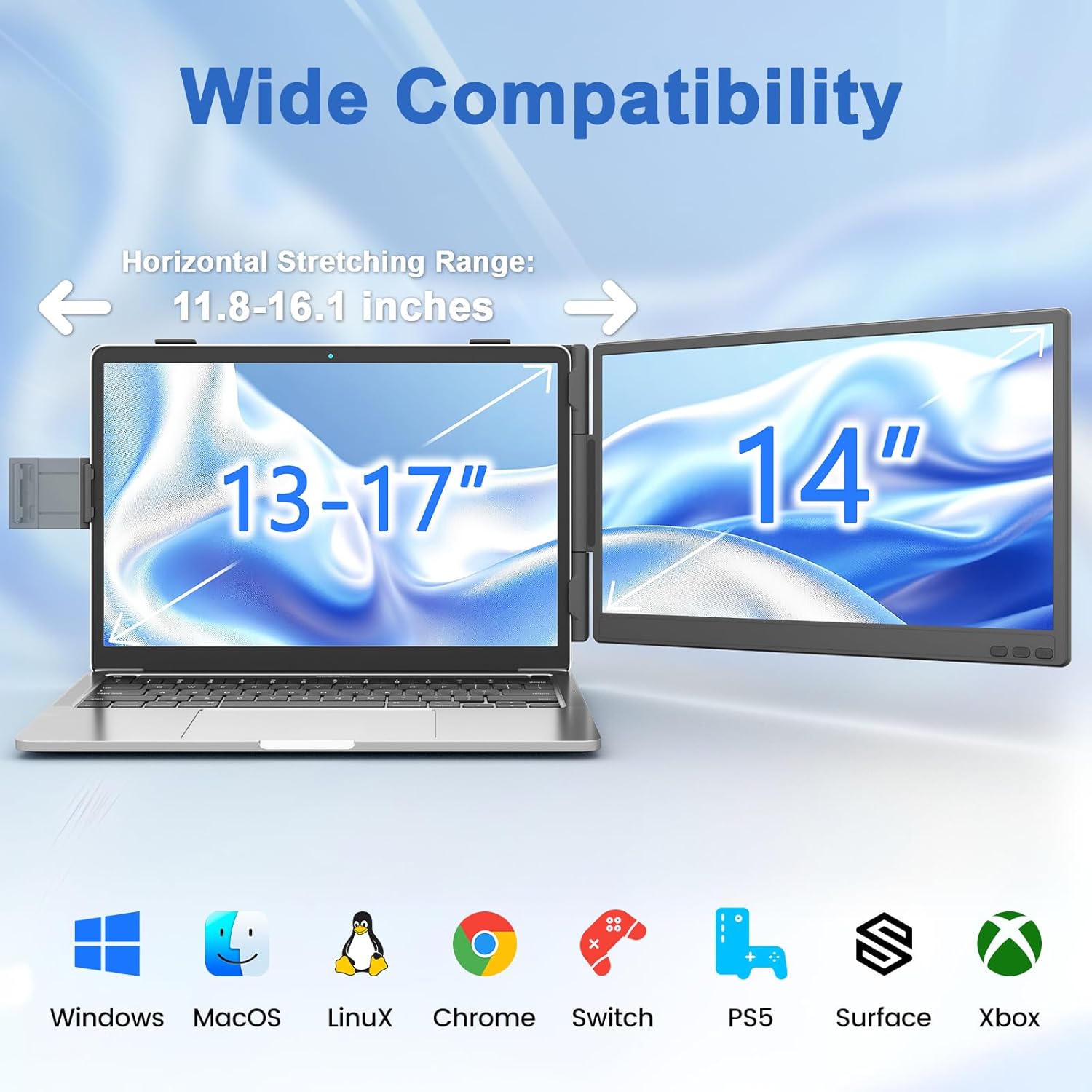
Image: Diagram illustrating the two primary connection methods for the KEFEYA KX2: a single USB-C cable or a combination of HDMI and USB-A cables.
Poznámka:
- If power supply to the computer via the screen splitter is required, use a Type-C cable to connect the screen splitter to the computer. Meanwhile, the screen splitter must be connected to an external PD adapter with a power rating of 65W or higher, and the computer's Type-C port must support PD protocol for charging.
- If the display has no signal or the signal is unstable after connection, please connect an external 5V/2A power adapter to power the screen extender.
3. Návod k obsluze
3.1. Úprava nastavení zobrazení
The KX2 features buttons for menu navigation, volume adjustment, and backlight adjustment:
- Tlačítko Nabídka/Výběr/Potvrzení: Stisknutím a podržením po dobu 2 sekund se vrátíte. Stisknutím a podržením po dobu 3 sekund se vypne.
- "Plus" Button: Nastavení hlasitosti.
- "Minus" Button: Nastavení podsvícení.
To adjust volume, press the "Plus" button first, then use either "Plus" or "Minus". To adjust backlight, press the "Minus" button first, then use either "Plus" or "Minus".
3.2. Režimy zobrazení
The screen extender supports various display modes to suit your workflow:
- Rozšířený režim: Expands your desktop across multiple screens.
- Duplicated (Mirror) Mode: Duplicates your primary screen's content.
- Režim Portrét: Otočí displej svisle viewing, ideal for documents or code.

Obrázek: Vizuální examples of the KEFEYA KX2 operating in Portrait, Extend, and Mirror display modes.
3.3. Kompatibilita
The KEFEYA KX2 is widely compatible with various operating systems and devices:
- Operační systémy: Windows, MacOS, Linux, Chrome OS.
- Zařízení: Laptops (13-17 inches), Nintendo Switch, PS5, Surface, Xbox.

Image: The KEFEYA KX2 demonstrating wide compatibility with different laptop sizes and gaming consoles.
4. Údržba
To ensure the longevity and optimal performance of your KEFEYA KX2 screen extender, please follow these maintenance guidelines:
- Čištění: Use a soft, dry cloth to gently wipe the screen and exterior. Avoid abrasive cleaners or solvents.
- Zacházení: Always handle the device with care. Avoid dropping it or subjecting it to strong impacts.
- Skladování: When not in use, ensure the small flap closes properly before storing the screen. Store in a cool, dry place away from direct sunlight and extreme temperatures.
- Vyhněte se ostrým předmětům: Do not use sharp tools or objects near the screen, as this may cause scratches or damage.
- Příkon: Ensure the DC power input is suitable for the product to prevent damage.
5. Řešení problémů
If you encounter issues with your KEFEYA KX2, refer to the following common problems and solutions:
- No Signal / Unstable Signal:
- Ensure all cables (USB-C, HDMI, USB-A) are securely connected to both the screen extender and your device.
- If using HDMI + USB-A, confirm the USB-A cable is connected to a power source (e.g., external 5V/2A adapter) to power the screen extender.
- Verify that your laptop's USB-C port is full-featured (supports video output and power delivery) if using a single USB-C cable.
- Try connecting to a different port on your laptop or another device to rule out port issues.
- Obrazovka se nerozsvítí:
- Confirm the screen extender is receiving adequate power. Connect an external 5V/2A power adapter if your computer cannot provide enough power.
- Check the power button on the screen extender to ensure it's not accidentally turned off.
- Display Settings Issues (Resolution, Orientation):
- Adjust display settings directly on your computer's operating system (e.g., Windows Display Settings, MacOS Displays).
- Ensure the resolution is set to 1920x1080 for optimal clarity.
- For orientation, adjust in your computer's display settings to Extended, Duplicated, or Portrait mode as desired.
For further assistance, please consult the full user manual or contact KEFEYA customer support.
6. Specifikace
| Funkce | Specifikace |
|---|---|
| Značka | KEFEYA |
| Název modelu | 2 KX |
| Velikost obrazovky | 14 palce |
| Rezoluce | FHD 1080p (1920 x 1080 pixelů) |
| Typ zobrazení | IPS LCD |
| Obnovovací frekvence | 60 Hz |
| Jas | 300 kandel na metr čtvereční |
| Kontrastní poměr | 1000:1 |
| Viewúhel | 178 stupňů |
| Doba odezvy | 5 milisekund |
| Technologie připojení | USB-C, Mini HDMI, USB-A |
| Hmotnost položky | 0.88 kilogramů (1.9 liber) |
| Rozměry položky (D x Š x V) | 1.1"H x 13.5"Š x 8.15"V |
| Barva | Černý |
7. Záruka a podpora
The KEFEYA KX2 Laptop Screen Extender comes with a 1-letá záruka od data nákupu. Tato záruka se vztahuje na výrobní vady a zajišťuje, že váš výrobek bude při běžném používání fungovat dle určení.
For any issues, questions, or support needs, please contact the KEFEYA customer service team. Our team is dedicated to providing a hassle-free experience and will assist you with troubleshooting or warranty claims.
Please refer to the contact information provided in your user manual or on the official KEFEYA webweb s nejaktuálnějšími kanály podpory.