
Zavedení
This manual provides essential information for setting up, operating, maintaining, and troubleshooting your HP ProStudio 4 AiO G1i All-in-One Computer. This system integrates a powerful Intel Core Ultra 5 processor, 16 GB DDR5 RAM, and a 512 GB NVMe SSD into a compact 23.8-inch Full HD display, running on Windows 11 Pro. It is designed for business use, offering advanced performance and security features.
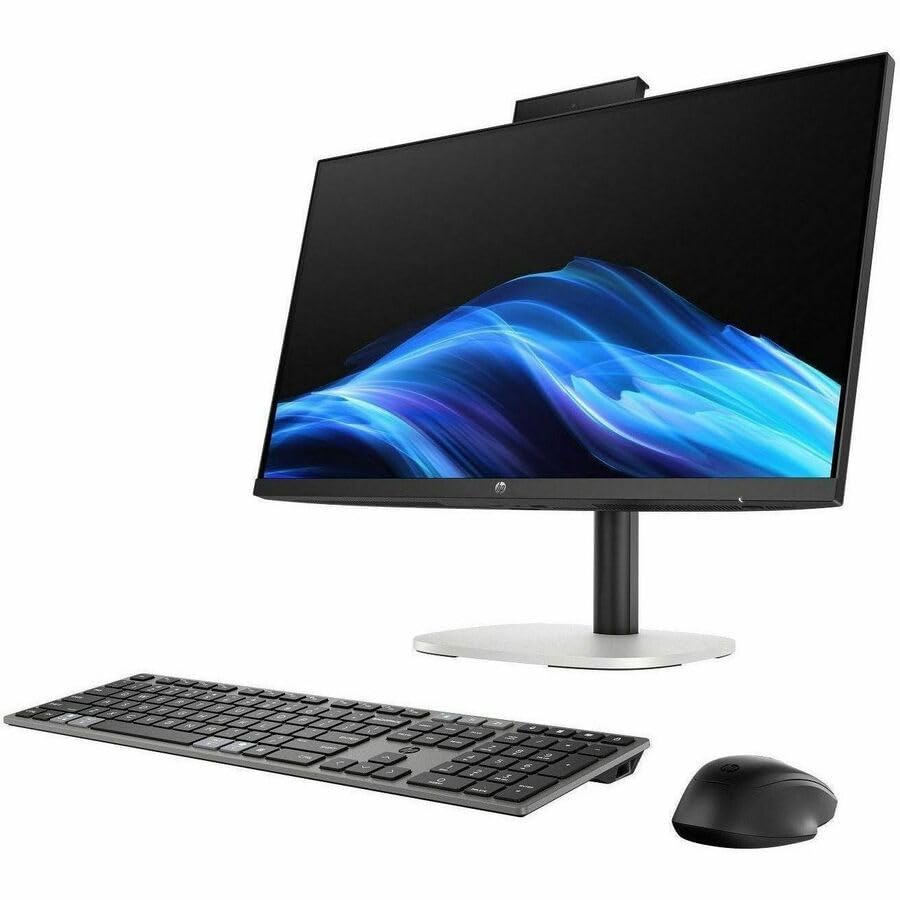
Obrázek: Přední strana view of the HP ProStudio 4 AiO G1i All-in-One Computer, showcasinjeho elegantní design.
Co je v krabici
Před zahájením instalace ověřte, zda jsou v balení přítomny všechny součásti.
- HP ProStudio 4 All-in-One G1i 23.8 inch Desktop AI PC Wolf Pro Security Edition
- Napájecí adaptér
- HP 125 v2 Wired Keyboard
- Kabelová myš HP 125

Image: The HP ProStudio 4 AiO G1i All-in-One Computer displayed with its accompanying wired keyboard and mouse.
Pokyny pro nastavení
- Rozbalení systému: Carefully remove the All-in-One computer and all accessories from the packaging. Place the computer on a stable, flat surface.
- Připojení klávesnice a myši: Plug the USB cables from the HP 125 v2 Wired Keyboard and HP 125 Wired Mouse into the available USB ports on the rear of the All-in-One computer.
- Připojte napájení: Connect the power adapter cable to the power input port on the rear of the computer, then plug the power adapter into a wall outlet.
- Zapnutí: Press the power button, typically located on the side or bottom edge of the display, to turn on the computer.
- Počáteční nastavení: Postupujte podle pokynů na obrazovce a dokončete počáteční nastavení systému Windows 11 Pro, včetně výběru jazyka, síťového připojení a vytvoření uživatelského účtu.

Obrázek: Zadní view of the HP ProStudio 4 AiO G1i, highlighting the various input/output ports for connecting peripherals and power.
Návod k obsluze
Zapnutí/vypnutí
- Zapnutí: Press the power button. The system will boot up to the Windows 11 Pro desktop.
- Vypnout: Klikněte na tlačítko Start, poté na Napájení a vyberte „Vypnout“.
- Restartovat: Klikněte na tlačítko Start, poté na Napájení a vyberte „Restartovat“.
- Spát: Klikněte na tlačítko Start, poté na Napájení a vyberte „Spánek“.
Používání systému Windows 11 Pro
Your HP ProStudio 4 AiO G1i comes pre-installed with Windows 11 Pro. Familiarize yourself with the operating system's interface, including the Start menu, taskbar, and settings. For detailed information on Windows 11 Pro features, refer to the official Microsoft documentation.
AI Capabilities and vPro Technology
This system features an Intel Core Ultra 5 processor with integrated AI capabilities, designed to enhance performance for AI-driven applications and tasks. Intel vPro Technology provides hardware-enhanced security and manageability features, ideal for business environments. Consult your IT administrator for specific vPro functionalities within your organization.

Image: Two individuals interacting with the HP ProStudio 4 AiO G1i in a professional office environment, demonstrating its use in collaborative settings.
Údržba
- Čištění displeje: Použijte měkký hadřík, který nepouští vlákna dampened with water or a non-abrasive screen cleaner. Avoid spraying liquids directly onto the screen.
- Čištění podvozku: Wipe the exterior surfaces with a soft, dry cloth. Do not use harsh chemicals or abrasive materials.
- Aktualizace softwaru: Pravidelně kontrolujte a instalujte aktualizace systému Windows a aktualizace ovladačů HP, abyste zajistili optimální výkon a zabezpečení.
- Větrání: Ujistěte se, že ventilační otvory na počítači nejsou blokovány, aby nedošlo k přehřátí.
Odstraňování problémů
Běžné problémy a řešení
- Bez napájení:
- Verify the power adapter is securely connected to both the computer and a working electrical outlet.
- Otestujte zásuvku jiným zařízením.
- Bez displeje:
- Ujistěte se, že je počítač zapnutý.
- Upravte nastavení jasu displeje.
- If an external monitor is connected, ensure it is properly configured.
- Klávesnice/myš nereaguje:
- Check USB cable connections to the computer.
- Zkuste připojit klávesnici/myš k různým USB portům.
- Restartujte počítač.
- Zpomalení systému:
- Zavřete nepotřebné aplikace.
- Check for background processes consuming high resources using Task Manager.
- Zajistěte dostatek volného místa na SSD disku.
- Spusťte kontrolu systému na přítomnost malwaru.
Specifikace
| Funkce | Detail |
|---|---|
| Číslo modelu | C72RZUT#ABA |
| Velikost displeje | 23.8 palce |
| Rozlišení obrazovky | 1920 x 1080 (Full HD) |
| Procesor | Intel Core Ultra 5 (Tetradeca-core, 14 Core), 5 GHz |
| BERAN | 16 GB DDR5 |
| Skladování | 512 GB PCI Express NVMe SSD |
| Grafika | Integrovaný |
| Operační systém | Windows 11 Pro |
| Bezdrátové připojení | 802.11ax, Bluetooth |
| Rozměry (DxŠxV) | 18.7 x 7.9 x 29.3 palce |
| Hmotnost položky | 13.89 libry |
Záruka a podpora
Your HP ProStudio 4 AiO G1i All-in-One Computer is covered by HP's standard warranty. For detailed warranty information, please refer to the warranty documentation included with your product or visit the official HP support webmísto.
For technical assistance, driver downloads, or further support, please visit the HP support website or contact HP customer service. Have your product model number (C72RZUT#ABA) and serial number ready when contacting support.