1. Konec produktuview
This manual provides instructions for the SOYO X99 Motherboard Set Kit, designed for high-performance desktop computers. The kit includes an X99 motherboard with an LGA2011-3 socket, a Xeon E5 2650 V4 CPU, and 16GB of DDR4 RAM. It supports NVME M.2 storage for fast data transfer and is suitable for demanding applications such as gaming and video editing.
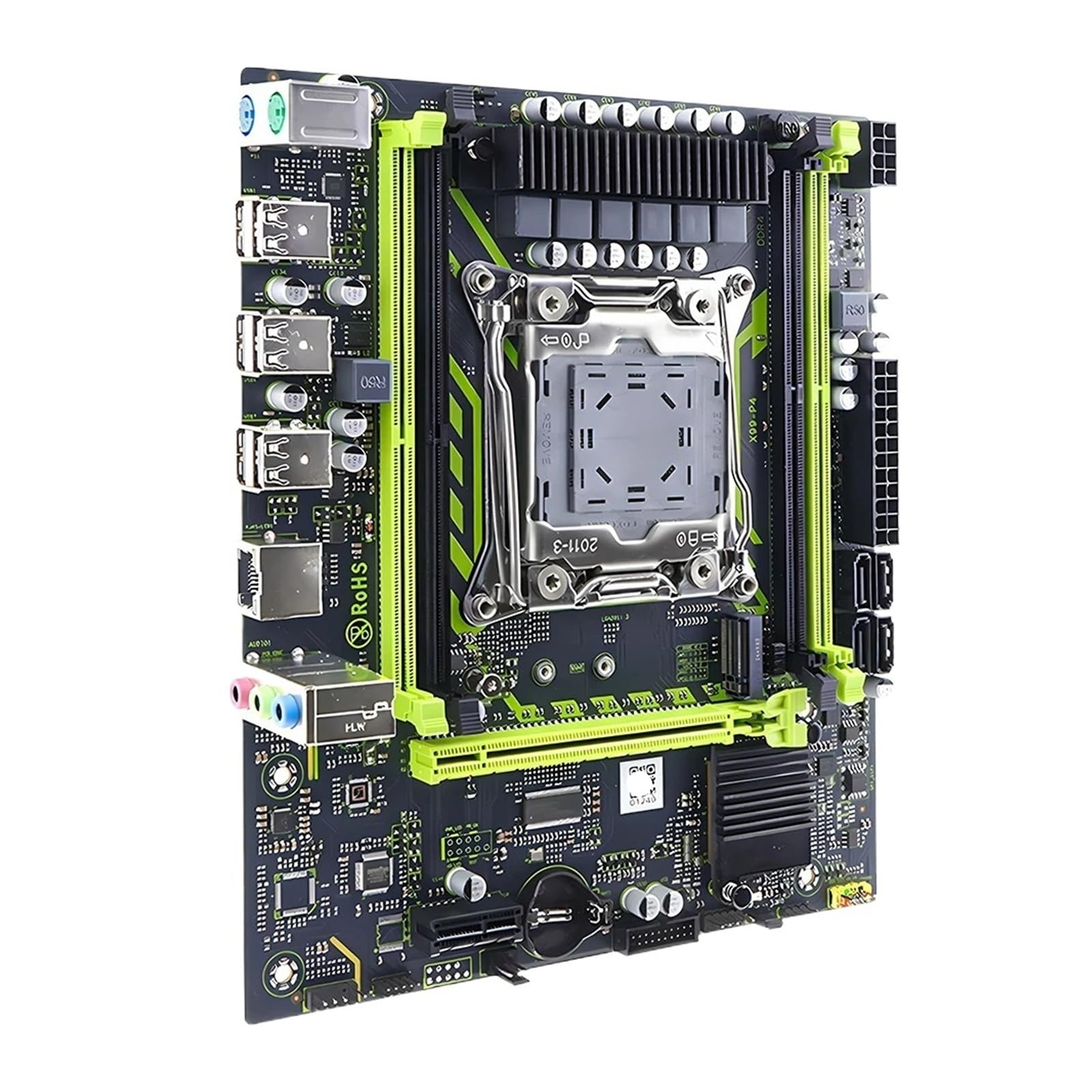
Obrázek 1.1: Nadview of the SOYO X99 Motherboard Set Kit. This image displays the motherboard with the CPU socket, RAM slots, and various ports visible.
2. Obsah balení
Verify that all items are present in the package before proceeding with installation. If any components are missing or damaged, contact your vendor.
- SOYO X99 Motherboard
- Intel Xeon E5 2650 V4 CPU (pre-installed or separate)
- 16GB DDR4 RAM (modules, quantity may vary)
- Datové kabely SATA
- I / O štít
- Uživatelská příručka (tento dokument)
- CD/USB s ovladači (pokud je součástí balení)
3. Pokyny k nastavení
Follow these steps carefully to ensure proper installation of your motherboard kit.
3.1. Příprava
- Ensure your workspace is clean, well-lit, and free of static electricity. Use an anti-static wrist strap or frequently touch a grounded metal object.
- Gather necessary tools: Phillips head screwdriver, thermal paste (if CPU is not pre-installed with cooler), zip ties for cable management.
- Opatrně vybalte všechny součásti.
3.2. CPU Installation (if not pre-installed)
- Najděte na základní desce patici procesoru LGA2011-3.
- Open the CPU socket retention mechanism by pushing down and out on the lever(s).
- Carefully align the CPU with the socket. Match the gold triangle on the CPU with the triangle on the socket. Do not force the CPU into the socket.
- Gently lower the CPU into place.
- Zavřete zajišťovací mechanismus zatlačením páky (páček) zpět do zablokované polohy.
- Apply a small amount of thermal paste to the center of the CPU (if not pre-applied on the cooler).
- Install the CPU cooler according to its specific instructions.

Obrázek 3.1: Detailní záběr view of the SOYO X99 Motherboard, highlighting the LGA2011-3 CPU socket and surrounding components. This view je klíčový pro instalaci CPU.
3.3. Instalace RAM
- Vyhledejte sloty DDR4 DIMM na základní desce.
- Otevřete pojistné klipy na obou koncích slotu DIMM.
- Zarovnejte zářez na modulu paměti DDR4 RAM s výstupkem ve slotu DIMM.
- Insert the RAM module firmly into the slot until the retention clips snap into place. Ensure both clips are fully closed.
- Repeat for all RAM modules.

Obrázek 3.2: Úhlové view of the SOYO X99 Motherboard, showing the DDR4 RAM slots and their proximity to the CPU socket. This perspective aids in proper RAM module insertion.
3.4. Instalace základní desky do skříně
- Nainstalujte kryt I/O do zadního otvoru skříně počítače.
- Zarovnejte základní desku s distančními výčnělky uvnitř skříně.
- Základní desku zajistěte šrouby a ujistěte se, že je pevně usazena, ale ne příliš utažená.
3.5. Připojení periferií
- Napájení: Connect the 24-pin ATX power connector and the 8-pin (or 4+4 pin) CPU power connector from your power supply to the motherboard.
- Skladování: Connect SATA data cables from your storage drives (HDD/SSD) to the SATA ports on the motherboard. If using an NVME M.2 drive, install it into the M.2 slot and secure it with the provided screw.
- Konektory na předním panelu: Připojte tlačítko napájení, tlačítko resetování, LED HDD, LED napájení a USB/audio konektory ze skříně k odpovídajícím pinům na základní desce. Správnou orientaci naleznete na sítotiskových štítcích základní desky.
- Grafická karta: Install your graphics card into the primary PCIe x16 slot and connect any necessary PCIe power cables from the power supply.
- Další periferie: Connect any additional expansion cards (e.g., Wi-Fi card) to available PCIe slots.
4. Návod k obsluze
4.1. První spuštění
- After connecting all components and power, press the power button on your computer case.
- Systém by se měl zapnout a na monitoru byste měli vidět obrázek.
- Pokud se nezobrazí žádný displej, podívejte se do části Řešení problémů.
4.2. Nastavení BIOSu/UEFI
- Během spouštění opakovaně stiskněte tlačítko DEL key (or F2, F10, F12 depending on BIOS version) to enter the BIOS/UEFI setup utility.
- V systému BIOS můžete nakonfigurovat pořadí spouštění, systémový čas, rychlost ventilátorů a další hardwarová nastavení.
- Uložte změny a ukončete BIOS, abyste mohli pokračovat ve spouštění.
4.3. Instalace operačního systému
- Insert your operating system installation media (USB drive or DVD) into the computer.
- Boot from the installation media (you may need to adjust the boot order in BIOS).
- Postupujte podle pokynů na obrazovce a nainstalujte preferovaný operační systém.
- After OS installation, install the necessary drivers for the motherboard chipset, graphics card, audio, and network. These can usually be found on the manufacturer's webwebu nebo na dodaném médiu s ovladači.
5. Údržba
Pravidelná údržba pomáhá zajistit dlouhou životnost a optimální výkon vašeho systému.
- Odstranění prachu: Pravidelně čistěte prach z vnitřku počítačové skříně, zejména z ventilátorů a chladičů, pomocí stlačeného vzduchu. Před čištěním se ujistěte, že je systém vypnutý a odpojený od sítě.
- Aktualizace BIOSu: Zkontrolujte výrobce website for BIOS/UEFI updates. Updates can improve stability, add new features, or fix bugs. Follow the manufacturer's instructions carefully when updating the BIOS.
- Aktualizace ovladačů: Keep your drivers updated for optimal performance and compatibility.
- Správa kabelů: Zajistěte úhledné vedení kabelů, aby se zlepšilo proudění vzduchu a zabránilo se rušení.
6. Řešení problémů
Tato část se zabývá běžnými problémy, se kterými se můžete setkat.
6.1. Žádné napájení / Žádné spuštění
- Zkontrolujte připojení napájení: Ujistěte se, že jsou 24pinový napájecí kabel ATX a 8pinový napájecí kabel CPU bezpečně připojeny k základní desce a zdroji napájení.
- Napájení: Verify the power supply switch is in the "ON" position and the power cable is firmly plugged into both the PSU and the wall outlet.
- Konektory na předním panelu: Double-check the power button connector on the motherboard. Try shorting the power pins with a screwdriver to rule out a faulty case button.
- Minimální bootování: Disconnect all non-essential components (storage drives, extra RAM sticks, expansion cards) and try booting with only the CPU, one RAM stick, and the graphics card (if no integrated graphics).
6.2. No Display / POST Errors
- Připojení monitoru: Ensure your monitor is connected to the graphics card (or integrated graphics port, if applicable) and is powered on.
- Sedadla RAM: Re-seat the RAM modules firmly in their slots. Try booting with only one RAM stick.
- Grafická karta: Ensure the graphics card is fully seated in its PCIe slot and any required PCIe power cables are connected.
- BIOS Beep Codes: Listen for beep codes from the motherboard's speaker. Refer to the motherboard's specific documentation (if available) for beep code meanings, as they indicate specific hardware issues.
6.3. Problémy s operačním systémem
- Instalace ovladače: Ensure all necessary drivers (chipset, graphics, network) are installed and up to date.
- Storage Detection: Verify that your storage drives are detected in the BIOS/UEFI.
- Přeinstalace operačního systému: If issues persist, a clean reinstallation of the operating system may be necessary.
7. Specifikace
Key specifications for the SOYO X99 Motherboard Set Kit:
| Funkce | Detail |
|---|---|
| Model základní desky | SOYO X99 |
| Zásuvka CPU | LGA2011-3 |
| Zahrnutý procesor | Procesor Intel Xeon E5 2650 V4 |
| Zahrnutá RAM | 16 GB DDR4 |
| Podpora úložiště | NVME M.2, SATA |
| Číslo modelu položky | SVCBYUYUU |
| Hmotnost položky | 12.4 unce (cca 351 gramů) |
| Výrobce | Obecný |
8. Záruka a podpora
For warranty information and technical support, please refer to the documentation provided with your purchase or contact the seller directly. Warranty terms may vary based on region and retailer.
Uschovejte si doklad o koupi pro případné reklamace.