
1. Úvod
This manual provides essential information for setting up, operating, maintaining, and troubleshooting your HP EliteDesk 800 G9 Mini Desktop. Please read these instructions carefully before using your device to ensure optimal performance and longevity.
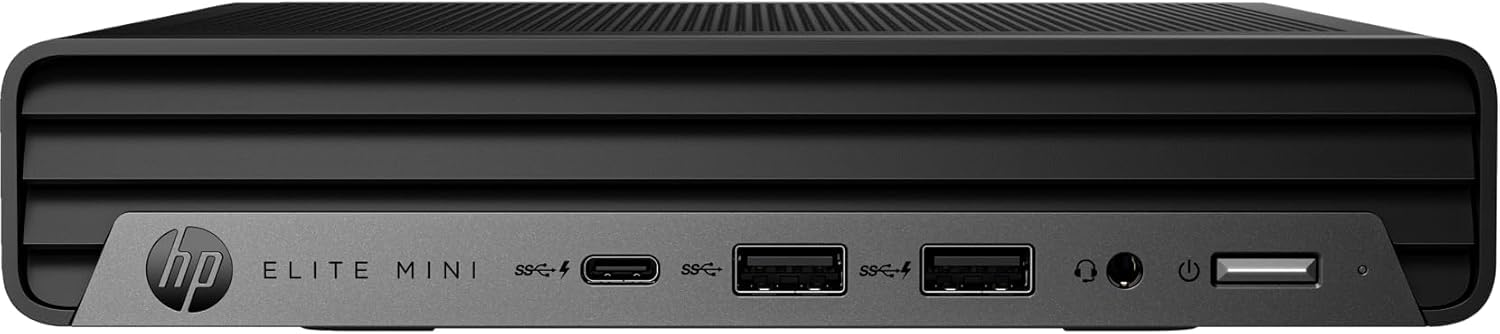
Figure 1: HP EliteDesk 800 G9 Mini Desktop
The HP EliteDesk 800 G9 Mini Desktop is a compact and powerful computing solution designed for efficiency. It features an Intel 12th Generation Core i5-12500T (6-Core) processor, 16GB of RAM, and a 256GB PCIe SSD, running on Windows 11 Pro. Integrated Intel WiFi 6 AX211 and Bluetooth provide robust wireless connectivity.
2. Co je v krabici
Upon unboxing your HP EliteDesk 800 G9 Mini Desktop, verify that all the following components are included:
- HP EliteDesk 800 G9 Mini Desktop PC
- HP OEM 90W Power Adapter
- Kabelová klávesnice
- Wired Mouse
- Dokumentace (Stručný průvodce, Bezpečnostní informace)
3. Konec produktuview
3.1 Přední panel

Figure 2: Front Panel Ports and Features
- 1 Konektor náhlavní soupravy
- 1 SuperSpeed USB Type-A přenosová rychlost 10 Gb/s
- 1 SuperSpeed USB Type-A 10Gbps signalizační rychlost (nabíjení)
- 1 SuperSpeed USB Type-C s přenosovou rychlostí 20 Gb/s
3.2 Zadní panel
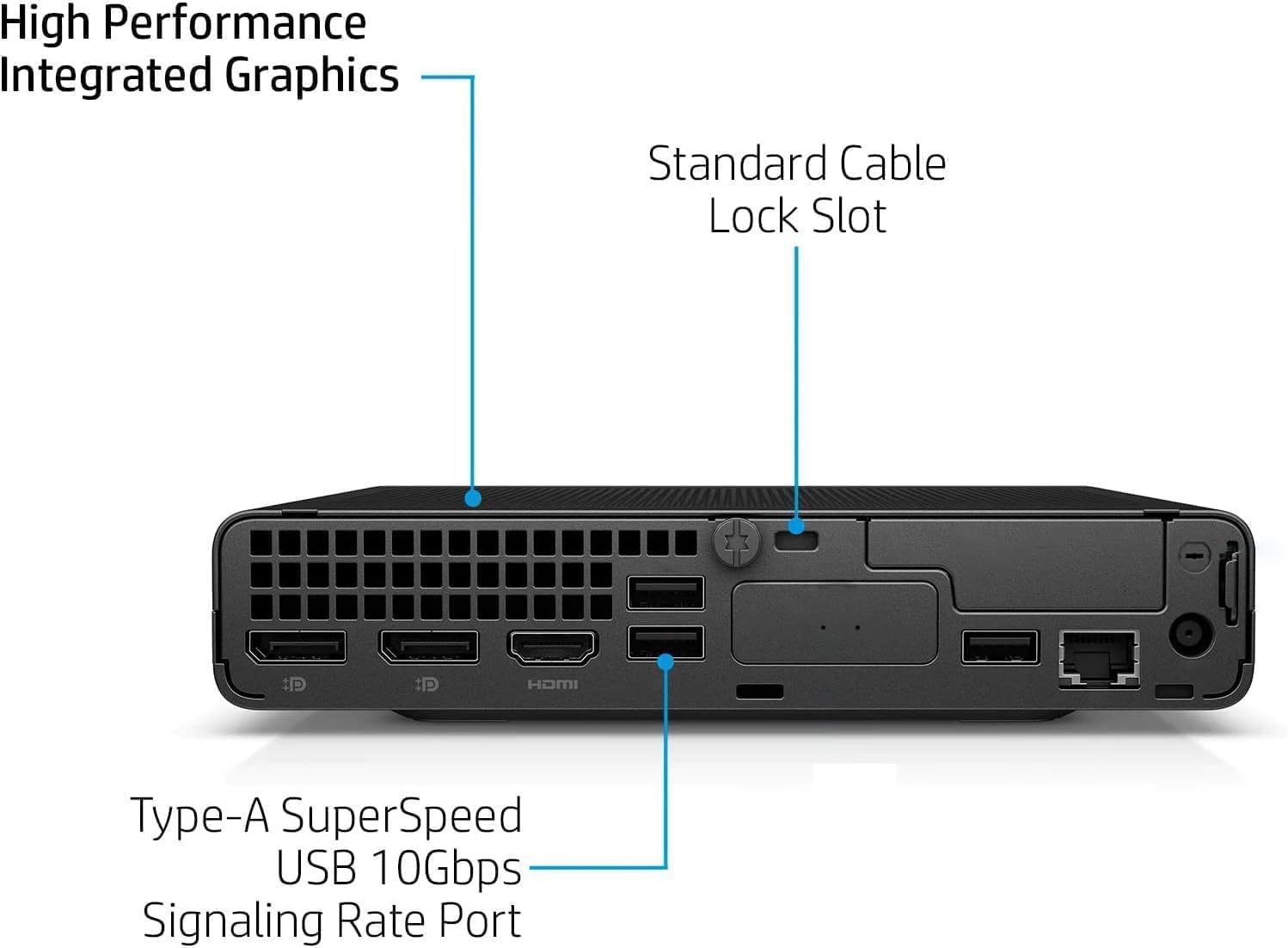
Figure 3: Rear Panel Ports and Features
- 1 External antenna connector
- 1 Napájecí konektor
- 1 RJ-45 (Ethernet)
- 3 SuperSpeed USB Type-A přenosová rychlost 10 Gb/s
- 2 DisplayPort 1.4
- 1 HDMI 2.1
4. Pokyny k nastavení
Follow these steps to set up your HP EliteDesk 800 G9 Mini Desktop:
- Připojení periferií: Connect your monitor(s) to the DisplayPort 1.4 or HDMI 2.1 ports. Connect the wired keyboard and mouse to the available USB Type-A ports.
- Připojení napájení: Connect the HP OEM 90W Power Adapter to the power connector on the rear panel, then plug the power adapter into a wall outlet.
- Síťové připojení (volitelné): For a wired internet connection, connect an Ethernet cable to the RJ-45 port. For wireless, ensure the external antenna is connected (if applicable) and configure Wi-Fi during the initial Windows setup.
- Zapnutí: Press the power button on the front panel to turn on the Mini Desktop.
- Počáteční nastavení Windows: Follow the on-screen instructions to complete the Windows 11 Pro setup, including language, region, network, and user account creation.
5. Operační systém
Your HP EliteDesk 800 G9 Mini Desktop comes pre-installed with Windows 11 Pro. This operating system offers a modern interface, enhanced security features, and improved productivity tools. For detailed information on Windows 11 Pro features and usage, refer to the official Microsoft documentation or support webmísto.
6. Specifikace
Below are the key technical specifications for your HP EliteDesk 800 G9 Mini Desktop:
| Funkce | Specifikace |
|---|---|
| Procesor | Intel 12th Generation Core i5-12500T (6-Core, 18M Cache, Upto 4.0Ghz) |
| BERAN | 16GB DDR5 SDRAM |
| Skladování | 256GB PCIe SSD |
| Grafický koprocesor | Grafika Intel UHD |
| Operační systém | Windows 11 Pro |
| Bezdrátové připojení | Integrated Intel WiFi 6 AX211 + Bluetooth |
| Napájecí adaptér | 90W externí napájecí adaptér, účinnost až 89 %, aktivní korekce účiníku (PFC) |
| Hmotnost | 3.13 libra (přibližně 1.42 kg) |
| Maximální rozlišení obrazovky | 3840x2160 |
| USB porty (přední) | 1 Headset connector; 1 SuperSpeed USB Type-A 10Gbps (charging); 1 SuperSpeed USB Type-A 10Gbps; 1 SuperSpeed USB Type-C 20Gbps |
| USB porty (zadní) | 3 SuperSpeed USB Type-A 10Gbps |
| Video Ports (Rear) | 2 DisplayPort 1.4; 1 HDMI 2.1 |
| Síť | 1 RJ-45 |
7. Údržba
To ensure the longevity and optimal performance of your HP EliteDesk 800 G9 Mini Desktop, regular maintenance is recommended:
- Udržujte to čisté: Pravidelně čistěte vnější povrch zařízení měkkým, suchým hadříkem. Zajistěte, aby větrací otvory byly bez prachu a nečistot, abyste zabránili přehřátí.
- Aktualizace softwaru: Keep your Windows 11 Pro operating system and drivers updated to the latest versions. This ensures security patches and performance improvements.
- Záloha dat: Pravidelně zálohujte důležitá data na externí disk nebo cloudové úložiště, abyste předešli jejich ztrátě.
- Vyhněte se extrémním podmínkám: Nevystavujte zařízení extrémním teplotám, vlhkosti nebo přímému slunečnímu záření.
8. Řešení problémů
If you encounter issues with your Mini Desktop, try the following basic troubleshooting steps:
- Bez napájení: Ujistěte se, že je napájecí adaptér bezpečně připojen k zařízení i k funkční zásuvce. Zkontrolujte, zda je zásuvka funkční.
- Bez displeje: Verify that your monitor is properly connected to the Mini Desktop and powered on. Try connecting to a different video port or monitor if available.
- Problémy s periferními zařízeními: If the keyboard or mouse is not responding, ensure they are correctly plugged into the USB ports. Try different USB ports or restart the system.
- Pomalý výkon: Close unnecessary applications, check for malware, and ensure your system has sufficient free storage space. Consider running a disk cleanup.
- Síťové připojení: For Wi-Fi issues, restart your router and the Mini Desktop. For wired connections, check the Ethernet cable and router status.
For more advanced troubleshooting or persistent issues, refer to the HP support webnebo kontaktujte zákaznický servis.
9. Záruka a podpora
This HP EliteDesk 800 G9 Mini Desktop is an Amazon Renewed - Certified Refurbished product. It is backed by the Amazon Renewed Guarantee, which provides a replacement or refund within 90 days of receipt if the product does not work as expected. For specific warranty details and support, please refer to the Amazon Renewed program terms and conditions or contact Amazon customer service.