
1. Úvod
Thank you for choosing the MERCUSYS MC510 2K 3MP Outdoor WiFi Camera. This manual provides detailed instructions for the installation, operation, and maintenance of your security camera. Please read this manual carefully before use to ensure proper functionality and safety. The MC510 offers 2K 3MP resolution, 360-degree panoramic view, color night vision, two-way audio, smart motion detection, and IP65 weather resistance for reliable outdoor surveillance.

Image: MERCUSYS MC510 2K Pan/Tilt Wi-Fi Camera mounted on a wall, highlighting its 2K resolution and IP65 weather resistance.
2. Bezpečnostní informace
- Ensure the power adapter is suitable for your local power supply.
- Nevystavujte fotoaparát extrémním teplotám, vlhkosti ani korozivnímu prostředí.
- Neumisťujte kameru do blízkosti silných elektromagnetických polí.
- Uchovávejte fotoaparát a jeho příslušenství mimo dosah dětí.
- Používejte pouze příslušenství určené výrobcem.
- Před čištěním nebo údržbou odpojte napájení.
- The camera is IP65 rated for outdoor use, but avoid submerging it in water.
3. Obsah balení
Ověřte, zda jsou v balení přítomny všechny položky:
- MC510 Camera × 1
- Napájecí adaptér × 1
- Mounting Sticker × 1
- Montážní držák × 1
- Mounting Screws × 4 + Bracket Screws × 2
- Montážní kotvy × 4
- Waterproof Gasket × 1
- Rychlý průvodce
4. Konec produktuview
The MERCUSYS MC510 is a versatile outdoor security camera designed to provide comprehensive surveillance with advanced features.
Klíčové vlastnosti:
- 2K QHD with 360° View: Provides clear 2K 3MP video and full 360° horizontal coverage to see every corner and detail.
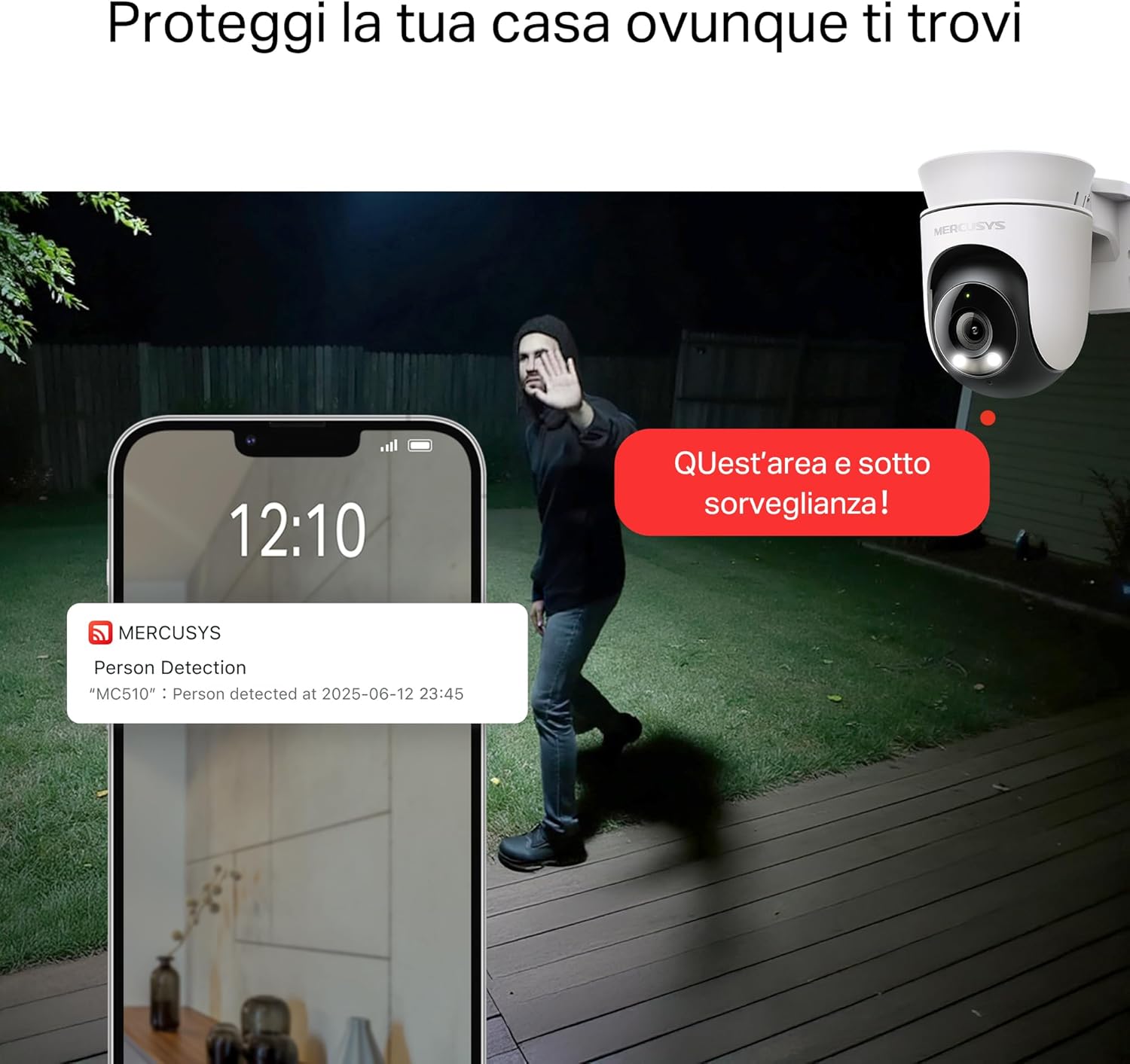
- Smart Motion Detection and Person Tracking: Automatically detects and tracks motion or people, ensuring key activities remain in focus.
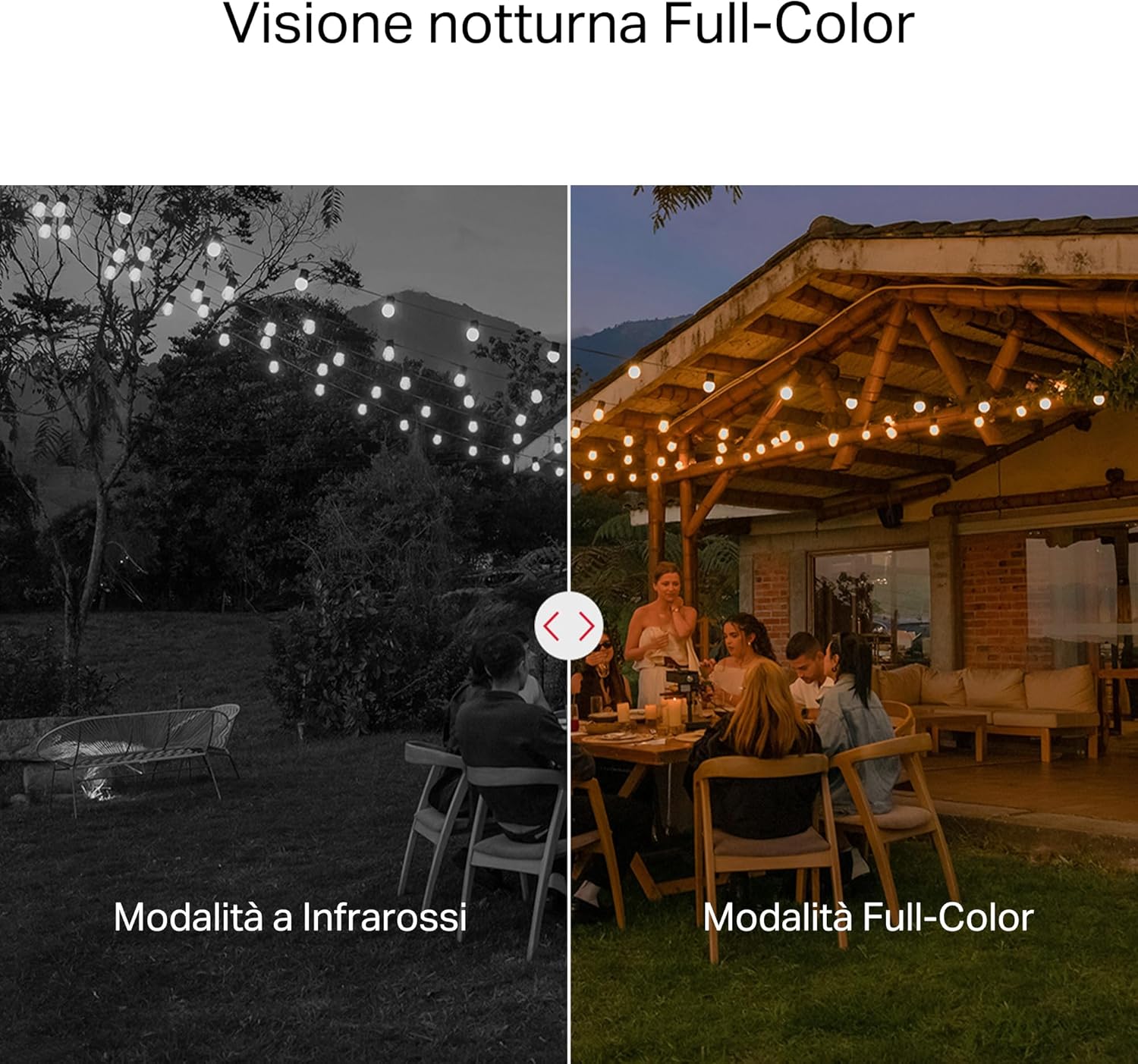
- Barevné noční vidění: Provides vivid and detailed images even at night for 24/7 protection.
- Přizpůsobitelné zóny aktivit: Helps filter out irrelevant events and sends alerts only when necessary.
- Místní a cloudové úložiště: Supports microSD cards up to 512GB and cloud storage for secure and flexible video backup.
- Odolné proti povětrnostním vlivům pro venkovní použití: IP65 certified for reliable performance in rain, dust, or snow. Easily mounts on walls, ceilings, or poles.
- Privacy Protection with Lens Shield: Activate the physical lens cover when surveillance is not needed for greater peace of mind at home.
- Obousměrný zvuk: Komunikujte přímo přes kameru.
Vizuální vlastnosti:

High-resolution 2K 3MP video capture.
360-degree panoramic rotation for full coverage.
Full-Color Night Vision for clear images in low light.

Physical lens shield for enhanced privacy.
5. Nastavení
5.1 Fyzická instalace
The MC510 camera is designed for outdoor use and can be mounted on walls, ceilings, or poles. Its IP65 rating ensures protection against dust and water jets.
- Vyberte umístění: Vyberte vhodné venkovní místo, které poskytuje požadované viewúhel záběru a má stabilní Wi-Fi signál.
- Montáž: Use the provided mounting sticker to mark drill holes. Drill holes, insert anchors, and secure the mounting bracket with screws. Attach the camera to the bracket.
- Připojení napájení: Connect the power adapter to the camera and plug it into a power outlet. Ensure the waterproof gasket is properly installed for outdoor power connections.

Image: The camera is shown mounted outdoors, demonstrating its weather-resistant design.
5.2 Instalace a připojení aplikace
The MC510 connects exclusively via Wi-Fi. An Ethernet port is not available.
- Stáhněte si aplikaci: Download the official MERCUSYS app from your smartphone's app store (iOS or Android).
- Vytvořit účet: Otevřete aplikaci a vytvořte si nový účet nebo se přihlaste, pokud jej již máte.
- Přidat fotoaparát: Follow the in-app instructions to add your MC510 camera. This typically involves scanning a QR code on the camera and connecting it to your home Wi-Fi network.
5.3 Instalace karty MicroSD
For local storage, install a microSD card (up to 512GB, not included).
- Vypnout: Disconnect the camera from power before inserting or removing the microSD card.
- Vyhledejte slot: Refer to the camera's physical design to locate the microSD card slot, often protected by a cover.
- Vložit kartu: Opatrně zasuňte kartu microSD do slotu, dokud nezapadne na místo.
- Formátovací karta: After powering on the camera and connecting it to the app, navigate to the camera settings to format the microSD card.

Image: Close-up of the camera showing the microSD card slot, indicating flexible storage options.
6. Návod k obsluze
6.1 Živě View & Přehrávání
- Žít View: Open the MERCUSYS app and select your MC510 camera to view živé vysílání.
- Ovládání otáčení/náklonu: Use the controls in the app to remotely rotate the camera horizontally (pan) and vertically (tilt) to adjust the viewúhel.
- Přehrávání: Přístup zaznamenán footage from the app's playback section. You can filter by date and event.

Image: Illustration of 360-degree rotation with motion tracking.
6.2 Detekce a sledování pohybu
- Povolit detekci: In the app settings, enable motion detection and person tracking.
- Customize Activity Zones: Definujte specifické oblasti v záběru kamery view where you want motion to be detected. This helps reduce false alarms.
- Přijímat upozornění: The camera will send notifications to your smartphone when motion or a person is detected in the monitored zones.

Image: A person running in a yard, with detection boxes, demonstrating motion detection and tracking.
6.3 Obousměrný zvuk
Vestavěný mikrofon a reproduktor umožňují obousměrnou komunikaci.
- Activate Audio: V přímém přenosu view interface of the app, tap the microphone icon to speak through the camera.
- Poslouchat: The speaker icon allows you to hear audio from the camera's vicinity.

Image: A person detected by the camera, with a phone notification and an on-screen alert, demonstrating customizable alarms and two-way audio.
6.4 Barevné noční vidění
The MC510 provides full-color night vision for enhanced clarity in low-light conditions.
- Automatická aktivace: Color night vision activates automatically in low-light conditions.
- Infračervený režim: The camera also supports traditional infrared night vision (black and white) if preferred or in extremely dark environments.

Image: Comparison of infrared (monochrome) and full-color night vision modes.
6.5 Privacy Zone & Lens Shield
Protect your privacy by defining privacy zones or activating the physical lens shield.
- Soukromé zóny: In the app, you can set up specific areas within the camera's view to be excluded from recording.
- Lens Shield: For complete privacy, use the app to activate the physical lens shield, which covers the camera lens.
7. Údržba
7.1 Čištění
- Před čištěním se ujistěte, že je fotoaparát vypnutý.
- K otření těla fotoaparátu použijte měkký, suchý hadřík.
- For the lens, use a lens cleaning cloth to avoid scratches. Do not use harsh chemicals or abrasive cleaners.
7.2 aktualizací firmwaru
Regularly check for firmware updates through the MERCUSYS app. Updates provide new features, performance improvements, and security enhancements. Follow the in-app instructions to perform updates.
8. Řešení problémů
If you encounter issues with your MERCUSYS MC510 camera, refer to the following common problems and solutions:
| Problém | Možné řešení |
|---|---|
| Kamera se nepřipojuje k Wi-Fi | Ensure the camera is within range of your Wi-Fi router. Check Wi-Fi password. Restart the camera and router. The MC510 only supports Wi-Fi connection, no Ethernet. |
| Špatná kvalita videa | Check your Wi-Fi signal strength. Ensure the camera lens is clean. Adjust camera placement to avoid glare or obstructions. |
| Motion detection issues | Verify motion detection is enabled in the app. Adjust sensitivity settings. Ensure activity zones are correctly configured. |
| MicroSD card not working | Ensure the card is inserted correctly. Format the microSD card via the app. Try a different compatible microSD card. Power cycle the camera after inserting the card. |
| Žádný obousměrný zvuk | Zkontrolujte nastavení mikrofonu a reproduktorů v aplikaci. Ujistěte se, že máte nastavenou hlasitost telefonu. |
9. Specifikace
| Funkce | Detail |
|---|---|
| Značka | MERCUSYS |
| Název modelu | MC510 |
| Vnitřní/venkovní použití | Venkovní |
| Protokol připojení | Wi-Fi |
| Typ montáže | Strop, sloup, zeď |
| Rozlišení statických snímků | 3 MP |
| Hodnocení mezinárodní ochrany | IP65 |
| Bezdrátová technologie | Wi-Fi |
| Jsou vyžadovány baterie | Žádný |
| Rozlišení záznamu videa | 2K 3MP |
| Formát záznamu videa | MPEG-4 |
| Počet položek | 1 |
| Zahrnuté komponenty | MC510 Camera, Power Adapter, Mounting Sticker, Mounting Bracket, Mounting Screws, Mounting Anchors, Waterproof Gasket, Quick Start Guide |
| Země původu | Čína |
| Výrobce | TP-Link |
| Rozměry položky | 14.1 x 9.3 x 12.2 cm |
10. Záruka a podpora
Informace o záruce a technickou podporu získáte od oficiálního prodejce MERCUSYS. website or contact their customer service. Details can typically be found in the Quick Start Guide included with your product or on the manufacturer's webmísto.
Online podpora: Návštěva www.mercusys.com for FAQs, user manuals, and support resources.