
1. Úvod
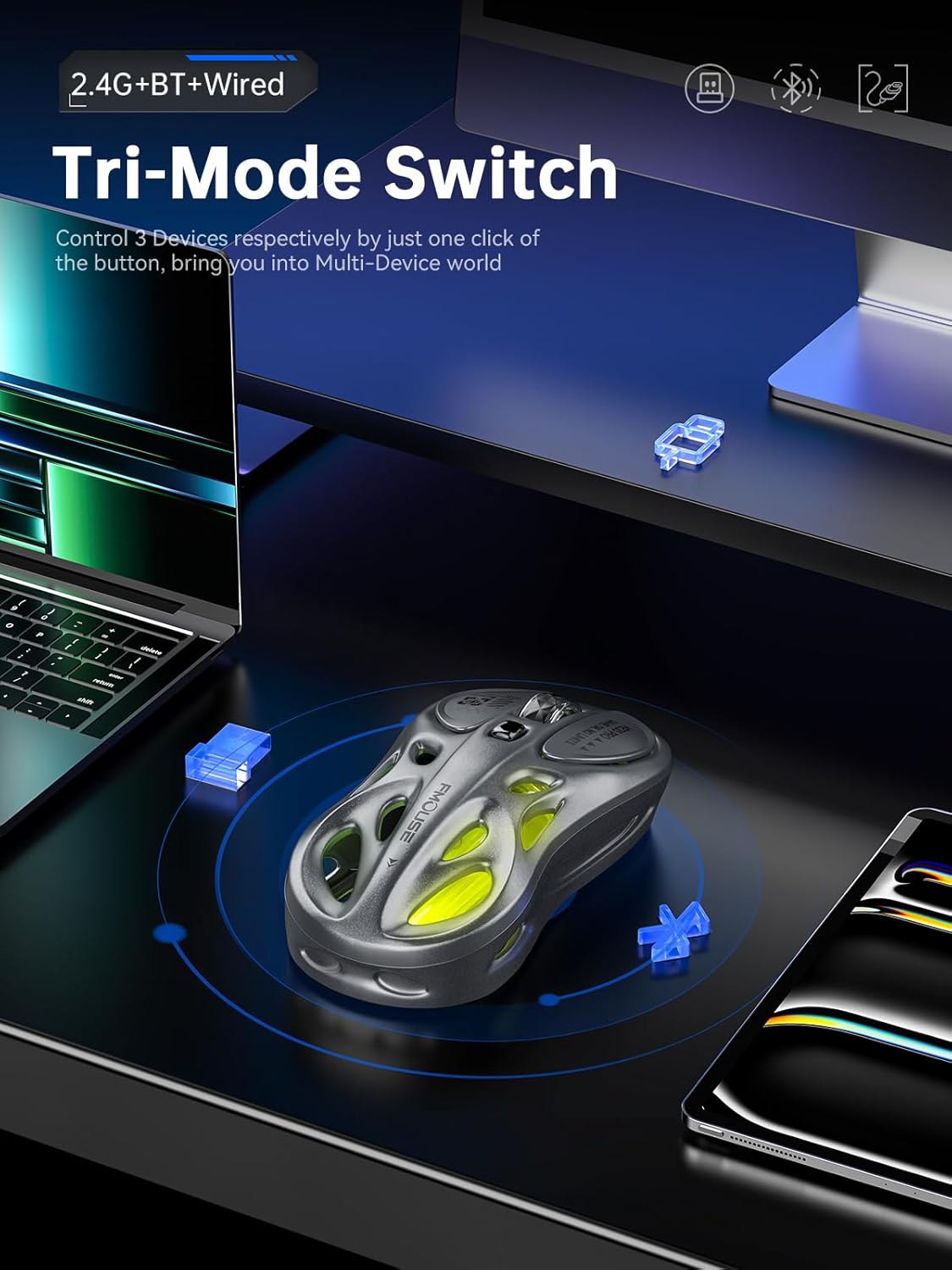
Thank you for choosing the FMOUSE M235 PRO Gaming Wireless Mouse. This tri-mode mouse offers versatile connectivity options (2.4G wireless, Bluetooth, and wired Type-C), high-performance features like 4800 DPI and 1000Hz polling rate, and customizable RGB lighting. This manual provides detailed instructions for setup, operation, and maintenance to ensure optimal performance.
2. Obsah balení
- FMOUSE M235 PRO Gaming Wireless Mouse
- 2.4G USB přijímač
- Nabíjecí/datový kabel typu C
- Uživatelská příručka
- Skladovací taška
3. Konec produktuview
The FMOUSE M235 PRO features an ergonomic hollow design for reduced hand fatigue and a lightweight build (approximately 65g). It includes multiple buttons for enhanced functionality and customizable RGB lighting.
Obrázek: Nahoře view of the FMOUSE M235 PRO Gaming Wireless Mouse.

Image: Lightweight design of the FMOUSE M235 PRO mouse.
Funkce tlačítek:
- Levé tlačítko: Standardní funkce kliknutí.
- Pravé tlačítko: Standardní funkce kliknutí pravým tlačítkem myši.
- Rolovací kolečko: Posun nahoru/dolů, kliknutí prostředním tlačítkem myši.
- Tlačítko DPI: Cycles through DPI levels.
- Tlačítko vpřed: Navigates forward in browsers/applications.
- Tlačítko zpět: Navigates backward in browsers/applications.
- Mode Switch (Bottom): Switches between 2.4G, Bluetooth, and Wired modes.
- ON/OFF Switch (Bottom): Zapíná nebo vypíná myš.

Obrázek: Spodní část view of the FMOUSE M235 PRO mouse with labeled components.
4. Nastavení
The FMOUSE M235 PRO supports three connection modes: Wired, 2.4G Wireless, and Bluetooth. You can seamlessly switch between up to 3 devices.
4.1 Kabelové připojení
- Connect the Type-C end of the charging/data cable to the mouse.
- Připojte konec kabelu USB-A k portu USB počítače.
- Ensure the mouse's ON/OFF switch is in the 'ON' position. The mouse will automatically switch to wired mode.
4.2 Bezdrátové připojení 2.4G
- Locate the 2.4G USB receiver in the package.
- Zapojte 2.4G USB přijímač do volného USB portu v počítači.
- Flip the mouse's ON/OFF switch to 'ON'.
- Press the 'MODE' switch button on the bottom of the mouse until the indicator light turns zelený. This indicates 2.4G mode.
- The mouse should now be connected.
4.3 Připojení Bluetooth
- Flip the mouse's ON/OFF switch to 'ON'.
- Press the 'MODE' switch button on the bottom of the mouse until the indicator light turns modrý (for Bluetooth 1) or červený (for Bluetooth 2).
- On your device (computer, laptop, iPad, etc.), go to Bluetooth settings and enable Bluetooth.
- Hledat new devices. The mouse should appear as "BT Mouse" or similar.
- Select the mouse to pair. The indicator light will stop flashing once successfully paired.
- To switch between two paired Bluetooth devices, press the 'MODE' switch button to toggle between blue and red indicator lights.
Video: Demonstrates the tri-mode connection process (wired, 2.4G, Bluetooth) for the FMOUSE M235 PRO Gaming Wireless Mouse. Shows how to plug in the data cable, insert the 2.4G USB receiver, and pair via Bluetooth with different devices.
5. Návod k obsluze
5.1 Nastavení DPI
The mouse features 5 adjustable DPI levels (800-4800) for precise control. Press the DPI button located on the top of the mouse to cycle through the available DPI settings. Each DPI level may correspond to a different RGB color indicator for easy identification.

Image: Illustration of 5-level adjustable DPI settings.
5.2 Ovládání RGB osvětlení
The mouse features customizable RGB backlighting. Long press the DPI button to switch between multiple lighting modes and effects. Experience dynamic RGB track synchronization.
5.3 Customization and Macro Programming
For advanced customization, including button remapping, macro programming, and detailed lighting effects, download the official FMOUSE software (FMOUSE Futura) from the official website. The software allows you to adjust various parameters to personalize your mouse for specific tasks or games.

Image: Screenshot of the FMOUSE software for macro programming and customization.
6. Nabíjení
The FMOUSE M235 PRO is equipped with a 500mAh rechargeable lithium-ion battery. Use the provided Type-C cable to charge the mouse.
- Connect the Type-C end of the cable to the mouse's charging port.
- Připojte konec USB-A ke zdroji napájení (např. k portu USB počítače, adaptéru USB do zásuvky).
- The mouse's indicator light will typically show charging status (e.g., pulsing green).
- Plné nabití trvá přibližně 2 hodin.

Image: Type-C charging illustration.
7. Údržba
- Čištění: K čištění myši používejte měkký, suchý hadřík. Nepoužívejte agresivní chemikálie ani abrazivní materiály.
- Skladování: Myš skladujte na chladném a suchém místě mimo dosah přímého slunečního záření a extrémních teplot.
- Péče o baterie: Chcete-li prodloužit životnost baterie, vyhněte se častému úplnému vybíjení myši. Pravidelně ji nabíjejte.
- Úložiště přijímače: When not in use, store the 2.4G USB receiver in a safe place to prevent loss. Note that there is no dedicated storage slot on the mouse itself.
8. Řešení problémů
| Problém | Možné řešení |
|---|---|
| Mouse not responding in 2.4G mode | Ensure the 2.4G USB receiver is securely plugged in. Check if the mouse is switched to 2.4G mode (green indicator light). Try plugging the receiver into a different USB port. |
| Mouse not pairing via Bluetooth | Ensure the mouse is in Bluetooth pairing mode (blue or red indicator light flashing). Make sure Bluetooth is enabled on your device and it's discoverable. Try restarting both the mouse and your device. |
| Zpoždění nebo přerušované připojení | Reduce distance between mouse and receiver/device. Avoid interference from other wireless devices. Ensure the mouse is fully charged. |
| RGB podsvícení nefunguje | Ensure the mouse is powered on. Long press the DPI button to cycle through lighting modes. Check software settings if applicable. |
| DPI se nemění | Press the DPI button firmly. If using custom software, ensure DPI settings are correctly configured and applied. |
| Myš se nenabíjí | Verify the Type-C cable is properly connected to both the mouse and the power source. Try a different cable or USB port/charger. |
9. Specifikace
| Funkce | Detail |
|---|---|
| Číslo modelu | M235 PRO |
| Technologie připojení | 2.4GHz USB / Dual Bluetooth / Wired (Type-C) |
| Technologie detekce pohybu | Optical (PixArt PAW3212DB-TJDT chip) |
| Úrovně DPI | 5 adjustable levels, up to 4800 DPI |
| Míra hlasování | 1000 Hz |
| Baterie | 500mAh lithium-iontová (dobíjecí) |
| Hmotnost položky | 6.7 unce (přibližně 65 g) |
| Rozměry | 4.7 x 2.4 x 1.3 palce (119 x 62 x 33 mm) |
| Speciální funkce | RGB backlight, Customizable buttons, Macro programming, Ergonomic hollow design |
| Kompatibilita | Windows, Mac, Android (Laptops, iPads, MacBooks) |
10. Záruka a podpora
For warranty information and technical support, please refer to the documentation included with your purchase or visit the official FMOUSE webwebu. Obvykle tam najdete ovladače, nejčastější dotazy a kontaktní informace na zákaznický servis.
Official FMOUSE Webmísto: www.fmouse.com