
1. Konec produktuview
The Portta HDMI Video Capture Card is designed for capturing and streaming HDMI video signals up to 1080p at 60 frames per second (fps) via USB 3.0. It features 4K HDMI input and loop-out capabilities, a 3.5mm audio output, and a microphone input, making it suitable for various applications including game streaming, live broadcasts, and content creation.
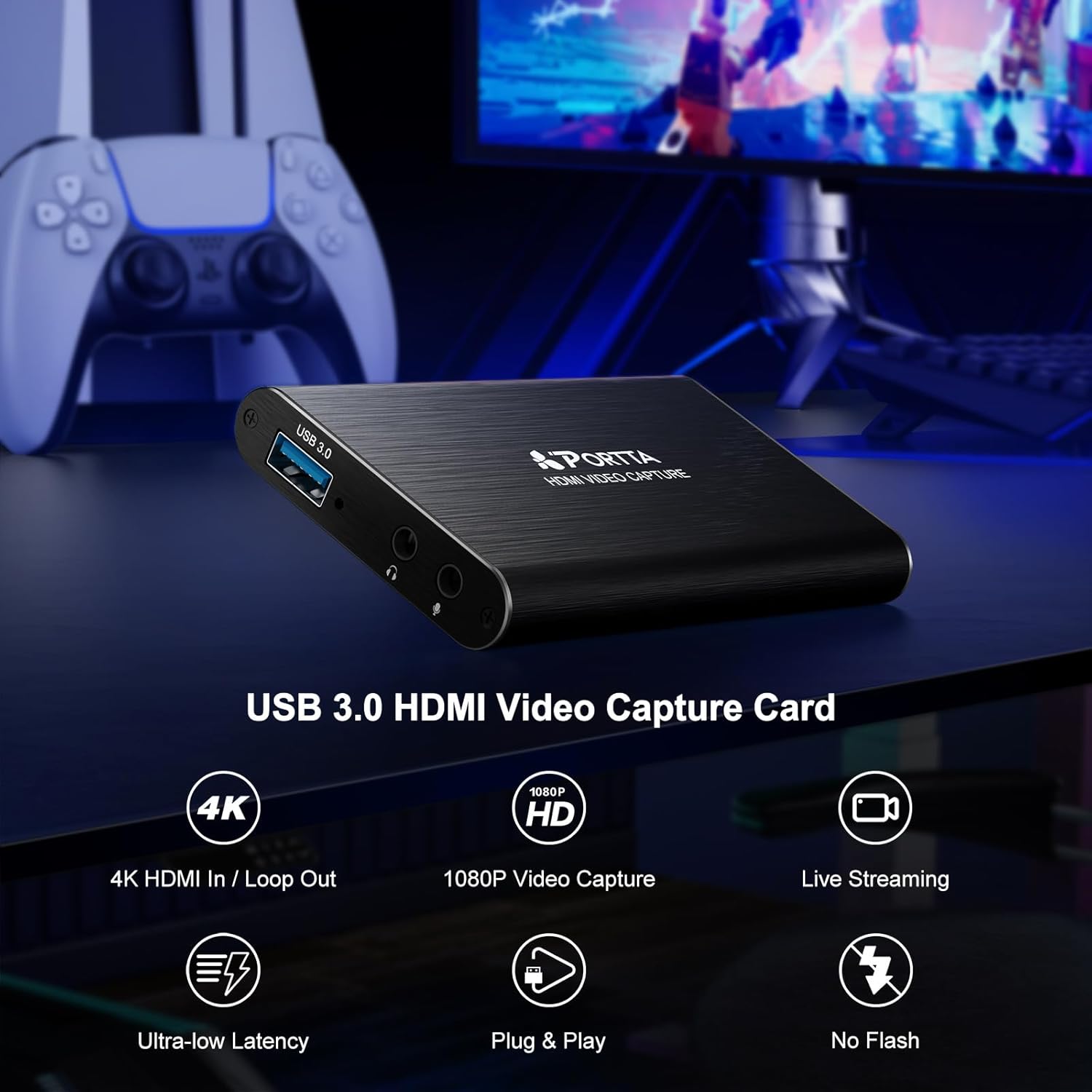
Obrázek: Přední strana view of the Portta HDMI Video Capture Card, highlighting the USB 3.0 port, 3.5mm audio output, and microphone input.

Obrázek: Zadní view of the Portta HDMI Video Capture Card, illustrating the HDMI input and HDMI loop-out ports, along with an IN/OUT indicator.
2. Obsah balení
Ověřte, zda jsou v balení přítomny všechny položky:
- Portta HDMI Video Capture Card (x1)
- USB-A to USB-A 3.0 Data Cable (x1)
- HDMI kabel (x1)
- Uživatelská příručka (x1)
3. Systémové požadavky
To ensure optimal performance, your computer system should meet the following minimum specifications:
- Operační systém: Windows 7/8/10/11 or later; macOS 10.8+ (Intel/Apple Silicon; Metal support recommended); Linux (kernel 2.6.38+, e.g., Ubuntu 18.04+; X11/Wayland)
- CPU: Quad-core Intel Core i5 / Ryzen 5 or higher
- Paměť: 8 GB RAM nebo více
- Grafika: DirectX 10.1 or OpenGL 3.3 compatible GPU (DirectX 11 / Metal recommended)
- Skladování: SSD recommended for high-bitrate recording
The device is plug-and-play and does not require driver installation.
4. Pokyny k nastavení
Follow these steps to connect and set up your Portta HDMI Video Capture Card:
- Připojení HDMI vstupu: Connect your HDMI source device (e.g., game console, camcorder, PC) to the HDMI INPUT portu na záznamové kartě pomocí kabelu HDMI.
- Připojení HDMI smyčky (volitelné): Pokud si to přejete view your source content on a separate display while capturing, connect an HDMI cable from the VÝSTUP HDMI SMYČKY port na záznamové kartě k monitoru nebo televizoru.
- Připojení k počítači: Connect the USB-A to USB-A 3.0 data cable from the USB 3.0 port on the capture card to an available USB 3.0 port on your computer. The device will be automatically recognized.
- Připojení zvukových zařízení (volitelné):
- Pro mikrofonní vstup připojte mikrofon k Mic In 3.5mm jack.
- For audio monitoring, connect headphones (TRS only) or speakers to the 3.5mm audio výstup zvedák.
Note: Microphone audio is not routed through the HDMI OUT port.

Image: Connection diagram for the capture card, showing an HDMI source (game console) connected to the input, a TV connected to the loop-out, and a laptop connected via USB 3.0 for capture.
5. Návod k obsluze
The Portta HDMI Video Capture Card is compatible with various UVC/UAC-compliant applications, including OBS Studio. The following instructions focus on using OBS Studio, a popular free and open-source software for video recording and live streaming.
5.1. Using with OBS Studio (Windows/macOS/Linux)
- Download and Install OBS Studio: If you haven't already, download OBS Studio from its official webweb (obsproject.com) a nainstalujte jej do počítače.
- Spuštění OBS Studia: Open the OBS Studio application.
- Přidat zdroj videa:
- In the "Sources" box at the bottom left, click the "+" ikona.
- Vybrat "Video Capture Device".
- Vybrat "Create new" and give it a name (e.g., "Portta Capture"). Click "OK".
- V okně vlastností vyberte "USB3 Video" (or similar) from the "Device" dropdown menu.
- Configure resolution/FPS if needed (e.g., 1920x1080, 60 FPS). Click "OK".

Image: Step-by-step guide within OBS Studio to add the video capture device as a source.
- Add Audio Source (Optional):
- V poli „Zdroje“ klikněte na "+" ikona.
- Vybrat "Audio Input Capture".
- Vybrat "Create new" and name it (e.g., "Portta Mic"). Click "OK".
- Vybrat "USB3 Digital Audio" (or similar) from the "Device" dropdown. Click "OK".
- Adjust Audio Properties:
- In the "Audio Mixer" section, click the gear icon next to your audio source (e.g., "Portta Mic").
- Vybrat "Advanced Audio Properties".
- For "Audio Monitoring", select "Monitor and Output" if you want to hear the audio through your computer's speakers/headphones while streaming/recording.

Image: Guide on configuring advanced audio properties in OBS Studio for monitoring and output.
- Spustit nahrávání/streamování: In the "Controls" section, click "Start Recording" or "Start Streaming" podle přání.
5.2. macOS OBS Operation Notes
For macOS users, you may need to grant OBS Studio specific permissions:
- Přejít na OBS Studio > Settings > Review Oprávnění aplikace.
- Zajistit "Screen Recording", "Camera"a "Microphone" access are granted. Follow system prompts until "Access Granted" appears for each.

Image: macOS system settings showing how to grant necessary permissions (Screen Recording, Camera, Microphone) to OBS Studio.
6. Údržba
To ensure the longevity and optimal performance of your Portta HDMI Video Capture Card, follow these maintenance guidelines:
- Čištění: K čištění vnější strany zařízení používejte měkký, suchý hadřík. Nepoužívejte tekuté čisticí prostředky ani rozpouštědla, protože by mohly poškodit povrchovou úpravu nebo vnitřní součásti.
- Skladování: Store the device in a cool, dry place away from direct sunlight, extreme temperatures, and high humidity when not in use.
- Správa kabelů: Avoid bending or kinking cables excessively. Proper cable management helps prevent damage to the connectors and wires.
- Větrání: Během provozu zajistěte dostatečné větrání zařízení, aby se zabránilo jeho přehřátí.
7. Řešení problémů
If you encounter issues with your Portta HDMI Video Capture Card, refer to the following common troubleshooting steps:
- Žádný video signál:
- Ensure all HDMI cables are securely connected to both the source device, capture card, and display (if using loop-out).
- Verify that the HDMI source device is powered on and outputting a signal.
- Check the resolution settings of your source device. The capture card supports up to 4K@60Hz (YUV 4:2:0) input, but does not support HDR or CEC.
- Try a different HDMI cable or source device to rule out cable or source issues.
- Žádný zvuk:
- Confirm that the audio source is enabled in your capture software (e.g., OBS Studio).
- Check the volume levels on your computer and within the capture software.
- If using the 3.5mm audio output, ensure headphones/speakers are properly connected and functioning. Note that only TRS headphones are supported.
- Remember that microphone audio connected to the 3.5mm Mic In port is not routed to the HDMI loop-out.
- Poor Capture Quality or Lag:
- Ensure your computer meets the recommended system requirements, especially for CPU, RAM, and graphics.
- Connect the capture card to a USB 3.0 port on your computer for optimal bandwidth. USB 2.0 ports may result in lower performance.
- Zavřete nepotřebné aplikace běžící na pozadí, abyste uvolnili systémové prostředky.
- If recording high-bitrate content, use an SSD for storage.
- Verify that your capture software settings (resolution, FPS, bitrate) are appropriate for your system's capabilities.
- Zařízení nebylo rozpoznáno:
- Try connecting the capture card to a different USB 3.0 port on your computer.
- Restartujte počítač.
- Ujistěte se, že kabel USB není poškozen.
8. Specifikace
| Číslo modelu | HCC101-1BK |
| Značka | Portta |
| Kompatibilní zařízení | Laptop, Camcorder, PS4, PS5, Xbox, Nintendo Switch |
| Typ konektoru | HDMI, USB 3.0, 3.5mm Audio |
| Rozlišení vstupu HDMI | Up to 4K@60Hz (YUV 4:2:0) |
| HDMI Loop-Out Resolution | Up to 4K@60Hz (YUV 4:2:0) |
| Rozlišení snímání | Up to 1080p@60Hz via USB 3.0 |
| Zvukový vstup | 3.5mm Microphone In |
| Zvukový výstup | 3.5mm Audio Out (TRS Only) |
| Rozměry (D x Š x V) | 4.02 x 2.72 x 0.49 palce |
| Hmotnost položky | 68 gramů |
| Podpora HDCP | HDCP 1.4 (input only) |
| Podpora HDR | Není podporováno |
| Podpora CEC | Není podporováno |

Image: Physical dimensions of the Portta HDMI Video Capture Card.
9. Záruka a podpora
The Portta HDMI Video Capture Card comes with a hassle-free 2-letá záruka a doživotní technickou podporu.
For any questions or assistance, please contact Portta customer service. Refer to the contact information provided in the included user manual or visit the official Portta webmísto pro zdroje podpory.