
1. Úvod
This manual provides detailed instructions for the installation, configuration, and operation of the D-Link Guardian 700 Pro Multi-Gig Business Router (DBR-700). The DBR-700 is designed to provide enterprise-level networking capabilities for small and medium businesses, offering high-speed connectivity, robust security features, and simplified management.
Key features include a 2.5GbE WAN port, six 2.5GbE LAN ports, a 2.5GbE SFP uplink for flexible fiber connections, Multi-WAN failover, SPI Firewall, VPN support (IPSec, WireGuard, OpenVPN), and centralized management for up to 15 D-Link Guardian Wi-Fi 6 Smart Access Points (DBR-X3000-AP, sold separately).

Image: The D-Link Guardian 700 Pro Multi-Gig Router (DBR-700) designed for small and medium business environments.
2. Obsah balení
Ověřte, zda váš balíček obsahuje následující položky:
- D-Link Guardian 700 Pro Multi-Gig Business Router (DBR-700)
- Napájecí adaptér
- Průvodce rychlou instalací (QIG)
Pokud některé položky chybí nebo jsou poškozené, obraťte se na místního prodejce D-Link.
3. Hardware skončilview
3.1. Přední panel
The front panel of the DBR-700 features status indicators and network ports.

Obrázek: Přední strana view of the DBR-700 router, showing LED indicators, Console port, LAN ports, WAN port, and LAN/WAN SFP port.
- SYS LED: Označuje stav systému.
- SFP LED: Indicates status of the SFP port.
- Resetovací tlačítko: Used to reset the device or restore factory defaults.
- Port konzoly: For command-line interface access.
- Porty LAN (1-6): Six 2.5GbE LAN ports for connecting local network devices.
- LAN/WAN port: A 2.5GbE port configurable as either a LAN or WAN interface.
- Port WAN: A dedicated 2.5GbE WAN port for internet connectivity.
- LAN/WAN SFP Port: A 2.5GbE/1GbE SFP port for fiber or copper connections, configurable as LAN or WAN.
3.2. Zadní panel
The rear panel includes the power input and power switch.

Obrázek: Zadní view of the DBR-700 router, showing the DC 12V/2A power input and On/Off switch.
- Stejnosměrné napájení 12 V/2 A: Vstupní konektor napájení.
- Vypínač: Ovládání napájení zařízení.
4. Instalace
Follow these steps for the initial setup of your DBR-700 router:
- Připojení napájení: Connect the provided power adapter to the DC 12V/2A port on the rear panel of the router and plug it into a power outlet. Turn on the router using the On/Off switch.
- Připojení k WAN: Connect your internet service provider's modem or main network line to the WAN port on the router using an Ethernet cable. If using fiber, insert the SFP module (sold separately) into the LAN/WAN SFP port and connect the fiber cable.
- Připojení k LAN: Connect your local network devices (e.g., computers, switches, access points) to the LAN ports (1-6) or the configurable LAN/WAN port using Ethernet cables.
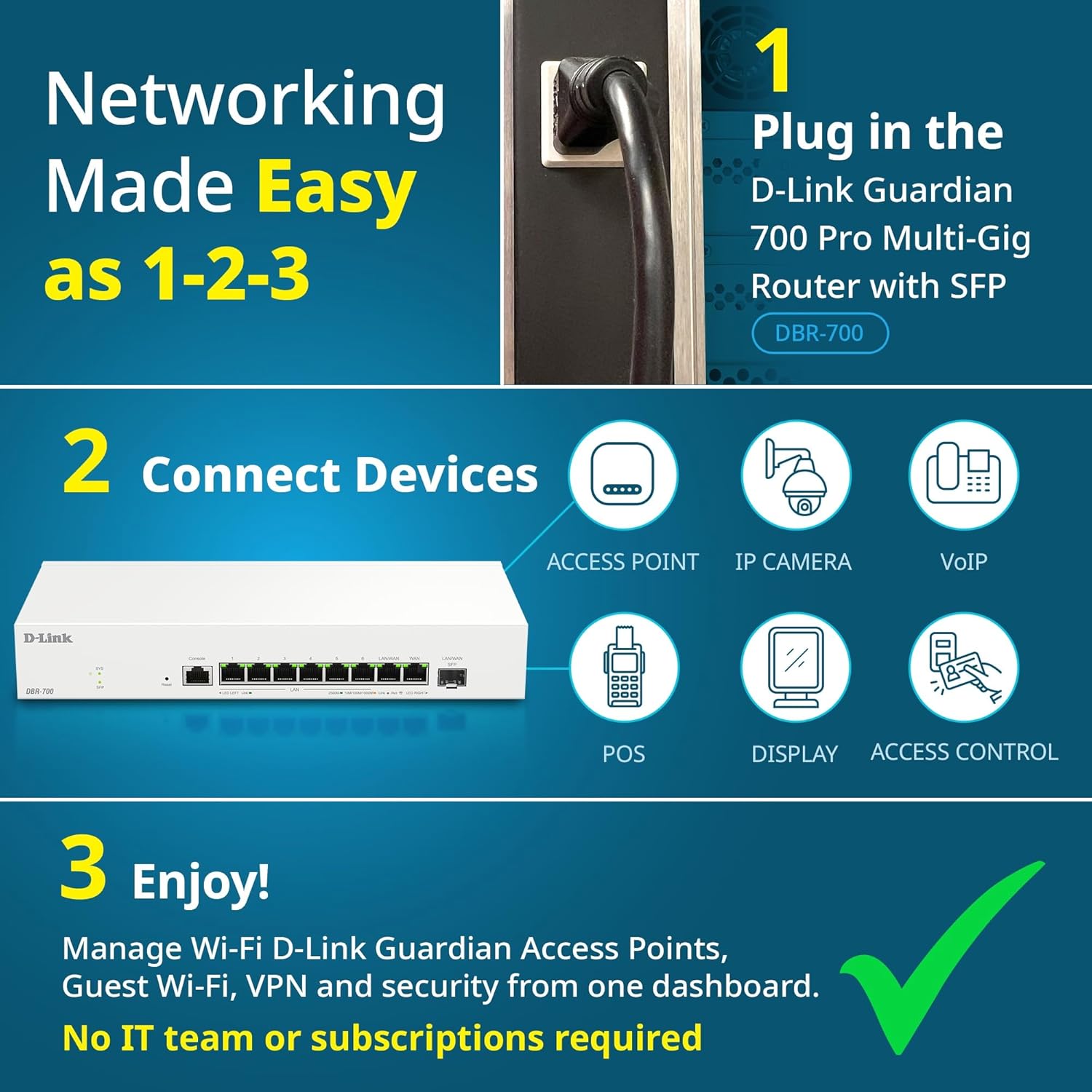
Image: Visual guide for router installation: 1. Plug in the DBR-700 router. 2. Connect devices like access points, IP cameras, VoIP, POS, displays, and access control. 3. Enjoy managed Wi-Fi, Guest Wi-Fi, VPN, and security from one dashboard.
5. Konfigurace
5.1. Přístup k Web Rozhraní
To configure the DBR-700, access its web-rozhraní pro správu:
- Ujistěte se, že je váš počítač připojen k jednomu z LAN portů routeru.
- Otevřete a web prohlížeč (např. Chrome, Firefox, Edge).
- Enter the router's default IP address (typically
192.168.1.1or similar, refer to the Quick Installation Guide for the exact address) into the address bar and press Enter. - Enter the default username and password when prompted. (Refer to the Quick Installation Guide for default credentials).
5.2. Basic Network Settings
Once logged in, you can configure basic network settings:
- Nastavení WAN: Configure your internet connection type (e.g., DHCP, Static IP, PPPoE) as provided by your ISP.
- Nastavení LAN: Adjust the router's internal IP address, subnet mask, and DHCP server settings for your local network.
- Nastavení času: Set the correct time zone and synchronize the router's clock.
6. Pokročilé funkce
6.1. Multi-WAN Failover
The DBR-700 supports Multi-WAN with intelligent failover, ensuring business continuity by providing redundant internet connections. If the primary WAN link fails, the router automatically switches to a secondary WAN link.

Image: The DBR-700's ports, illustrating the Primary 2.5GbE WAN, Secondary 2.5GbE LAN/WAN, and SFP Uplink for Multi-WAN failover capabilities.
6.2. Konfigurace VPN
The router includes built-in VPN support for IPSec, WireGuard, and OpenVPN, enabling secure remote access for employees and branch office connectivity. It supports up to 100 VPN tunnels.
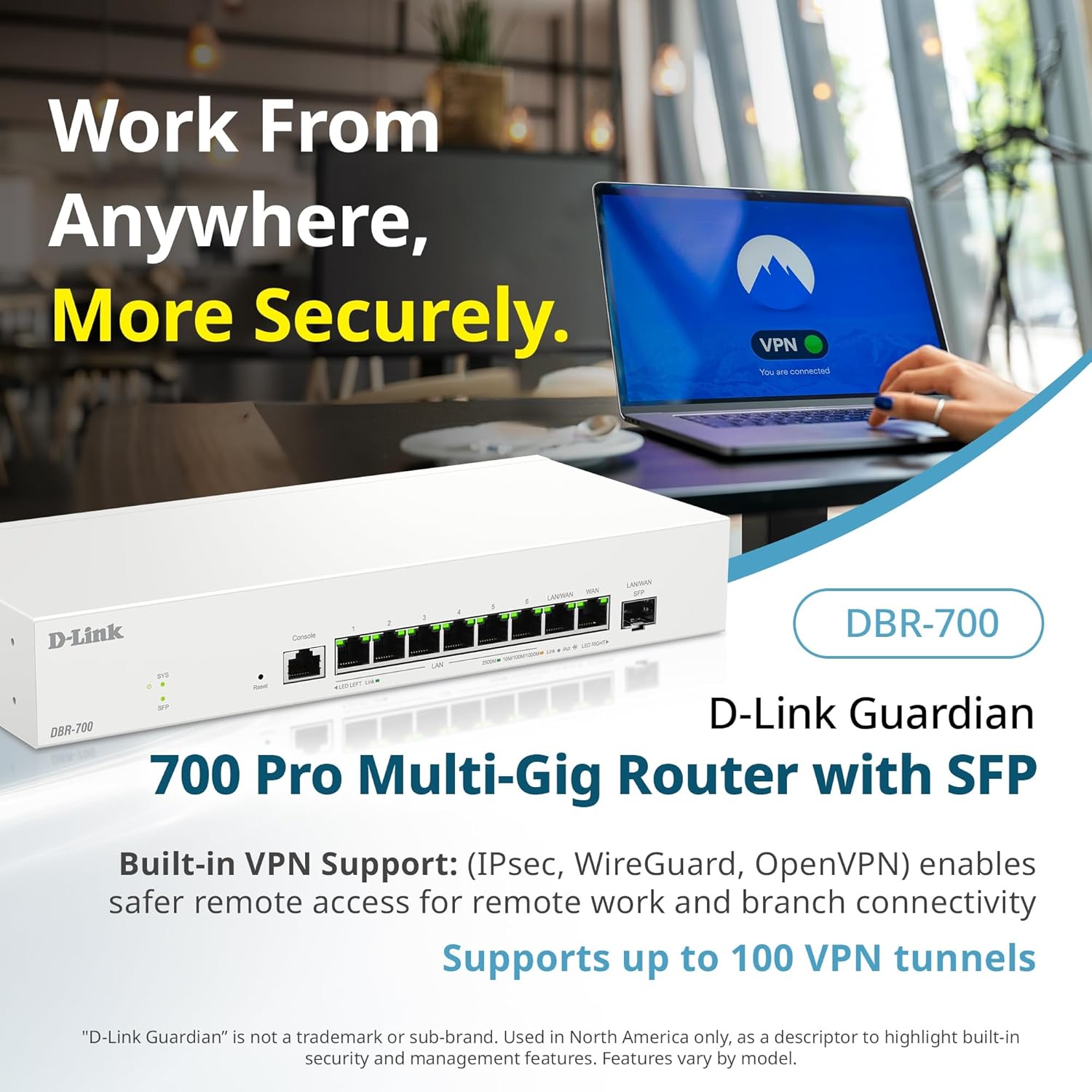
Image: A laptop displaying a 'VPN Connected' status, with the DBR-700 router in the foreground, illustrating secure remote access.
6.3. Centralized Access Point Management
The DBR-700 can discover and manage up to 15 D-Link Guardian Wi-Fi 6 Smart Access Points (DBR-X3000-AP, sold separately) from a single intuitive dashboard. This simplifies Wi-Fi network deployment and management.

Image: A tablet showing the D-Link Wi-Fi management dashboard, demonstrating centralized control over D-Link Guardian Access Points, with the DBR-700 router and a DBR-X3000-AP in the background.
6.4. Guest Wi-Fi Management
Set up and manage guest Wi-Fi networks with a Captive Portal. This allows for branded sign-in pages for guests while keeping business systems separate and secure. Configuration and management are done from the router dashboard.

Image: A smartphone screen showing a customizable guest Wi-Fi login portal, highlighting the DBR-700's ability to manage and customize guest networks.
7. Údržba
7.1. Aktualizace firmwaru
Regularly check for and install firmware updates to ensure optimal performance, security, and access to new features. Firmware updates can typically be found on the D-Link support webweb pro váš konkrétní model.
7.2. Obnovení továrního nastavení
If you encounter persistent issues or wish to clear all configurations, you can perform a factory reset. To do this, locate the Reset button on the front panel. With the router powered on, use a paperclip or similar pointed object to press and hold the Reset button for approximately 5-10 seconds until the SYS LED blinks. Release the button, and the router will restart with factory default settings.
8. Řešení problémů
This section addresses common issues you might encounter with your DBR-700 router.
8.1. Žádné připojení k internetu
- Zkontrolujte kabely: Ujistěte se, že všechny ethernetové kabely jsou bezpečně připojeny ke správným portům (WAN, LAN).
- Stav modemu: Verify that your internet service provider's modem is working correctly and has an active internet connection.
- Konfigurace WAN: Přihlaste se do routeru web interface and verify that the WAN settings (e.g., IP address, DNS) are correctly configured according to your ISP's requirements.
- Restartujte zařízení: Vypněte a zapněte modem, poté router a nakonec připojená zařízení.
8.2. Nelze přistupovat Web Rozhraní
- IP adresa: Ensure your computer is configured to obtain an IP address automatically (DHCP) or has a static IP address within the router's subnet.
- IP routeru: Double-check the router's default IP address. It might be printed on a label on the router itself or in the Quick Installation Guide.
- Firewall/Antivirus: Dočasně deaktivujte veškerý firewall nebo antivirový software v počítači, který by mohl blokovat přístup.
- Mezipaměť prohlížeče: Vyčistěte své web mezipaměť a soubory cookie prohlížeče nebo zkuste jiný prohlížeč.
8.3. Slow Network Speeds
- Kvalita kabelu: Ensure you are using high-quality Ethernet cables (Cat5e or Cat6) for multi-gig connections.
- Kompatibilita zařízení: Verify that connected devices and network adapters support 2.5GbE speeds.
- Rychlost poskytovatele internetových služeb: Confirm your internet service plan provides the expected speeds.
- Řízení provozu: Check router settings for any Quality of Service (QoS) or bandwidth limits that might be affecting performance.
9. Technické specifikace
| Funkce | Specifikace |
|---|---|
| Značka | D-Link |
| Číslo modelu | DBR-700 |
| WAN porty | 1x 2.5GbE WAN, 1x 2.5GbE/1GbE SFP (configurable as WAN) |
| LAN porty | 6x 2.5GbE LAN, 1x 2.5GbE (configurable as LAN) |
| Podpora VPN | IPSec, WireGuard, OpenVPN (up to 100 tunnels) |
| Správa AP | Manages up to 15 D-Link Guardian Wi-Fi 6 Smart Access Points |
| Bezpečnostní funkce | SPI Firewall, WPA3 encryption, VLANs |
| Rozměry (DxŠxV) | 11.02 x 1.73 x 4.96 palce |
| Hmotnost položky | 2 libry |
| svtage | 120 voltů (AC) |
| Barva | Bílý |
10. Záruka a podpora
Podrobné informace o záruce, technickou podporu a další zdroje naleznete na oficiálních webových stránkách společnosti D-Link. website. You can find product registration, FAQs, firmware downloads, and contact information for customer service.
Oficiální D-Link Webmísto: www.dlink.com
Please have your product model number (DBR-700) and serial number ready when contacting support.