
1. Úvod
This manual provides essential information for setting up, operating, and maintaining your Zwide i3 CPU N305 2-in-1 Tablet Laptop. Please read this guide thoroughly before using the device to ensure optimal performance and longevity. Keep this manual for future reference.
2. Konec produktuview
2.1 Klíčové vlastnosti
- Všestranný design 2 v 1: Operates as a laptop or tablet with a 360-degree rotatable 8-inch touchscreen.
- Operační systém: Pre-installed with Windows 11 Pro for a comprehensive computing experience.
- Vysoce výkonný procesor: Equipped with an upgraded Intel N305 CPU (8 cores, 8 threads, up to 3.8GHz) for enhanced multi-tasking and performance.
- AmpPaměť a úložiště: Features 16GB LPDDR5 RAM and a 1TB SSD for efficient operation and storage. Storage is expandable up to 1TB via TF card.
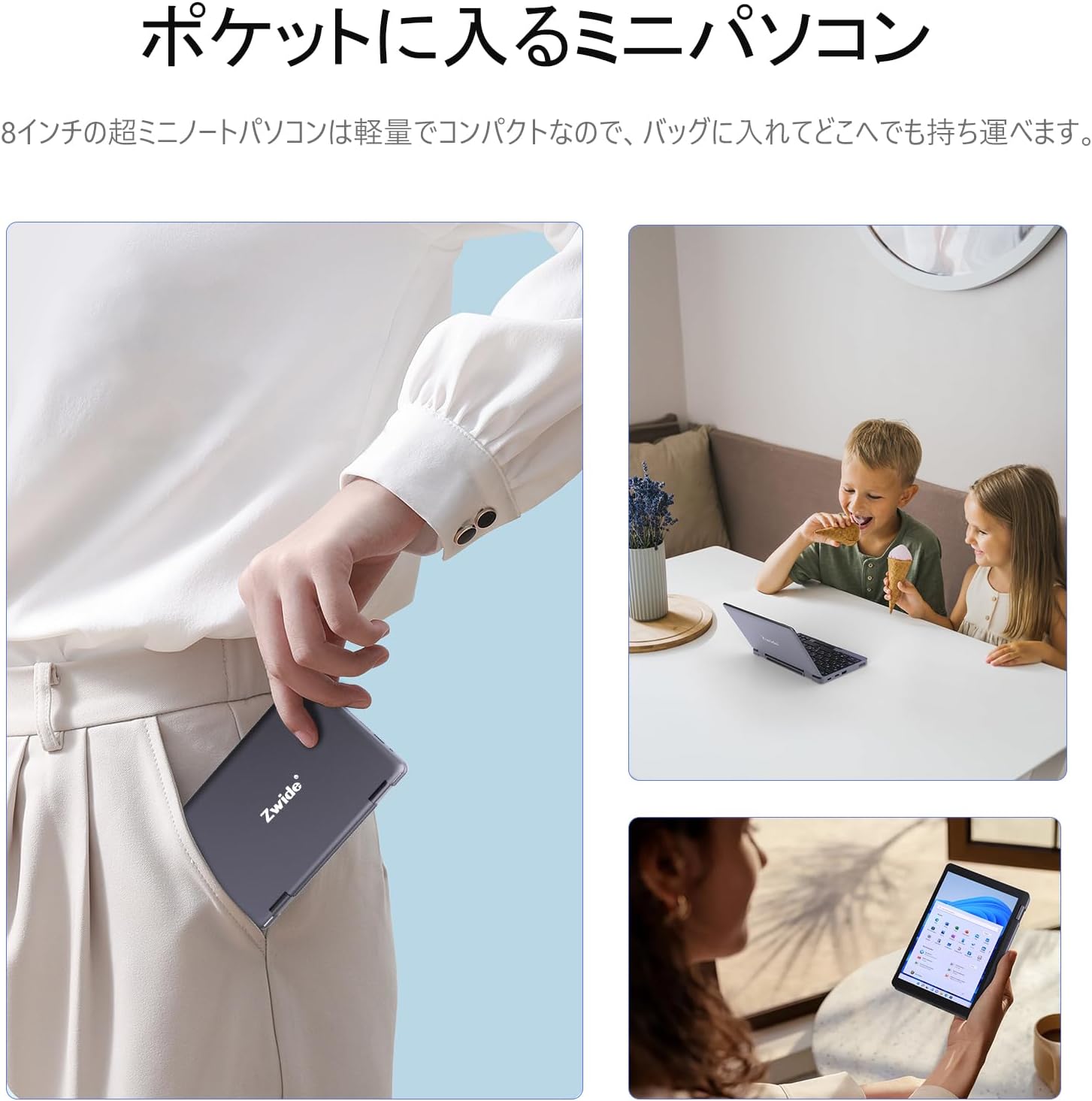
- Kompaktní a přenosné: Ultra-compact size (20 x 13 x 1.8 cm) and lightweight design for easy portability.
- Secure Login: Integrated fingerprint authentication on the power button for quick and secure access.
- Displej s vysokým rozlišením: 8.4-inch HD display with 1920x1200 FHD resolution for clear visuals.
- Konektivita: Supports Bluetooth 5.2 for efficient wireless connections and Wi-Fi.
- Japanese Keyboard: Features a Japanese keyboard layout for localized input.
2.2 Rozložení zařízení a porty
Familiarize yourself with the physical components and connection ports of your Zwide 2-in-1 Tablet Laptop.
Obrázek: Boční view of the Zwide 2-in-1 Tablet Laptop highlighting its various ports.
- USB porty: 3.0 For connecting USB devices such as external storage, mice, or keyboards.
- Mini HD port: Pro připojení k externím displejům nebo projektorům.
- Slot na kartu TF: For expanding storage with a TF (microSD) card.
- Sluchátkový jack: Pro připojení sluchátek nebo externích reproduktorů.
- Nabíjecí port: Pro připojení napájecího adaptéru pro nabíjení zařízení.
- LAN port: Pro připojení k kabelové síti.
- Thunderbolt Port (Type-C): Pro vysokorychlostní přenos dat, video výstup a napájení.
3. Nastavení
3.1 Počáteční nabíjení
Before first use, fully charge your Zwide 2-in-1 Tablet Laptop. Connect the provided power adapter to the charging port and plug it into a power outlet. The charging indicator light will show the charging status.
3.2 Zapnutí/vypnutí
- Zapnutí: Stiskněte a několik sekund podržte tlačítko napájení, dokud se obrazovka nerozsvítí.
- Vypnutí: Go to the Start Menu in Windows, select Power, and then choose Shut down. Alternatively, press and hold the power button for approximately 10 seconds to force a shutdown (use only when necessary).
3.3 Počáteční nastavení systému Windows
Upon first power-on, you will be guided through the Windows 11 Pro setup process. Follow the on-screen instructions to configure language, region, network settings, and user accounts.
3.4 Připojení periferních zařízení
You can connect various peripherals to your device:
- Zařízení USB: Plug USB mice, external keyboards, or storage devices into the USB 3.0 ports.
- Externí displej: Use a Mini HD cable to connect to an external monitor or TV.
- TF karta: Insert a TF card into the designated slot for additional storage.
4. Návod k obsluze
4.1 Režimy 2 v 1
Your device supports multiple modes thanks to its 360-degree hinge:
- Režim notebooku: Standard notebook configuration for typing and productivity.
- Režim tabletu: Fold the keyboard back completely for a full tablet experience with touchscreen interaction.
- Režim stanu: Stand the device in an inverted 'V' shape for media consumption or presentations.
- Režim stojanu: Position the keyboard face down to use the screen as a display stand.

Image: Zwide 2-in-1 Tablet Laptop in traditional laptop mode.

Image: Zwide 2-in-1 Tablet Laptop converted to tablet mode.
4.2 Používání dotykové obrazovky a klávesnice
- Dotyková obrazovka: Use multi-touch gestures for navigation, zooming, and interaction in tablet mode or when the screen is accessible.
- Klávesnice: The integrated Japanese keyboard features a backlight for use in low-light conditions. A trackpoint is also available for precise cursor control.
4.3 Fingerprint Login
To set up fingerprint authentication, navigate to Windows Settings > Accounts > Sign-in options. Follow the instructions to register your fingerprint. Once set up, you can securely log in by touching the power button with your registered finger.
4.4 Bezdrátové připojení
- Wi-Fi: To connect to a Wi-Fi network, click the Wi-Fi icon in the taskbar, select your desired network, and enter the password if prompted.
- Bluetooth: To pair Bluetooth devices, go to Windows Settings > Devices > Bluetooth & other devices. Ensure Bluetooth is enabled on both your laptop and the device you wish to pair.
4.5 Výstup na externí displej
Connect an external display to the Mini HD port or Thunderbolt (Type-C) port. Once connected, press the Windows key + P to open the project menu and select your preferred display mode (e.g., Duplicate, Extend, Second screen only).
5. Údržba
5.1 Čištění zařízení
- K čištění obrazovky a vnějších povrchů používejte měkký hadřík, který nepouští vlákna.
- Pro odolné skvrny lehce otřeteamphadřík vodou nebo čisticím prostředkem na obrazovky.
- Vyhněte se používání agresivních chemikálií, abraziv nebo rozpouštědel.
5.2 Péče o baterii
- Chcete-li prodloužit životnost baterie, vyvarujte se častého úplného vybíjení.
- Pokud zařízení delší dobu nepoužíváte, skladujte jej na chladném a suchém místě.
- Nevystavujte zařízení extrémním teplotám.
5.3 Aktualizace softwaru
Pravidelně kontrolujte a instalujte aktualizace systému Windows, abyste zajistili, že váš systém má nejnovější bezpečnostní záplaty a vylepšení výkonu. Přejděte do Nastavení > Windows Update.
5.4 Správa úložiště
Pravidelně uklízejte nepotřebné files and applications to maintain optimal performance. Utilize cloud storage or external drives for large files pro uvolnění místa na interním SSD disku.
6. Řešení problémů
If you encounter issues with your Zwide 2-in-1 Tablet Laptop, refer to the following common solutions:
| Problém | Možné řešení |
|---|---|
| Zařízení se nezapne | Ujistěte se, že je zařízení nabité. Připojte napájecí adaptér a zkuste to znovu. Pokud zařízení nereaguje, proveďte tvrdý reset podržením tlačítka napájení po dobu 10–15 sekund. |
| Obrazovka je prázdná nebo bliká | Restart the device. Check external display connections if applicable. Adjust display settings in Windows. |
| Nelze připojit k Wi-Fi nebo Bluetooth | Ensure Wi-Fi/Bluetooth is enabled in Windows settings. Restart the device and your router/Bluetooth device. Update network drivers. |
| Pomalý výkon | Close unnecessary applications. Check for background processes. Ensure sufficient free storage space. Run a system scan for malware. |
| Snímač otisků prstů nefunguje | Ensure your finger is clean and dry. Re-register your fingerprint in Windows settings. |
If the problem persists, please contact Zwide customer support for further assistance.
7. Specifikace
| Funkce | Detail |
|---|---|
| Značka | Zwide |
| Název modelu | NA08H |
| Velikost obrazovky | 8 palců |
| Barva | Šedá |
| Kapacita pevného disku | 1 TB (SSD) |
| Model CPU | Intel N305 |
| Rychlost CPU | Až 3.8 GHz |
| Velikost nainstalované paměti RAM | 16 GB (LPDDR5) |
| Operační systém | Windows 11 Pro |
| Grafická karta | Integrovaná (grafika Intel UHD) |
| Verze Bluetooth | 5.2 |
| Rozlišení displeje | 1920x1200 pixelů (FHD) |
| Typ zobrazení | LCD |
| Max Display Brightness | 350 cd/m² |
| Bezdrátový typ | Wi-Fi |
| Rozměry položky (DxŠxV) | 20 x 13 x 2 cm |
| Form Factor | Konvertibilní |
| Webvačka | Přední |
| Popis klávesnice | Backlit, Japanese Layout |
| Kontrolní metoda | Touch, Trackpoint |
| Modelový rok | 2025 |
| Zahrnuté komponenty | Klávesnice |
8. Oficiální produktová videa
8.1 Zwide 8-inch Mini Notebook PC Overview
Video: This video demonstrates the compact size, 360-degree rotation, and various usage modes of the Zwide 8-inch mini notebook PC, including tablet and laptop configurations, touch screen interaction, and port usage.
8.2 Zwide Pocket Handheld Mini Laptop Portability
Video: This video showcases the Zwide mini laptop's portability, demonstrating how it fits into a pocket and its use in various on-the-go scenarios.
8.3 Zwide 2-in-1 Tablet 8-inch Mini PC Functionality
Video: This video illustrates the 2-in-1 tablet functionality of an 8-inch mini PC, demonstrating its versatility and touch screen capabilities. Note: This video features an N100 CPU model, while the product is N305.
9. Záruka a podpora
9.1 Informace o záruce
Your Zwide 2-in-1 Tablet Laptop comes with a 1-year domestic warranty in JapanTato záruka se vztahuje na výrobní vady a poruchy hardwaru za běžného používání. Uschovejte si prosím doklad o koupi pro případ uplatnění záruky.
9.2 Zákaznická podpora
For technical assistance, warranty claims, or any other inquiries, please contact Zwide customer support through the official website or your retailer. Provide your model number (NA08H) and a detailed description of the issue for faster service.