Zavedení
This manual provides detailed instructions for the setup, operation, and maintenance of your Generic WD139 Wireless Gaming Mouse. Please read this manual thoroughly before using the product to ensure optimal performance and longevity.
The WD139 is a dual-mode wireless gaming mouse featuring 2.4GHz wireless and Bluetooth connectivity, an optical sensor with adjustable DPI, and a convenient magnetic charging dock.
Obsah balení
Ověřte, zda jsou v balení produktu přítomny všechny níže uvedené položky:
- WD139 Wireless Gaming Mouse
- Magnetická nabíjecí stanice
- USB nabíjecí kabel
- 2.4GHz USB přijímač
- Návod k použití (tento dokument)
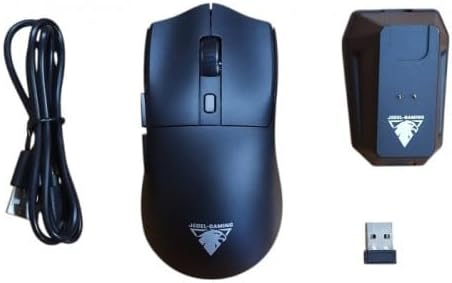
Image: The package contents, showing the WD139 mouse, its magnetic charging dock, a USB charging cable, and the 2.4GHz USB receiver.
Konec produktuview
The WD139 mouse is designed for ergonomic comfort and versatile connectivity. It features a total of 6 buttons for enhanced control.

Image: The WD139 mouse positioned on its magnetic charging dock, connected to a laptop, illustrating its operational setup.
Nastavení
1. Nabíjení myši
Before initial use, fully charge the mouse. Connect the USB charging cable to the magnetic charging dock and then to a USB power source (e.g., computer USB port, USB wall adapter). Place the mouse onto the magnetic charging dock. The mouse has a 300mAh rechargeable battery.

Image: The WD139 mouse actively charging on its magnetic dock, indicated by glowing lights.
2. Připojení přes bezdrátové připojení 2.4 GHz
- Locate the 2.4GHz USB receiver. It is typically stored in a compartment on the underside of the mouse or within the packaging.
- Zapojte USB přijímač do volného USB portu na vašem počítači.
- Zapněte myš pomocí vypínače, který se nachází na její spodní straně.
- Myš by se měla automaticky připojit k počítači. Pokud ne, stiskněte tlačítko párování (pokud je k dispozici) na myši nebo se podívejte do části o řešení problémů.
3. Připojení přes Bluetooth
The WD139 supports Bluetooth connectivity for devices that do not have a USB port or for a more streamlined setup.
- Ujistěte se, že je na vašem zařízení povoleno rozhraní Bluetooth.
- Switch the mouse to Bluetooth mode using the mode switch on the underside of the mouse (if applicable).
- Press and hold the Bluetooth pairing button on the mouse until the indicator light flashes, signifying it is in pairing mode.
- On your device, search for Bluetooth devices and select "WD139" or a similar name from the list.
- Once connected, the indicator light on the mouse will become solid or turn off.
Návod k obsluze
Úprava DPI
The mouse features adjustable DPI (Dots Per Inch) settings, allowing you to change cursor sensitivity. The available DPI settings are 800, 1200, and 1800 DPI. To adjust the DPI, press the DPI button, usually located near the scroll wheel. Each press will cycle through the available settings.
Funkce tlačítek
The WD139 mouse has 6 buttons. Standard functions include left-click, right-click, scroll wheel click, and DPI adjustment. Additional buttons may be programmable depending on your operating system and installed software.
Úsporný režim
To conserve battery life, the mouse may enter a power-saving mode after a period of inactivity. Move the mouse or click any button to wake it up.
Údržba
- Čištění: K čištění myši a nabíjecí stanice používejte měkký, suchý hadřík. Nepoužívejte agresivní chemikálie ani abrazivní materiály.
- Skladování: Pokud myš delší dobu nepoužíváte, skladujte ji na chladném a suchém místě.
- Péče o baterie: Chcete-li prodloužit životnost baterie, vyhněte se častému úplnému vybíjení myši. Nabíjejte ji, když je indikátor baterie nízký.
Odstraňování problémů
Myš nereaguje
- Ujistěte se, že je myš zapnutá.
- Zkontrolujte stav baterie a v případě potřeby myš nabijte.
- For 2.4GHz connection: Ensure the USB receiver is securely plugged into a working USB port. Try a different USB port.
- For Bluetooth connection: Ensure Bluetooth is enabled on your device and the mouse is correctly paired. Try re-pairing the mouse.
- Move the mouse closer to the receiver/device to rule out range issues (maximum transmission distance is 10 meters).
Pohyb kurzoru je nepravidelný nebo nepřesný
- Vyčistěte optický senzor na spodní straně myši.
- Ujistěte se, že myš používáte na vhodném povrchu. Vyhněte se vysoce reflexním nebo průhledným povrchům.
- Upravte nastavení DPI na úroveň, která vám vyhovuje.
Problémy s nabíjením
- Ensure the USB charging cable is properly connected to both the dock and the power source.
- Verify that the mouse is correctly seated on the magnetic charging dock.
- Zkuste jiný port USB nebo napájecí adaptér.
Specifikace
| Číslo modelu | WD139 |
| Technologie připojení | Bluetooth, 2.4GHz Wireless |
| Nastavení DPI | 800/1200/1800 DPI |
| Počet tlačítek | 6 |
| Detekce pohybu | Optický |
| Kapacita baterie | Dobíjecí 300mAh |
| Přepnout život | 3 milionů kliknutí |
| Přenosová vzdálenost | 10 metrů |
| Rozměry myši | 120 x 63 x 38 mm |
| Hmotnost položky | 100 gramů |
| Kompatibilní operační systémy | Windows, Mac OS, iOS, Android |
| Speciální funkce | Magnetická nabíjecí stanice |
Bezpečnostní informace
- Do not expose the mouse or charging dock to extreme temperatures, direct sunlight, or moisture.
- Zabraňte pádu zařízení nebo jeho vystavení silným nárazům.
- Nepokoušejte se zařízení rozebírat ani opravovat sami. Ztratíte tak záruku.
- Uchovávejte mimo dosah dětí.
Záruka a podpora
For warranty information and technical support, please refer to the contact details provided by your retailer or visit the manufacturer's official webUschovejte si doklad o koupi pro případ reklamace.
