
1. Úvod
This manual provides essential information for the proper setup, operation, and maintenance of your Pisichen 24-inch 2K QHD 2560x1440 IPS Touchscreen Monitor. Please read this manual thoroughly before using the product to ensure optimal performance and safety.
The Pisichen 24-inch monitor features a 2K QHD (2560x1440) resolution IPS panel, a 100Hz refresh rate, and 10-point multi-touch functionality, designed for both productivity and entertainment.
2. Obsah balení
Verify that all items listed below are present in your product package. If any items are missing or damaged, please contact customer support.
- Pisichen 24-inch 2K QHD Touchscreen Monitor
- Stojan na monitor (základna a krk)
- DP kabel
- HDMI kabel
- USB B Touch Cable
- USB CC kabel
- DC napájecí adaptér
- Uživatelská příručka (tento dokument)

Obrázek 2.1: Included accessories with the Pisichen 24-inch monitor.
3. Pokyny k nastavení
3.1. Sestavení stojanu monitoru
- Opatrně vyjměte komponenty monitoru a stojanu z obalu.
- Připevněte krk stojanu k panelu monitoru. Ujistěte se, že bezpečně zacvakne nebo je upevněn dodanými šrouby.
- Attach the stand base to the stand neck. Tighten the thumb screw at the bottom of the base to secure it.
- Sestavený monitor umístěte na stabilní, rovný povrch.
3.2. Připojení k zařízení
Monitor nabízí několik možností připojení. Vyberte si vhodný kabel pro vaše zařízení.
- Připojení HDMI: Connect one end of the HDMI cable to the HDMI port on your computer or device and the other end to the HDMI port on the monitor.
- Připojení USB-C: Connect one end of the USB-C cable to a compatible USB-C port on your computer or device (which supports video output) and the other end to the USB-C port on the monitor. This connection can also provide power and data.
- Připojení DisplayPort (DP): Connect one end of the DP cable to the DisplayPort on your computer or device and the other end to the DP port on the monitor.
- USB B for Touch Function: For touch functionality with a PC, connect the included USB B Touch Cable from the USB-B port on the monitor to a standard USB-A port on your computer. This is essential for enabling touch input.

Obrázek 3.1: Universal connectivity options for the monitor.
3.3. Zapnutí
- Connect the DC Power Adapter to the power input port on the monitor.
- Zapojte napájecí adaptér do elektrické zásuvky.
- Press the power button on the monitor (location may vary, typically on the back or bottom right) to turn it on.
4. Návod k obsluze
4.1. Základní obsluha
- Zapnutí/vypnutí: Stisknutím tlačítka napájení zapněte nebo vypněte monitor.
- Výběr zdroje vstupu: Use the monitor's OSD (On-Screen Display) menu buttons to select the desired input source (HDMI, USB-C, DP).
- Navigace v nabídce OSD: The monitor features physical buttons (usually on the back or bottom) to access and navigate the OSD menu. These buttons typically include Menu, Up, Down, and Exit/Select.
4.2. Dotyková funkce
The Pisichen monitor supports 10-point multi-touch input, allowing for intuitive interaction with your content. To enable touch functionality:
- Ensure the USB B Touch Cable is connected from the monitor's USB-B port to your computer's USB-A port.
- Your operating system should automatically detect the touch input device. No additional drivers are typically required for Windows.

Obrázek 4.1: Direct touch control on the monitor.
Touch Compatibility
The touch function is widely compatible with various devices. Refer to the compatibility chart below for optimal performance.

Obrázek 4.2: Touch compatibility for various devices.
Poznámka: Some devices, including certain gaming consoles (PS3/4/5, Xbox, Steam Deck) and mobile devices (iPhone, iPad, Switch, Fire TV), do not support the touch functionality of this monitor due to platform-specific restrictions.
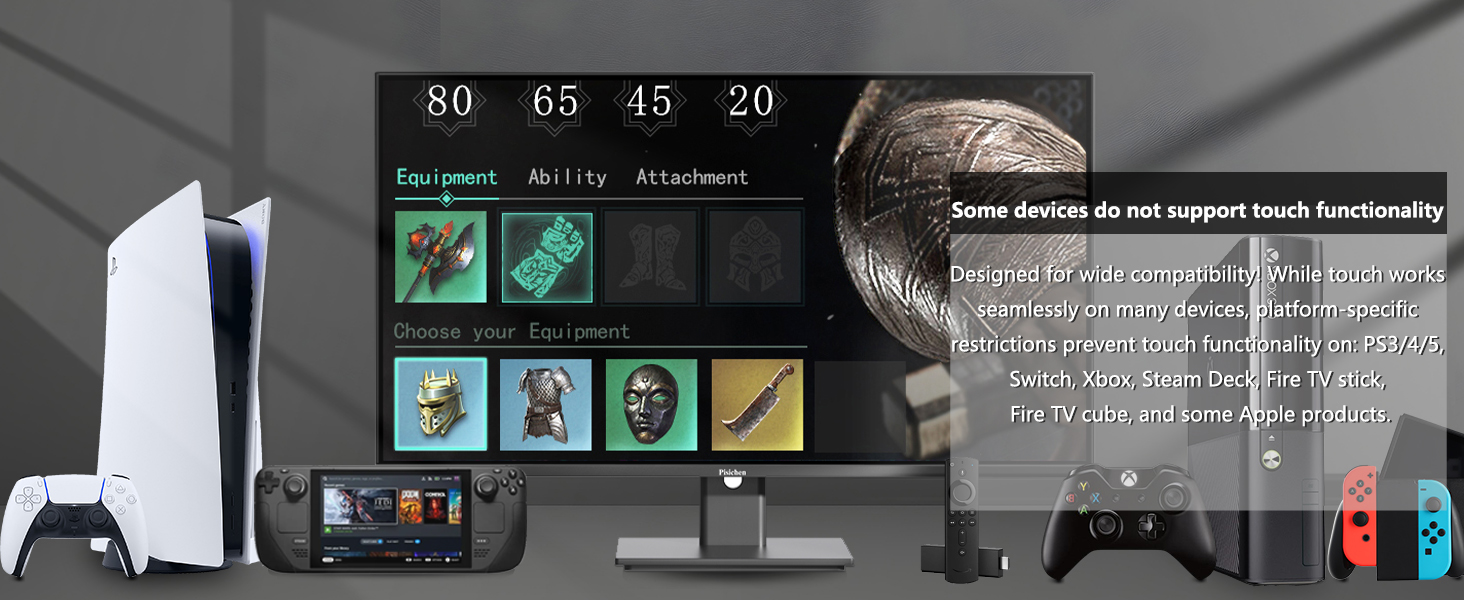
Obrázek 4.3: Devices where touch functionality is not supported.
5. Nastavení displeje
Access the OSD menu to adjust various display settings for optimal viewIng.
- Rezoluce: The monitor supports a native resolution of 2560x1440 (2K QHD). Ensure your device's display settings are configured to this resolution for the sharpest image.
- Obnovovací frekvence: The monitor operates at a 100Hz refresh rate, providing smoother visuals compared to standard 60Hz monitors.
- Jas a kontrast: Adjust these settings to suit your environment and personal preference. The monitor features 400 cd/m² brightness and a 1500:1 contrast ratio.
- Nastavení barev: Fine-tune color temperature, gamma, and other color parameters. The IPS panel ensures wide viewúhly a přesnou reprodukci barev.
- Funkce pro pohodlí očí: The monitor includes Flicker-Free technology and Low Bluelight modes to reduce eye strain during extended use.

Obrázek 5.1: Visual comparison of 2K QHD vs. Full HD resolution.

Obrázek 5.2: IPS panel benefits: True Color, True Vision from Any Angle.

Obrázek 5.3: Advanced Eye-Comfort features.
6. Údržba
6.1. Čištění monitoru
- Před čištěním vždy vypněte monitor a odpojte napájecí kabel.
- Použijte měkký hadřík, který nepouští vlákna dampvodou nebo jemným, neabrazivním čističem obrazovek.
- Jemně otřete obrazovku a vnější povrchy. Netlačte příliš silně.
- Nepoužívejte alkohol, čisticí prostředky na bázi amoniaku ani abrazivní materiály, protože by mohly poškodit povrch obrazovky.
6.2. Skladování
Pokud monitor skladujete delší dobu, ujistěte se, že je vypnutý, odpojený od sítě a uložen na chladném a suchém místě mimo dosah přímého slunečního záření a extrémních teplot. Pro nejlepší ochranu použijte originální obal, pokud je k dispozici.
7. Řešení problémů
Pokud narazíte na problémy s monitorem, postupujte podle následujících běžných kroků pro řešení potíží:
- Bez napájení: Ensure the power adapter is securely connected to both the monitor and a working power outlet. Check if the power indicator light on the monitor is on.
- Bez signálu: Verify that the video cable (HDMI, USB-C, or DP) is securely connected to both the monitor and your source device. Ensure the correct input source is selected via the OSD menu.
- Bezdotyková funkce: Confirm that the USB B Touch Cable is properly connected from the monitor to your computer. Check your computer's device manager to see if the touch device is recognized.
- Blikající obrazovka: Check the video cable connection. Try a different cable or input port. Ensure your graphics card drivers are up to date.
- Zkreslení obrazu/nesprávné barvy: Reset the monitor to factory settings via the OSD menu. Adjust brightness, contrast, and color settings.
V případě přetrvávajících problémů, které tyto kroky nevyřeší, kontaktujte zákaznickou podporu.
8. Specifikace
| Funkce | Specifikace |
|---|---|
| Číslo modelu | QHD-2k100hz-24INTS |
| Velikost obrazovky | 24 palce |
| Rezoluce | 2560 x 1440 pixelů (QHD širokoúhlý 1440p) |
| Poměr stran | 16:9 |
| Obnovovací frekvence | 100 Hz |
| Doba odezvy | 3 ms |
| Typ panelu | IPS |
| Klepněte na funkci | 10bodový vícedotykový |
| Jas obrázku | 400 kandel (cd/m²) |
| Kontrastní poměr | 1500:1 |
| Popis povrchu obrazovky | Lesklý |
| Konektivita | HDMI, USB-C, USB A, USB B (for Touch Function) |
| Celkový počet portů USB | 2 (USB-C, USB-B) |
| Rozměry produktu | 1.97 x 21.26 x 12.6 palce |
| Hmotnost položky | 10.08 libry |
| Výrobce | Shenzhen Konowa Electronics Co., LTD |
9. Záruka a podpora
For warranty information, please refer to the warranty card included in your product packaging or visit the official Pisichen website. If you require technical assistance, troubleshooting, or have questions about your product, please contact Pisichen customer support through their official channels.
Uschovejte si prosím doklad o koupi pro uplatnění záruky.