
1. Úvod
The Akko Mineral 02 is a high-performance QMK/VIA compatible aluminum mechanical keyboard designed for versatility and customization. Featuring tri-mode connectivity (wired, 2.4GHz wireless, and Bluetooth), hot-swappable switches, and customizable RGB lighting, this keyboard offers a premium typing and gaming experience. This manual provides essential information for setting up, operating, maintaining, and troubleshooting your Akko Mineral 02 keyboard.
2. Obsah balení
Zkontrolujte prosím balení, zda neobsahuje následující položky:
- Akko Mineral 02 QMK/VIA Aluminum Mechanical Keyboard
- USB-C kabel
- Assembly/Disassembly Tools (Switch Puller, Keycap Puller)
- 2.4 GHz bezdrátový přijímač
- Uživatelská příručka (tento dokument)
3. Konec produktuview
The Akko Mineral 02 keyboard combines robust aluminum construction with advanced features for a customizable user experience.
Klíčové vlastnosti:
- Třírežimové připojení: Seamlessly switch between Wired (USB-C), 2.4GHz Wireless, and Bluetooth connections.
- Podpora QMK/VIA: Full programmability for key remapping, macros, and lighting customization.
- Přepínače vyměnitelné za provozu: Easily change mechanical switches without soldering.
- Přizpůsobitelné RGB osvětlení: Per-key RGB and unique corner lighting effects.
- Aluminum Case: Odolná a prémiová kvalita provedení.
- Provedení s těsněním: Provides a flexible and comfortable typing feel with improved acoustics.
- Baterie 8000 mAh: Rozšířené bezdrátové používání.
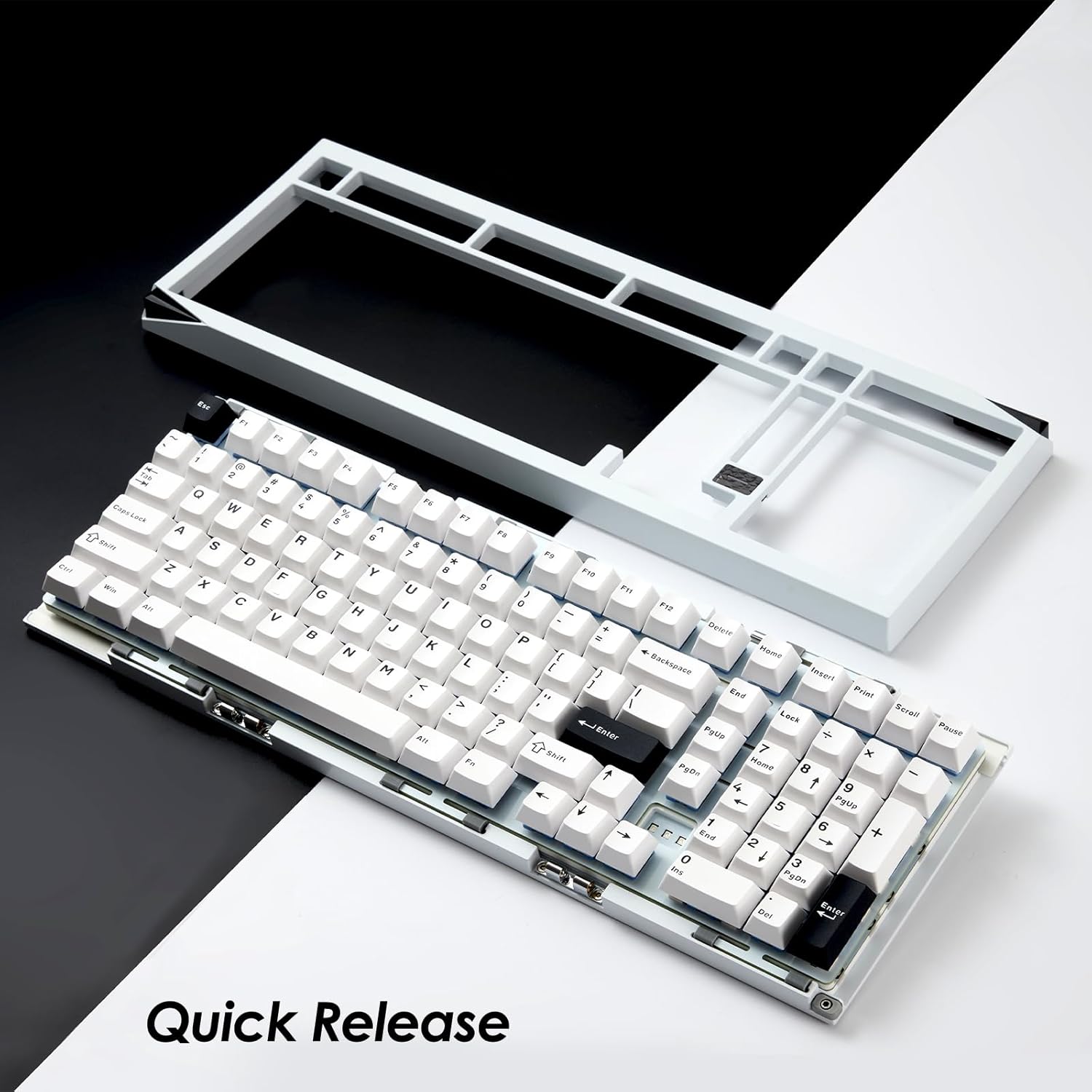
Image: Akko Mineral 02 keyboard with its top case detached, illustrating the quick release design for easy customization and maintenance.

Image: Detail of the hot-swappable sockets on the Akko Mineral 02 keyboard, allowing for easy switch replacement without soldering. RGB lighting is visible through the sockets.

Image: Visual representation highlighting the 8000mAh battery capacity of the Akko Mineral 02 keyboard, indicating long wireless usage.
4. Nastavení
4.1 Počáteční nabíjení
Before first use, connect the keyboard to a USB power source using the provided USB-C cable to ensure it is fully charged. The charging indicator (usually an LED near the USB port or a specific key) will show charging status and turn off or change color when fully charged.
4.2 Connecting via Wired Mode
- Ensure the keyboard's mode switch (usually located on the back or side) is set to 'Wired' or 'USB'.
- Connect the USB-C cable to the keyboard's USB-C port and the other end to an available USB port on your computer.
- Klávesnice bude automaticky rozpoznána vaším operačním systémem.

Image: The USB-C port located on the Akko Mineral 02 keyboard for wired connection and charging.
4.3 Connecting via 2.4GHz Wireless Mode
- Locate the 2.4GHz wireless receiver in your package.
- Zapojte 2.4GHz přijímač do volného USB portu na vašem počítači.
- Nastavte přepínač režimů klávesnice na „2.4 G“.
- Klávesnice by se měla připojit automaticky. Pokud ne, stiskněte Fn + 4 (or the designated key for 2.4G pairing) to initiate pairing.
4.4 Připojení přes Bluetooth
- Set the keyboard's mode switch to 'BT' (Bluetooth).
- V počítači nebo zařízení povolte Bluetooth a vyhledejte nová zařízení.
- On the keyboard, press and hold Fn + 1, Fn + 2nebo Fn + 3 po dobu 3–5 sekund pro vstup do režimu párování pro zařízení Bluetooth 1, 2 nebo 3. Kontrolka bude rychle blikat.
- Select 'Akko Mineral 02' from the list of available Bluetooth devices on your computer/device.
- Once paired, the indicator light will stop flashing. You can pair up to three Bluetooth devices.

Image: The Akko Mineral 02 keyboard demonstrating its tri-mode connectivity options: Type-C wired, 2.4GHz wireless, and Bluetooth, connecting to various devices.
5. Návod k obsluze
5.1 Základní funkce kláves
The Akko Mineral 02 features a standard 1800 compact layout. Refer to the keycap legends for primary functions. Secondary functions are typically accessed using the Fn key in combination with other keys (e.g., Fn + F1-F12 for media controls).
5.2 Ovládání RGB osvětlení
The keyboard features customizable RGB lighting. Basic lighting effects can be cycled through using specific Fn key combinations (refer to your keyboard's specific key legends or a quick start guide). For advanced customization, including per-key lighting and dynamic effects, use the VIA software.
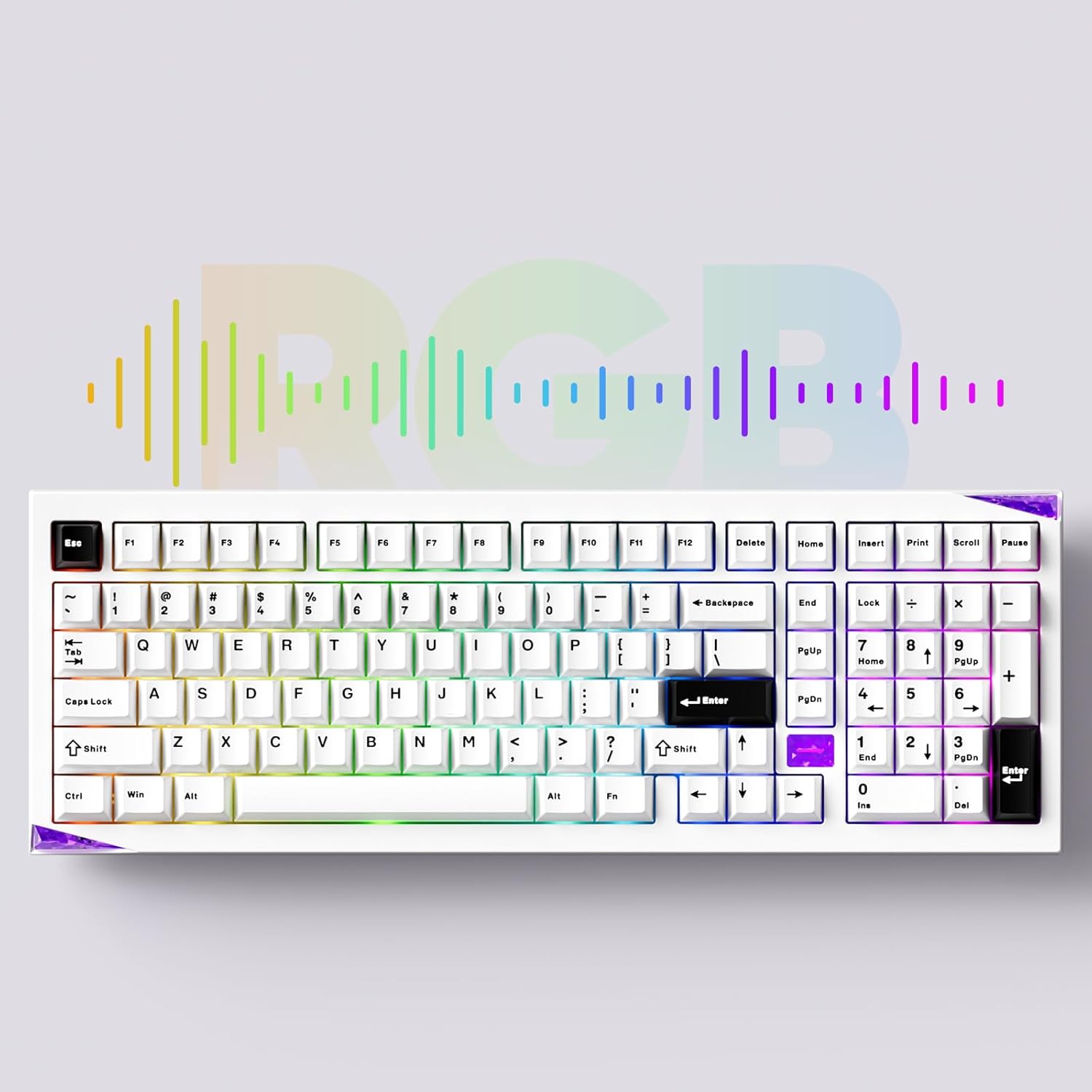
Image: The Akko Mineral 02 keyboard illuminated with various RGB lighting patterns, showcasing its customizable backlighting.
5.3 QMK/VIA Software Usage
The Akko Mineral 02 supports QMK firmware and VIA software for advanced customization. VIA allows you to remap keys, create macros, and adjust RGB lighting in real-time without flashing firmware. To use VIA:
- Download the VIA software from the official Akko webweb nebo VIA webmísto.
- Connect your keyboard in wired mode.
- Launch the VIA software. It should automatically detect your keyboard.
- Use the intuitive interface to customize key assignments, layers, and lighting effects.

Image: A visual representation of the VIA software interface, demonstrating its capabilities for key remapping and customization.
5.4 Switching Operating System Modes (Windows/Mac)
To switch between Windows and Mac operating system layouts, locate the dedicated switch or key combination. Some Akko keyboards use Fn + Caps Lock to toggle between modes. Refer to your keyboard's specific documentation for the exact method.
6. Údržba
6.1 Čištění klávesnice
- Odpojte klávesnici od počítače.
- Pro důkladné vyčištění použijte stahovák na klávesy.
- K odstranění prachu a nečistot z prostoru mezi spínači použijte stlačený vzduch.
- Wipe keycaps with a damp hadříkem a jemným mýdlovým roztokem a poté důkladně osušte.
- Clean the keyboard case with a soft, dry cloth. Avoid harsh chemicals.
6.2 Přepínače s možností výměny za provozu
The Akko Mineral 02 features hot-swappable sockets, allowing you to change switches without soldering.
- Odpojte klávesnici.
- K odstranění požadované klávesy použijte dodaný stahovák na klávesy.
- Use the provided switch puller to gently grip the switch from the top and bottom, then pull it straight up to remove.
- Zarovnejte piny nového spínače s otvory na desce plošných spojů. Ujistěte se, že piny jsou rovné.
- Gently push the new switch into the socket until it clicks into place. Do not force it.
- Vyměňte krytku kláves.

Obrázek: Podrobný view of an Akko Mirror Switch, illustrating the component that can be hot-swapped in the keyboard.
7. Řešení problémů
7.1 Klávesnice nereaguje
- Kabelový režim: Ujistěte se, že je kabel USB-C bezpečně připojen ke klávesnici i k počítači. Zkuste jiný port USB nebo kabel.
- Bezdrátové připojení 2.4 GHz: Ensure the 2.4GHz receiver is plugged in and the keyboard is in 2.4G mode. Re-pair by pressing Fn + 4Zkontrolujte stav baterie.
- Režim Bluetooth: Ensure Bluetooth is enabled on your device and the keyboard is in BT mode. Re-pair by holding Fn + 1/2/3Zkontrolujte stav baterie.
- Baterie: Plně nabijte klávesnici.
7.2 Problémy s RGB osvětlením
- Ujistěte se, že je klávesnice zapnutá.
- Check if RGB lighting is disabled via Fn key combinations.
- Use the VIA software to verify and adjust lighting settings.
7.3 Klíče se neregistrují
- Sejměte krytku klávesy a přepněte ji dotčenou klávesu.
- Zkontrolujte kolíky spínačů, zda nejsou ohnuté nebo poškozené. Pokud jsou ohnuté, jemně je narovnejte.
- Reinsert the switch firmly into the socket.
- Test with a different switch if the issue persists.
8. Specifikace
| Funkce | Detail |
|---|---|
| Značka | Akko |
| Model | Minerál 02 |
| Technologie připojení | Bluetooth, bezdrátové připojení 2.4 GHz, kabelové připojení USB-C |
| Kompatibilní zařízení | PC, tablet, smartphone |
| Popis klávesnice | Ergonomický, mechanický |
| Speciální funkce | Tri-Mode, Hot-swappable, RGB Lighting, QMK/VIA Support, Gasket Mount |
| Materiál | Aluminum (Case) |
| Zahrnuté komponenty | USB-C Cable, Assembly/Disassembly Tools |
| Zdroj napájení | Bezdrátové a drátové |
| Počet klíčů | 104 (1800 Compact Layout) |
| Typ přepínače | Mechanické |
| Mechanical Keyboard Switch Model | Mirror Switch (Pre-lubed) |
| Kapacita baterie | 8000 XNUMX mAh |
9. Záruka a podpora
Akko products come with a standard manufacturer's warranty. For specific warranty terms, duration, and support inquiries, please refer to the warranty card included with your product or visit the official Akko webUschovejte si doklad o koupi pro případ reklamace.
For technical support, troubleshooting assistance, or further information, please contact Akko customer service through their official channels.