
THOMSON 1001W (10.1-inch WiFi)
THOMSON 10.1-inch WiFi Digital Picture Frame User Manual
Model: 1001W
1. Úvod
Thank you for choosing the THOMSON 10.1-inch WiFi Digital Picture Frame. This device allows you to easily share and display your cherished photos and videos with family and friends from anywhere in the world. This manual provides detailed instructions to help you set up, operate, and maintain your digital picture frame.
Obsah balení:
- THOMSON 10.1-inch WiFi Digital Picture Frame
- Napájecí adaptér
- Odnímatelný stojan
- Uživatelská příručka
2. Konec produktuview
Seznamte se s komponenty vašeho digitálního fotorámečku.
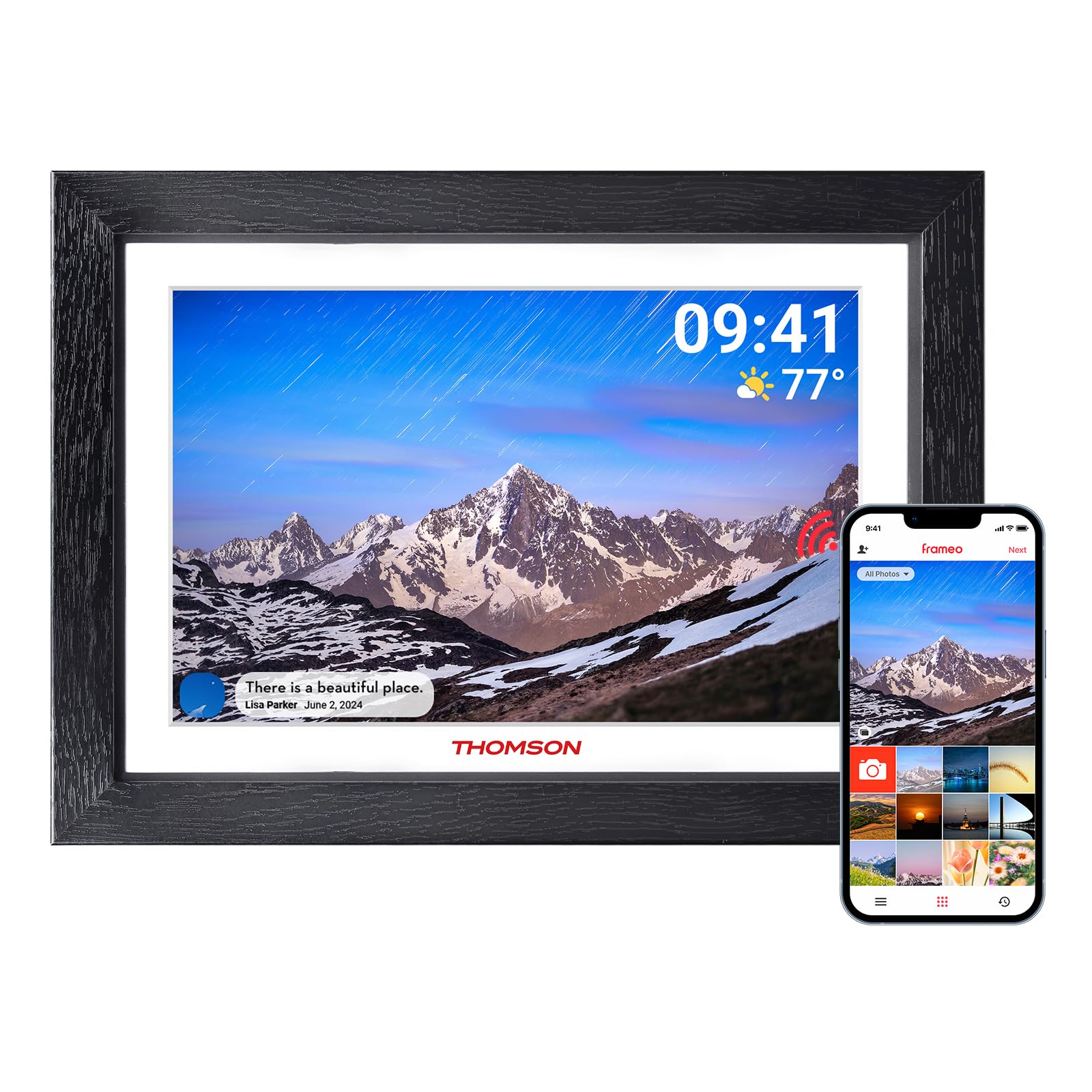
Obrázek 2.1: Přední strana view of the digital picture frame.

Obrázek 2.2: Zadní view with wall mount and stand attachment points.
Klíčové komponenty:
- 10.1palcový HD IPS dotykový displej: For clear display and intuitive navigation.
- Napájecí port: Připojuje se k napájecímu adaptéru.
- Slot pro SD kartu: For expanding storage (supports up to 128GB, SD card not included).
- USB port: For data transfer (e.g., from a USB flash drive).
- Vypínač: To turn the frame on/off or put it into sleep mode.
- Otvor pro zavěšení na zeď: Allows for wall mounting in both landscape and portrait orientations.
- Detachable Stand: Pro umístění na stůl.
3. Počáteční nastavení
3.1 Zapnutí
- Attach the detachable stand to the back of the frame if you intend to place it on a surface.
- Connect the power adapter to the frame's power port and then plug it into a wall outlet.
- The frame will automatically power on. If not, press and hold the power button on the back of the frame.
3.2 Připojení k Wi-Fi
Upon first startup, the frame will guide you through the initial setup wizard.
- Vyberte preferovaný jazyk.
- Vyberte si časové pásmo.
- Rámeček prohledá dostupné sítě Wi-Fi. Vyberte svou síť ze seznamu.
- Enter your Wi-Fi password and tap "Connect".
- Once connected, the frame will display a unique device code. Make a note of this code.
3.3 Downloading and Pairing the App
To share photos and videos, you need to download the companion app.

Figure 3.1: App download and pairing process.
- Download the "Frameo" app from the App Store (iOS) or Google Play Store (Android) on your smartphone or tablet.
- Otevřete aplikaci Frameo a vytvořte si účet.
- In the app, select "Add Frame" and enter the unique device code displayed on your digital picture frame.
- Po spárování můžete začít odesílat fotografie a videa do rámečku.
4. Operating Your Digital Picture Frame
4.1 Sending Photos and Videos via App
The Frameo app allows you to send photos and short videos (up to 15 seconds) directly to your frame from anywhere with an internet connection.

Figure 4.1: Sharing photos and videos from a smartphone to the frame.
- Otevřete aplikaci Frameo ve svém chytrém telefonu.
- Vyberte fotografie nebo videa, která chcete odeslat.
- Choose your THOMSON frame as the recipient.
- Add a caption if desired and tap "Send". The content will appear on your frame shortly.
4.2 Using an SD Card or USB Drive
You can also display media directly from an SD card or USB flash drive.
- Insert an SD card (up to 128GB) into the SD card slot or a USB flash drive into the USB port.
- The frame will detect the storage device. You can then import photos/videos to the frame's internal memory or view jim přímo.
4.3 Nastavení prezentace
Přizpůsobte si způsob zobrazení fotografií a videí.
- Pořadí zobrazení: Choose between chronological, reverse chronological, or shuffle.
- Interval fotografování: Set the duration each photo is displayed.
- Přechodové efekty: Select various visual transitions between photos.
- Objem: Adjust the volume for videos.
- Jas: Upravte jas obrazovky.
4.4 Funkce automatického otáčení
The frame automatically detects its orientation (landscape or portrait) and adjusts the display accordingly. This feature works whether the frame is on its stand or wall-mounted.
Figure 4.2: Auto-rotate and wall-mount capabilities.
5. Klíčové vlastnosti
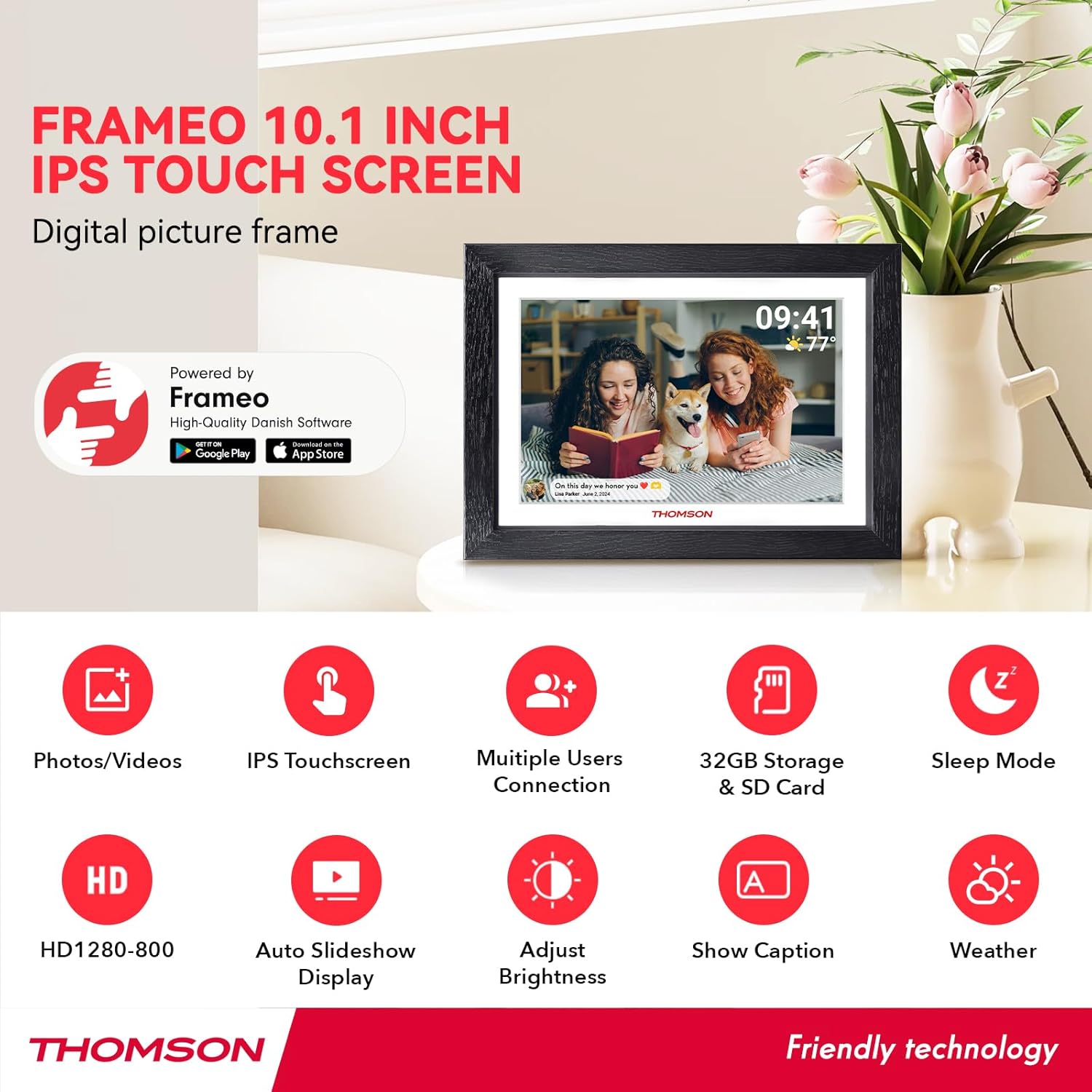
Obrázek 5.1: Přesview of frame features.
- Dotyková obrazovka s HD IPS: Enjoy vibrant images and videos with a 1280x800 resolution and a wide 180° viewing angle. The touch interface provides easy navigation.
- Wi-Fi připojení: Seamlessly connect to your home Wi-Fi network for instant photo and video sharing.
- Velkorysé úložiště: The frame comes with 32GB of built-in memory, capable of storing thousands of photos. Expand storage further with an SD card (up to 128GB).
- Frameo App Sharing: Share moments privately and securely with family and friends from anywhere using the dedicated Frameo app.
- Automatické otáčení: Photos and videos automatically adjust to the frame's orientation, whether placed horizontally or vertically.
- Režim spánku: Conserve energy by setting the frame to automatically turn off during specified hours.
- Funkce „Reagovat“: Send emoticons back to loved ones in real-time to show your appreciation for the photos they share.
6. Údržba
6.1 Čištění obrazovky
- Always power off the frame and unplug it before cleaning.
- Use a soft, lint-free cloth, such as a microfiber cloth, to gently wipe the screen.
- Na odolné šmouhy lehceampOmyjte hadřík vodou nebo roztokem na čištění obrazovek určeným speciálně pro elektroniku. Nestříkejte tekutinu přímo na obrazovku.
- Avoid using abrasive cleaners, alcohol, or ammonia-based solutions, as these can damage the screen.
6.2 Aktualizace softwaru
The frame may receive periodic software updates to improve performance and add new features. Ensure your frame is connected to Wi-Fi to receive these updates. You will typically be notified on the frame when an update is available.
7. Řešení problémů
| Problém | Možná příčina | Řešení |
|---|---|---|
| Rám se nezapne. | Žádný problém s napájením ani napájecím adaptérem. | Ujistěte se, že je napájecí adaptér bezpečně připojen k rámu i k funkční zásuvce. Zkuste jinou zásuvku. |
| Nelze se připojit k Wi-Fi. | Nesprávné heslo, mimo dosah nebo problém se sítí. | Double-check the Wi-Fi password. Move the frame closer to the router. Restart your router and the frame. Ensure your Wi-Fi network is 2.4GHz compatible. |
| Fotografie/videa se nezobrazují na snímku. | Frame not connected to internet, app not paired, or incorrect recipient. | Verify the frame is connected to Wi-Fi. Ensure the app is correctly paired with the frame. Confirm you are sending to the correct frame ID in the app. Check if the frame's internal storage or SD card is full. |
| Dotyková obrazovka nereaguje. | Dočasná softwarová závada. | Restart the frame by unplugging it and plugging it back in after a few seconds. Ensure the screen is clean and free of debris. |
| Frame is stuck on a logo or screen. | Softwarová chyba. | Perform a hard reset by unplugging the power adapter, waiting 10 seconds, and plugging it back in. If the issue persists, contact customer support. |
8. Specifikace
| Funkce | Detail |
|---|---|
| Značka | THOMSON |
| Číslo modelu | 1001W |
| Velikost obrazovky | 10.11 palce |
| Rezoluce | 1280 x 800 (HD IPS) |
| Technologie připojení | Wi-Fi (2.4 GHz) |
| Kapacita paměti | 32 GB (interní) |
| Externí úložiště | SD Card (max. 128 GB, not included) |
| Kontrolní metoda | Touch Screen, App |
| Zdroj napájení | Elektrický kabel |
| Poměr stran | 16:10 |
| Materiál rámu | Dřevo |
| Hmotnost položky | 680 gramů |
| Rozměry položky (D x Š) | 16" x 10" |
9. Záruka a podpora
9.1 Informace o záruce
The THOMSON 10.1-inch WiFi Digital Picture Frame comes with a Záruka 24 měsíců od data nákupu. Tato záruka se vztahuje na výrobní vady a zajišťuje, že výrobek bude při běžném používání fungovat dle určení.
9.2 Technická podpora
THOMSON provides doživotní technickou podporu for this product. If you encounter any issues or have questions not covered in this manual, please refer to the contact information provided with your product packaging or visit the official THOMSON support webmísto pro pomoc.
Ask a question about this manual
Ask about setup, troubleshooting, compatibility, parts, safety, or missing instructions. Manuals+ will review the question and use this page’s manual context to help answer it.