
Zavedení
The Middle Rabbit Smart Card Tracker (Model K2) is a credit card-sized device designed to help you locate your personal items using the Google Find My Device network. This ultra-thin tracker offers global location coverage, wireless charging, and a long-lasting battery, making it an ideal solution for keeping track of your wallet, bag, or other valuables. This manual provides detailed instructions for setup, operation, and maintenance to ensure optimal performance.
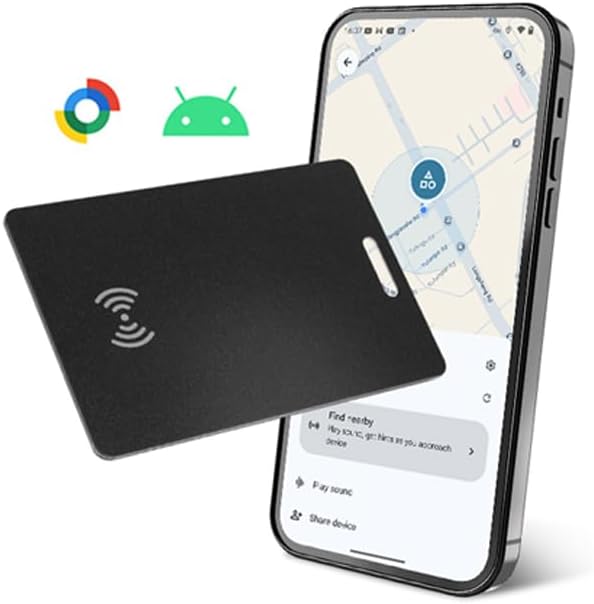
Obrázek: Přední strana view of the Middle Rabbit Smart Card Tracker, showcasinjeho kompaktní design.
Pokyny pro nastavení
Follow these steps to set up your Middle Rabbit Smart Card Tracker with your Android device:
- Ensure Network and Bluetooth are On: On your Android phone, verify that both your network connection (Wi-Fi or mobile data) and Bluetooth are enabled.
- Power On the Smart Card: Locate the small button on the Smart Card. Press the button once. You will hear a long beep, indicating the tracker card is powered on.
- Open the Find My Device App: Download and open the Google Find My Device app from the Google Play Store.
- Connect the Card: A "Smart Card" pop-up should appear in the app. Tap "Connect" to initiate pairing.
- Souhlasím s podmínkami: Follow the on-screen prompts, tapping "Agree and continue" to complete the pairing process.
- Alternative Connection (if no pop-up): If the pop-up does not appear, navigate to your phone's Settings → Google → All Services → Connected Devices & Sharing → Devices. Then, toggle "Scan for nearby devices" to ON. Power cycle your Smart Card (turn off then on) to make it discoverable.
Video: This video demonstrates the initial setup and pairing process of the Smart Card Tracker with an Android phone using the Google Find My Device app.

Image: Visual guide illustrating the connection steps for the Smart Card Tracker with an Android device.
Návod k obsluze
Once your Smart Card Tracker is set up, you can utilize its features to locate your items:
- Global Location Tracking: The Smart Card leverages Google's Find My Device network. As long as any Android phone is nearby, it helps update the location of your card to the cloud, allowing you to track it almost anywhere in the world.
- Ring to Find Nearby: If your item is lost nearby (e.g., in your home or bag), open the Find My Device app and select your Smart Card. Use the "Play sound" feature to make the card emit a loud sound, helping you pinpoint its exact location.
- Lost Mode and Contact Information: In case your item is lost, activate "Mark as Lost" in the app. This feature allows you to display your contact information on the card, so anyone who finds it can easily contact you.
- Ochrana osobních údajů a zabezpečení: Your location data is encrypted and anonymous within the Google Find My Device network. Only you can track your tag, čímž je zajištěno vaše soukromí.

Image: Screenshot of the Google Find My Device app showing global tracking capabilities on a map.

Image: A hand holding an Android phone with the "Play sound" option active, next to the Smart Card emitting sound waves.

Image: A phone screen displaying the "Enter phone number and a message" interface for the lost mode feature.
Video: This video demonstrates the process of finding a lost item using the Smart Card Tracker's sound feature.
Údržba
- Nabíjení: The Smart Card Tracker features wireless charging. When the battery is low, simply place it on a compatible wireless charging pad. Ensure the icon on the card is face-down on the charging pad for proper contact. No cables are needed.
- Životnost baterie: The card offers up to 5 months of standby time on a single full charge.
- Čištění: Wipe the card with a soft, dry cloth. Avoid using harsh chemicals or abrasive materials.
- Voděodolnost: The device is IPX68 waterproof, providing protection against dust and immersion in water up to 1.5 meters for 30 minutes.

Image: The Smart Card Tracker being wirelessly charged on a charging pad, highlighting the face-down placement for charging.
Odstraňování problémů
If you encounter issues with your Smart Card Tracker, try the following steps:
- Check Network and Bluetooth: Ensure your phone's network (Wi-Fi or mobile data) and Bluetooth are turned on.
- Restart the Card:
- Vypnout: Press and hold the button on the card for 3 seconds. If you hear two beeps, the card is powered off.
- Zapnutí: Press the button once. If you hear a long beep, the card is powered on.
- Restartujte telefon: A simple phone restart can resolve many connectivity issues.
- Factory Reset the Card:
- First, ensure the card is disconnected from the Find My Device app.
- Quickly press the button 5 times. On the 5th press, press and hold until you hear a long beep. This confirms a successful factory reset.
Pokud problémy přetrvávají i po vyzkoušení těchto kroků, kontaktujte prosím zákaznickou podporu.
Specifikace
| Číslo modelu | K2 |
| Rozměry | 5.24 x 3.39 x 0.71 inches (Ultra-slim: 0.07 inches thickness) |
| Hmotnost položky | 1.44 unce |
| Typ baterie | 1 lithium-polymerová baterie (součástí balení) |
| Životnost baterie | Up to 5 months standby time |
| Nabíjení | Kompatibilní s bezdrátovým nabíjením |
| Konektivita | Bluetooth, Google Find My Device network |
| Kompatibilita | Android devices (Samsung Galaxy, Pixel, OnePlus, etc.) |
| Voděodolnost | IPX68 |
| Materiál | Plast |
Záruka a podpora
The Middle Rabbit Smart Card Tracker (Model K2) includes a 1letá záruka na bezplatnou výměnu. If you experience any issues with your device, please contact Middle Rabbit customer support for assistance. We are committed to providing hassle-free support, including refunds or replacements, with no questions asked for valid warranty claims.
For support, please refer to the contact information provided with your product packaging or visit the official Middle Rabbit webmísto.