
1. Úvod
Černýview MP60 Mini PC is a compact and powerful computing solution designed for various applications, including office work, multimedia creation, and home server use. Featuring the Intel Twin Lake N150 processor, 16GB RAM, and a 512GB M.2 SSD, it offers efficient performance in a small form factor. This manual provides essential information for setting up, operating, and maintaining your device.

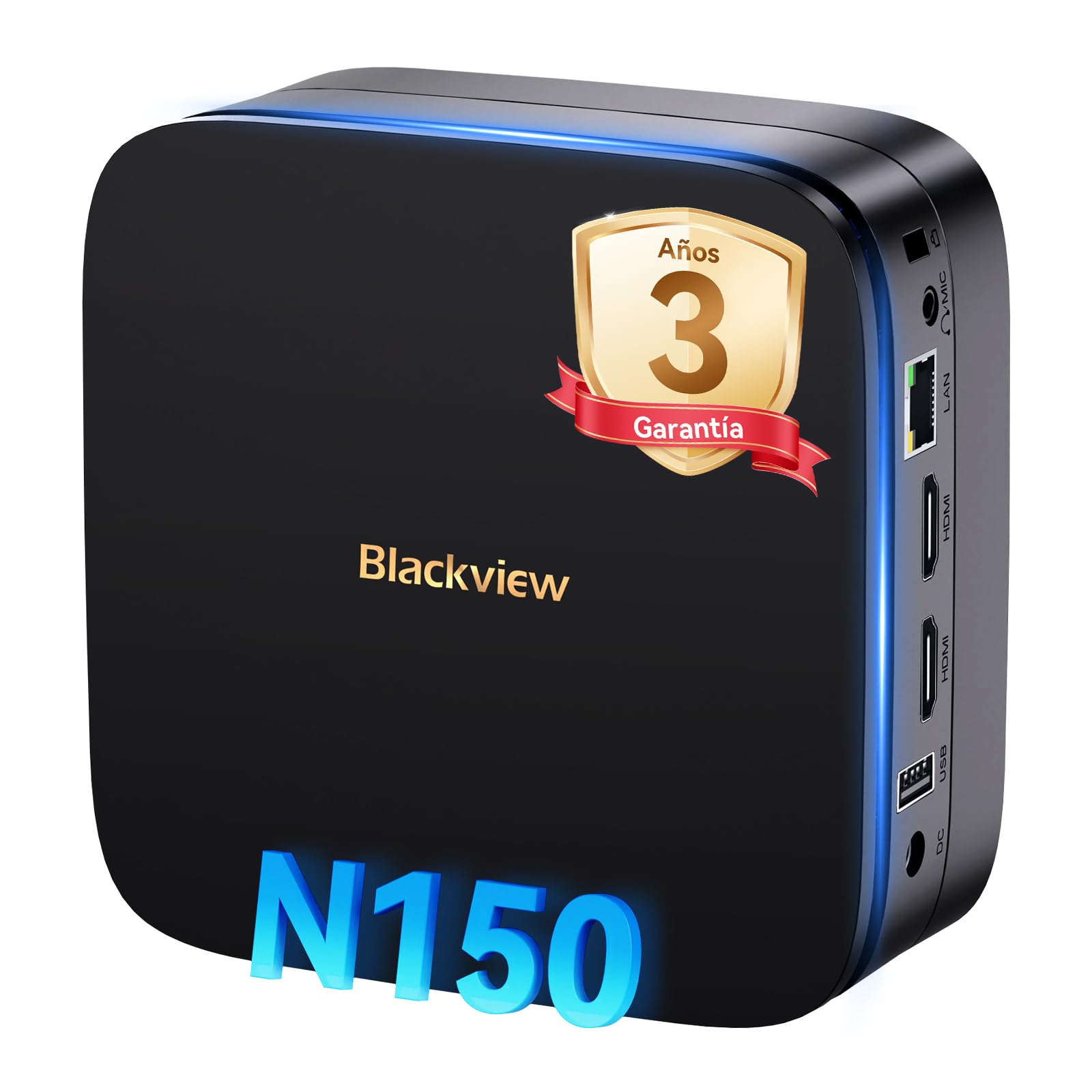
Obrázek: Černáview MP60 Mini PC, highlighting its compact design and Intel Twin Lake N150 processor.
2. Co je v krabici
Ověřte, zda jsou v balení přítomny všechny položky:
- Černýview Mini PC MP60 N150 (x1)
- HDMI kabel (x1)
- Napájecí adaptér (x1)
- VESA Mount with Screws (x1)
- Informace o záruce a podpoře
3. Konec produktuview
Černýview MP60 Mini PC features a compact design with essential ports for connectivity and expansion. Its small footprint makes it suitable for various environments.
Obrázek: Přední a zadní view Černéhoview MP60 Mini PC, illustrating its various ports including USB, HDMI, and Ethernet.
Klíčové vlastnosti:
- Procesor: Intel Twin Lake N150 (up to 3.6 GHz)
- BERAN: 16 GB DDR4
- Skladování: 512GB M.2 SSD (expandable up to 2TB)
- Grafika: Integrovaná grafika Intel UHD Graphics
- Operační systém: Windows 11 Pro
- Konektivita: Dual-band Wi-Fi (2.4Ghz & 5Ghz), Bluetooth 4.2, Gigabit Ethernet (RJ45)
- Video výstup: 2x HDMI 2.0 (supports dual 4K displays)
- USB porty: 4x USB ports (USB 2.0 Type A, USB 3.0 Type A)
4. Pokyny k nastavení
Pro nastavení Black postupujte podle těchto kroků.view MP60 Mini PC:
- Připojení k displeji: Use the provided HDMI cable to connect the Mini PC to your monitor or TV. The device supports dual 4K displays.
- Připojení periferií: Zapojte USB klávesnici a myš do dostupných USB portů.
- Připojení k napájení: Připojte napájecí adaptér k portu DC-in na Mini PC a poté zapojte adaptér do elektrické zásuvky.
- Zapnutí: Press the power button located on the front of the Mini PC. The device will boot up, and you will see the Windows 11 Pro setup screen.
- Počáteční nastavení Windows: Postupujte podle pokynů na obrazovce a dokončete nastavení systému Windows 11 Pro, včetně jazyka, regionu, síťového připojení a vytvoření uživatelského účtu.

Obrázek: Černáview MP60 Mini PC demonstrating its micro size and portability, fitting easily into a bag.
5. Návod k obsluze
5.1 Základní obsluha
Once Windows 11 Pro is set up, you can begin using your Mini PC. The Intel Twin Lake N150 processor provides sufficient power for daily tasks, office applications, and multimedia consumption.
- Zapnutí/vypnutí: Press the power button to turn the device on. To shut down, go to the Start Menu in Windows and select Power > Shut down.
- Restartovat: From the Start Menu, select Power > Restart.
- Režim spánku: From the Start Menu, select Power > Sleep.
5.2 Rozšíření úložiště
Černýview MP60 Mini PC allows for easy storage expansion with a 2.5-inch SSD/HDD. This feature is useful for storing large files, videos, or creating a home NAS.
- Locate the removable base of the Mini PC.
- Carefully remove the base to access the 2.5-inch drive bay.
- Install your 2.5-inch SSD or HDD (up to 2TB, not included) into the bay.
- Secure the drive and reattach the base.
- After booting, you may need to initialize and format the new drive in Windows Disk Management.

Image: Step-by-step illustration of how to install a 2.5-inch SSD into the Blackview MP60 Mini PC for storage expansion.
5.3 Dual 4K Display Setup
The Mini PC supports connecting two 4K displays simultaneously via its two HDMI 2.0 ports, enhancing productivity for tasks requiring multiple screens.
- Připojte svůj primární monitor k jednomu portu HDMI.
- Connect your secondary monitor to the second HDMI port.
- Once both monitors are connected and the PC is powered on, Windows will automatically detect them.
- To configure display settings (e.g., extend, duplicate, resolution), right-click on the desktop and select "Display settings."

Obrázek: Černáview MP60 Mini PC powering two 4K monitors, demonstrating its dual display capability for enhanced productivity.
5.4 Síťové a bezdrátové připojení
The MP60 offers robust connectivity options:
- Wi-Fi: Supports dual-band 2.4GHz and 5GHz Wi-Fi for fast and stable wireless internet access. Connect via Windows network settings.
- Ethernet: A Gigabit RJ45 port provides a wired connection for maximum stability and speed (up to 1000 MB/s).
- Bluetooth: Bluetooth 4.2 allows for easy connection of wireless peripherals like keyboards, mice, and audio devices.
6. Údržba
To ensure optimal performance and longevity of your Blackview MP60 Mini PC, follow these maintenance guidelines:
- Udržujte to čisté: Regularly clean the exterior of the Mini PC with a soft, dry cloth. Use compressed air to clear dust from vents to maintain efficient cooling.
- Aktualizace softwaru: Keep your Windows operating system and drivers updated to ensure security and performance.
- Vyhněte se překážkám: Ujistěte se, že ventilační otvory nejsou zablokovány, aby nedošlo k přehřátí.
- Bezpečné vypnutí: Always shut down the PC properly through the operating system rather than simply unplugging it.

Obrázek: Interní view Černéhoview MP60 Mini PC, illustrating its silent heat dissipation system with a cooling fan and heatpipes.
7. Řešení problémů
Pokud narazíte na problémy s vaším Blackview MP60 Mini PC, refer to the following common troubleshooting steps:
- Bez napájení:
- Ujistěte se, že je napájecí adaptér bezpečně připojen k Mini PC i k funkční zásuvce.
- Otestujte zásuvku pomocí jiného zařízení.
- Bez displeje:
- Check HDMI cable connections to both the Mini PC and the monitor.
- Ensure the monitor is powered on and set to the correct input source (HDMI).
- Pokud je to možné, zkuste jiný kabel HDMI nebo monitor.
- Žádné internetové připojení:
- For Wi-Fi, ensure the Wi-Fi adapter is enabled in Windows settings and you are connected to the correct network with the correct password.
- For Ethernet, ensure the cable is securely plugged into both the Mini PC and your router/modem. Check router status.
- Restart your router/modem and the Mini PC.
- Pomalý výkon:
- Zavřete nepotřebné aplikace běžící na pozadí.
- Zkontrolujte a nainstalujte všechny čekající aktualizace systému Windows.
- Ensure there is sufficient free space on your primary drive.
- Spusťte antivirovou kontrolu.
If problems persist, refer to the warranty and support section for further assistance.
8. Specifikace
Podrobné technické specifikace pro Blackview MP60 Mini PC:
| Funkce | Specifikace |
|---|---|
| Procesor | Intel Twin Lake N150 (up to 3.6 GHz, 4 Cores, 4 Threads, 6MB Cache) |
| Grafika | Integrovaná grafika Intel UHD Graphics |
| BERAN | 16GB DDR4 (3200 MHz) |
| Skladování | 512GB M.2 SSD (PCIe x4 interface), expandable with 2.5" SSD/HDD up to 2TB |
| Operační systém | Windows 11 Pro |
| Video výstup | 2x HDMI 2.0 (supports dual 4K @ 60Hz displays) |
| USB porty | 4x USB (USB 2.0 Type A, USB 3.0 Type A) |
| Síť | Gigabit Ethernet (RJ45), Wi-Fi 5G (802.11ac, dual-band 2.4GHz/5GHz) |
| Bluetooth | Bluetooth 4.2 |
| Zvukový výstup | Zvukový konektor 3.5mm |
| Způsob chlazení | Air Cooling (Silent design with fan and heatpipes) |
| Rozměry | 12.8 x 12.8 x 5.2 cm |
| Hmotnost | 1.01 kg |
| Napájení | External Power Adapter (Type E/F: 2 pins for EU) |
9. Záruka a podpora
Černýview is committed to providing high-quality products and excellent customer service.
Informace o záruce:
Vaše černáview MP60 Mini PC comes with a 3letá oficiální záruka covering parts and labor for manufacturing defects. This ensures prompt replacement or repair in case of product failure.

Obrázek: Černáview's commitment to customer satisfaction, highlighting a 3-year warranty and lifetime technical support.
Technická podpora:
Černýview nabídky doživotní technickou podporu. Our expert team is available via email, live chat, or phone to assist you with software updates, troubleshooting, and optimization tips to keep your device running smoothly for years. Please refer to the contact information provided with your product or visit the official Blackview webstránky pro podrobnosti o podpoře.