
1. Úvod
This manual provides instructions for the SABLUTE KMA1pro Bluetooth Keyboard and Mouse combo, designed for Apple devices. This combo offers a full-size Mac layout keyboard with 7-color backlighting, multi-device connectivity, and a quiet, rechargeable mouse. Please read this manual thoroughly before use to ensure proper operation and longevity of your devices.
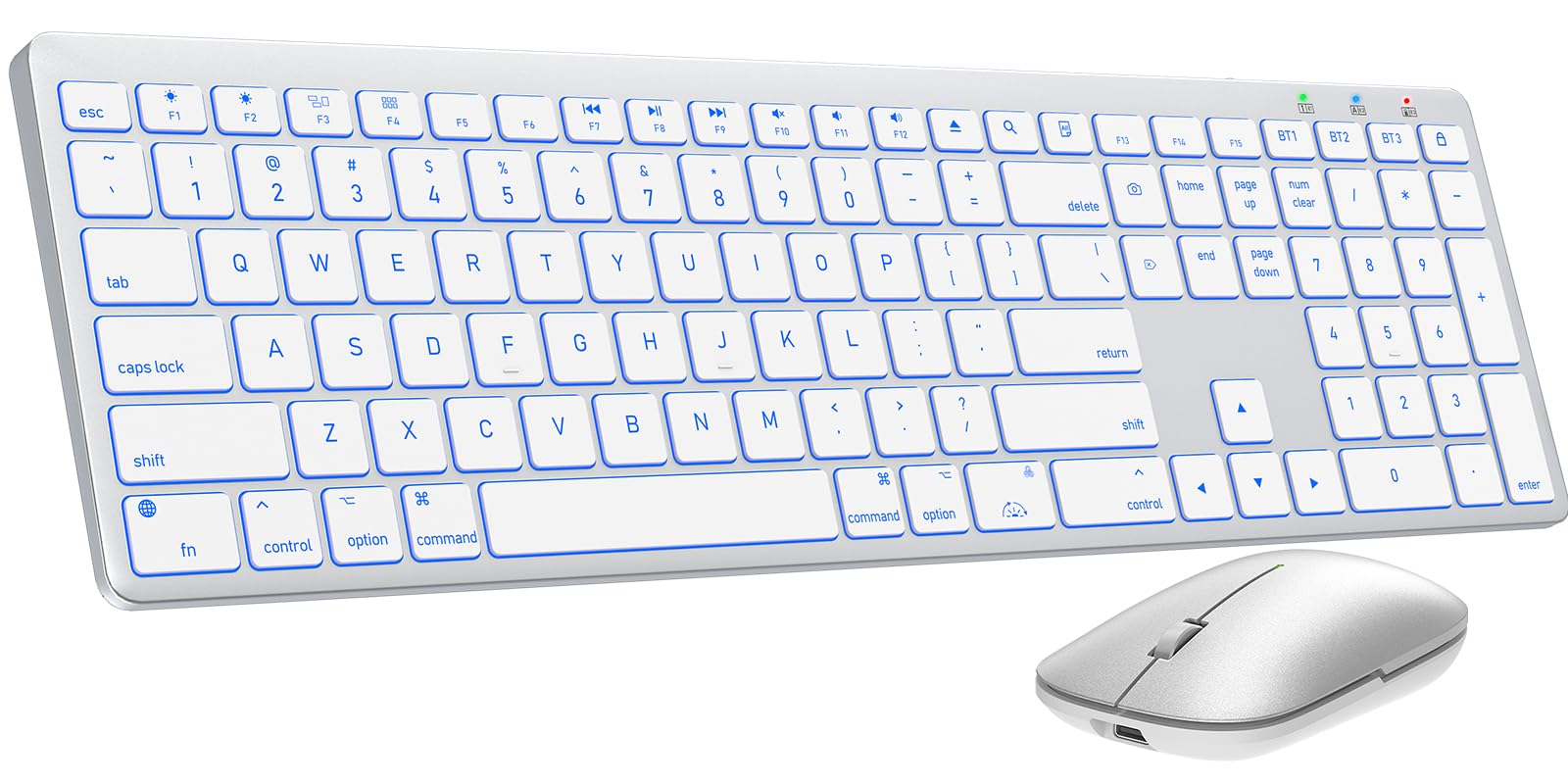
Image 1.1: The SABLUTE KMA1pro Bluetooth Keyboard and Mouse combo.
Obsah balení:
- SABLUTE KMA1pro Bluetooth Keyboard
- SABLUTE Bluetooth Mouse
- Nabíjecí kabel USB-C
- Silicone Dustproof Cover
- Uživatelská příručka
2. Nastavení
2.1 Nabíjení zařízení
Before initial use, fully charge both the keyboard and the mouse. Use the provided USB-C charging cable.
- Connect the USB-C end of the cable to the charging port on the keyboard (located on the top edge) and the mouse (located on the front edge).
- Připojte konec kabelu USB-A k napájecímu adaptéru USB (není součástí balení) nebo k portu USB počítače.
- The charging indicator light will illuminate. Once fully charged (approximately 2-3 hours), the indicator will change or turn off.

Image 2.1: Charging the keyboard and mouse via USB-C cable.
2.2 Zapnutí/vypnutí
- Klávesnice: Locate the power switch on the top edge of the keyboard. Slide it to the 'ON' position to power on, and 'OFF' to power off.
- Myš: Locate the power switch on the bottom of the mouse. Slide it to the 'ON' position to power on, and 'OFF' to power off.
2.3 Párování Bluetooth
The KMA1pro combo supports connecting up to three Bluetooth devices simultaneously.
- Enable Bluetooth on your Mac device: Go to System Settings (or System Preferences) > Bluetooth and ensure Bluetooth is turned on.
- Párování klávesnice:
- Zapněte klávesnici.
- Stiskněte a podržte BT1, BT2nebo BT3 key for 3-5 seconds until the corresponding indicator light flashes rapidly. This indicates the keyboard is in pairing mode.
- On your Mac device, look for "SABLUTE Keyboard" in the Bluetooth device list and click "Connect".
- Po připojení kontrolka přestane blikat.
- Párování myši:
- Zapněte myš.
- Press the channel switch button on the bottom of the mouse to select a channel (e.g., BT1). The indicator light will flash.
- On your Mac device, look for "SABLUTE Mouse" in the Bluetooth device list and click "Connect".
- Po připojení kontrolka přestane blikat.
- Repeat these steps for additional devices using BT2 and BT3 channels.

Image 2.2: The keyboard and mouse can switch between three paired Bluetooth devices.
3. Provoz
3.1 Ovládání podsvícení klávesnice
The keyboard features 7-color backlighting with adjustable brightness levels.
- Změnit barvu podsvícení: Stiskněte Fn +
 (the light bulb icon) to cycle through the 7 available colors.
 - Upravit jas: Stiskněte Fn + (the sun icon) to cycle through 3 brightness levels or turn the backlight off.

Image 3.1: Adjusting backlight colors and brightness on the keyboard.
3.2 Switching Between Multiple Devices
To switch between your paired devices (Mac, iPad, iPhone), simply press the corresponding Bluetooth channel key on the keyboard:
- Stiskněte BT1 to switch to device 1.
- Stiskněte BT2 to switch to device 2.
- Stiskněte BT3 to switch to device 3.
For the mouse, press the channel switch button on the bottom to select the desired paired channel.
3.3 Mac Shortcut Keys
The keyboard features a full standard Mac layout with dedicated macOS shortcut keys for enhanced productivity.

Image 3.2: Mac-specific function keys on the keyboard.
| Klíč | Funkce |
|---|---|
| F1 | Light Decreases |
| F2 | Light Increases |
| F3 | Okno pro multitasking |
| F4 | Launchpad |
| F7 | Předchozí stopa |
| F8 | Přehrát/Pozastavit |
| F9 | Další stopa |
| F10 | Ztlumit |
| F11 | Hlasitost - |
| F12 | Hlasitost + |
| Vysunutí média | Eject Media |
| Hledat | Funkce vyhledávání |
| Vyberte Vše | Select All Content |
| Přepnout podsvícení | Zapnutí/vypnutí podsvícení |
| Uzamknout obrazovku | Uzamknout obrazovku |
Poznámka: Mac shortcuts and keys are incompatible with Windows operating systems.
3.4 Nastavení DPI myši
The mouse features three adjustable DPI settings (800/1200/1600) for precise cursor control.
- To switch DPI settings, press and hold the middle scroll wheel button and the right-click button simultaneously for 3 seconds. The DPI will cycle through 800, 1200, and 1600.

Image 3.3: The mouse offers three adjustable DPI settings for cursor precision.
3.5 Ergonomic Tilt
The keyboard includes built-in adjustable folding feet to set an ergonomic typing angle, reducing wrist strain during extended use.
- Gently pull out the folding feet located on the underside of the keyboard to elevate the back edge.
- Push them back in to return the keyboard to a flat position.

Image 3.4: The keyboard features adjustable folding feet for ergonomic comfort.
3.6 Režim úspory energie
Both the keyboard and mouse feature an intelligent auto-sleep mode to conserve battery power when not in use. To reactivate, simply press any key on the keyboard or move/click the mouse.
4. Údržba
4.1 Čištění
- Turn off both the keyboard and mouse before cleaning.
- Použijte měkký hadřík, který nepouští vlákna dampOpláchněte vodou nebo jemným čisticím roztokem. Vyhněte se agresivním chemikáliím.
- For the keyboard, you can use a can of compressed air to remove dust and debris from between the keys.
4.2 Using the Dustproof Cover
A custom-fit silicone protective film is included to shield your keyboard from dust, spills, and daily wear. Place it over the keyboard when not in active use or during travel.
4.3 Péče o baterii
- Avoid fully discharging the batteries frequently. Recharge when the low battery indicator appears.
- If storing the devices for an extended period, charge them to about 50% and power them off. Recharge every few months to prevent deep discharge.
5. Řešení problémů
| Problém | Možné řešení |
|---|---|
| Klávesnice/myš se nepřipojuje přes Bluetooth |
|
| Podsvícení nefunguje nebo je slabé |
|
| Kurzor myši je nepravidelný nebo nereaguje |
|
| Keyboard keys not responding |
|
6. Specifikace
| Funkce | Detail |
|---|---|
| Značka | SABLUTE |
| Číslo modelu | KMA1pro |
| Barva | Stříbrná bílá |
| Technologie připojení | Bluetooth |
| Kompatibilní zařízení | Mac, Mac Mini, iPad, MacBook, MacBook Air, MacBook Pro |
| Operační systém | Mac OS |
| Rozložení klávesnice | QWERTY |
| Popis klávesnice | Membrane, Scissor-Switch Keys |
| podsvícení klávesnice | 7 barev, 3 úrovně jasu |
| Kapacita baterie klávesnice | 1600 XNUMX mAh |
| Kapacita baterie myši | 300 XNUMX mAh |
| Nastavení DPI myši | 800. 1200. 1600 |
| Hmotnost položky | 0.82 Kilograms (Keyboard and Mouse) |
| Speciální funkce | 7 Color Backlit, Designed for Mac, Dustproof Cover, Quiet Typing, Rechargeable, Multi-Device Switching, Ergonomic Tilt |
7. Informace o záruce
SABLUTE offers a Záruka 24 měsíců for each KMA1pro Bluetooth Keyboard and Mouse combo from the date of purchase. This warranty covers manufacturing defects and workmanship. Please retain your proof of purchase for warranty claims.
Záruka se nevztahuje na škody způsobené nesprávným použitím, nehodami, neoprávněnými úpravami nebo běžným opotřebením.
8. Zákaznická podpora
For any questions, technical assistance, or warranty claims, please contact SABLUTE customer support:
- E-mail: sabluteservices@outlook.com
Our support team aims to respond within 24 hours.
Video 8.1: Official product video demonstrating the SABLUTE Bluetooth Wireless Keyboard and Mouse for Mac features.