
1. Úvod
This manual provides essential information for the installation, operation, and maintenance of your Hikvision IDS-7208HQHI-M1/XT 8-Channel 5MP Turbo HD DVR. Please read this manual thoroughly before using the product to ensure correct and safe operation. Keep this manual for future reference.
The Hikvision IDS-7208HQHI-M1/XT is an advanced 8-channel Digital Video Recorder designed for high-definition surveillance systems. It supports various video input formats, including Turbo HD, AHD, CVI, CVBS, and IP cameras, offering versatile compatibility. Key features include 5MP recording capability, H.265+ video compression for efficient storage, AcuSense technology for intelligent motion detection, and remote access via the Hik-Connect app.
2. Obsah balení
Verify that all items are present and in good condition upon unpacking. If any items are missing or damaged, contact your supplier immediately.
- DVR main unit
- Napájecí adaptér
- USB myš
3. Vlastnosti produktu
The Hikvision IDS-7208HQHI-M1/XT DVR offers a range of features designed for effective surveillance:
- 8-Channel DVR with 5MP HD Support: Supports multiple analog HD camera formats and up to 8 channels of real-time video monitoring and recording.
- Two-Way Audio Support: Enables audio communication through compatible cameras.
- Built-In AcuSense Technology: Smart analysis minimizes false alarms by focusing on human and vehicle-based motion detection.
- Remote Access via Hik-Connect App: View live video, playback recordings, and receive alerts anytime on your smartphone.
- Efficient Storage with H.265+ Compression: Saves bandwidth and hard disk space while maintaining clear video quality.
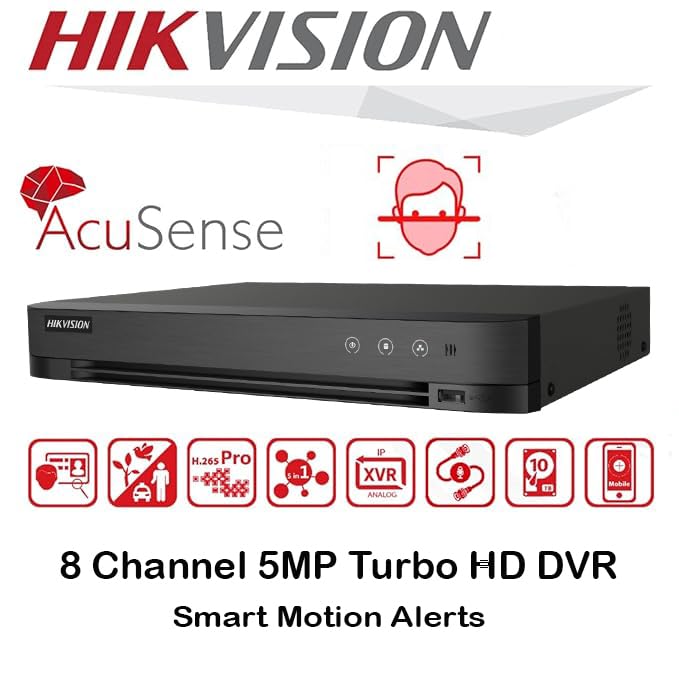
Obrázek: Overview of key features including AcuSense, H.265+ compression, and 5MP resolution support.
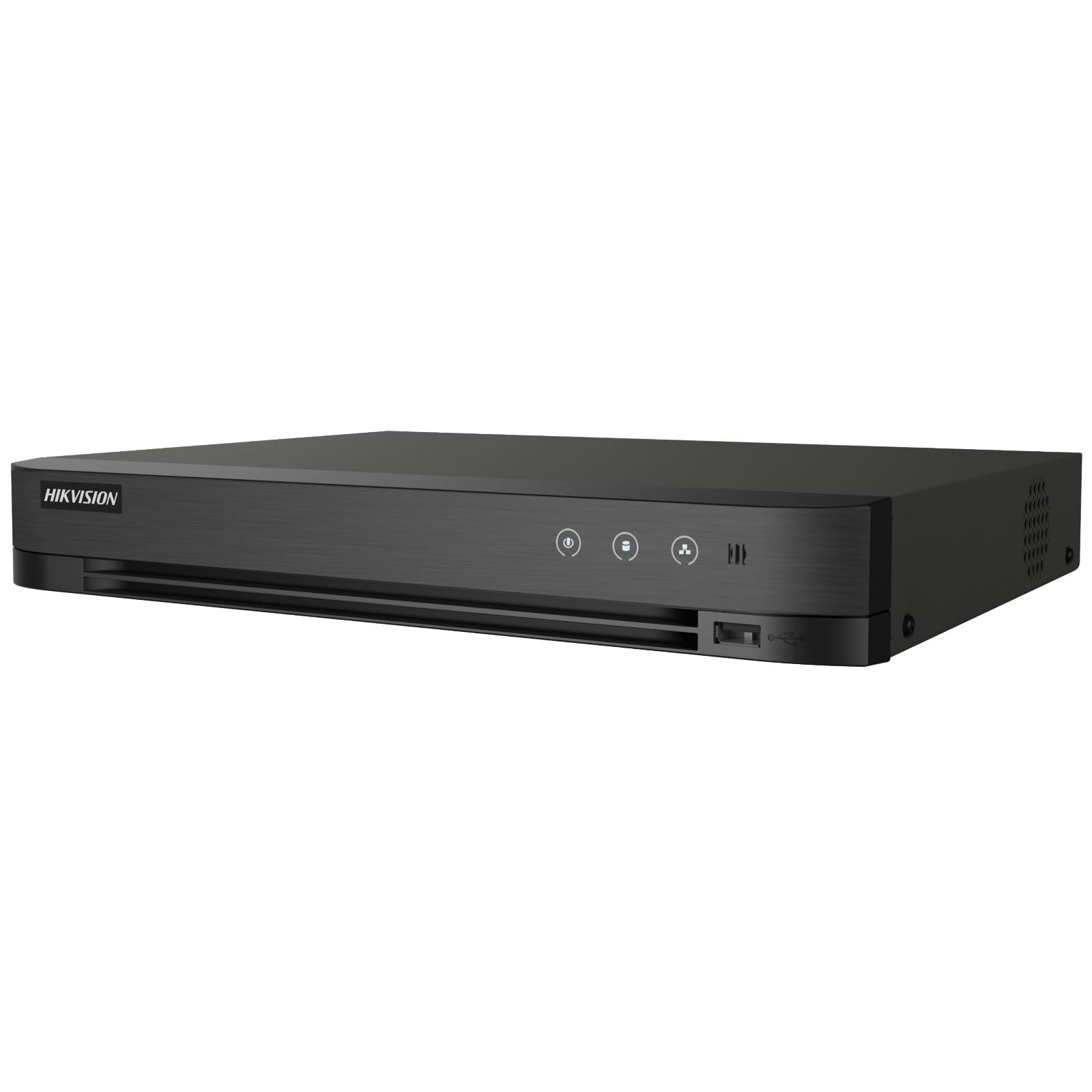
Image: The Hikvision Turbo HD DVR highlighting its support for two-way audio cameras, enabling interactive communication.
4. Fyzické rozhraní
Familiarize yourself with the ports and indicators on the DVR unit. The following diagram illustrates the rear panel of the Hikvision IDS-7208HQHI-M1/XT DVR:

Image: Rear panel connections of the DVR, showing video inputs, audio ports, network, and power.
- Video vstup (BNC): Connect analog HD cameras (Turbo HD, AHD, CVI, CVBS).
- Video Out (BNC): Connect to a monitor for local display.
- Audio In (RCA): Connect external audio input devices.
- HDMI výstup: Connect to an HDMI-compatible monitor or TV for high-definition video output.
- VGA výstup: Připojte k monitoru kompatibilnímu s VGA.
- Zvukový výstup (RCA): Connect to external audio output devices.
- USB porty: Connect a USB mouse, USB flash drive for backup, or external storage.
- LAN port (RJ45): Connect to your network for remote access and IP camera integration.
- RS-485: For PTZ camera control (if supported).
- Vstup napájení 12V DC: Připojte přiložený napájecí adaptér.
- Zemnící terminál: Pro uzemnění zařízení.
5. Nastavení
Follow these steps for initial setup of your DVR system:
5.1 Instalace pevného disku (pokud není předinstalován)
- Odšroubujte a sejměte horní kryt DVR.
- Připojte datový kabel SATA a napájecí kabel k pevnému disku.
- Připevněte pevný disk k šasi DVR pomocí dodaných šroubů.
- Nasaďte horní kryt a upevněte jej šrouby.
5.2 Připojení periferních zařízení
- Připojte své kamery k Video vstup (BNC) ports.
- Připojte monitor k HDMI or VGA výstupní port.
- Connect the USB mouse to a USB port.
- Connect the DVR to your network router using an Ethernet cable plugged into the LAN port.
- Připojte napájecí adaptér k Vstup napájení 12V DC and then plug it into a power outlet.
5.3 Počáteční konfigurace
- Při prvním spuštění vás DVR provede průvodcem nastavením.
- Set a strong password for the administrator account.
- Nakonfigurujte síťová nastavení (DHCP je obvykle dostačující pro většinu domácích sítí).
- Initialize the hard drive if prompted. This will format the drive for recording.
- Adjust date, time, and other system preferences as needed.
6. Provoz
Once the DVR is set up, you can begin monitoring and recording.
6.1 Živě View
Po přihlášení se na DVR zobrazí živý záznam. view z připojených kamer na monitoru. Můžete přepínat mezi zobrazením jedné kamery view a mřížka s více kamerami view pomocí ovládacích prvků na obrazovce nebo myši.
6.2 Nahrávání
The DVR is typically configured to record continuously or based on motion detection. You can adjust recording schedules and settings through the DVR's menu system (Configuration > Record > Schedule).
6.3 Přehrávání
Na review zaznamenané footage, navigate to the Přehrávání menu. Select the date, time, and camera channel to view recordings. Use the playback controls (play, pause, fast forward, rewind) to navigate through the footage.
6.4 Remote Access (Hik-Connect App)
The Hik-Connect app allows you to access your DVR remotely from a smartphone or tablet.
- Stáhněte si aplikaci Hik-Connect z obchodu s aplikacemi ve vašem zařízení.
- Create a Hik-Connect account and log in.
- Add your DVR by scanning the QR code on the DVR's label or by manually entering its serial number.
- Postupujte podle pokynů v aplikaci a dokončete přidání zařízení.
- Po přidání můžete view live feeds, play back recordings, and receive push notifications for events.

Image: Illustration of the Hik-Connect mobile application interface, demonstrating remote access to live video and recordings.
7. Údržba
Pravidelná údržba zajišťuje optimální výkon a dlouhou životnost vašeho DVR systému.
- Clean the DVR: Periodically clean the exterior of the DVR with a soft, dry cloth. Ensure ventilation openings are free from dust to prevent overheating.
- Aktualizace firmwaru: Check the official Hikvision website for firmware updates. Updating firmware can improve performance, add features, and fix bugs. Follow update instructions carefully.
- Stav pevného disku: Monitor the health of your hard drive through the DVR's system menu (Správa HDD). Replace the hard drive if it shows signs of failure.
- Zálohování důležitých dattage: Pravidelně zálohujte důležitá videatage to an external USB drive or network storage.
- Zabezpečení heslem: Change your DVR and Hik-Connect passwords periodically to maintain security.
8. Řešení problémů
Tato část se zabývá běžnými problémy, se kterými se můžete setkat.
8.1 Žádný video výstup na monitoru
- Check if the monitor is powered on and correctly connected to the DVR's HDMI or VGA port.
- Ujistěte se, že je na monitoru vybrán správný vstupní zdroj.
- Try connecting to a different monitor or using a different cable.
8.2 Kamery se nezobrazují
- Verify that cameras are powered on and properly connected to the DVR's BNC inputs.
- Check camera power supplies.
- Ensure the camera type (TVI, AHD, CVI, CVBS) is compatible with the DVR and configured correctly in the DVR settings.
8.3 Vzdálený přístup nefunguje
- Ensure the DVR is connected to the internet via the LAN port.
- Check network settings on the DVR (Configuration > Network).
- Verify that the Hik-Connect service is enabled on the DVR.
- Ujistěte se, že váš smartphone má aktivní připojení k internetu.
- Re-add the device to the Hik-Connect app if necessary.
8.4 Žádný záznam
- Check if a hard drive is installed and properly initialized (Configuration > HDD).
- Verify recording schedules are set correctly (Configuration > Record > Schedule).
- Ujistěte se, že je na pevném disku dostatek volného místa.
9. Specifikace
Detailed technical specifications for the Hikvision IDS-7208HQHI-M1/XT DVR:
| Funkce | Specifikace |
|---|---|
| Číslo modelu | IDS-7208HQHI-M1/XT |
| Video vstup | 8-Channel (Turbo HD/AHD/CVI/CVBS/IP) |
| Komprese videa | H.265 + / H.265 / H.264 + / H.264 |
| Rozlišení nahrávání | Až 5 MP |
| Video výstup | HDMI, VGA, BNC |
| Audio vstup/výstup | 2-Way Audio Support |
| Síťové rozhraní | 1 RJ45 10M/100M Ethernet Interface |
| Rozhraní USB | 2x USB 2.0 |
| Podpora pevných disků | 1 SATA interface (up to 10 TB capacity per HDD) |
| Napájení | 12V DC |
| Rozměry (D x Š x V) | 19.7 x 19.2 x 4.1 cm |
| Hmotnost | 1.5 kg |
| Výrobce | HIKVISION, Prama Hikvision India Pvt. Ltd. |
10. Záruka a podpora
For warranty information and technical support, please refer to the warranty card included with your product or visit the official Hikvision webUschovejte si účtenku jako doklad o koupi pro případ reklamace.
For further assistance, contact Hikvision customer support or your authorized dealer.