
1. Úvod
This manual provides essential information for setting up, operating, maintaining, and troubleshooting your HP G9 Laptop Computer. The HP G9 is designed for reliable performance, featuring an Intel Celeron Quad Core N4120 processor, 8GB RAM, 256GB PCIe SSD, and Windows 11 Pro operating system. Please read this manual thoroughly to ensure optimal use of your device.
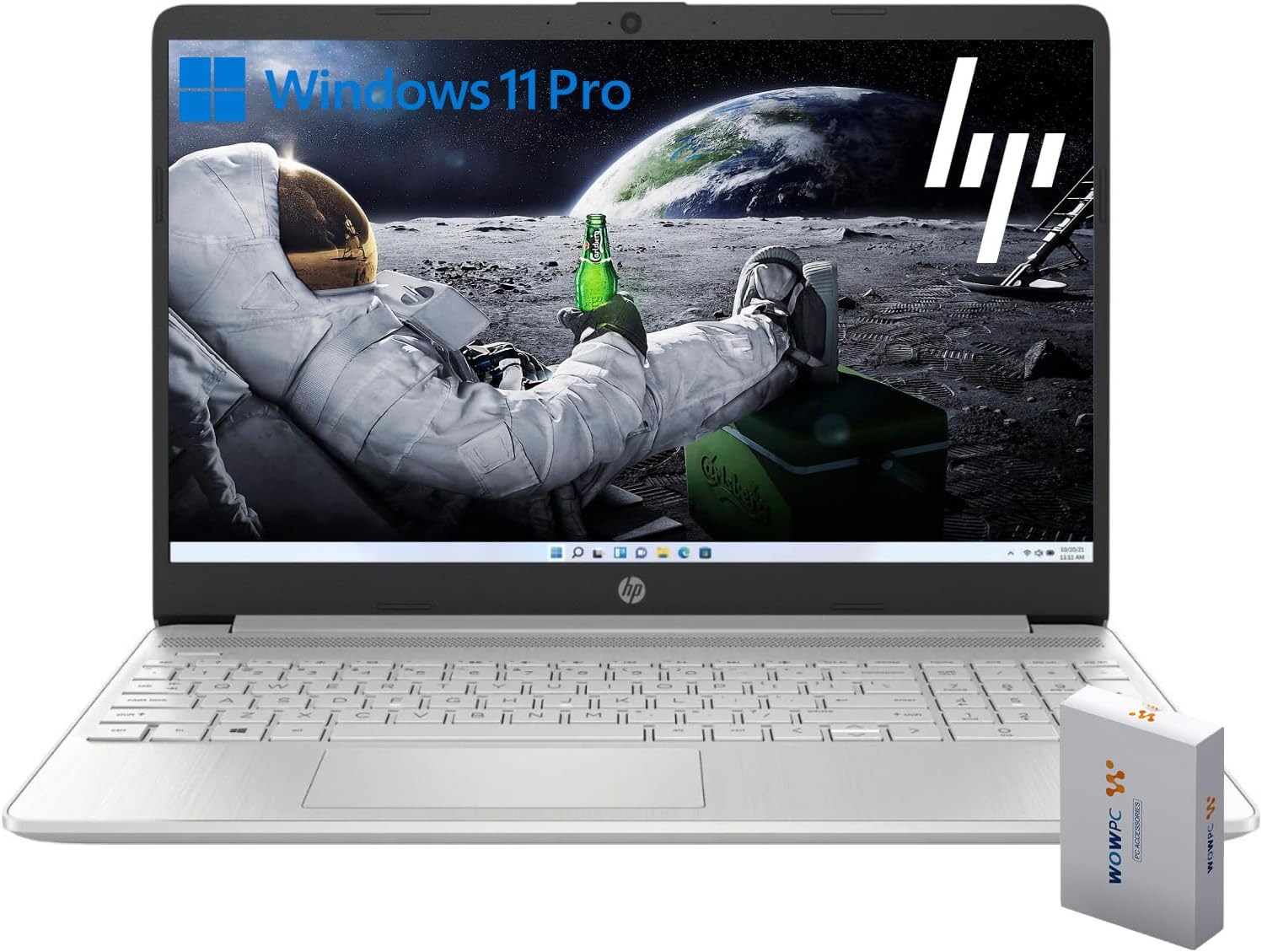
Image 1.1: HP G9 Laptop Computer. This image shows the laptop with its screen displaying the Windows 11 Pro desktop, featuring an astronaut on the moon background. A WOWPC Recovery USB is visible next to the laptop.
2. Obsah balení
Ověřte, zda jsou v balení produktu přítomny všechny položky:
- HP G9 Laptop Computer
- Napájecí adaptér a kabel
- WOWPC Recovery USB
- Stručný průvodce (pokud je součástí dodávky)
3. Konec produktuview
3.1 Klíčové vlastnosti
- Procesor: Intel Celeron Quad Core N4120 (4 Cores, 4 Threads, up to 2.6 GHz Turbo Speed)
- Operační systém: Windows 11 Pro 64bitová verze
- Paměť (RAM): 8 GB DDR4
- Skladování: 256GB PCIe-NVMe SSD
- Grafika: Intel Integrated Graphics
- Zobrazit: 15.6-inch HD (1366 x 768) anti-glare panel
- Bezdrátové připojení: Wi-Fi 6, Bluetooth 5.2
- Zvuk: Dual stereo speakers, dual array microphones
- Klávesnice: Full-size with numeric keypad
- Webvačka: Built-in HD 720p

Obrázek 3.1: Klíčové vlastnosti nahořeview. This graphic highlights the Intel Quad-Core N4120 Processor, Windows 11 Pro, Storage options, RAM, WOWPC Recovery USB, USB 3.2, Wi-Fi 6, Bluetooth 5.2, RJ-45, and Ergonomic Design.
3.2 Porty a konektory
Seznamte se s různými porty na vašem notebooku:
- Levá strana: Power Connector, USB Type-A (5Gbps signaling rate)
- Pravá strana: Multi-format SD media card reader, Headphone/microphone combo, USB-C (5Gbps signaling rate), HDMI 1.4b Output, RJ-45 (Ethernet)

Image 3.2: Laptop Port Layout. This image illustrates the location of the Power Connector, USB Type-A port on the left side, and the Multi-format SD media card reader, Headphone/Microphone Combo jack, USB-C port, and HDMI 1.4b port on the right side.
4. Počáteční nastavení
4.1 Připojení napájení
- Připojte napájecí adaptér k napájecímu konektoru na notebooku.
- Zapojte napájecí kabel do elektrické zásuvky.
- Před prvním použitím nechte baterii několik minut nabíjet.
4.2 První spuštění a nastavení systému Windows 11 Pro
- Otevřete víko notebooku a stiskněte tlačítko napájení.
- Follow the on-screen instructions to complete the Windows 11 Pro initial setup, including language selection, region, keyboard layout, and network connection.
- Create a user account and set up a password or PIN.
4.3 Připojení k síti
During the initial setup, you will be prompted to connect to a Wi-Fi network. If you skip this step, you can connect later:
- Klikněte na Síť icon (Wi-Fi or Ethernet) in the taskbar.
- Select your desired Wi-Fi network from the list and click Připojit.
- Pokud se zobrazí výzva, zadejte bezpečnostní klíč sítě (heslo).
5. Ovládání notebooku
5.1 Základní navigace
- Touchpad: Pro posouvání, přiblížení a přepínání aplikací používejte gesta. Přizpůsobení touchpadu naleznete v nastavení systému Windows.
- Klávesnice: The full-size keyboard includes a numeric keypad for efficient data entry. Function keys (F1-F12) provide quick access to system controls.
5.2 Funkce systému Windows 11 Pro
Windows 11 Pro offers enhanced security, productivity tools, and performance:
- Rozvržení a skupiny přichytávání: Organize your open windows efficiently for improved multitasking.
- Pokročilé zabezpečení: Features like Windows Hello, BitLocker, and Windows Security protect your data and device.
- Integrace s Microsoft Teams: Stay connected with colleagues and friends directly from the taskbar.

Image 5.1: Windows 11 Pro Features. This image highlights the benefits of Windows 11 Pro, including advanced security features and optimized productivity tools for business and professional users.
5.3 Použití obnovovacího USB disku WOWPC
The included WOWPC Recovery USB is designed to assist with system recovery in case of software issues. Keep it in a safe place.
- To use, insert the USB into an available port.
- Restart your laptop and access the boot menu (often by pressing F9, F10, or F12 during startup, consult your laptop's specific boot key).
- Select the WOWPC Recovery USB as the boot device and follow the on-screen instructions for recovery options.
6. Údržba a péče
6.1 Čištění notebooku
- Použijte měkký hadřík, který nepouští vlákna dampvodou nebo čističem obrazovek.
- Na klávesnici a šasi použijte měkký hadřík. Nepoužívejte agresivní chemikálie.
- Před čištěním se ujistěte, že je notebook vypnutý a odpojený od sítě.
6.2 Aktualizace softwaru
Regularly update your Windows operating system and drivers to ensure optimal performance and security:
- Přejít na Nastavení > Aktualizace systému Windows pro kontrolu a instalaci aktualizací.
- Allow updates to complete without interrupting the process.
6.3 Péče o baterii
- Vyhněte se extrémním teplotám.
- For long-term storage, charge the battery to approximately 50% and store the laptop in a cool, dry place.
- Periodically discharge and recharge the battery to maintain its health.
7. Řešení problémů
Tato část se zabývá běžnými problémy, se kterými se můžete setkat.
7.1 Notebook se nezapne
- Ujistěte se, že je napájecí adaptér bezpečně připojen k notebooku i k funkční elektrické zásuvce.
- Ověřte funkčnost elektrické zásuvky zapojením jiného zařízení.
- Pokud je baterie zcela vybitá, nechte ji nabíjet alespoň 30 minut, než se ji pokusíte zapnout.
7.2 Žádné připojení k Wi-Fi
- Zkontrolujte, zda je v nastavení systému Windows povolena Wi-Fi (Nastavení > Síť a internet > Wi-Fi).
- Restartujte router a modem.
- Ujistěte se, že jste v dosahu vaší sítě Wi-Fi.
- Zkuste zapomenout na síť a znovu se připojit.
7.3 Pomalý výkon
- Zavřete nepotřebné aplikace běžící na pozadí.
- Zkontrolujte a nainstalujte všechny čekající aktualizace systému Windows.
- Spusťte čištění disku, abyste uvolnili místo v úložišti.
- Scan for malware using Windows Security.
8. Specifikace
| Funkce | Detail |
|---|---|
| Název modelu | HP G9 |
| Operační systém | Windows 11 Pro |
| Procesor | Intel Celeron Quad Core N4120 (1.1 GHz base, up to 2.6 GHz turbo) |
| BERAN | 8 GB DDR4 |
| Skladování | 256GB PCIe-NVMe SSD |
| Grafika | Intel Integrated Graphics |
| Zobrazit | 15.6-inch HD (1366 x 768 pixels), anti-glare |
| Bezdrátové připojení | Wi-Fi 6, Bluetooth 5.2 |
| Porty | 1x SuperSpeed USB-C 10Gbps, 2x SuperSpeed USB-A 10Gbps, 1x Headphone/microphone combo, 1x HDMI 1.4 Output, 1x RJ-45, 1x Audio-out, SD-Reader |
| Webvačka | HD 720p |
| Rozměry (D x Š x V) | 14.09 x 9.53 x 0.78 palce |
| Hmotnost | 4 LB |
9. Záruka a podpora
9.1 Záruka na produkt
Your HP G9 Laptop Computer comes with a standard manufacturer's warranty. Please refer to the warranty card included in your product packaging or visit the official HP support webPodrobné záruční podmínky platné pro váš region naleznete na webových stránkách.
9.2 Technická podpora
Pro technickou pomoc, stažení ovladačů nebo další informace navštivte oficiální stránky podpory HP. website. You can typically find support resources by searching for your specific model (HP G9) on their webmísto.
The included WOWPC Recovery USB is a valuable tool for system recovery and troubleshooting software-related issues. Keep it accessible for future use.