
Zavedení
Děkuji za nákupasing the KOORUI 15.6-inch FHD Portable Monitor E1511A. This monitor is designed to enhance your productivity and entertainment experience with its high-quality display and versatile connectivity. This manual provides essential information for safe and efficient use, including setup instructions, operational guidelines, maintenance tips, and troubleshooting solutions. Please read this manual thoroughly before using the product and retain it for future reference.
Bezpečnostní informace
Pro zajištění bezpečného provozu a prevenci poškození dodržujte prosím následující bezpečnostní opatření:
- Nevystavujte monitor dešti, vlhkosti ani extrémním teplotám.
- Neumísťujte monitor do blízkosti zdrojů tepla nebo na přímé sluneční světlo.
- Use only the power adapter and cables provided or approved by KOORUI.
- Nepokoušejte se monitor rozebírat ani opravovat sami. Veškerý servis svěřte kvalifikovanému personálu.
- Chraňte monitor před silnými magnetickými poli.
- Obrazovku čistěte měkkým hadříkem, který nepouští vlákna. Nepoužívejte abrazivní čisticí prostředky ani rozpouštědla.
Obsah balení
Ověřte, zda jsou v balení přítomny všechny položky:
- KOORUI 15.6-inch Portable Monitor (E1511A)
- Protective Cover / Stand
- HDMI kabel
- Kabel USB-C na USB-C (pro video a napájení)
- USB-A to USB-C Power Cable (for additional power if needed)
- Uživatelská příručka

Image: Contents of the KOORUI Portable Monitor E1511A package, including the monitor, protective cover, HDMI cable, USB-C cable, and user manual.
Konec produktuview
Familiarize yourself with the monitor's ports and controls.

Obrázek: Detail view of the KOORUI Portable Monitor E1511A's left and right sides, detailing the location of ports and control buttons.
Porty:
- USB-C (x2): For video signal transmission and power supply. One cable can often handle both functions if your device supports full-featured USB-C (DisplayPort Alternate Mode and Power Delivery).
- HDMI: For video signal input from devices that do not support USB-C video output.
- 3.5mm audio výstup: Pro připojení externích sluchátek nebo reproduktorů.
Ovládací tlačítka:
- Power Button / Home Button: Press and hold to power on/off. Short press to return to the home screen or confirm selection in the OSD menu.
- Menu / Confirm Button: Press to open the On-Screen Display (OSD) menu. Use to confirm selections within the menu.
- Tlačítko nahoru: Navigate up in the OSD menu or increase values.
- Tlačítko dolů: Navigate down in the OSD menu or decrease values.
Poznámka: This monitor does not support touch operation, tablet mode, built-in battery, Wi-Fi, Bluetooth, or camera functions.
Nastavení
Follow these steps to connect your portable monitor to a device.
1. Connecting via USB-C (Single Cable Solution)
For devices with a full-featured USB-C port (supporting DisplayPort Alternate Mode and Power Delivery), a single USB-C to USB-C cable can transmit both video and power.
- Connect one end of the provided USB-C to USB-C cable to a full-featured USB-C port on your laptop or smartphone.
- Connect the other end of the USB-C to USB-C cable to either USB-C port on the KOORUI monitor.
- Monitor by měl automaticky detekovat signál a zapnout se.

Image: A laptop connected to the KOORUI Portable Monitor E1511A using a single USB-C cable, illustrating the dual-screen setup for enhanced productivity.
2. Connecting via HDMI and USB-C (for Power)
If your device does not have a full-featured USB-C port or if you are connecting to a gaming console or desktop PC, use an HDMI cable for video and a USB-C cable for power.
- Connect one end of the provided HDMI cable to the HDMI port on your device (e.g., laptop, game console).
- Connect the other end of the HDMI cable to the HDMI port on the KOORUI monitor.
- Connect the provided USB-A to USB-C power cable to a USB power adapter (not included) or a powered USB-A port on your device.
- Connect the USB-C end of the power cable to one of the USB-C ports on the KOORUI monitor to supply power.
- Monitor by se měl zapnout a zobrazit video signál.

Image: The KOORUI Portable Monitor E1511A connected to various devices including a Nintendo Switch, Xbox, PlayStation, smartphone, and laptop, demonstrating its wide compatibility.
3. USB-C Port Compatibility
When using a single USB-C cable for connection, ensure your device's USB-C port supports video output (DisplayPort Alternate Mode) and power delivery. Not all USB-C ports are full-featured.

Image: A diagram illustrating different types of USB-C ports on a laptop, distinguishing between compatible ports (Thunderbolt 3/4, Data + Video Transfer, DisplayPort Alt Mode) and incompatible ports (Data Transfer Only, Charging Only) for single-cable video output.
Provozní
Zapnutí/vypnutí
- To power on the monitor, press and hold the Power Button for a few seconds until the screen illuminates.
- To power off, press and hold the Power Button again until the screen turns off.
Navigace v nabídce OSD
Nabídka OSD (On-Screen Display) umožňuje upravit různá nastavení monitoru.
- Press the Menu Button to open the OSD menu.
- Use the Up and Down Buttons to navigate through the menu options.
- Press the Power Button (or Menu/Confirm button, depending on firmware) to select an option or enter a sub-menu.
- Use the Up and Down Buttons to adjust values or select sub-options.
- Press the Menu Button again to exit the current menu or the Power Button to return to the previous level.
Nastavení zobrazení
Adjust settings like brightness, contrast, and color temperature for optimal viewIng.
- Jas/kontrast: Adjust these to suit your environment and preference.
- Teplota barev: Choose from presets (e.g., Warm, Cool, User) or adjust RGB values manually.
- Filtr modrého světla: Activate this feature to reduce blue light emission, which can help alleviate eye strain during prolonged use.
Nastavení zvuku
The monitor features built-in dual speakers (1W x 2) for audio output. You can also connect external audio devices.
- Ovládání hlasitosti: Adjust the audio volume through the OSD menu.
- Externí zvuk: Connect headphones or external speakers to the 3.5mm Audio Out port for private listening or enhanced sound.
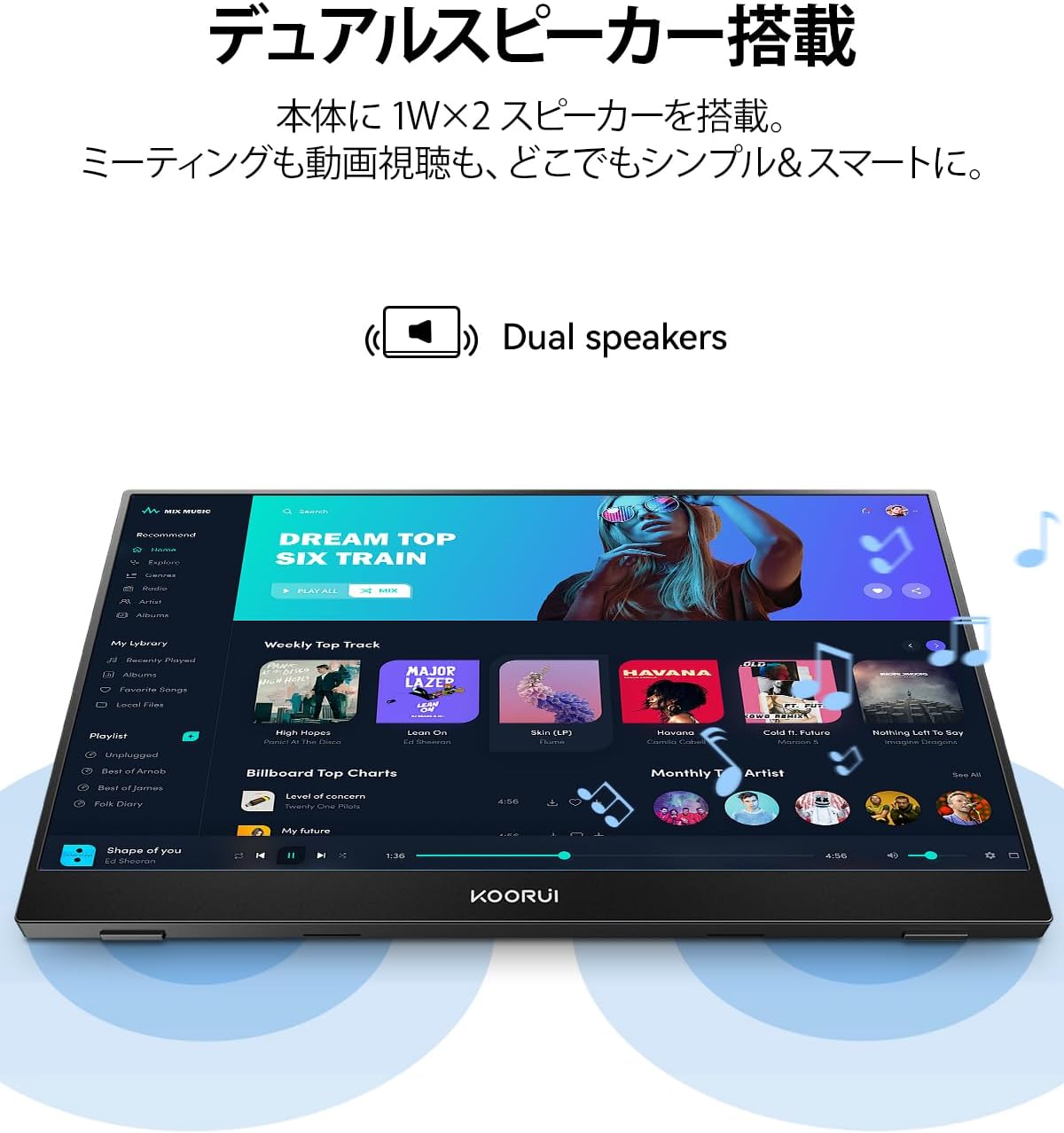
Image: The KOORUI Portable Monitor E1511A displaying a music application, highlighting its integrated dual speakers for an immersive audio experience.
Údržba
Čištění monitoru
- Před čištěním vždy vypněte monitor a odpojte všechny kabely.
- For the screen, gently wipe with a soft, lint-free cloth. If necessary, slightly dampOtřete hadřík vodou nebo čisticím roztokem určeným pro obrazovky. Nestříkejte tekutinu přímo na obrazovku.
- Pro casinPoužijte měkký, suchý hadřík. Nepoužívejte agresivní chemikálie ani abrazivní materiály.
Skladování
- When not in use, store the monitor in its protective cover to prevent scratches and dust accumulation.
- Skladujte na chladném a suchém místě mimo dosah přímého slunečního záření a extrémních teplot.
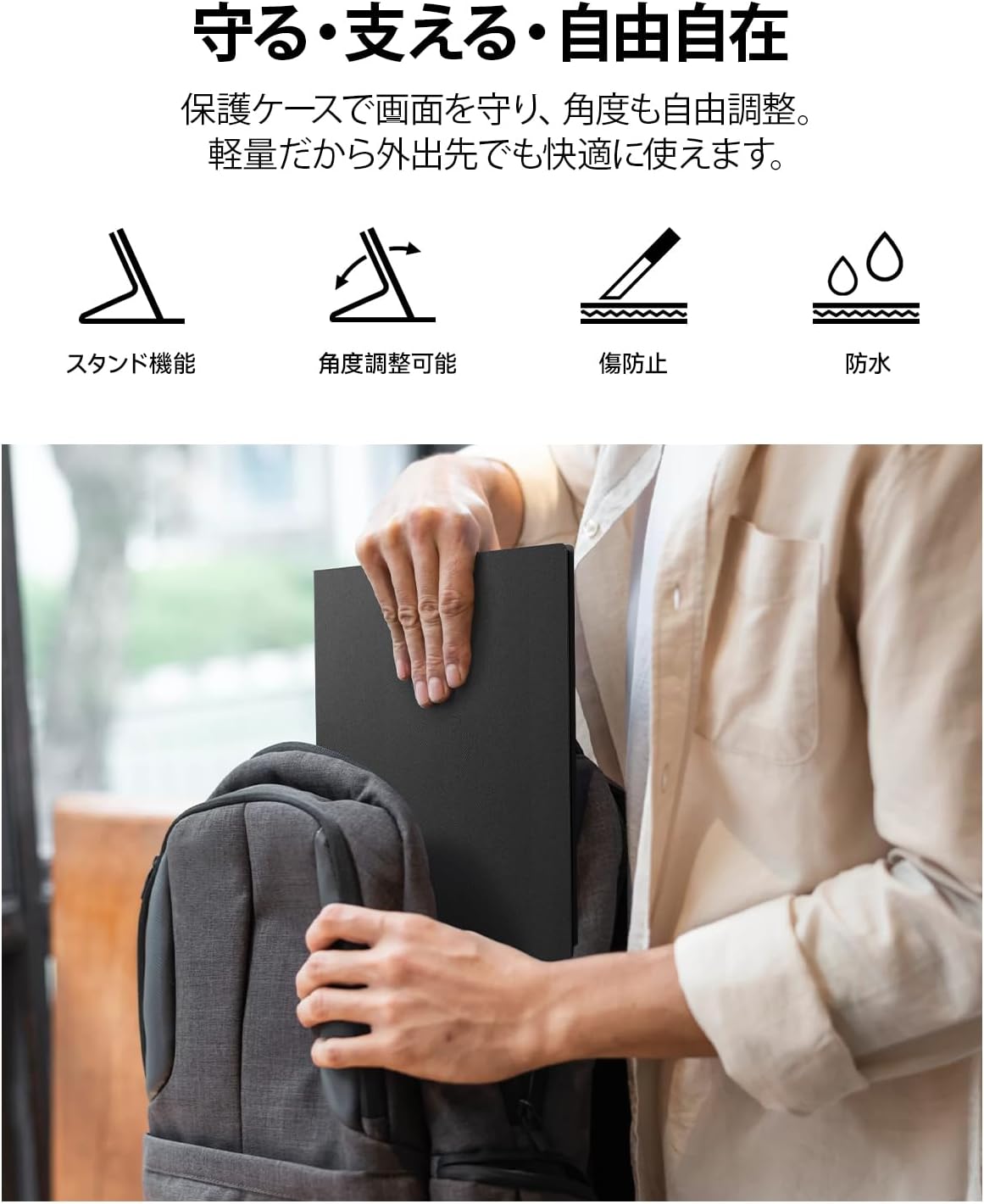
Image: A person placing the KOORUI Portable Monitor E1511A, protected by its cover, into a backpack, demonstrating its portability and the protective function of the cover.
Odstraňování problémů
Pokud se s monitorem setkáte s problémy, podívejte se na následující běžné problémy a jejich řešení:
| Problém | Možná příčina | Řešení |
|---|---|---|
| No display / "No Signal" message | Incorrect cable connection, insufficient power, incompatible USB-C port. |
|
| Monitor se nezapne | No power supply, faulty cable, power button not pressed correctly. |
|
| Žádný zvuk z reproduktorů nebo sluchátek | Volume too low, incorrect audio output setting on source device. |
|
| Blikání obrazovky nebo nestabilní obraz | Faulty cable, interference, resolution mismatch. |
|
Specifikace
Detailed technical specifications for the KOORUI E1511A Portable Monitor.
| Funkce | Specifikace |
|---|---|
| Značka | KOORUI |
| Číslo modelu | E1511A (KR-E1511A) |
| Velikost obrazovky | 15.6 palců |
| Rezoluce | FHD (1920 x 1080 pixels) |
| Typ panelu | Téměř IPS |
| Poměr stran | 16:9 |
| Obnovovací frekvence | 60 Hz |
| Doba odezvy | 20 ms |
| Viewúhel | 178 stupňů |
| Jas | 280 cd/m² |
| Povrch obrazovky | Neoslňující |
| Typ zobrazení | LED |
| Color Screen Function | Ano |
| Hardwarové rozhraní | 2x USB-C, 1x HDMI, 1x 3.5mm Audio Out |
| Vestavěné reproduktory | Ano (dvojité 1W reproduktory) |
| Rozměry produktu (D x Š x V) | 42.9 x 5.4 x 29.4 cm (přibližně) |
| Barva | Černý |
| Země původu | Čína |
Záruka a podpora
Informace o záruce
The KOORUI monitor screen is covered by a 1-letá záruka from the date of purchase. Other included accessories are covered by a 3-letá zárukaUschovejte si prosím doklad o koupi pro případ reklamace.
Zákaznická podpora
If you have any questions, concerns, or require assistance with your KOORUI portable monitor, please do not hesitate to contact our customer support team. Our professional after-sales service staff is available to provide flexible and prompt assistance.
For support inquiries, please visit the KOORUI store on Amazon or contact us through the platform where you purchased the product. We are committed to providing excellent service and support for our products.
KOORUI also offers free collection and recycling services for its monitors. Please inquire for details.