
1. Úvod
Welcome to your new Acer Nitro 60 N60-640-UR25 Desktop. This manual provides essential information for setting up, operating, maintaining, and troubleshooting your computer. Please read this guide thoroughly to ensure optimal performance and longevity of your device.
2. Bezpečnostní informace
Observe the following safety precautions to prevent damage to your computer and to ensure your personal safety.
- Napájení: Use only the power adapter provided with your desktop. Ensure the power outlet is properly grounded.
- Větrání: Do not block ventilation openings. Ensure adequate airflow around the desktop to prevent overheating.
- Tekutina a vlhkost: Keep the desktop away from liquids and excessive moisture. Do not operate with wet hands.
- Umístění: Place the desktop on a stable, flat surface. Avoid placing it near heat sources or in direct sunlight.
- Servis: Do not attempt to service the desktop yourself. Refer all servicing to qualified service personnel.
3. Obsah balení
Ověřte, zda jsou v balení přítomny všechny položky:
- Acer Nitro 60 N60-640-UR25 Desktop Unit
- Napájecí kabel
- Dokumentace (Stručná úvodní příručka, Záruční list)
4. Nastavení
4.1 Vybalení
Carefully remove the desktop from its packaging. Retain the packaging materials for future transport or servicing needs.
4.2 Připojení periferních zařízení
Připojte monitor, klávesnici, myš a další zařízení k příslušným portům na stolním počítači.

Obrázek: Zadní view of the Acer Nitro 60 desktop, highlighting the available ports for connecting peripherals such as monitors, keyboards, mice, and network cables.
- Monitor: Connect your monitor to the NVIDIA GeForce RTX 5070 Ti graphics card's HDMI or DisplayPort outputs.
- Klávesnice a myš: Připojte klávesnici a myš k dostupným USB portům.
- Síť: For a wired connection, connect an Ethernet cable to the LAN port. For wireless, ensure your Wi-Fi antenna is connected (if external) or that the internal Wi-Fi is enabled.
- Zvuk: Připojte reproduktory nebo sluchátka k výstupním audio konektorům.
4.3 Zapnutí
After connecting all peripherals, plug the power cord into the desktop and then into a wall outlet. Press the power button located on the front or top of the desktop to turn it on.

Image: A close-up of the top-front panel of the Acer Nitro 60 desktop, illustrating the location of the power button, USB ports, and audio jacks for easy access.
4.4 Počáteční nastavení systému Windows
Upon first boot, Windows 11 Home will guide you through the initial setup process. Follow the on-screen instructions to configure your region, language, network, and user account.
5. Ovládání počítače
5.1 Řízení spotřeby
- Vypnout: Klikněte na tlačítko Start a poté na Napájení > Vypnout.
- Restartovat: Klikněte na tlačítko Start a poté na Napájení > Restartovat.
- Spát: Klikněte na tlačítko Start a poté na Napájení > Spánek.
5.2 Pochopení portů a konektivity
Your Acer Nitro 60 desktop offers a variety of ports for versatile connectivity:
- USB porty: For connecting keyboards, mice, external drives, and other USB devices.
- HDMI: For connecting to monitors or TVs.
- Ethernet (LAN): Pro kabelové připojení k internetu.
- Bluetooth: Pro bezdrátové připojení ke kompatibilním zařízením, jako jsou sluchátka nebo herní ovladače.
- Wi-Fi: Pro bezdrátový přístup k internetu.
5.3 Grafický výkon
Vybaveno an NVIDIA GeForce RTX 5070 Ti Graphics Card, your desktop delivers high-performance visuals for gaming, content creation, and AI-driven tasks. Ensure your display drivers are up to date for optimal performance.
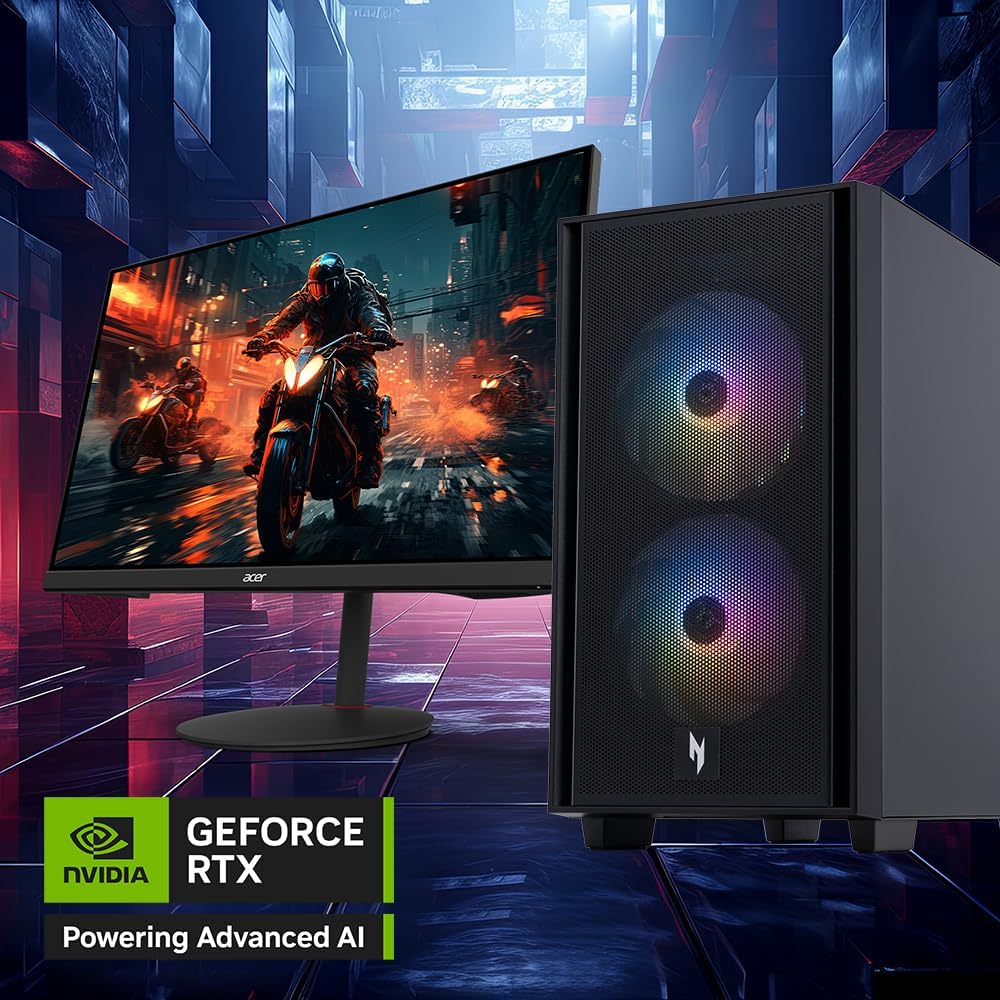
Image: The Acer Nitro 60 desktop positioned beside a monitor, showcasing its capability to render detailed and immersive gaming environments, powered by its advanced graphics card.
5.4 Procesor a paměť
The Intel Core i7-14700F 20-Core Processor a Paměť 32GB DDR5 provide robust performance for demanding applications and multitasking. The 2TB PCIe 4.0 NVMe SSD ensures fast boot times and rapid data access.

Obrázek: Interní view of the Acer Nitro 60 desktop, revealing the Intel Core i7 processor with its cooling solution and the installed DDR5 memory sticks, emphasizing the powerful internal components.
6. Údržba
6.1 Čištění pracovní plochy
Regular cleaning helps maintain performance and extends the lifespan of your desktop.
- Vnější: Použijte měkký, damp cloth to wipe the exterior surfaces. Avoid harsh chemicals.
- Větrání: Periodically use compressed air to clear dust from the ventilation grilles and fans. Ensure the desktop is powered off before cleaning.
6.2 Aktualizace softwaru
Keep your operating system and drivers updated to ensure security, stability, and optimal performance.
- Aktualizace systému Windows: Access Windows Update through Settings > Update & Security > Windows Update.
- Aktualizace ovladačů: Regularly check the Acer support website and NVIDIA's website for the latest graphics drivers.
6.3 Zálohování dat
Pravidelně zálohujte důležitá data na externí disk nebo cloudové úložiště, abyste předešli jejich ztrátě.
7. Řešení problémů
Tato část se zabývá běžnými problémy, se kterými se můžete setkat.
| Problém | Možné řešení |
|---|---|
| Desktop does not power on | Ensure the power cord is securely connected to both the desktop and the wall outlet. Test the outlet with another device. |
| Žádné zobrazení na monitoru | Check monitor power and cable connections. Ensure the monitor is connected to the graphics card output, not the motherboard's integrated graphics ports. Try a different cable or monitor if possible. |
| Systém je pomalý nebo nereaguje | Close unnecessary applications. Check Task Manager for high CPU/memory usage. Ensure sufficient free space on the SSD. Run a virus scan. |
| Problémy s připojením k síti | For wired connections, check the Ethernet cable and router. For Wi-Fi, ensure Wi-Fi is enabled and you are connected to the correct network. Restart your router/modem. Update network drivers. |
| Unusual noises from desktop | Loud fan noise may indicate overheating or dust buildup. Clean the fans. If the noise persists or is grinding, contact customer support. |
8. Specifikace
Key technical specifications for your Acer Nitro 60 N60-640-UR25 Desktop:
- Procesor: Intel Core i7-14700F 20-Core Processor (Up to 5.4 GHz)
- Grafika: NVIDIA GeForce RTX 5070 Ti with 16 GB GDDR7 Video Memory
- Paměť: 32 GB DDR5 RAM
- Skladování: 2 TB PCIe 4.0 NVMe SSD
- Operační systém: Windows 11 Home
- Zvuk: Realtek Audio
- Konektivita: Bluetooth, Ethernet, HDMI, USB, Wi-Fi (802.11ac)
- Rozměry: 12 x 19 x 21 palce
- Hmotnost: 25 libry
- Typ napájecí zástrčky: Typ A - 2kolíkový (severoamerický)
9. Informace o záruce
Your Acer Nitro 60 N60-640-UR25 Desktop comes with a 1letá omezená záruka. Please refer to the included warranty card for detailed terms and conditions. Keep your proof of purchase for warranty claims.
10. Zákaznická podpora
For technical assistance, warranty service, or additional information, please visit the official Acer support webnebo kontaktujte jejich oddělení zákaznických služeb.
Podpora Acer Webmísto: www.acer.com/support