
Pisichen 27INTS-2K-240HZ
Pisichen 27-Inch 2K 240Hz QHD Touch Screen Monitor User Manual
Model: 27INTS-2K-240HZ
1. Úvod
This manual provides detailed instructions for the installation, operation, maintenance, and troubleshooting of your Pisichen 27-Inch 2K 240Hz QHD Touch Screen Monitor. Please read this manual thoroughly before using the product to ensure proper setup and optimal performance. Keep this manual for future reference.
2. Bezpečnostní informace
Dodržujte následující bezpečnostní opatření, abyste zabránili poškození monitoru a zajistili bezpečnost uživatele:
- Nevystavujte monitor dešti, vlhkosti ani extrémním teplotám.
- Zajistěte řádné větrání kolem monitoru, aby nedošlo k přehřátí.
- Používejte pouze napájecí adaptér dodaný s monitorem.
- Nepokládejte těžké předměty na napájecí kabel ani monitor.
- Před čištěním monitoru odpojte napájecí kabel ze zásuvky.
- Nepokoušejte se monitor rozebírat ani opravovat sami. Veškerý servis svěřte kvalifikovanému personálu.
3. Obsah balení
Ověřte, zda jsou v balení přítomny všechny položky:
- Pisichen 27-Inch 2K 240Hz QHD Touch Screen Monitor
- Stojan na monitor (základna a krk)
- Napájecí adaptér
- HDMI kabel
- Kabel DisplayPort (DP)
- USB-C kabel
- USB-B Cable (for touchscreen functionality)
- Uživatelská příručka
4. Konec produktuview
The Pisichen 27-Inch 2K 240Hz QHD Touch Screen Monitor is designed for high-performance visual and interactive experiences. Key features include:
- Zobrazit: 27-inch QHD (2560x1440) IPS panel for wide viewúhly a přesné barvy.
- Obnovovací frekvence: 240Hz for ultra-smooth motion and reduced input lag.
- Dotyková obrazovka: 10-point multi-touch support for intuitive interaction.
- Konektivita: HDMI, DisplayPort, USB-C, and USB-B ports for versatile device connections.
- Adaptivní synchronizace: Snižuje trhání a zasekávání obrazovky pro plynulý obraz.
- Ergonomie: Features tilt adjustment for comfortable viewIng.
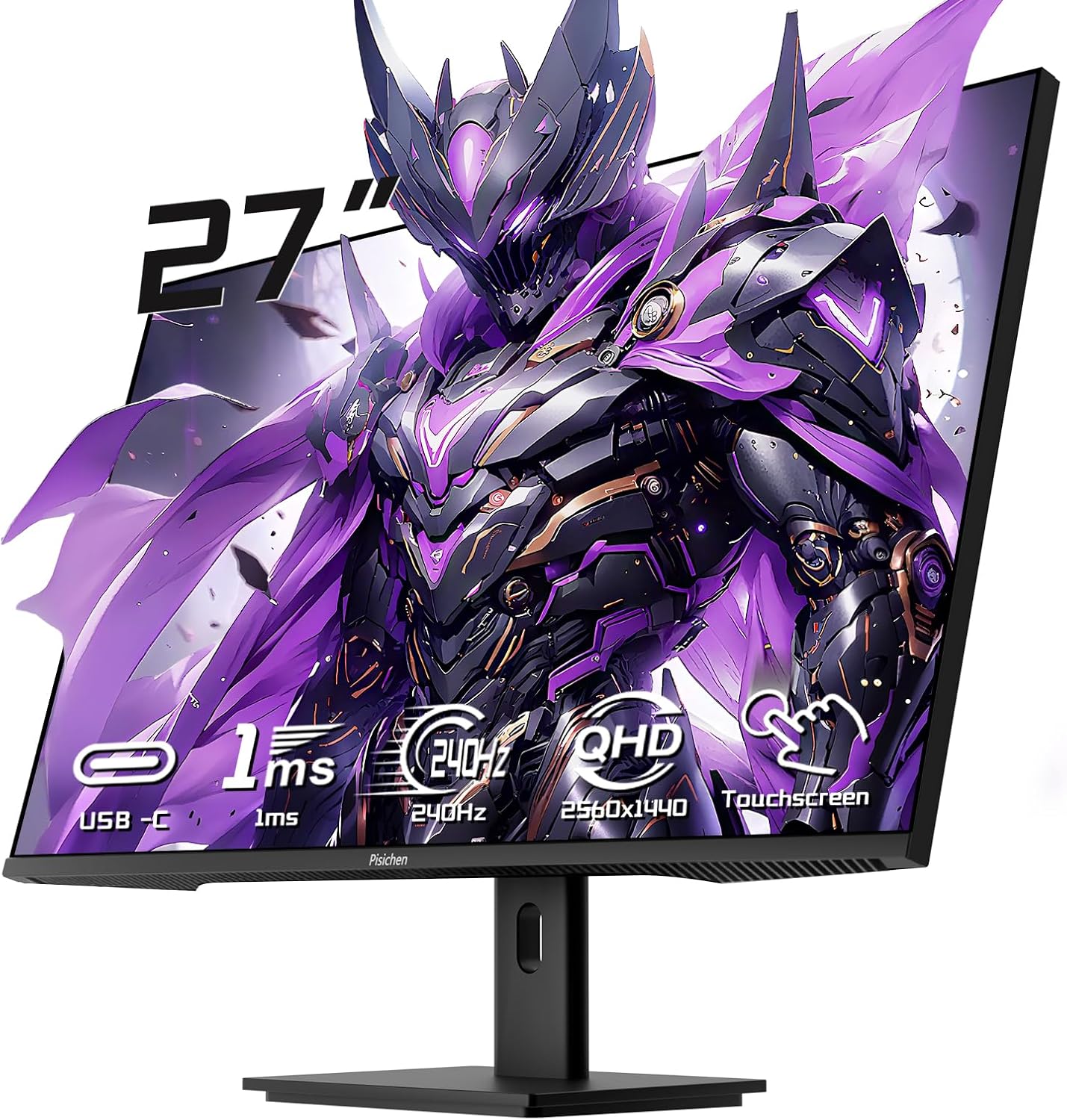
Obrázek 4.1: Přední strana view of the Pisichen 27-Inch Touch Screen Monitor, highlighting its frameless design and key features like USB-C, 1ms response time, 240Hz refresh rate, QHD resolution, and touchscreen capability.
5. Pokyny k nastavení
5.1 Sestavení stojanu
- Opatrně vyjměte komponenty monitoru a stojanu z obalu.
- Attach the stand neck to the monitor's rear mounting point.
- Připevněte základnu stojanu k krku stojanu pomocí dodaných šroubů.
- Sestavený monitor umístěte na stabilní, rovný povrch.
5.2 Montáž VESA (volitelné)
The monitor supports VESA mounting for wall or arm installation. Remove the stand if attached. Use compatible VESA mounting hardware (not included) according to the VESA standard for this monitor.

Figure 5.1: Illustration comparing VESA wall mounting and the standard monitor base setup, demonstrating space-saving benefits of VESA mounting.
5.3 Připojení k zařízení
The monitor offers multiple connection options. Choose the appropriate cable for your device.
- HDMI/DisplayPort: Připojte jeden konec kabelu HDMI nebo DisplayPort ke grafické kartě počítače a druhý konec k odpovídajícímu portu na monitoru.
- USB-C: For devices supporting video output via USB-C, connect the USB-C cable from your device to the monitor's USB-C port. This may also provide power and touch functionality depending on your device.
- USB-B (for Touchscreen Functionality): To enable the 10-point multi-touch feature, connect the USB-B cable from the monitor's USB-B port to an available USB-A port on your computer. This connection is crucial for touch input.
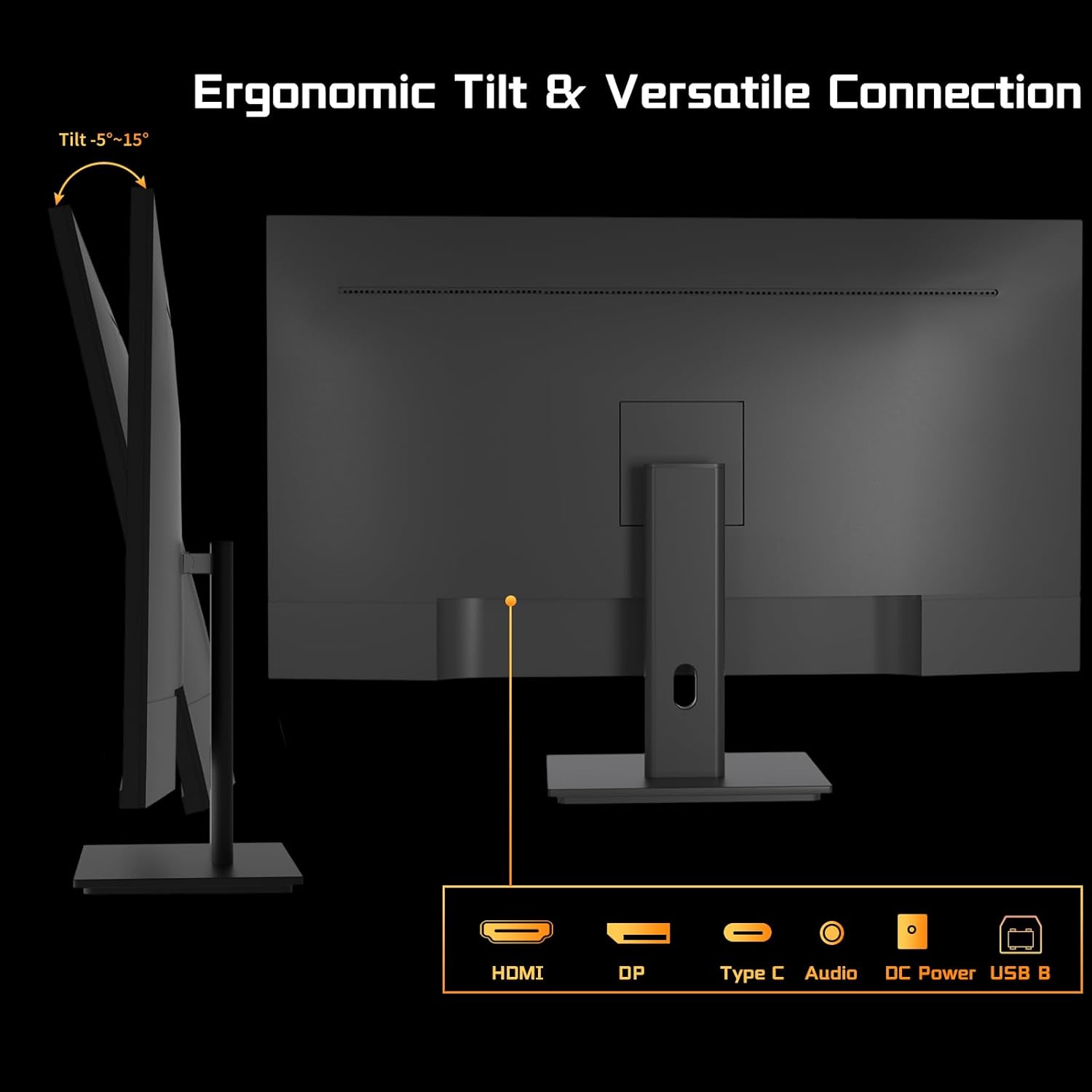
Obrázek 5.2: Zadní view of the monitor showing available ports: HDMI, DisplayPort, USB-C, Audio Out, DC Power, and USB-B. The USB-B port is essential for touchscreen functionality.

Figure 5.3: Connection diagram illustrating how to connect the monitor as a second display (HDMI/DP) and as a touchscreen monitor (HDMI/DP + USB-B for touch signal).
5.4 Připojení napájení
Connect the power adapter to the monitor's DC power input, then plug the adapter into a power outlet.
5.5 Počáteční zapnutí
Press the power button on the monitor. The power indicator will illuminate, and the display will turn on. If no signal is detected, ensure all cables are securely connected and your computer is powered on.
6. Návod k obsluze
6.1 Zapnutí/vypnutí
Stisknutím tlačítka napájení umístěného na monitoru jej zapnete nebo vypnete.
6.2 Nabídka na obrazovce (OSD)
The OSD menu allows you to adjust various monitor settings. Use the buttons on the monitor (typically located on the back or bottom) to navigate the menu. Common settings include:
- Jas/kontrast: Adjust display luminance.
- Nastavení barev: Upravte teplotu barev, gamu a sytost.
- Vstupní zdroj: Manually select HDMI, DisplayPort, or USB-C input.
- Režim obrazu: Select predefined display modes (e.g., Standard, Game, Movie).
- Adaptivní synchronizace: Enable or disable this feature for compatible graphics cards.
6.3 Funkce dotykové obrazovky
With the USB-B cable connected to your computer, the monitor functions as a 10-point multi-touch display. You can use gestures such as:
- Klepněte na: Ekvivalent kliknutí myší.
- Dvojí poklepání: Ekvivalent dvojitého kliknutí.
- Přiblížení/zvětšení prsty: Pro přiblížení nebo oddálení použijte dva prsty.
- Výpad: Navigate through content or scroll.
- Táhnout: Move items on the screen.
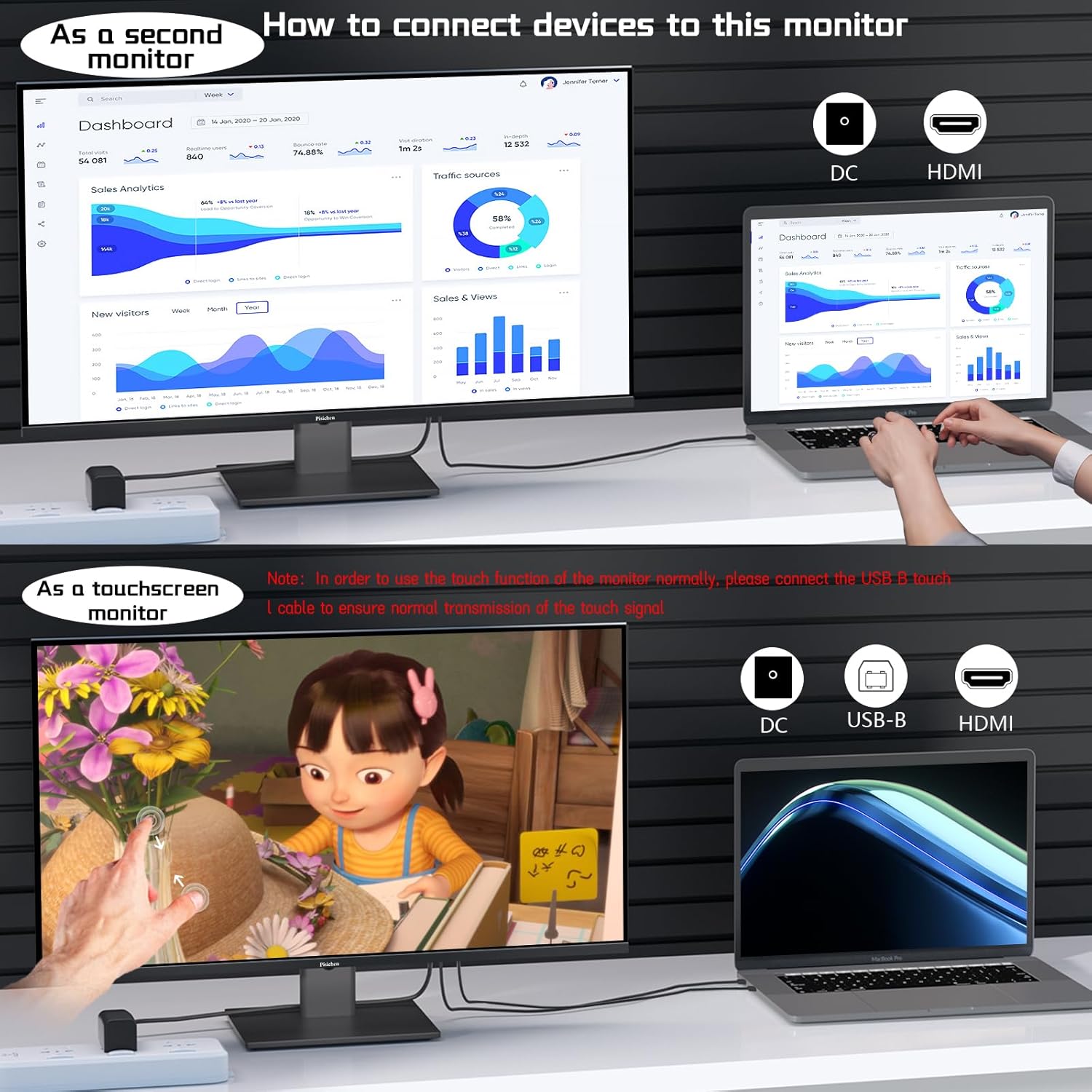
Figure 6.1: A user interacting with the monitor's touchscreen, demonstrating its application in business or productivity tasks.

Figure 6.2: Compatibility chart showing devices that support multi-touch (Laptops, Smartphones, Tablets, All-in-one PCs, Desktop Hosts) and devices where touch functionality is not supported (iPhone, iPad, Switch, Fire TV, PS3/4/5, Xbox, Steam Deck, and some Apple products like Mac mini).
6.4 Obnovovací frekvence a adaptivní synchronizace
The monitor supports a 240Hz refresh rate. Ensure your computer's display settings are configured to utilize this refresh rate for the smoothest experience. Enable Adaptive Sync in the OSD menu and your graphics card settings to synchronize the monitor's refresh rate with your GPU's frame rate, reducing screen tearing.

Figure 6.3: Visual comparison demonstrating the smoothness of a 240Hz refresh rate compared to lower refresh rates, illustrating reduced lag and delay.
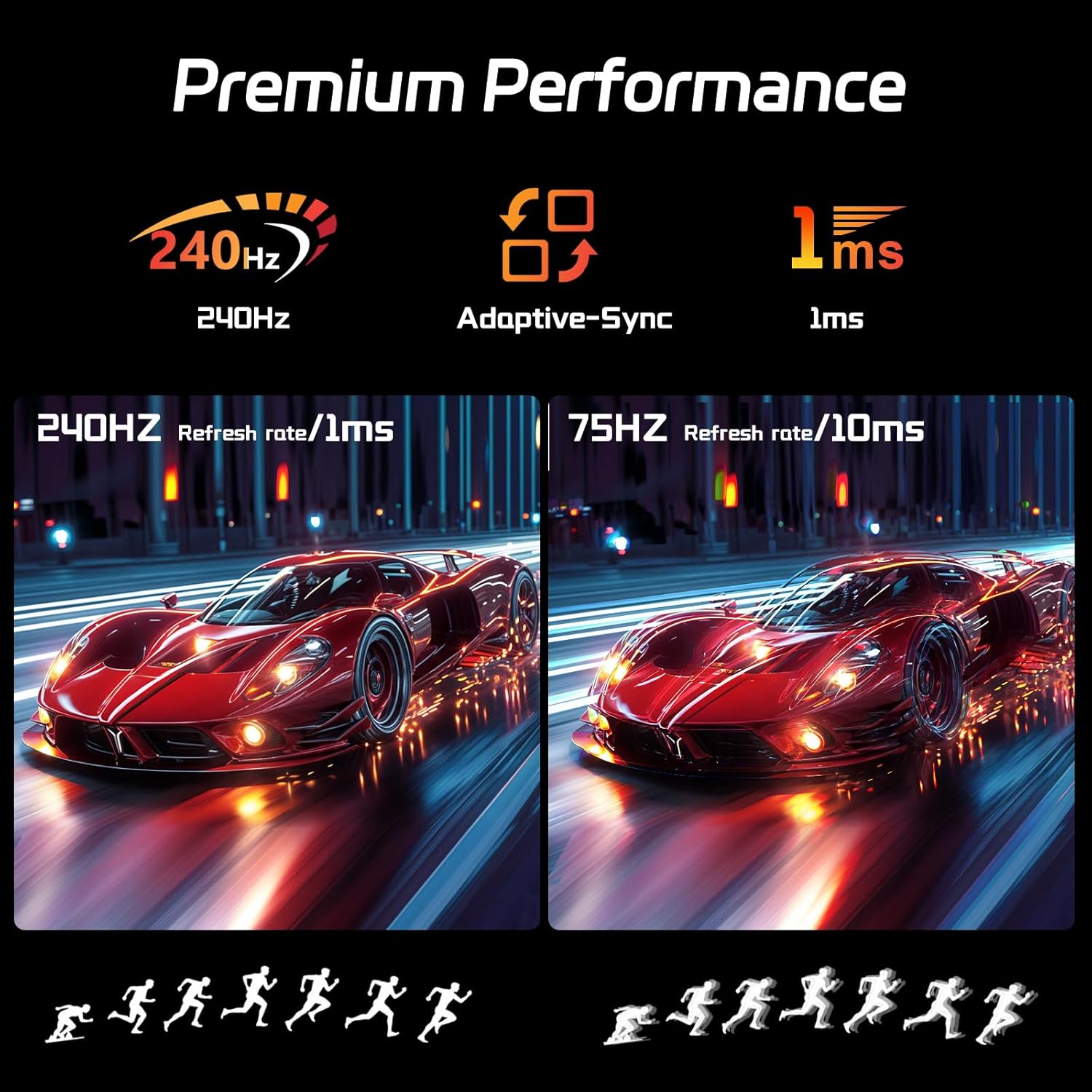
Figure 6.4: Illustration of premium performance features including 240Hz refresh rate, Adaptive-Sync, and 1ms response time, with a visual comparison of motion clarity at 240Hz versus 75Hz.
6.5 Eye-Friendly Technology
The monitor incorporates technology to reduce screen flicker and blue light emissions, aiming to minimize eye strain during prolonged use. These features can typically be adjusted or enabled through the OSD menu.

Figure 6.5: Visual representation of Eye-Friendly Technology, showing how it reduces screen flicker and blue light to enhance user comfort.
7. Údržba
- Čištění obrazovky: Jemně otřete obrazovku měkkým hadříkem, který nepouští vlákna. V případě odolných skvrn lehceampOpláchněte hadřík vodou nebo neabrazivním čističem obrazovek. Nestříkejte čistič přímo na obrazovku.
- Čištění Casing: K otření monitoru použijte měkký, suchý hadřík casing. Nepoužívejte agresivní chemikálie nebo abrazivní materiály.
- Skladování: Pokud monitor skladujete delší dobu, odpojte jej od napájení, zakryjte jej, aby nebyl vnikl prach, a uložte jej na chladném a suchém místě.
8. Řešení problémů
| Problém | Možná příčina | Řešení |
|---|---|---|
| Na obrazovce není žádný obraz | Monitor not powered on; incorrect input source; loose video cable. | Ujistěte se, že je napájecí kabel připojen a monitor je zapnutý. V nabídce OSD vyberte správný vstupní zdroj. Zkontrolujte připojení video kabelu. |
| Dotykový displej nereaguje | USB-B cable not connected; incorrect driver; incompatible device. | Ensure USB-B cable is connected from monitor to computer. Check device compatibility. Calibrate touch input in OS settings if multiple touchscreens are present. |
| Blikání nebo zkreslení obrazu | Faulty video cable; incorrect resolution/refresh rate; graphics card issue. | Replace video cable. Adjust resolution/refresh rate in OS settings. Update graphics drivers. |
| Nezní žádný zvuk z reproduktorů monitoru | Volume too low; audio output not selected; no audio signal via video cable. | Increase monitor volume. Ensure monitor is selected as audio output in OS. Check if video cable supports audio transmission. |
9. Specifikace
| Funkce | Detail |
|---|---|
| Velikost obrazovky | 27 palce |
| Rezoluce | 2560 x 1440 pixelů (QHD širokoúhlý 1440p) |
| Obnovovací frekvence | 240 Hz |
| Typ panelu | IPS |
| Dotyková obrazovka | 10bodový vícedotykový |
| Poměr stran | 16:9 |
| Jas obrázku | 400 kandel (cd/m²) |
| Konektivita | HDMI, DisplayPort, USB-C, USB-B |
| Rozměry produktu | 0.7 x 24 x 14.1 palce |
| Hmotnost položky | 13.52 libry |
| Výrobce | Shenzhen Konowa Electronics Co., LTD |
| Číslo modelu | 27INTS-2K-240HZ |
10. Záruka a podpora
This Pisichen monitor comes with a standard manufacturer's warranty. For specific warranty terms and conditions, please refer to the warranty card included in your package or visit the official Pisichen website. For technical support, troubleshooting assistance beyond this manual, or to inquire about warranty claims, please contact Pisichen customer service through their official channels.
Online podpora: Visit the Pisichen Store on Amazon
Ask a question about this manual
Ask about setup, troubleshooting, compatibility, parts, safety, or missing instructions. Manuals+ will review the question and use this page’s manual context to help answer it.