
1. Úvod
This manual provides essential information for setting up, operating, maintaining, and troubleshooting your HP Omen 45L GT22 Gaming Desktop. Please read this manual thoroughly before using your new system to ensure proper functionality and longevity.
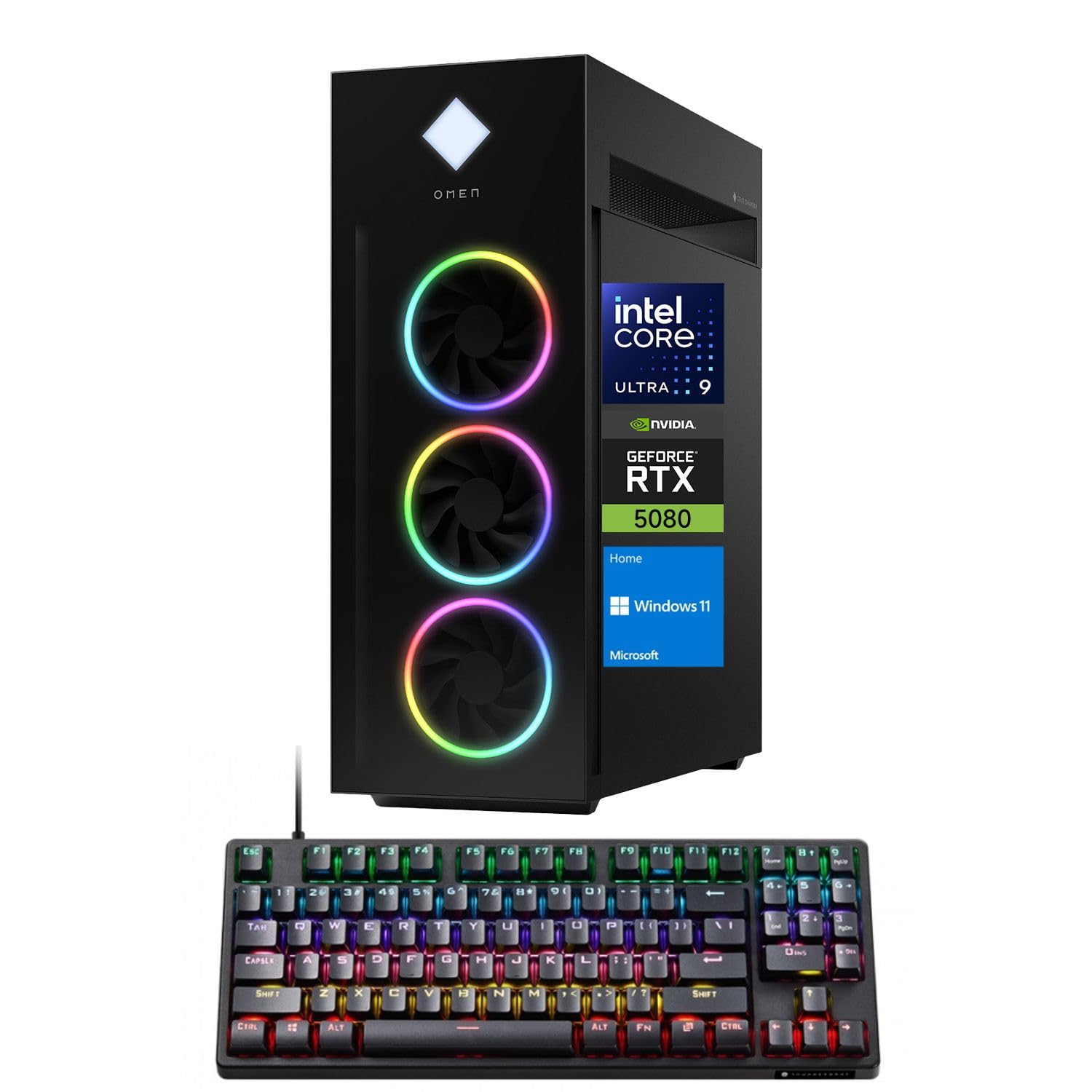
Figure 1: HP Omen 45L GT22 Gaming Desktop. This image displays the front and side of the desktop tower, highlighting its design and RGB lighting elements.
2. Co je v krabici
Ověřte, zda jsou v balení přítomny všechny součásti:
- HP Gaming Tower Desktop
- Herní klávesnice Thunderobot KG3089R
- Napájecí kabel
- Dokumentace (tato příručka, informace o záruce)
3. Průvodce nastavením
3.1 Vybalení a umístění
- Opatrně vyjměte pracovní desku a veškeré příslušenství z obalu.
- Umístěte pracovní plochu na stabilní, rovný povrch s dostatečným větráním po všech stranách. Neumisťujte ji do uzavřených prostor nebo do blízkosti zdrojů tepla.
3.2 Připojení periferních zařízení
Připojte monitor, klávesnici, myš a další zařízení k příslušným portům na stolním počítači.

Figure 2: Rear Ports of the HP Omen 45L GT22. This image illustrates the various input/output ports available on the back of the desktop, including USB, HDMI, DisplayPort, and Ethernet.
- Monitor: Connect your monitor using an HDMI or DisplayPort cable to the dedicated graphics card ports.
- Klávesnice a myš: Connect the Thunderobot KG3089R Gaming Keyboard and your mouse to any available USB Type-A ports.
- Síť: For a wired connection, connect an Ethernet cable to the RJ-45 port. For wireless, ensure Wi-Fi antennas are connected (if external) or that the internal Wi-Fi is enabled during software setup.
- Moc: Connect the power cable to the desktop's power supply port and then to a power outlet.
3.3 Počáteční zapnutí a nastavení operačního systému
- Stiskněte tlačítko napájení na přední straně stolního počítače.
- Postupujte podle pokynů na obrazovce a dokončete instalaci operačního systému Windows 11 Home. To zahrnuje nastavení uživatelského účtu, síťového připojení a nastavení ochrany osobních údajů.
- Once Windows is set up, ensure all drivers are installed and updated. You can typically find driver updates through Windows Update or the HP support webmísto.
4. Návod k obsluze
4.1 Řízení spotřeby
- Zapnutí: Stiskněte tlačítko napájení na přední straně stolního počítače.
- Vypnout: V systému Windows klikněte na tlačítko Start a poté na Napájení > Vypnout.
- Restartovat: V systému Windows klikněte na tlačítko Start a poté na Napájení > Restartovat.
- Spát: V systému Windows klikněte na tlačítko Start a poté na Napájení > Režim spánku.
4.2 Understanding Your System Components
Your HP Omen 45L GT22 is equipped with high-performance components for demanding tasks and gaming.

Figure 3: Intel Core Ultra 9 285K Processor. This image highlights the specifications of the Intel Core Ultra 9 285K CPU, including its cache, cores, and threads.
- Procesor: Intel Core Ultra 9 285K (24 Cores, 24 Threads, 36MB L3 Cache, up to 5.70GHz). This powerful CPU handles complex computations and multitasking.
- Grafická karta: NVIDIA GeForce RTX 5080 (16GB GDDR7). This dedicated GPU is responsible for rendering high-fidelity graphics for gaming and creative applications.
- Paměť: 32GB DDR5 RAM. High-speed memory ensures smooth operation when running multiple applications simultaneously.
- Skladování: 2TB PCIe NVMe M.2 SSD. Provides fast boot times and rapid data access for your operating system and applications.
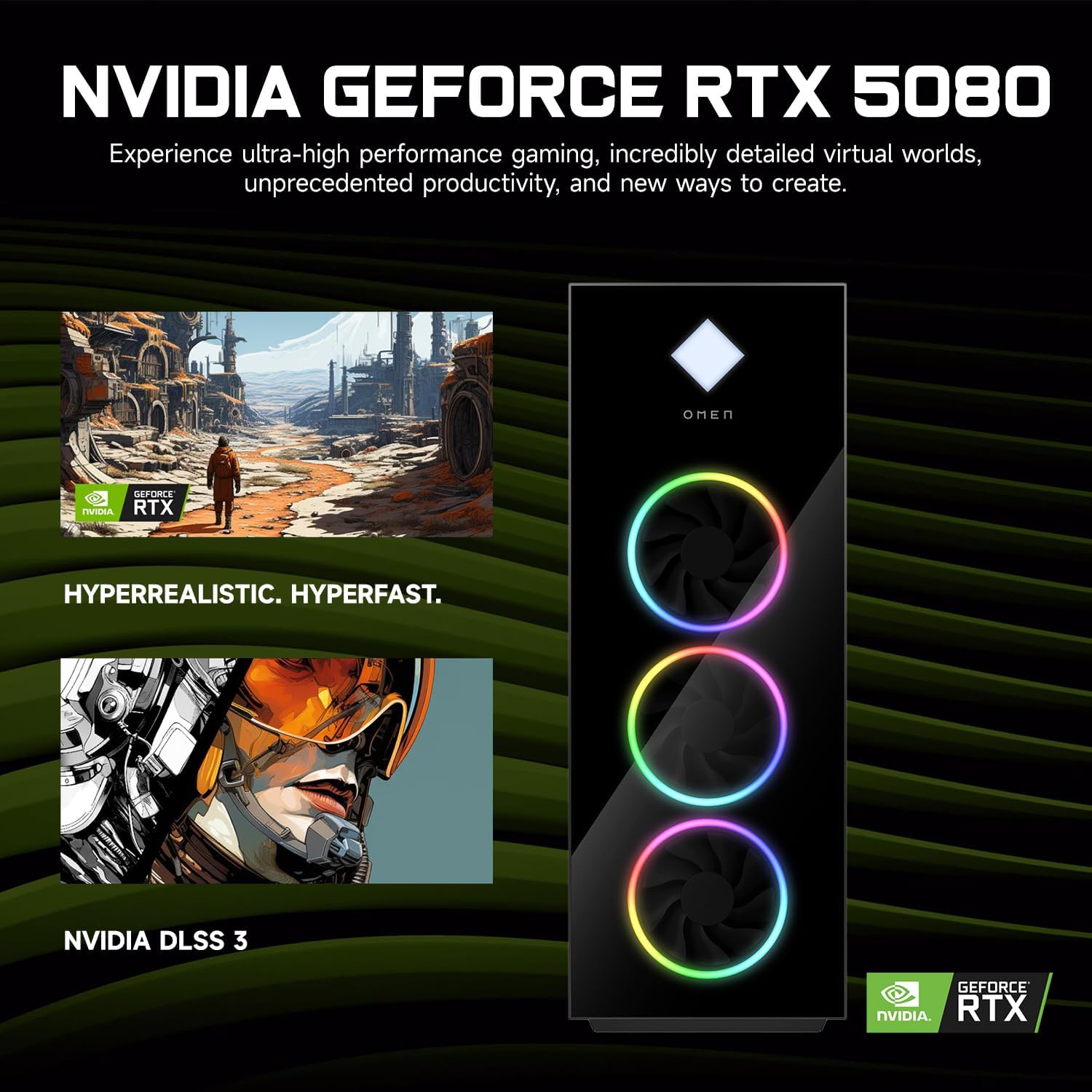
Figure 4: NVIDIA GeForce RTX 5080 Graphics. This image details the capabilities of the NVIDIA GeForce RTX 5080, emphasizing its performance for gaming and content creation.
4.3 RGB Light Studio
The HP Omen 45L GT22 features customizable RGB lighting. Use the pre-installed Omen Gaming Hub software to personalize the lighting effects on your desktop's fans and chassis. Refer to the Omen Gaming Hub's in-app help for detailed instructions on customization options.

Figure 5: Gaming Setup with HP Omen 45L GT22. This image shows the desktop integrated into a complete gaming station, including a monitor, keyboard, and mouse, demonstrating its aesthetic appeal.
5. Údržba
5.1 Čištění pracovní plochy
- Vnější: Use a soft, lint-free cloth to wipe down the exterior surfaces. For stubborn marks, slightly dampOpláchněte hadřík vodou. Vyhněte se agresivním chemikáliím.
- Větrání: Regularly check and clean the ventilation grilles and fan openings to prevent dust buildup, which can impede airflow and cause overheating. Use compressed air to gently clear dust from vents. Ensure the system is powered off and unplugged before cleaning.
5.2 Aktualizace softwaru
Pro zajištění optimálního výkonu a zabezpečení udržujte operační systém a ovladače aktualizované.
- Aktualizace systému Windows: Pravidelně kontrolujte a instalujte aktualizace prostřednictvím Nastavení systému Windows > Aktualizace a zabezpečení > Windows Update.
- Aktualizace ovladačů: Update graphics drivers (NVIDIA GeForce Experience) and other system drivers (HP Support Assistant or HP website) periodically.
5.3 Zálohování dat
Pravidelně zálohujte důležitá data na externí disk nebo cloudové úložiště, abyste předešli jejich ztrátě.
6. Řešení problémů
This section addresses common issues you might encounter. For more complex problems, contact HP Support.
- Bez napájení:
- Ujistěte se, že je napájecí kabel bezpečně připojen ke stolnímu počítači i do elektrické zásuvky.
- Ověřte funkčnost elektrické zásuvky zapojením jiného zařízení.
- Check the power supply unit (PSU) switch on the back of the desktop (if present) is in the 'ON' position.
- Žádný displej na monitoru:
- Confirm the monitor is powered on and connected to the graphics card's HDMI or DisplayPort output, not the motherboard's integrated graphics ports (if applicable).
- Zkuste jiný kabel nebo monitor, pokud je k dispozici.
- Ujistěte se, že je na monitoru vybrán správný vstupní zdroj.
- Systém je pomalý nebo nereaguje:
- Zavřete nepotřebné aplikace běžící na pozadí.
- Zkontrolujte Správce úloh (Ctrl+Shift+Esc), zda nevyužívá CPU, RAM nebo disk.
- Ujistěte se, že systém Windows a ovladače jsou aktuální.
- Spusťte antivirovou/malwarovou kontrolu.
- Problémy s připojením k síti:
- V případě kabelového připojení se ujistěte, že je ethernetový kabel správně připojen a že router/modem funguje.
- For Wi-Fi, check if Wi-Fi is enabled in Windows settings and ensure you are connected to the correct network with the right password.
- Restart your router/modem and the desktop.
7. Specifikace
| Funkce | Detail |
|---|---|
| Číslo modelu | GT22 |
| Procesor | Intel Core Ultra 9 285K (24 Cores, 24 Threads, 36MB L3 Cache, 3.20GHz base, up to 5.70GHz max turbo) |
| Grafika | NVIDIA GeForce RTX 5080 (16 GB GDDR7) |
| BERAN | 32GB DDR5 (4800 MHz) |
| Skladování | 2TB PCIe NVMe M.2 SSD |
| Operační systém | Windows 11 Home |
| Bezdrátové připojení | Wi-Fi 6 (802.11ax), Bluetooth |
| Porty (přední) | 2 x USB Type-A 5Gbps (HP Sleep and Charge), 2 x USB 2.0 Type-A, 1 x headphone/microphone combo, 1 x microphone |
| Porty (zadní) | 1 x USB Type-C 10Gbps, 2 x USB Type-A 5Gbps, 4 x USB 2.0 Type-A, 1 x 3.5 mm audio jack, 1 x RJ-45, 1 x Thunderbolt 4 with USB Type-C 40Gbps, 1 x HDMI, 3 x DisplayPort, 5 x Audio Port |
| Rozměry (DxŠxV) | 21.85 x 18.5 x 8.03 palce |
| Hmotnost | 49.8 libry |
| Barva | Černý |
8. Záruka a podpora
Informace o záruce naleznete v dokumentaci dodané s produktem nebo navštivte oficiální stránky podpory HP. website. HP provides various support resources, including drivers, manuals, and troubleshooting guides.
Podpora HP Webmísto: support.hp.com
When contacting support, please have your product model number (GT22) and serial number ready.