
HP M02-0881
HP Omnidesk M02 Business Tower Desktop User Manual
Model: M02-0881
1. Úvod
This manual provides essential information for setting up, operating, and maintaining your HP Omnidesk M02 Business Tower Desktop. This system is designed for business productivity and personal use, featuring an Intel Core i7-14700 processor, 16GB DDR5 RAM, a 1TB PCIe NVMe M.2 SSD, and Windows 11 Home. It also includes a Lexar SL660 512GB Portable SSD for expanded storage and data transfer needs. Please read this manual thoroughly to ensure proper use and to maximize the performance and longevity of your device.
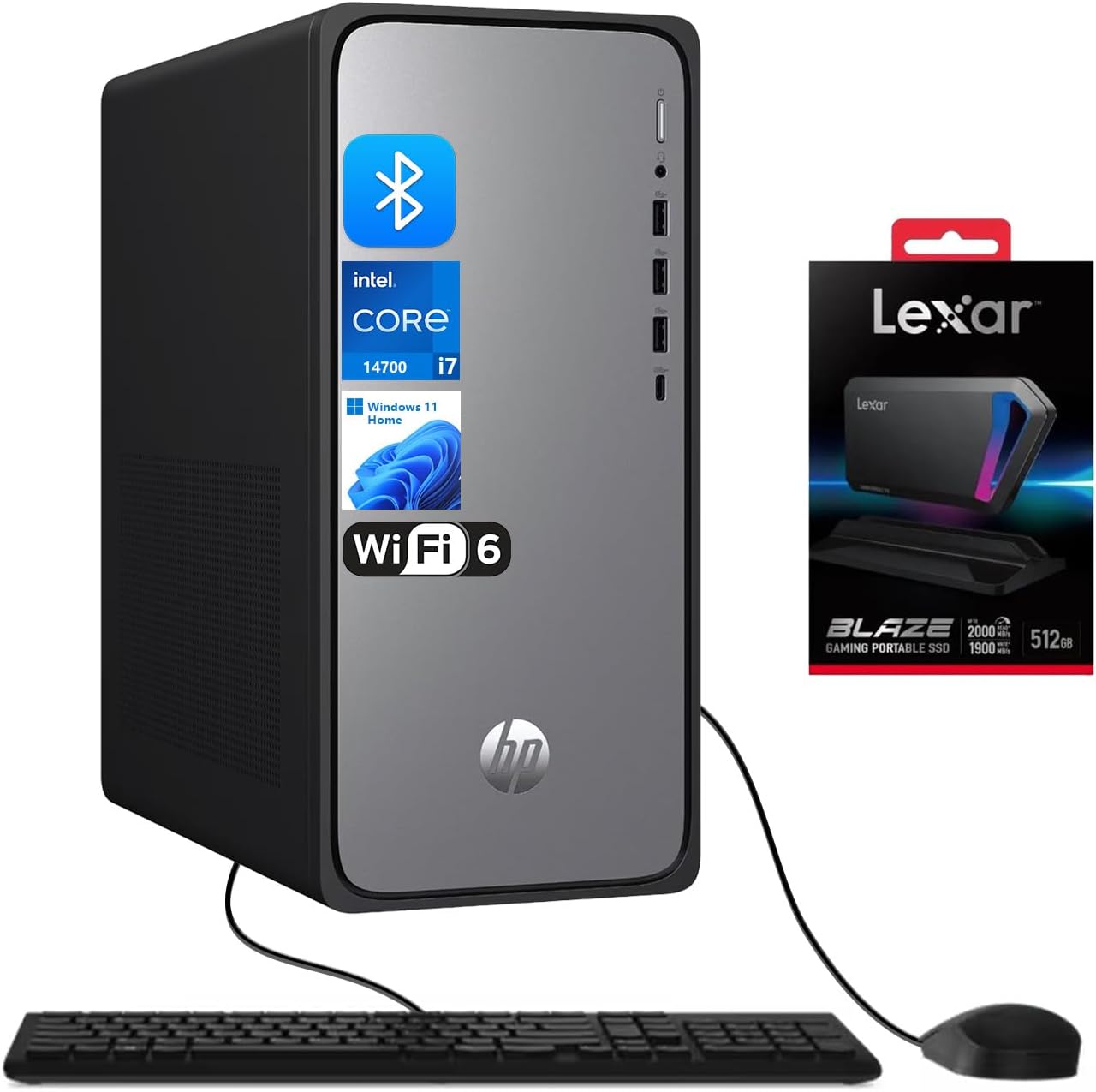
Image 1.1: The HP Omnidesk M02 Business Tower Desktop, bundled with a Lexar SL660 Portable SSD, wired keyboard, and mouse.
2. Co je v krabici
Před zahájením instalace ověřte, zda jsou v balení přítomny všechny položky.
- HP Omnidesk M02-0881 Tower Desktop
- Kabelová klávesnice
- Wired Mouse
- Lexar SL660 512GB Portable SSD
- Napájecí kabel
- Dokumentace (Stručná úvodní příručka, Záruční informace)
3. Průvodce nastavením
Follow these steps to set up your HP Omnidesk M02 Desktop.
- Rozbalte plochu: Carefully remove the desktop tower and all accessories from the packaging.
- Připojení monitoru: Connect your monitor to the desktop using an HDMI or DisplayPort cable. Ensure the cable is securely plugged into both the desktop's rear port and the monitor's input.
- Připojení klávesnice a myši: Plug the wired keyboard and mouse into any available USB Type-A ports on the rear of the desktop.
- Připojte napájení: Connect the power cable to the desktop's power input and then plug it into a grounded electrical outlet.
- Zapnutí: Press the power button located on the front of the desktop tower. The system will boot up, and you will be guided through the initial Windows 11 Home setup process.
- Připojit k síti: During the Windows setup, you will have the option to connect to a Wi-Fi network (Wi-Fi 6 supported) or an Ethernet network via the RJ-45 port.
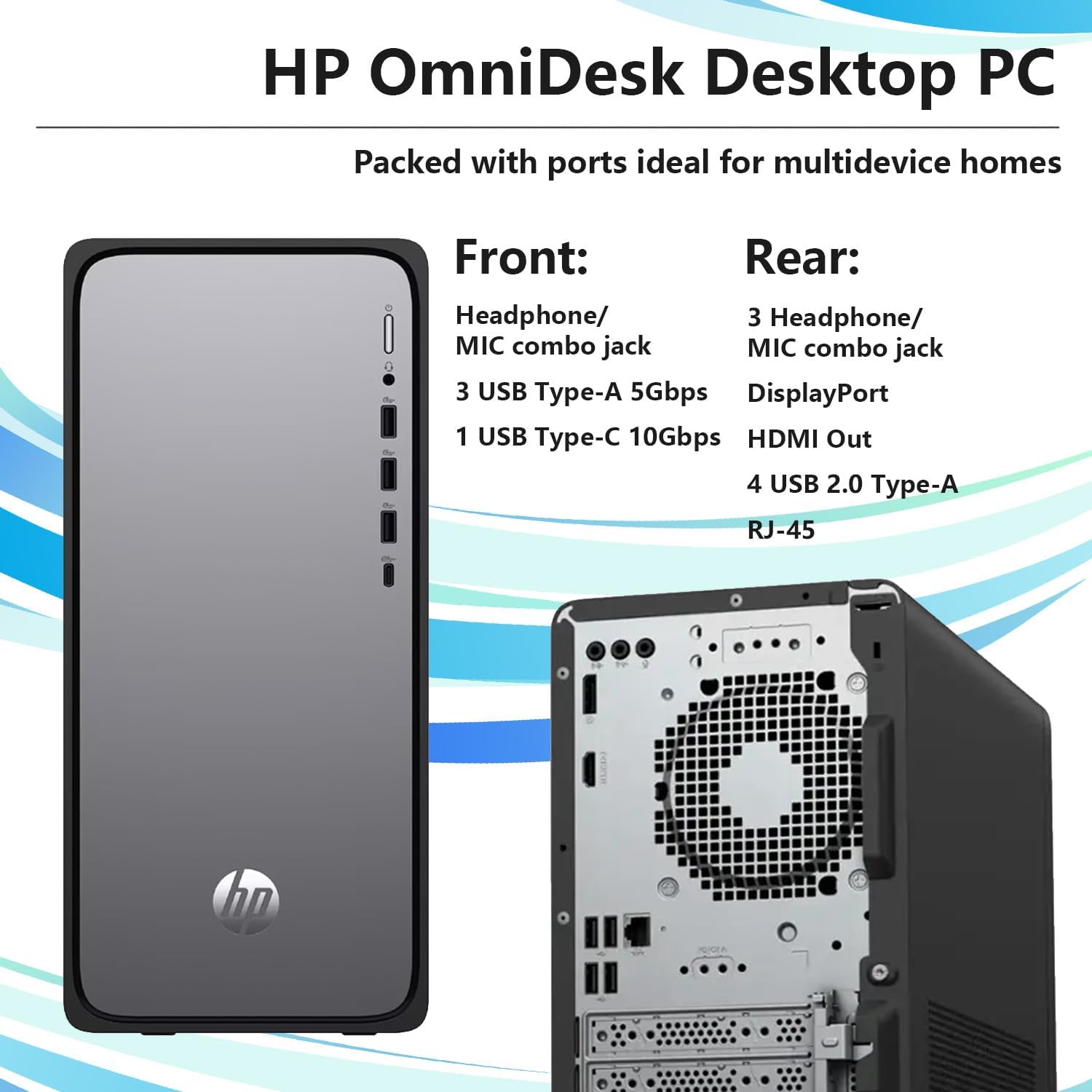
Image 3.1: Front and rear ports of the HP Omnidesk M02 Desktop for connecting peripherals.
4. Hardware skončilview
The HP Omnidesk M02 is equipped with powerful components for efficient performance.
4.1 klíčové komponenty
- Procesor: Intel Core i7-14700 (20 Cores, 28 Threads, up to 5.4 GHz)
- Paměť: 16 GB RAM DDR5-5600 MHz
- Skladování: 1TB PCIe NVMe M.2 SSD disk
- Grafika: Integrovaná grafika Intel UHD Graphics
- Bezdrátový: Wi-Fi 6 a Bluetooth

Image 4.1: Key specifications and features of the HP Omnidesk M02 Desktop.
4.2 Porty a konektory
The desktop provides a variety of ports for connecting peripherals and external devices.
| Umístění | Typ portu | Množství | Popis |
|---|---|---|---|
| Přední | USB Type-C (10Gbps) | 1 | Vysokorychlostní přenos dat |
| Přední | USB Type-A (5Gbps) | 3 | Standard USB connections |
| Přední | Kombinovaný konektor pro sluchátka/mikrofon | 1 | Audio vstup/výstup |
| Zadní | USB Type-A 2.0 | 4 | Standard USB connections |
| Zadní | HDMI | 1 | Video výstup |
| Zadní | DisplayPort | 1 | Video výstup |
| Zadní | RJ-45 | 1 | Připojení k síti Ethernet |
| Zadní | Zvukový výstup | 1 | Audio výstup |
5. Operating System: Windows 11 Home
Your HP Omnidesk M02 comes pre-installed with Windows 11 Home, offering a modern and efficient computing experience.
5.1 Windows Copilot
Windows 11 Home includes AI-powered features like Windows Copilot, designed to enhance productivity and provide intelligent assistance. You can access Copilot to quickly manage tasks, get information, and personalize your PC experience.
5.2 Initial Setup and Updates
Upon first boot, follow the on-screen instructions to complete the Windows 11 setup, including creating a user account and connecting to the internet. It is recommended to perform system updates regularly to ensure optimal performance and security. Navigate to Nastavení > Aktualizace systému Windows pro kontrolu a instalaci aktualizací.
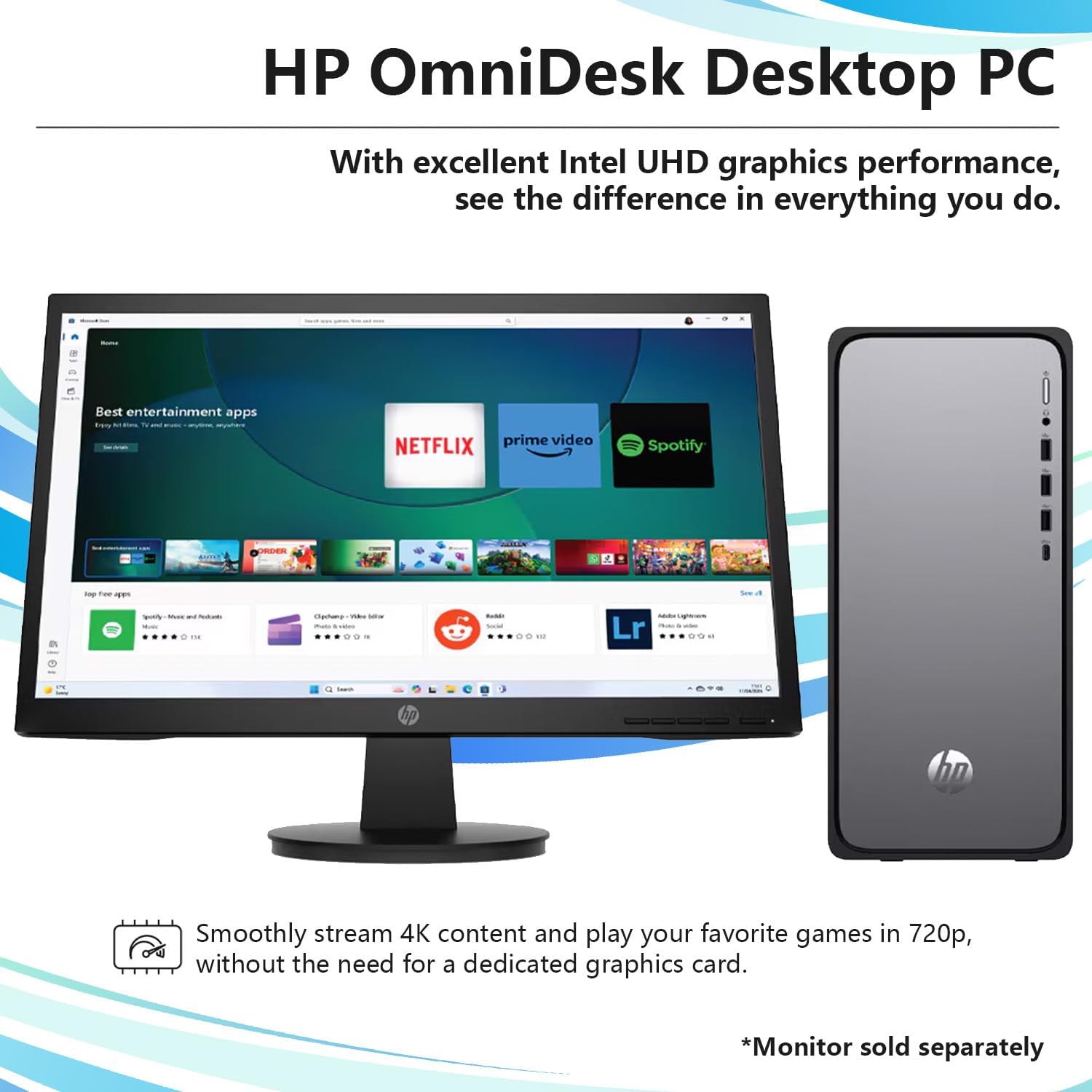
Image 5.1: The HP Omnidesk M02 Desktop running Windows 11 Home, suitable for various applications.
6. Lexar SL660 512GB Portable SSD
Your desktop includes a Lexar SL660 512GB Portable SSD for additional high-speed storage.
6.1 Connecting the Portable SSD
The Lexar SL660 Portable SSD connects to your desktop via a USB Type-C port. Use the provided USB Type-C to Type-C cable or USB Type-C to Type-A cable to connect it to an available port on your desktop. For optimal performance, use a USB 10Gbps (USB 3.2 Gen 2) port.
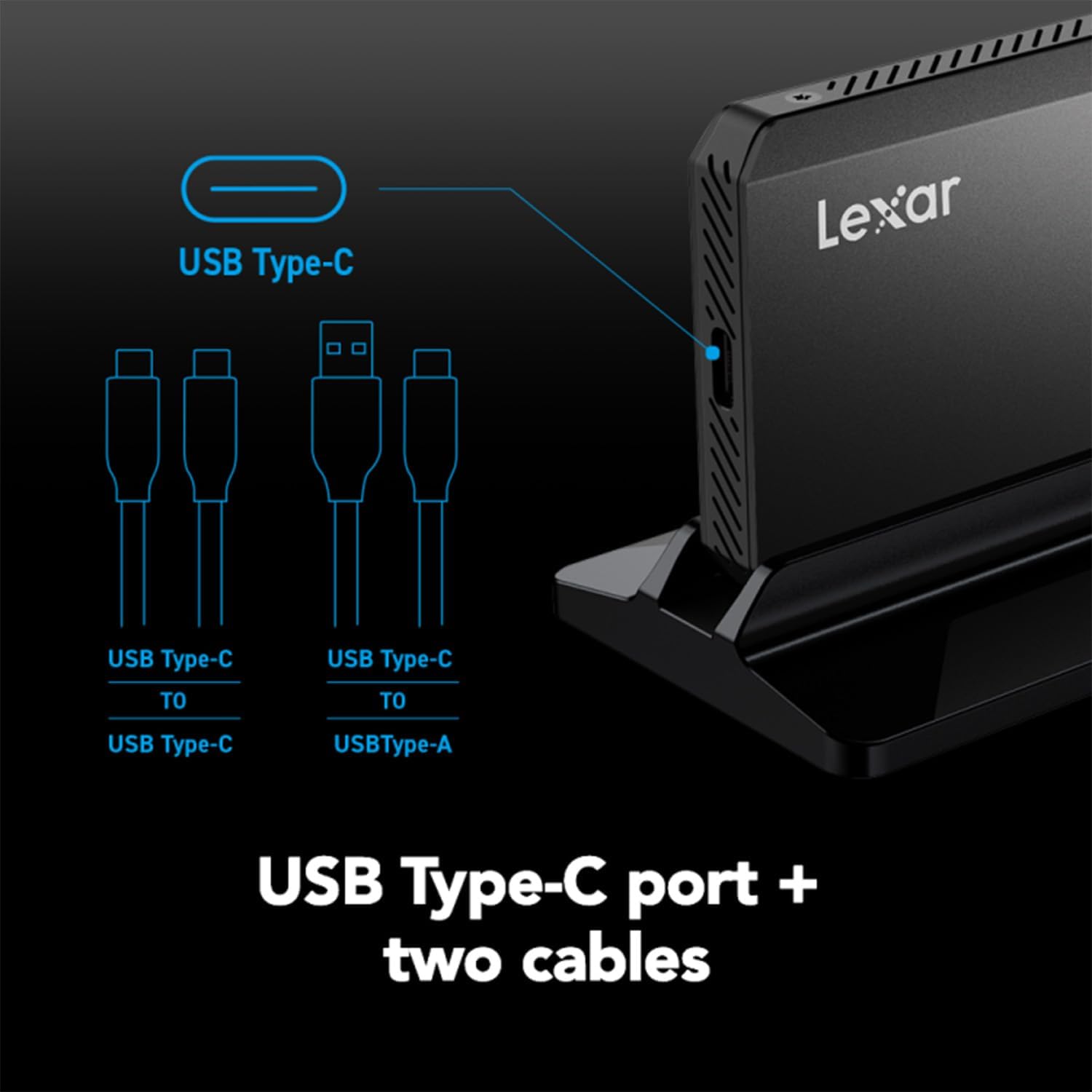
Image 6.1: The Lexar SL660 Portable SSD and its compatible USB Type-C and Type-A cables.
6.2 Using the Portable SSD
Once connected, the Lexar SL660 SSD will appear as an external drive in File Explorer. You can use it for storing large files, backups, or transferring data between devices. Always safely eject the drive before disconnecting it to prevent data corruption.
7. Údržba
Pravidelná údržba pomáhá zajistit dlouhou životnost a optimální výkon vašeho stolního počítače.
- Čištění: Use a soft, dry cloth to clean the exterior of the desktop. For dust accumulation in vents, use compressed air. Do not use liquid cleaners directly on the components.
- Aktualizace softwaru: Keep your Windows operating system and drivers updated. This improves security, stability, and performance.
- Větrání: Ensure the desktop's vents are not obstructed to allow for proper airflow and prevent overheating.
- Záloha dat: Regularly back up important data to the Lexar portable SSD or another external storage device.
8. Řešení problémů
Tato část se zabývá běžnými problémy, se kterými se můžete setkat.
- Bez napájení:
- Check if the power cable is securely connected to both the desktop and the electrical outlet.
- Ověřte funkčnost elektrické zásuvky zapojením jiného zařízení.
- Bez displeje:
- Ensure the monitor is powered on and the video cable (HDMI/DisplayPort) is securely connected to both the desktop and the monitor.
- Zkuste jiný video kabel nebo monitor, pokud je k dispozici.
- Peripheral Not Detected (Keyboard/Mouse/SSD):
- Ensure the peripheral is correctly plugged into a functional USB port.
- Zkuste zapojit periférii do jiného USB portu.
- Restartujte plochu.
- Pomalý výkon:
- Zavřete nepotřebné aplikace běžící na pozadí.
- Zkontrolujte a nainstalujte všechny čekající aktualizace systému Windows.
- Zajistěte dostatečné větrání, aby se zabránilo tepelnému škrcení.
9. Specifikace
Detailed technical specifications for the HP Omnidesk M02 Business Tower Desktop.
| Funkce | Detail |
|---|---|
| Název modelu | M02-0881 |
| Procesor | Intel Core i7-14700 (20 Cores, 28 Threads, 2.1 GHz base, up to 5.4 GHz max turbo) |
| BERAN | 16GB DDR5-5600MHz |
| Skladování | 1TB PCIe NVMe M.2 SSD |
| Grafika | Integrovaná grafika Intel UHD Graphics |
| Operační systém | Windows 11 Home |
| Bezdrátové připojení | Wi-Fi 6, Bluetooth |
| Přední porty | 1x USB Type-C (10Gbps), 3x USB Type-A (5Gbps), 1x Headphone/Mic Combo |
| Zadní porty | 4x USB Type-A 2.0, 1x HDMI, 1x DisplayPort, 1x RJ-45, 1x Audio Out |
| Rozměry (DxŠxV) | 13.27 x 6.1 x 12.4 palce |
| Hmotnost | 12.72 liber |
| Barva | Černý |
| Bundled Accessory | Lexar SL660 512GB Portable SSD |

Image 9.1: The HP Omnidesk M02 Desktop is designed with environmental considerations, including recycled materials and energy efficiency.
10. Záruka a podpora
Your HP Omnidesk M02 Desktop comes with specific warranty coverage.
- Záruka výrobce: The remaining components of the desktop retain the original 1-year manufacturer's warranty.
- Upgraded Components Warranty: A 1-year warranty on the upgraded RAM and SSD is provided by PCOnline US.
- Technická podpora: For technical assistance, please refer to the official HP support website or contact PCOnline US for issues related to upgraded components.
Další informace naleznete na webu Obchod HP na Amazonu.
Ask a question about this manual
Ask about setup, troubleshooting, compatibility, parts, safety, or missing instructions. Manuals+ will review the question and use this page’s manual context to help answer it.