
1. Úvod
This user manual provides detailed instructions for the Bemi Cognita Tab 6+ E-Reader. Please read this manual carefully before using your device to ensure proper operation and to maximize your reading experience. Keep this manual for future reference.
1.1 Obsah balení
- Bemi Cognita Tab 6+ E-Reader
- USB nabíjecí kabel
Po vybalení se ujistěte, že jsou všechny položky přítomny a v dobrém stavu.
2. Zařízení skončiloview
Familiarize yourself with the physical components of your Bemi Cognita Tab 6+ E-Reader.

Obrázek 2.1: Přední view of the Bemi Cognita Tab 6+ E-Reader. The device features a 6-inch E-Ink display with the Bemi logo and model name visible. The screen is designed to mimic paper for a comfortable reading experience.

Obrázek 2.2: Přední a zadní view of the Bemi Cognita Tab 6+ E-Reader. This image highlights the device's thin design and the textured back cover, which provides a secure grip.

Obrázek 2.3: Strana view of the Bemi Cognita Tab 6+ E-Reader, illustrating the location of the power button and a small LED indicator. This button is used for turning the device on/off and waking it from sleep.
2.1 Klíčové komponenty:
- 6-inch E-Ink Touchscreen: Glare-free display for comfortable reading.
- Vypínač: Located on the side for turning the device on/off and sleep/wake.
- Port USB-C: Pro nabíjení a přenos dat.
- Slot pro microSD kartu: Expandable storage up to 256GB.
- Boční ovládací tlačítka: For page turning and navigation.
- SMARTlight: Adjustable front light for reading in various conditions.
3. Nastavení
3.1 Počáteční nabíjení
Before first use, fully charge your Bemi Cognita Tab 6+ E-Reader. Connect the provided USB cable to the device's USB-C port and the other end to a compatible USB power adapter (not included) or a computer's USB port.
- Plné nabití obvykle trvá přibližně 2–3 hodiny.
- Kontrolka nabíjení bude ukazovat stav nabíjení.
3.2 Zapnutí/vypnutí
- Zapnutí: Press and hold the Power button (refer to Figure 2.3) for a few seconds until the screen activates.
- Vypnutí: Press and hold the Power button until a power-off menu appears, then select "Power Off".
- Spánek/probuzení: Briefly press the Power button to put the device into sleep mode or wake it up.
3.3 Wi-Fi připojení
Connecting to Wi-Fi allows you to download books, transfer files, and access online services.
- Na domovské obrazovce klepněte na Nastavení ikona.
- Vybrat Wi-Fi.
- Přepněte přepínač Wi-Fi do polohy On.
- The device will scan for available networks. Select your desired network from the list.
- Pokud se zobrazí výzva, zadejte heslo a poté klepněte na Připojit.
3.4 Počáteční konfigurace
Upon first power-on, you may be guided through initial setup steps, including language selection and time zone settings. Follow the on-screen prompts.
4. Návod k obsluze
4.1 Navigace v rozhraní
The Bemi Cognita Tab 6+ features a touch-sensitive E-Ink screen and physical side buttons for navigation.
- Dotyková gesta: Tap to select, swipe to scroll, pinch to zoom (where supported).
- Boční tlačítka: Use the physical buttons on the side to turn pages forward or backward during reading.
- G-senzor: The device automatically rotates the screen orientation based on how you hold it, accommodating both right and left-handed users.
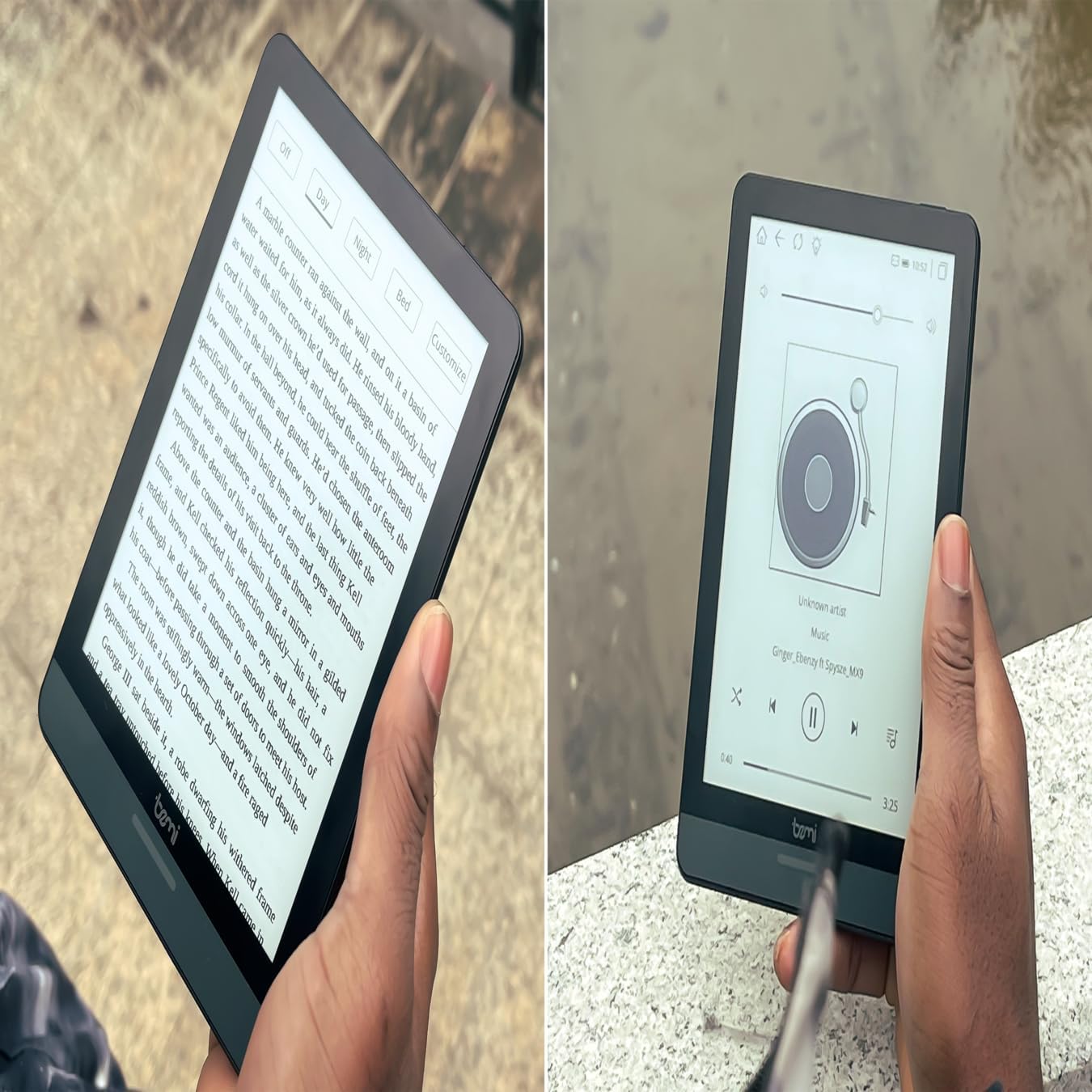
Obrázek 4.1: User holding the Bemi Cognita Tab 6+ E-Reader while reading. The image shows the clear text display on the E-Ink screen, highlighting the device's readability.
4.2 Čtení knih
Chcete-li otevřít a číst knihu:
- From the home screen, tap on the Knihovna or knihy ikona.
- Browse your collection or use the search function to find a book.
- Tap on the book cover to open it.
- Use the touch screen or side buttons to turn pages.
4.3 Adjusting SMARTlight
The SMARTlight feature allows you to adjust both the brightness and color temperature of the screen's front light.
- During reading, tap the center of the screen to bring up the reading menu.
- Hledejte Světlo or SMARTlight ikona.
- Adjust the sliders for brightness (intensity) and color temperature (warm to cool) to your preference.
4.4 Převod Files
You can transfer e-books and other supported files to your device via Wi-Fi or USB cable.
- Přes Wi-Fi: If your device supports cloud services or direct Wi-Fi transfer, follow the specific application instructions.
- Přes USB kabel:
- Connect your E-Reader to a computer using the provided USB cable.
- The device will appear as a removable storage drive on your computer.
- Přetáhněte a umístěte požadované files (e.g., EPUB, PDF, MOBI) into the appropriate folders on the E-Reader (e.g., "Books" folder).
- Před odpojením kabelu bezpečně vyjměte zařízení z počítače.
4.5 Používání karty MicroSD
To expand storage, insert a microSD card (up to 256GB) into the designated slot.
- Gently insert the microSD card with the gold contacts facing down until it clicks into place.
- Chcete-li kartu vyjmout, jemně ji zatlačte dovnitř, dokud nevyskočí.
- Files on the microSD card will be accessible through the device's file manager or library.
5. Údržba
5.1 Čištění zařízení
- K jemnému otření obrazovky a těla zařízení použijte měkký hadřík, který nepouští vlákna.
- Na odolné šmouhy lehce otřeteampOtřete hadřík vodou nebo čističem obrazovek speciálně určeným pro elektroniku.
- Vyhněte se používání agresivních chemikálií, abrazivních materiálů nebo nadměrné vlhkosti.
5.2 Péče o baterii
- Chcete-li prodloužit životnost baterie, vyvarujte se častého úplného vybíjení.
- Pokud zařízení delší dobu nepoužíváte, skladujte jej na chladném a suchém místě.
- Charge the device regularly, even if not used, to prevent deep discharge.
5.3 Skladování
When not in use, store your E-Reader in a protective case to prevent scratches and damage to the screen.
6. Řešení problémů
If you encounter issues with your Bemi Cognita Tab 6+, refer to the following common solutions:
| Problém | Řešení |
|---|---|
| Zařízení se nezapne. | Ensure the battery is charged. Connect the device to a power source for at least 30 minutes. If it still doesn't turn on, try a hard reset by holding the power button for 10-15 seconds. |
| Obrazovka zamrzla nebo nereaguje. | Perform a soft reset by holding the power button for 5-7 seconds until the device restarts. If the issue persists, try a hard reset. |
| Nelze se připojit k Wi-Fi. | Check if Wi-Fi is enabled in settings. Verify the Wi-Fi password. Restart your E-Reader and your Wi-Fi router. Ensure you are within range of the Wi-Fi signal. |
| Books are not appearing in the library. | Zajistěte files are in a supported format (e.g., EPUB, PDF). If transferred via USB, ensure they are in the correct folder. Try refreshing the library or restarting the device. |
| Baterie se rychle vybíjí. | Reduce screen brightness. Turn off Wi-Fi and Bluetooth when not in use. Close background applications. Ensure the device is not constantly searching for networks. |
7. Specifikace
| Funkce | Detail |
|---|---|
| Název modelu | Bemi Cognita Tab 6+ |
| Velikost obrazovky | 6 Inches (E-Ink Carta, 1024x758, 212 ppi) |
| Vnitřní paměť | 32 GB |
| Rozšiřitelné úložiště | Slot pro kartu MicroSD, až 256 GB |
| Konektivita | Wi-Fi, Bluetooth |
| Operační systém | Android 8.1 |
| Vstup lidského rozhraní | Touchscreen, Side Control Buttons |
| Speciální funkce | Adjustable SMARTlight, G-Sensor for auto-rotation, Glare-Free & Eye-Friendly E-Ink Display |
| Rozměry (přibližně) | tloušťka 7 mm |
| Zahrnuté komponenty | USB kabel |
8. Záruka a podpora
8.1 Informace o záruce
Your Bemi Cognita Tab 6+ E-Reader comes with a standard manufacturer's warranty. Please refer to the warranty card included in your product packaging or visit the official Bemi webPodrobné podmínky týkající se záručního krytí a doby trvání naleznete na webových stránkách.
Pro rozšířené krytí mohou být k dispozici volitelné ochranné plány. Podrobnosti vám sdělí váš prodejce.
8.2 Zákaznická podpora
For technical assistance, troubleshooting beyond this manual, or warranty claims, please contact Bemi customer support:
- Webmísto: www.bemi-electronics.com
- E-mail: Refer to the Bemi webstránky pro kontaktní e-mail.
- Telefon: Refer to the Bemi webweb s kontaktními telefonními čísly.
When contacting support, please have your device model (Cognita Tab 6+) and purchase information ready.