
1. Úvod a konecview
Welcome to your new DigiLand 10.1-inch Android Tablet MID1050. This manual provides essential information for setting up, operating, and maintaining your device. The tablet features a 10.1-inch display, an Octa-core processor, 6GB RAM, 32GB internal storage (expandable), and runs on Android 15. Please read this manual thoroughly to ensure proper use and to maximize your tablet's potential.
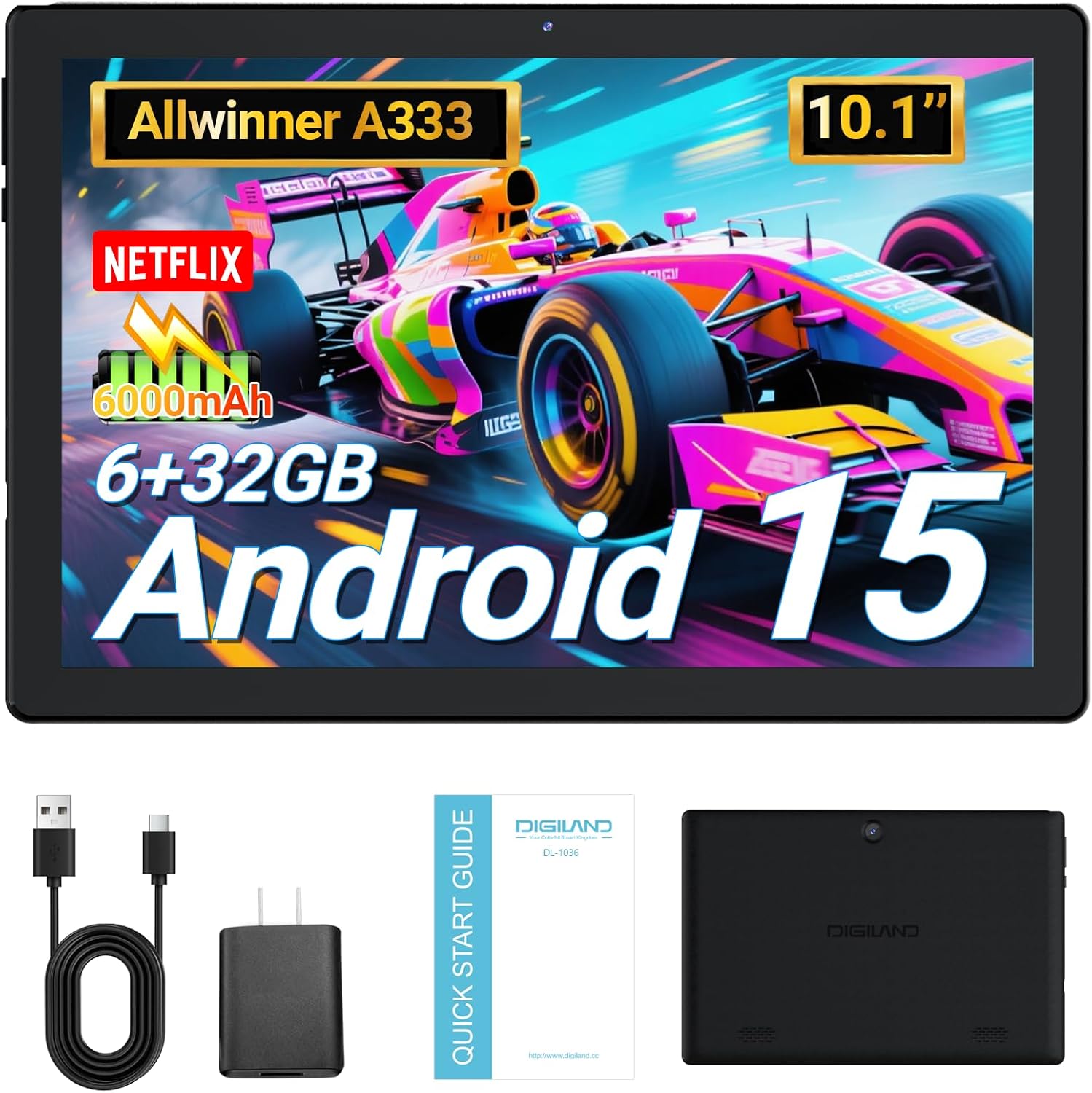
Image: DigiLand 10.1-inch Android Tablet MID1050.
2. Vlastnosti produktu
- Nejnovější systém Android 15: Experience enhanced compatibility, faster response times, and smoother operation. The tablet is GMS certified and comes with Google Play pre-installed, supporting popular social applications.
- Vysoký výkon: Equipped with a high-performance Octa-core CPU, 6GB RAM (expandable to 3+3GB), and 32GB ROM. Storage can be expanded up to 1TB using an SD card.
- Multifunkční design: Features a 5MP rear camera and a 2MP front camera. Includes Bluetooth 5.0, built-in GPS, 5G WiFi, FM radio, dual-speakers, and a 3.5mm headphone jack.
- 10.1palcová HD obrazovka: Enjoy a clear and vibrant visual experience with an 800x1280 IPS display. The 6000mAh rechargeable battery provides 8-10 hours of mixed use.

Obrázek: Overview of DigiLand Android Tablet features.
3. Co je v krabici
Upon unboxing your DigiLand tablet, please ensure all the following items are present:
- 1 x DigiLand 10.1-inch Android Tablet
- 1 x USB kabel
- 1 x 5V/1A Power Adapter (US regulations)
- 1 x Uživatelská příručka (tento dokument)
- 1 x Záruční list
- 1 x Children's Silicone Case
4. Průvodce nastavením
4.1 Nabíjení tabletu
Before first use, fully charge your tablet. Connect the provided USB cable to the tablet's Type-C port and the power adapter. Plug the adapter into a standard electrical outlet. The battery indicator on the screen will show charging status.
4.2 Zapnutí/vypnutí
- Zapnutí: Press and hold the Power button (located on the side) until the DigiLand logo appears.
- Vypnutí: Stiskněte a podržte tlačítko napájení a poté z možností na obrazovce vyberte možnost „Vypnout“.
4.3 Počáteční nastavení
Po prvním zapnutí postupujte podle pokynů na obrazovce a nakonfigurujte tablet:
- Vyberte preferovaný jazyk.
- Připojte se k síti Wi-Fi.
- Přihlaste se pomocí svého účtu Google nebo si vytvořte nový.
- Review a přijměte obchodní podmínky.
- Nastavte zámek obrazovky (PIN, vzorec nebo heslo).
4.4 Vložení karty MicroSD
To expand storage, locate the MicroSD card slot on the side of the tablet. Gently insert the MicroSD card (up to 1TB supported) into the slot until it clicks into place. Ensure the card is oriented correctly.

Image: Diagram showing the location of ports and buttons on the DigiLand Android Tablet.
5. Návod k obsluze
5.1 Základní navigace
The tablet uses a multi-touch display. Common gestures include:
- Klepněte na: Vyberte položku nebo otevřete aplikaci.
- Výpad: Procházení obrazovek nebo seznamů.
- Štípání: Přiblížení nebo oddálení obrázků a web stránky.
- Dlouhé stisknutí: Přístup k kontextovým nabídkám nebo přesun ikon.
5.2 Připojení k Wi-Fi
Pro připojení k internetu:
- Přejít na Nastavení > Síť a internet > Wi-Fi.
- Přepnout Wi-Fi On.
- Vyberte požadovanou síť ze seznamu.
- Pokud se zobrazí výzva, zadejte heslo a poté klepněte na Připojit.
5.3 Párování Bluetooth
To connect to Bluetooth devices:
- Přejít na Nastavení > Připojená zařízení > Bluetooth.
- Přepnout Bluetooth On.
- Ujistěte se, že je vaše zařízení Bluetooth v režimu párování.
- Select your device from the 'Available devices' list and follow any on-screen instructions to complete pairing.
5.4 Použití kamery
Tablet je vybaven 2MP předním fotoaparátem a 5MP zadním fotoaparátem.
- Otevřete Fotoaparát aplikaci z domovské obrazovky nebo ze zásuvky aplikací.
- Klepnutím na tlačítko spouště pořídíte fotografii.
- Přepínejte mezi předním a zadním fotoaparátem pomocí ikony fotoaparátu.
- Vyberte režim videa pro nahrávání videí.

Image: Capturing moments with the tablet's cameras.
5.5 Správa aplikací
Download and manage applications:
- Instalace aplikací: Otevřete Obchod Google Play aplikaci, vyhledejte požadovanou aplikaci a klepněte na Instalovat.
- Odinstalovat aplikace: Long-press an app icon on the home screen or app drawer, then drag it to 'Uninstall' or go to Nastavení > Aplikace > vyberte aplikaci > Odinstalovat.

Image: The tablet's screen showing various applications.
5.6 Multitasking na rozdělené obrazovce
The tablet supports split-screen mode for multitasking:
- Open the first app you want to use.
- Přejetím prstem od spodní části obrazovky nahoru a podržením zobrazíte nedávno používané aplikace.
- Tap the app icon at the top of the first app's card, then select 'Split screen'.
- Vyberte druhou aplikaci z posledních aplikací nebo ze zásuvky aplikací, která vyplní druhou polovinu obrazovky.

Image: Tablet displaying two applications simultaneously in split-screen mode.
5.7 Video Playback Demonstration
Watch this video for a demonstration of the tablet's functions and video playback capabilities.
Video: Android 15 Tablet Product Function Demonstration by GuYi-USA. This video showcases the tablet's interface and media playback.
6. Údržba
6.1 Čištění tabletu
Use a soft, lint-free cloth to clean the screen and body of the tablet. Avoid using abrasive cleaners, alcohol, or harsh chemicals, as these can damage the screen and finish.
6.2 Péče o baterii
- Nevystavujte tablet extrémním teplotám (horkým ani nízkým).
- Charge the battery regularly, but avoid leaving it fully charged or fully depleted for extended periods.
- Používejte pouze dodanou nabíječku nebo certifikovanou kompatibilní nabíječku.
6.3 Aktualizace softwaru
Regularly check for and install software updates to ensure your tablet has the latest features, security patches, and optimal performance. Go to Nastavení > Systém > Aktualizace systému.
6.4 Správa úložiště
Pro udržení optimálního výkonu pravidelně spravujte úložiště tabletu:
- Odinstalujte nepoužívané aplikace.
- Vymazat mezipaměť aplikací (Nastavení > Aplikace > vyberte aplikaci > Úložiště a mezipaměť > Vymazat mezipaměť).
- Převod velkých files (photos, videos) to cloud storage or an external MicroSD card.
7. Řešení problémů
Pokud se s tabletem setkáte s problémy, podívejte se na následující běžné problémy a jejich řešení:
| Problém | Řešení |
|---|---|
| Tablet will not turn on | Ensure the battery is sufficiently charged. Connect the tablet to the charger for at least 30 minutes before attempting to power on again. |
| Problémy s připojením Wi-Fi | Check if your Wi-Fi router is working correctly. Restart both the router and the tablet. Forget the network in tablet settings and reconnect. |
| Aplikace padá nebo zamrzávají | Clear the app's cache (Settings > Apps > [App Name] > Storage & cache > Clear cache). If the problem persists, try uninstalling and reinstalling the app. |
| Pomalý výkon | Close unnecessary background applications. Free up storage space by deleting old filenebo odinstalování nepoužívaných aplikací. Restartujte tablet. |
| Obrazovka nereaguje | Proveďte nucený restart podržením tlačítka napájení po dobu asi 10-15 sekund, dokud se tablet nerestartuje. |
8. Specifikace
Key technical specifications for the DigiLand 10.1-inch Android Tablet MID1050:
| Funkce | Detail |
|---|---|
| Číslo modelu | MID1050 |
| Operační systém | Android 15 |
| Velikost obrazovky | 10.1 palce |
| Maximální rozlišení obrazovky | 800x1280 IPS |
| Procesor | Octa-core (A133P) |
| BERAN | 6 GB |
| Interní úložiště | 32 GB (rozšiřitelné až na 1 TB pomocí TF karty) |
| Přední kamera | 2 MP |
| Zadní kamera | 5 MP |
| Kapacita baterie | 6000mAh (Approx. 8-10 hours mixed use) |
| Bezdrátové připojení | 5G WiFi (802.11g) |
| Bluetooth | 5.0 |
| Rozměry (DxŠxV) | 10.1 x 5.5 x 0.3 palce |
| Hmotnost položky | 2.01 libry |
9. Záruka a podpora
9.1 Záruka na produkt
The DigiLand 10.1-inch Android Tablet MID1050 comes with a one-year warranty from the date of purchase. This warranty covers manufacturing defects and ensures the product meets quality standards.
9.2 Zákaznická podpora
For any quality problems, technical assistance, or warranty claims, please contact our customer service team. You can reach us via your Amazon Purchase Record. We are committed to ensuring customer satisfaction and providing the best possible service.