
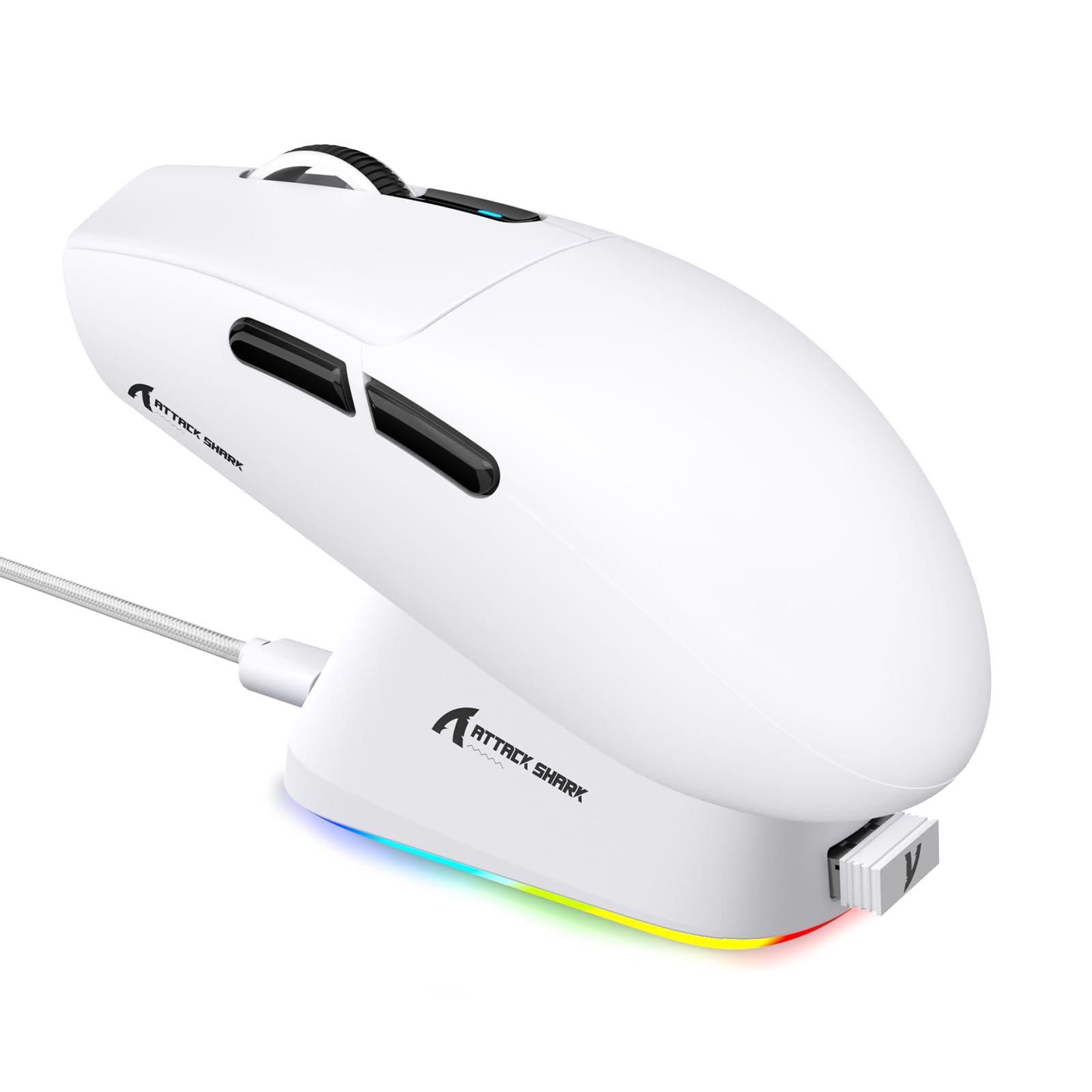
1. Úvod
This manual provides detailed instructions for the setup, operation, maintenance, and troubleshooting of your ATTACK SHARK G3PRO Wireless Gaming Mouse. Please read this manual thoroughly to ensure proper use and to maximize your gaming experience.

Obrázek: Overview of the ATTACK SHARK G3PRO mouse and its features, including magnetic fast charging, PAW3311 sensor, web cloud drive, RGB rapid charging dock, and lightweight design.
2. Obsah balení
Ověřte, zda jsou v balení přítomny všechny položky:
- ATTACK SHARK G3PRO Wireless Gaming Mouse
- RGB Magnetic Charging Dock
- 2.4G USB přijímač
- USB-C na USB-A nabíjecí/datový kabel
- Uživatelská příručka
3. Nastavení
3.1 Počáteční nabíjení
Before first use, it is recommended to fully charge the mouse. Connect the USB-C cable to the charging dock and a power source. Place the mouse onto the magnetic charging dock. The RGB lighting on the dock will indicate charging status.
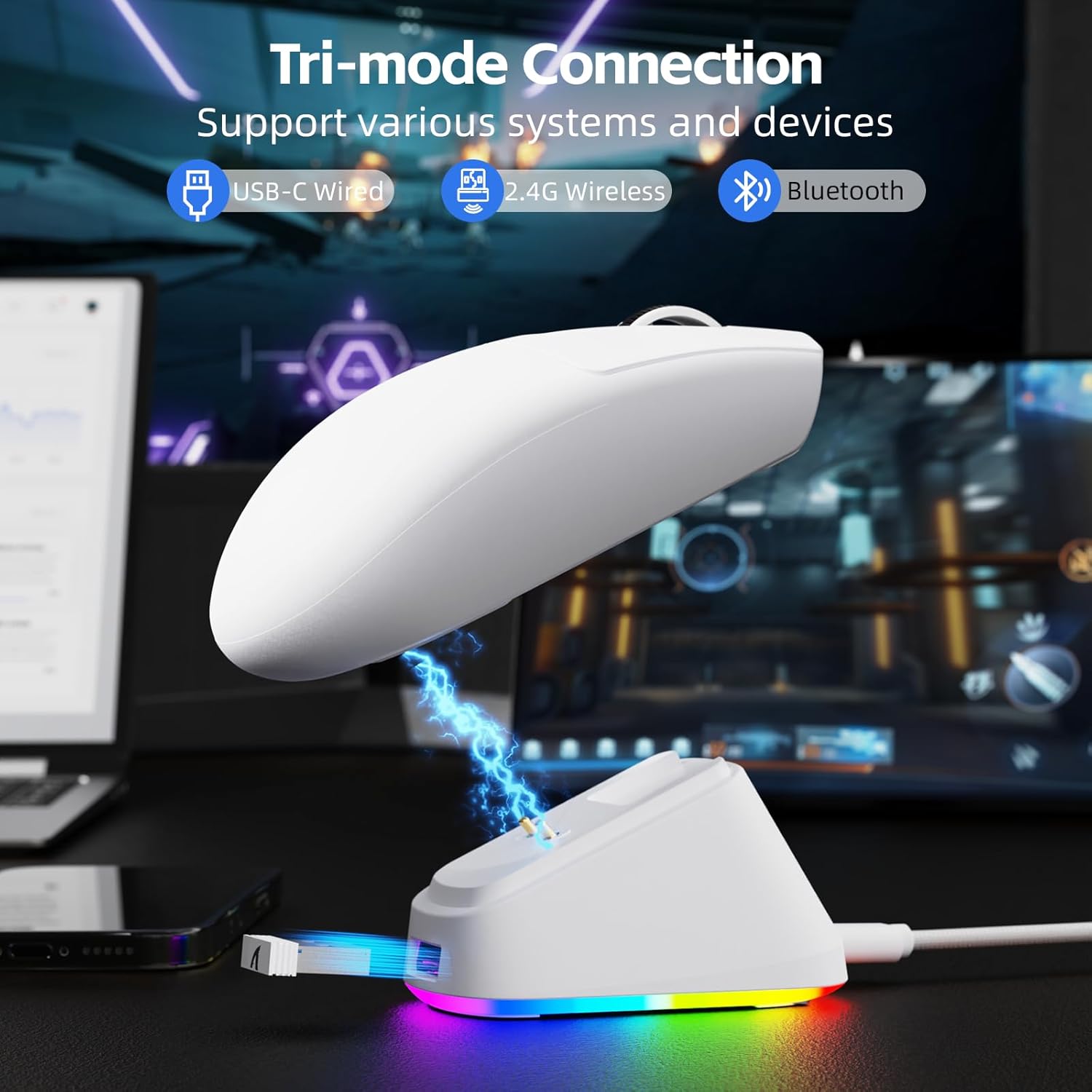
Image: The ATTACK SHARK G3PRO mouse magnetically attached to its RGB charging dock, showing the charging thimbles and USB-C port.
For a visual guide on charging, please watch the following video:
Video: This video demonstrates the magnetic charging dock and its features for the ATTACK SHARK G3PRO Wireless Gaming Mouse.
3.2 Připojení myši
The G3PRO supports three connection modes: 2.4GHz Wireless, Bluetooth, and USB-C Wired. A switch on the bottom of the mouse allows you to select the desired mode.

Image: The ATTACK SHARK G3PRO mouse with visual indicators for Wired, 2.4G, and Bluetooth connectivity modes.
Bezdrátový režim 2.4 GHz:
- Locate the 2.4G USB receiver, typically stored within the charging dock or the mouse itself.
- Zapojte USB přijímač do volného USB portu na vašem počítači.
- Set the switch on the bottom of the mouse to "2.4G".
- Myš by se měla připojit automaticky.
Režim Bluetooth:
- Set the switch on the bottom of the mouse to "BT".
- V počítači nebo zařízení přejděte do nastavení Bluetooth a povolte Bluetooth.
- Hledat new devices and select "ATTACK SHARK G3PRO" to pair.
Drátový režim USB-C:
- Connect the USB-C cable directly from the mouse to your computer.
- Myš bude fungovat jako drátová myš a zároveň se bude nabíjet.
For a visual guide on product features and connectivity, please watch the following video:
Video: This video demonstrates the various color options and the magnetic charging feature of the ATTACK SHARK G3PRO Wireless Gaming Mouse, showcasinjeho design a funkčnost.
4. Ovládání myši
4.1 Funkce tlačítek
The ATTACK SHARK G3PRO features 5 programmable buttons:
- Levé kliknutí: Primární akce.
- Klikněte pravým tlačítkem myši: Sekundární akce/kontextová nabídka.
- Střední kliknutí/rolovací kolečko: Scroll up/down, middle click for universal scroll or other functions.
- Tlačítko vpřed: Default for navigating forward in web browsers/folders.
- Tlačítko zpět: Default for navigating backward in web browsers/folders.
- Přepínač DPI: Cykluje mezi přednastavenými úrovněmi DPI.

Image: A detailed diagram illustrating the location and default functions of the multi-functional buttons on the ATTACK SHARK G3PRO mouse.

Obrázek: Explodoval view and labeled diagram of the G3PRO mouse components, including buttons, switches, charging points, and the 2.4G/OFF/BT mode switch.
4.2 Nastavení DPI
The mouse features a dedicated DPI switch to cycle through various sensitivity levels, ranging from 800 to 25,000 DPI. The current DPI setting is indicated by an LED light.

Image: A visual representation of the 25,000 DPI optical sensor's precision and how mouse movement trajectory sensitivity scales with DPI settings.
4.3 Míra dotazování
The G3PRO supports a 1000Hz polling rate in both wired and 2.4GHz wireless modes, ensuring rapid response times for competitive gaming.

Image: A diagram illustrating the 1000Hz polling rate capability in both wired and wireless modes, highlighting millisecond response times.
5. Software a přizpůsobení
Customize your G3PRO mouse settings using the intuitive web driver or downloadable software from ATTACK SHARK. This allows for personalization of DPI, polling rate, macros, and more.
- Web Řidič: Přístup k web-based configuration tool for quick adjustments without installation.
- Downloadable Software: For advanced customization and profile management, download the dedicated software.

Image: A screenshot of the ATTACK SHARK Hub software interface, showing options for mouse settings, DPI settings, parameter settings, macro editing, and personal center.

Image: The cloud-driven programming interface for the G3PRO mouse, displaying options for button settings, DPI adjustments, polling rate settings, and power management.
6. Údržba
6.1 Čištění
Pro udržení optimálního výkonu myš pravidelně čistěte. K otření povrchu používejte měkký, suchý hadřík. V případě odolných nečistot použijte lehceamp Lze použít hadřík, abyste zajistili, že se do vnitřních součástí nedostane vlhkost. Nepoužívejte agresivní chemikálie ani abrazivní materiály.
6.2 Skladování
When not in use for extended periods, store the mouse and charging dock in a cool, dry place. Ensure the USB receiver is securely stored, ideally within the charging dock's designated slot, to prevent loss.
7. Řešení problémů
| Problém | Možná příčina | Řešení |
|---|---|---|
| Myš nereaguje (2.4G) | Low battery; Receiver not plugged in; Incorrect mode selected; Driver issue. | Charge the mouse; Ensure receiver is firmly plugged in; Set mouse to "2.4G" mode; Reinstall mouse drivers. |
| Myš nereaguje (Bluetooth) | Low battery; Bluetooth not enabled on device; Not paired; Incorrect mode selected. | Charge the mouse; Enable Bluetooth on your device; Re-pair the mouse in Bluetooth settings; Set mouse to "BT" mode. |
| Charging dock RGB not lighting up | Cable not connected; Power source issue. | Ensure USB-C cable is securely connected to dock and power source; Try a different USB port or power adapter. |
| Inconsistent tracking | Dirty sensor; Uneven surface; Interference (wireless). | Clean the optical sensor; Use a clean, even mouse pad; Reduce wireless interference by moving other devices or using wired mode. |
| Tlačítka nereagují | Konflikt softwaru; fyzické poškození. | Check software settings for button remapping; Test on another computer; Contact support if physical damage is suspected. |
8. Specifikace
| Funkce | Detail |
|---|---|
| Značka | ÚTOČNÉHO ŽRALOKA |
| Model | G3PRO |
| Barva | Bílý |
| Technologie připojení | Bezdrátové připojení 2.4 GHz, Bluetooth, kabelové připojení USB-C |
| Technologie detekce pohybu | Optický (senzor PAW3311) |
| Maximální DPI | 25,000 DPI |
| Míra hlasování | 1000 Hz |
| Akcelerace | 40G |
| Rychlost sledování | 400 IPS |
| Spínače | Mechanical (100 Million Clicks) |
| Kapacita baterie | 500 XNUMX mAh |
| Životnost baterie | Až 200 hodin |
| Hmotnost | 59 g ± 3 g |
| Tlačítka | 5 |
| Orientace rukou | Obouruký |
| Kompatibilní zařízení | Notebook, Osobní počítač, Chytrý telefon, Tablet |
| Operační systém | Windows, macOS |
For a comparison of G3 and G3PRO models, refer to the image below:

Image: A table comparing the specifications of the ATTACK SHARK G3 and G3PRO models, highlighting differences in components and features.
9. Bezpečnostní informace
- Nevystavujte zařízení extrémním teplotám nebo vlhkosti.
- Zabraňte pádu zařízení nebo jeho vystavení silným nárazům.
- Uchovávejte mimo dosah dětí.
- Nepokoušejte se zařízení rozebírat ani upravovat, mohlo by dojít ke ztrátě záruky a poškození.
- Use only the provided charging cable and dock.
10. Záruka a podpora
The ATTACK SHARK G3PRO Wireless Gaming Mouse comes with a standard manufacturer's warranty. For detailed warranty information, please refer to the warranty card included in your package or visit the official ATTACK SHARK webmísto.
For technical support, troubleshooting assistance, or to inquire about replacement parts, please contact ATTACK SHARK customer service through their official webwebu nebo kontaktních informací uvedených na obalu produktu.
Oficiální Webmísto: Obchod ATTACK SHARK na Amazonu