
Zavedení
The QCOQ Smart Traceur Tag is a Bluetooth object locator designed to help you find your valuable items using the Apple Find My network. This device is compatible exclusively with iOS devices. This manual provides detailed instructions for setup, operation, maintenance, and troubleshooting.

Image: QCOQ Smart Traceur Tag with included accessories.
Obsah balení
Upon opening your QCOQ Smart Traceur Tag v balíčku byste měli najít následující položky:
- 4 x QCOQ Traceur Tags
- 4 x Mini Black Silicone Protective Cases
- 4 x Black Lanyards
- 4 x kroužky na klíče
- 1 x Uživatelská příručka

Image: Diagram illustrating the contents of the package, including the tracker tag, silicone protector, key ring, and lanyard.
Nastavení a párování
Follow these steps to set up and pair your QCOQ Smart Traceur Tag with your Apple device:
- Enable Bluetooth and Find My: Ensure that Bluetooth is enabled on your iOS device and that the "Find My" application is accessible.
- Otevřete aplikaci Najít: Launch the "Find My" application on your iPhone or iPad.
- Přidat novou položku: Navigate to the "Items" tab within the Find My app. Tap on "Add New Item" and then select "Other Supported Item". Note: This is not for "Add AirTag".
- Aktivujte Tag: Hold the button on the QCOQ Smart Traceur Tag for approximately 2 seconds until you hear a "Di" sound, indicating it is powered on and ready for connection.
- Připojit: Umístěte tag close to your iPhone. The app will search for and display "Diamond tag". Click "Connect" and follow the on-screen prompts until the pairing process is complete.
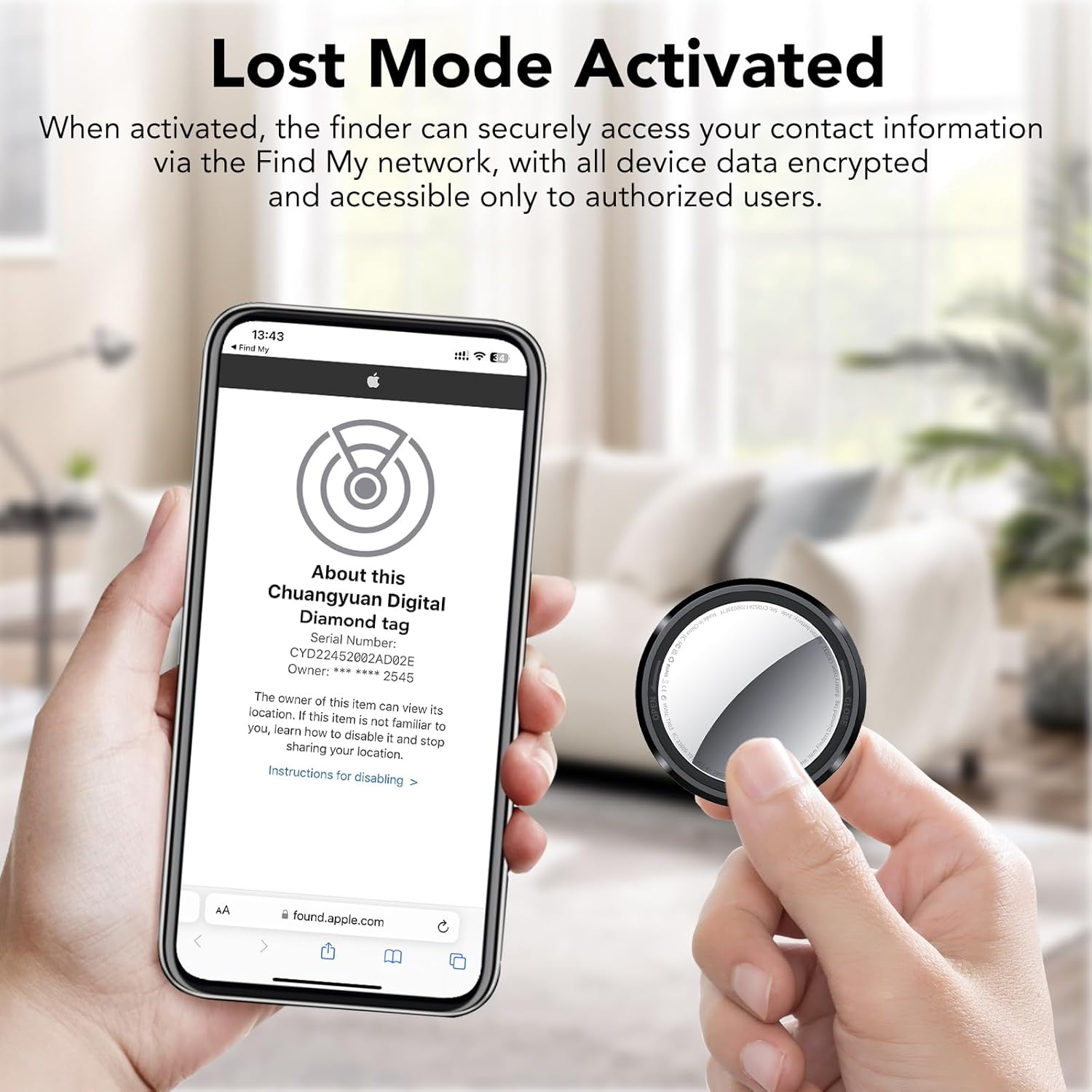
Image: Visual guide for connecting the QCOQ Smart Traceur Tag to an iOS device via the Find My app.
Návod k obsluze
Locating Items Nearby (Proximity Tracking)
When your QCOQ Smart Traceur Tag is within Bluetooth range, you can use the Find My app to locate it. The tag features a built-in speaker that can emit a sound up to 100 dB.
- Open the "Find My" app.
- Select the QCOQ Smart Traceur Tag from your list of items.
- Tap "Play Sound" to trigger an audible alert from the tag.
- For precise tracking, select "Directions" to get navigation assistance to your item's last known location.

Image: Demonstrates using the "Play Sound" feature in the Find My app to locate an item nearby.
Multi-Region Tracking (Out of Range)
The QCOQ Smart Traceur Tag leverages the Apple Find My network, which uses aggregated location data from millions of Apple devices worldwide. If your item is out of Bluetooth range, its position updates based on nearby Apple devices. This encrypted cloud tracking ensures regular positioning while maintaining Apple's privacy standards.

Image: Illustration of global tracking capabilities using the Apple Find My network.
Left-Behind Reminder (Anti-Forget Alert)
To prevent leaving your items behind, activate the "Notify When Left Behind" feature in the Find My app. If your item moves out of your device's Bluetooth range, you will receive a notification with its last known location. You can also define a custom radius for this alert.

Obrázek: Přample of a "Left Behind" notification on an iPhone when the tracker tag je mimo dosah.
Lost Mode Activation
If an item with a QCOQ Smart Traceur Tag is lost, you can activate "Lost Mode" in the Find My app. This allows you to pre-register your contact information (e.g., phone number or email address). If someone finds your item and scans the tag with an NFC-enabled device, they will see a "Lost Mode" message with your contact details, facilitating its return.
- When Lost Mode is active, the "Notify When Found" feature is automatically enabled.
- While in Lost Mode, your item locator is locked and cannot be paired with a new device.
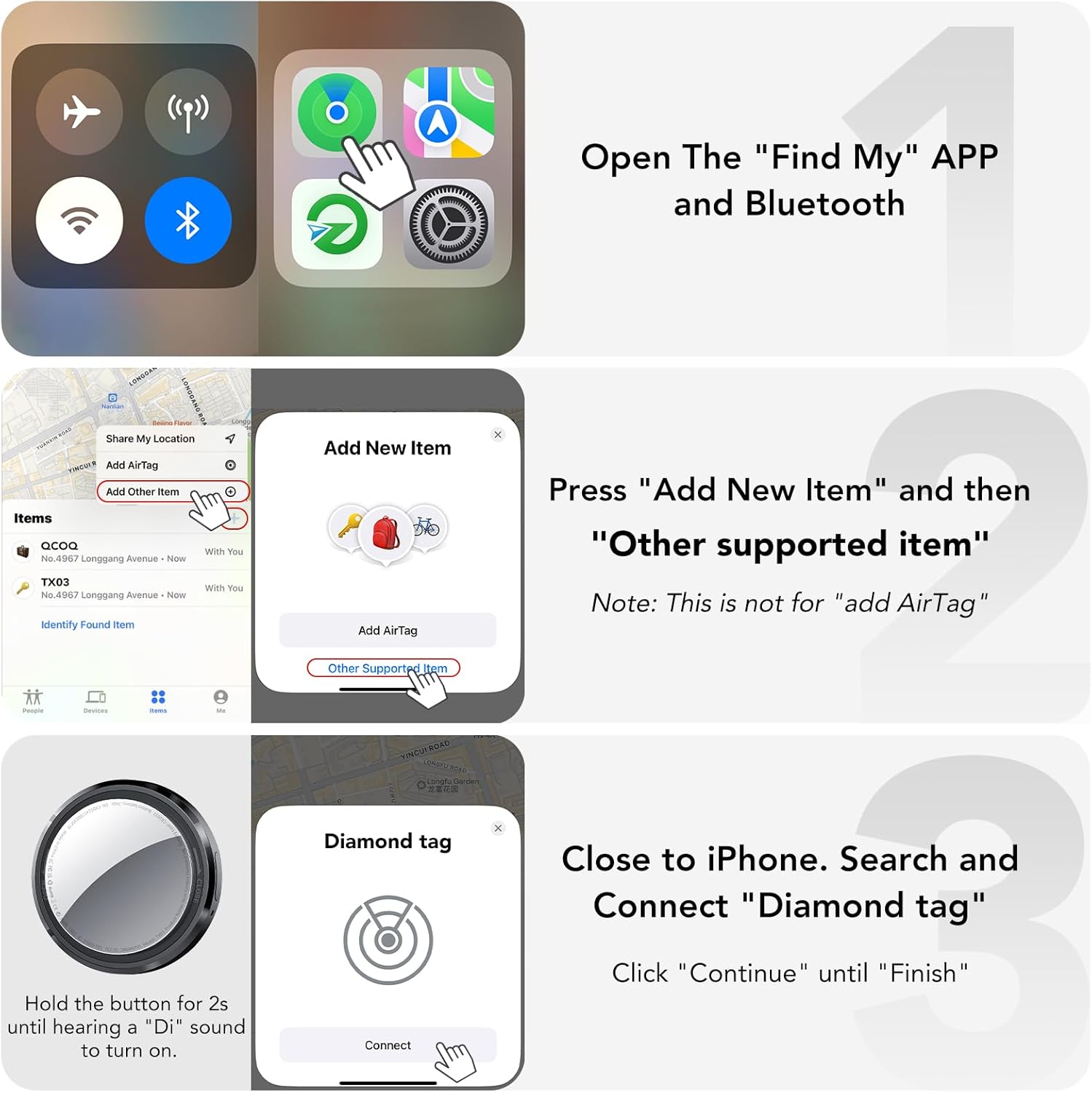
Image: Illustration of the "Lost Mode" feature on an iPhone, showing how contact information can be displayed to a finder.
Item Sharing
You can share the location of your QCOQ Smart Traceur Tag with up to 5 other users via the "Find My" application. All shared users can track the item's location in real-time. This feature requires iOS 17, iPadOS 17, macOS 14, or later versions.

Image: Depicts the item sharing functionality within the Find My app, allowing multiple users to track a single tag.
Integrace Siri
The QCOQ Smart Traceur Tag supports Siri integration. If your item is nearby, you can simply ask Siri to help you find it. For example, say "Hey Siri, where are my keys?" and if a QCOQ tag is attached to your keys, it will emit a sound.

Image: Demonstrates using Siri to locate an item with a QCOQ Smart Traceur Tag.
Výměna baterie
The QCOQ Smart Traceur Tag uses a replaceable CR2032 battery, offering up to 365 days of battery life. To replace the battery:
- Otevřete kryt: Gently twist the stainless steel cover counter-clockwise to remove it.
- Vyjměte starou baterii: Take out the old CR2032 battery.
- Vložení nové baterie: Insert a new CR2032 battery with the positive (+) pole facing upwards.
- Align and Close: Align the cover and gently press it down.
- Bezpečný kryt: Twist the cover clockwise to secure it in place.

Image: Step-by-step instructions for replacing the CR2032 battery in the tracker tag.
Specifikace
| Značka | QCOQ |
| Model | B0FFMPPBN7 |
| Kompatibilní zařízení | iOS (iPhone, iPad, macOS 14+) |
| Technologie připojení | Bluetooth 5.3 |
| Kontrolní metoda | Aplikace (Apple Find My) |
| Materiál | Plast |
| Typ baterie | CR2032 (4 required, not included) |
| Životnost baterie | Až 365 dní |
| Úroveň zvuku | Až 100 dB |
| Range (Open Line of Sight) | 55-60 meters (180-196 ft) |
| Range (With Obstacles) | 30-50 meters (98-164 ft) |
| Hmotnost | 7.3 g (0.25 uncí) |

Image: Visual summary of key product features and specifications.
Odstraňování problémů
If you encounter issues with your QCOQ Smart Traceur Tag, podívejte se na následující běžná řešení:
| Problém | Řešení |
|---|---|
| Zařízení se nezapne. | Ensure the CR2032 battery is correctly inserted with the positive (+) side up and is not depleted. Replace the battery if necessary. |
| Nelze spárovat s iPhonem. |
|
| Sound alert is too low or not working. |
|
| Aktualizace polohy jsou nepřesné nebo nepravidelné. |
|
| Resetovat zařízení. | Press and hold the button continuously until you hear "beep, beep, beep, beep, beep" (approximately 5 seconds). Continue holding the button for another 5 seconds until you hear a long "beep". The total hold time is approximately 15 seconds. This will restore default settings. You may need to remove the item from the Find My app and re-pair it. |

Image: Detailed table outlining various functions, operations, and troubleshooting steps for the tracker tag.
Záruka a podpora
The QCOQ Smart Traceur Tag přichází s a 2letá záruka výrobce. For any technical assistance, product inquiries, or warranty claims, please contact QCOQ customer support. Refer to the contact information provided in your package or visit the official QCOQ webmísto.
QCOQ is committed to providing 12-hour customer assistance to ensure your satisfaction.