
1. Konec produktuview
The SVITOO P108 is a 12-inch Android tablet designed for versatile use, from entertainment to productivity. It features a 2K Full HD display, an Octa-Core processor, ample RAM and storage, and a long-lasting battery.

Image 1.1: The SVITOO P108 tablet showcasing its 2K display, dual-band Wi-Fi, Bluetooth 5.0, GPS, 30GB RAM (6+24), 128GB ROM, 8800mAh battery, T7250 processor, Android 16, and 13MP rear / 8MP front cameras.
Obsah balení:
- SVITOO P108 Tablet x 1
Rozložení zařízení:

Image 1.2: A detailed diagram illustrating the location of the volume buttons, power button, front camera, flashlight, rear camera, 3.5mm headphone jack, TF card slot, Type-C port, and microphone on the SVITOO P108 tablet.
- Tlačítka hlasitosti: Upravte úroveň zvukového výstupu.
- Vypínač: Turn the device on/off, or put it to sleep/wake it up.
- Přední kamera: Pro videohovory a selfie.
- Zadní kamera: Pro pořizování fotografií a videí.
- Svítilna: Poskytuje osvětlení pro zadní kameru.
- 3.5mm konektor pro sluchátka: Připojte drátová sluchátka.
- Slot na kartu TF: Vložte kartu microSD pro rozšíření úložiště.
- Port typu C: Pro nabíjení a přenos dat.
- Mikrofon: Pro zvukový vstup během hovorů nebo nahrávání.
- Reproduktor: Pro audio výstup.
2. Počáteční nastavení
2.1 Nabíjení tabletu
Before first use, fully charge your tablet. Connect the provided USB Type-C cable to the tablet's Type-C port and the other end to a compatible power adapter. The battery indicator on the screen will show charging status.
2.2 Zapnutí/vypnutí
- Zapnutí: Press and hold the Power button until the SVITOO logo appears.
- Vypnutí: Press and hold the Power button until the power options appear on the screen, then select "Power Off".
- Restartovat: Stiskněte a podržte tlačítko Napájení, dokud se nezobrazí možnosti napájení, a poté vyberte „Restartovat“.
2.3 Počáteční konfigurace
Upon first power-on, follow the on-screen prompts to set up your tablet. This includes selecting your language, connecting to a Wi-Fi network, setting up your Google account, and configuring basic security settings.
2.4 Vložení karty MicroSD
To expand storage, insert a microSD card into the TF Card Slot. Ensure the tablet is powered off before inserting or removing the card. Gently push the card until it clicks into place.
3. Ovládání tabletu
3.1 Navigace v rozhraní systému Android
The tablet runs on Android 15, offering a user-friendly interface. Swipe up from the bottom to access the app drawer, swipe down from the top for notifications and quick settings, and use the navigation buttons (back, home, recent apps) at the bottom of the screen.
3.2 Funkce displeje
The 12-inch 2K Full HD display (2000x1200 resolution) provides a clear and vibrant viewing experience. The screen has a 5:3 aspect ratio and 380 nits brightness.
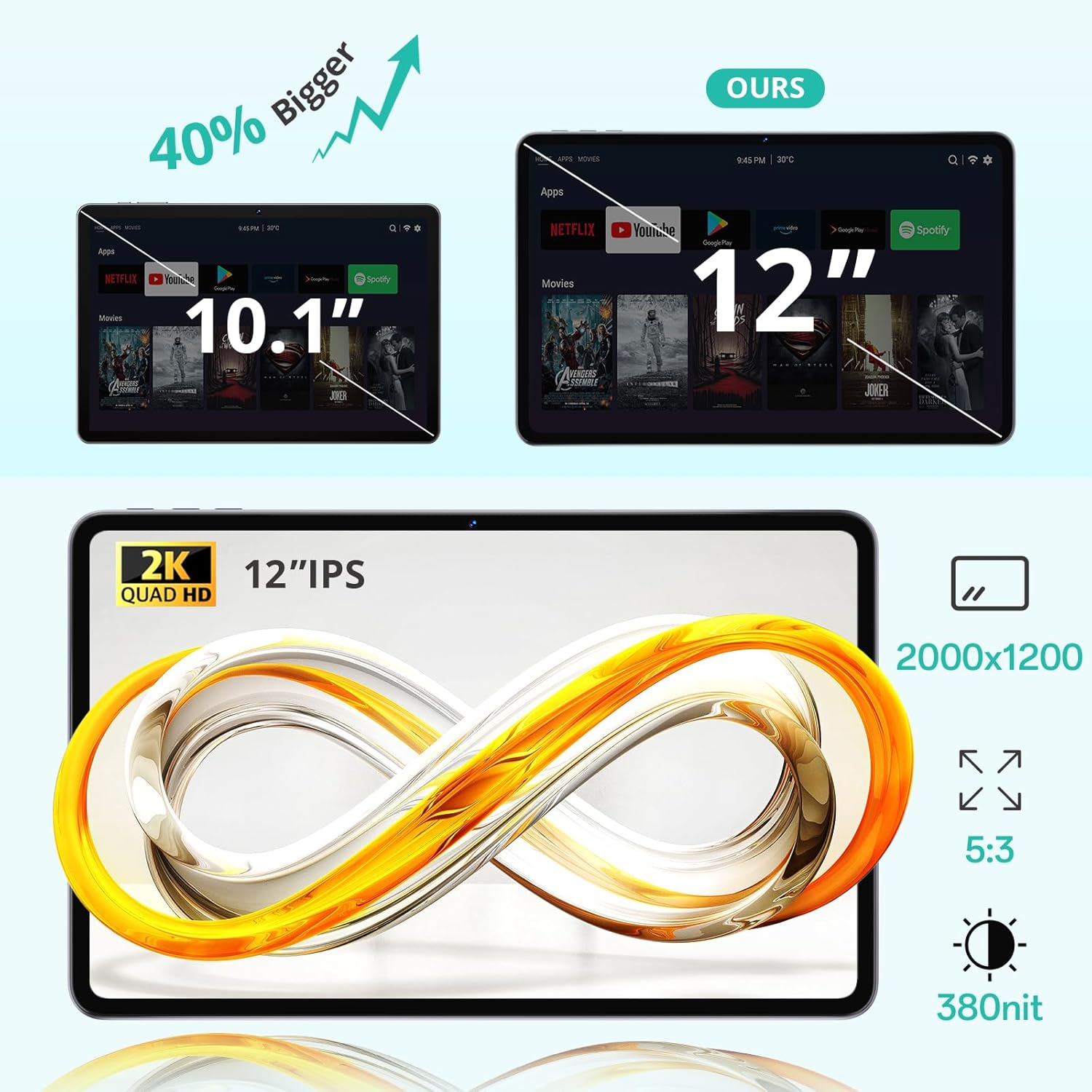
Image 3.1: The 12-inch display of the SVITOO P108 tablet, highlighting its 2K Quad HD resolution of 2000x1200, 5:3 aspect ratio, and 380 nit brightness, shown alongside a size comparison to a 10.1-inch tablet.
3.3 Podpora Widevine L1
The tablet supports Widevine L1, enabling high-definition streaming from popular services like Netflix, YouTube, and Prime Video. This ensures a premium viewing experience with crisp visuals.

Image 3.2: The SVITOO P108 tablet displaying a high-definition image, indicating Widevine L1 support for streaming content from platforms such as Disney+, Netflix, YouTube, and Prime Video.
3.4 Multitasking s rozdělenou obrazovkou
Utilize the split-screen feature to run two applications simultaneously. This enhances productivity, allowing you to watch videos while chatting or browse the web while taking notes.

Image 3.3: Step-by-step guide on how to activate split-screen mode on the tablet, showing how to tap the recent apps button, select an app, and choose 'Split screen' to open a second app alongside it.
3.5 Režim čtení
The tablet offers a dedicated reading mode that reduces blue light and optimizes brightness for a more comfortable and eye-friendly reading experience.

Image 3.4: The tablet displaying text in reading mode, emphasizing features like reduced blue light, optimized brightness, and overall eye-friendliness.
3.6 Parental Controls and Child-Friendly Interface
The tablet includes features for parental controls, allowing parents to manage content, screen time, and ensure a safe browsing environment for children. A child-friendly interface is also available for educational content.

Image 3.5: The tablet displaying a child-friendly interface with educational content and parental control options, indicating features like child-safe browsing and screen time management.
4. Údržba a péče
4.1 Čištění tabletu
K čištění obrazovky a těla tabletu použijte měkký hadřík, který nepouští vlákna. V případě odolných šmouh je lehceampOmyjte hadřík vodou nebo roztokem na čištění obrazovky. Nepoužívejte agresivní chemikálie ani abrazivní materiály.
4.2 Péče o baterii
The tablet is equipped with an 8000 mAh lithium-ion battery. To prolong battery life:
- Vyhněte se extrémním teplotám.
- Nenechávejte baterii často úplně vybít.
- Používejte originální nabíječku nebo certifikovanou kompatibilní nabíječku.

Image 4.1: The tablet highlighting its 8800mAh battery, with icons indicating usage times for video, music, web prohlížení a pohotovostní režim.
4.3 Aktualizace softwaru
Regularly check for and install software updates to ensure optimal performance, security, and access to the latest features. Go to Nastavení > Systém > Aktualizace systému pro kontrolu aktualizací.
5. Řešení problémů
5.1 Tablet se nezapíná
- Ujistěte se, že je baterie nabitá. Připojte nabíječku a před opětovným zapnutím počkejte několik minut.
- Stiskněte a podržte tlačítko napájení po dobu 10–15 sekund pro provedení vynuceného restartu.
5.2 Pomalý výkon
- Zavřete nepotřebné aplikace na pozadí.
- Clear cache for frequently used apps (Settings > Apps > [App Name] > Storage > Clear Cache).
- Zajistěte dostatek úložného prostoru.
- Restartujte tablet.
5.3 Problémy s připojením k Wi-Fi
- Wi-Fi můžete vypnout a zapnout v Rychlém nastavení.
- Restartujte Wi-Fi router.
- Forget the network and reconnect (Settings > Network & internet > Wi-Fi > [Network Name] > Forget).
5.4 Obrazovka nereaguje
- Proveďte nucený restart podržením tlačítka napájení po dobu 10-15 sekund.
- Ensure the screen is clean and free of moisture.
6. Specifikace
| Funkce | Detail |
|---|---|
| Název modelu | P108 |
| Velikost displeje | 12 palce |
| Maximální rozlišení obrazovky | 2000 x 1200 pixelů |
| Operační systém | Android 15 |
| Procesor | Osmijádrový Unisoc T606 (1.8 GHz) |
| BERAN | 6 GB (rozšiřitelné na 24 GB) |
| Skladování | 128 GB (expandable via microSD up to 1TB) |
| Kapacita baterie | 8000 XNUMX mAh |
| Životnost baterie | Až 8 hodin (běžné použití) |
| Zadní kamera | 13 MP |
| Přední kamera | 5 MP |
| Konektivita | Wi-Fi (2.4G/5G, 802.11ac/b/g/n), Bluetooth 5.0, GPS |
| Porty | 1x USB Type-C, 1x 3.5mm Audio Jack, 1x TF Card Slot |
| Rozměry | 28.23 x 17.84 x 0.98 cm |
| Hmotnost | 940 g |
| Speciální funkce | Widevine L1, GPS |
7. Záruka a podpora
7.1 Informace o záruce
The SVITOO P108 tablet comes with a jednoletá záruka výrobceTato záruka se vztahuje na vady materiálu a zpracování při běžném používání. Uschovejte si prosím doklad o koupi pro případ uplatnění záruky.
7.2 Zákaznická podpora
For technical assistance, troubleshooting, or warranty inquiries, please contact SVITOO customer service. Support is available 24 hours a day, 7 days a week. Please refer to the contact information provided with your purchase or on the official SVITOO webmísto.