
Zavedení
This manual provides essential information for setting up, operating, maintaining, and troubleshooting your HP 15-fd series laptop. Please read this guide thoroughly to ensure optimal performance and longevity of your device.
The HP 15-fd laptop is equipped with a 13th Gen Intel Core i3-1315U processor, 15.6-inch HD touchscreen display, 8GB DDR4 RAM, and a 512GB SSD, running on Windows 11 Pro. It is designed for productivity and includes various connectivity options and accessories.
1. Nastavení
1.1 Vybalení a počáteční kontrola
Opatrně vyjměte všechny součásti z obalu. Zkontrolujte, zda jsou všechny položky uvedené v dodacím listu přítomny a nepoškozené. Pokud některé položky chybí nebo jsou poškozeny, ihned kontaktujte svého prodejce.
1.2 Připojení k napájení
- Připojte síťový adaptér k napájecímu konektoru na notebooku.
- Zapojte síťový adaptér do uzemněné elektrické zásuvky.
- Před prvním použitím nechte baterii nabíjet alespoň 30 minut nebo dokud indikátor baterie neukáže plné nabití.
1.3 Initial Power On and Windows 11 Pro Setup
- Stisknutím tlačítka napájení, které se nachází na klávesnici, zapněte notebook.
- Postupujte podle pokynů na obrazovce a dokončete proces instalace systému Windows 11 Pro. To zahrnuje výběr regionu, jazyka, připojení k síti Wi-Fi a vytvoření uživatelského účtu.
- Ensure you have an active internet connection for Windows updates and software activation.
1.4 Dodávané příslušenství
Your laptop package includes the following accessories to enhance your experience:
- 5-in-1 Docking Station: Provides additional ports including HDMI video output, USB 3.0, USB Type-C/PD, and RJ45 Ethernet.
- Kabel HDMI: Pro připojení k externím displejům.
- 128GB Portable SSD: For additional storage and data transfer.
- Lifetime Office: Pre-installed or provided with activation instructions for Microsoft Office suite.

Figure 1: Included accessories, including the 5-in-1 docking station, HDMI cable, 128GB portable SSD, Windows 11 Pro, and Lifetime Office.
2. Ovládání notebooku
2.1 Zapnutí/vypnutí a režim spánku
- Zapnutí: Stiskněte tlačítko napájení.
- Vypnout: Klikněte na tlačítko Start a poté na Napájení > Vypnout.
- Režim spánku: Zavřete víko nebo klikněte na tlačítko Start a poté na Napájení > Režim spánku.
2.2 Používání dotykové obrazovky
Your HP 15-fd laptop features a responsive 15.6-inch multi-touch display. You can interact with the system using various touch gestures:
- Klepněte na: Ekvivalent kliknutí myší.
- Dvojité klepnutí: Opens applications or selects items.
- Přiblížení roztažením/roztažením prstů: Pro přiblížení nebo oddálení použijte dva prsty.
- Výpad: Navigate through content or switch between applications.
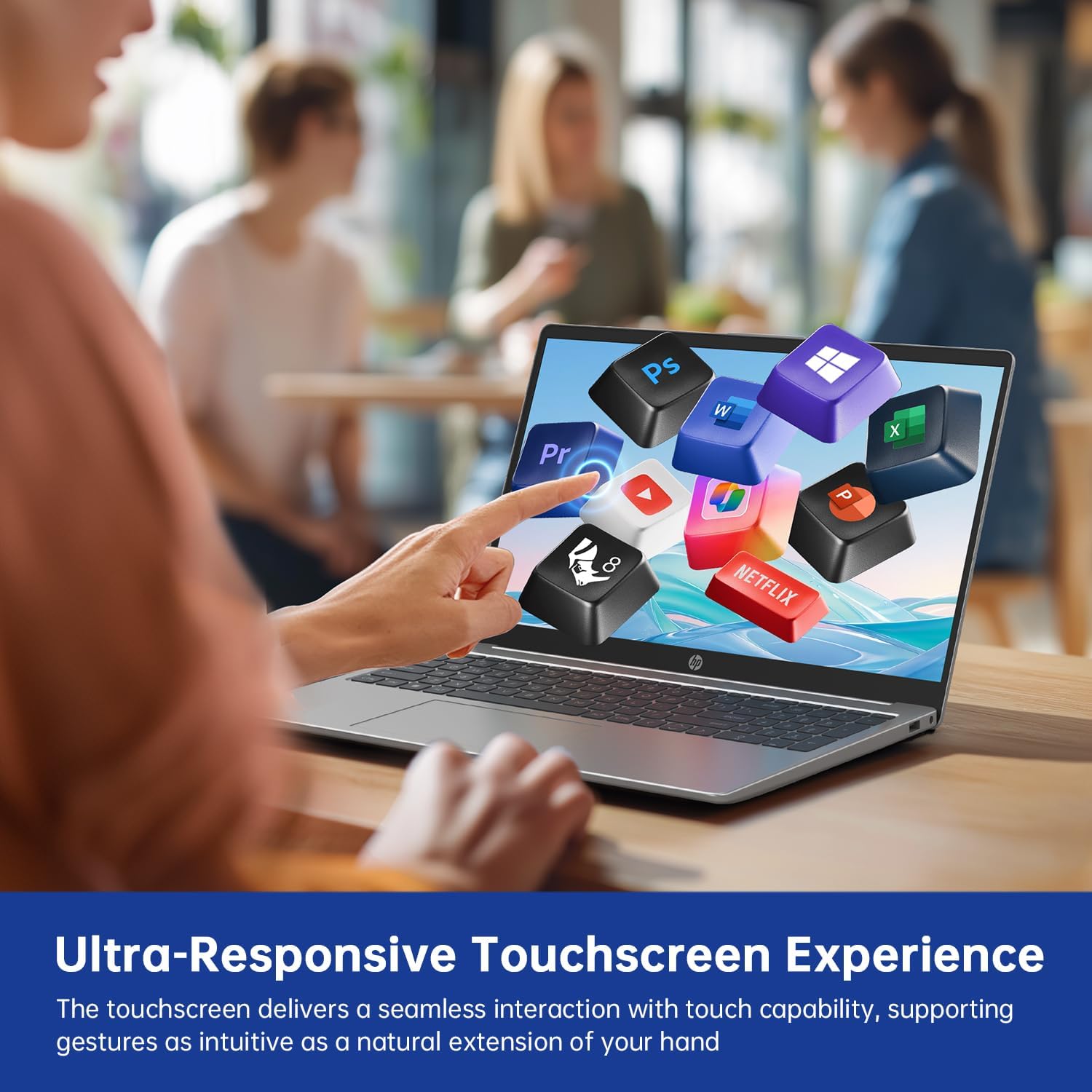
Figure 2: Demonstrating the ultra-responsive touchscreen experience with various application icons.
2.3 Klávesnice a numerická klávesnice
The full-size keyboard includes a dedicated numeric keypad for efficient data entry. Function keys (F1-F12) provide quick access to system controls when pressed in combination with the Fn key.
2.4 Porty a konektivita
The laptop offers a variety of ports for connecting external devices:
- Porty USB-A 3.0 (x2): For connecting USB devices like mice, keyboards, or external drives.
- Port USB-C 3.0 (x1): Versatile port for data transfer, charging, or connecting compatible peripherals.
- HDMI Port (x1): Pro připojení k externím monitorům nebo projektorům.
- 3.5mm audio konektor (x1): Pro sluchátka nebo externí reproduktory.
- DC-in Port (x1): For connecting the AC adapter to charge the laptop.
Wireless connectivity includes Wi-Fi 6E for high-speed internet access and Bluetooth 5.0 for connecting wireless accessories.

Obrázek 3: Přesview of multiple available ports on the HP 15-fd laptop.
2.5 Camera Privacy Switch
Your laptop features a 720p HD webcam with a built-in privacy switch. To ensure your privacy, slide the physical switch to cover the camera lens when not in use. Slide it back to uncover the lens when you need to use the camera for video calls or other applications.

Figure 4: The camera privacy switch provides control over webcam access.
2.6 AI Copilot Functionality
The integrated AI Copilot assists in automating tasks, generating insights, and streamlining workflows. It learns from your actions to provide smarter suggestions, enhancing productivity for tasks such as coding, writing, or data analysis.
3. Údržba
3.1 Čištění notebooku
- Obrazovka: Lehce používejte měkký hadřík, který nepouští vlákna dampvodou nebo čističem obrazovek. Nestříkejte tekutinu přímo na obrazovku.
- Klávesnice a šasi: Použijte měkký, suchý hadřík. Na odolnou špínu použijte lehceamp Lze použít hadřík namočený v jemném mýdlovém roztoku a ujistit se, že se do otvorů nedostane žádná tekutina.
- Porty: K jemnému odstranění prachu z portů použijte stlačený vzduch.
3.2 Péče o baterii
- Vyhněte se častému úplnému vybíjení baterie.
- Pokud notebook delší dobu nepoužíváte, skladujte jej na chladném a suchém místě.
- Nevystavujte notebook extrémním teplotám.
3.3 Aktualizace softwaru
Regularly check for and install updates for Windows 11 Pro and HP drivers to ensure optimal performance, security, and compatibility. You can typically find these updates through Windows Update settings and the HP Support Assistant application.
4. Řešení problémů
This section addresses common issues you might encounter with your HP 15-fd laptop.
4.1 Problémy s napájením
- Notebook se nezapne: Ensure the AC adapter is securely connected to both the laptop and a working power outlet. Check if the battery is charged. Try a different power outlet.
- Baterie se nenabíjí: Verify the AC adapter is functioning correctly. Check the power cable for damage.
4.2 Problémy se zobrazením
- Screen is blank or dark: Ensure the laptop is powered on. Adjust screen brightness using function keys. Connect an external monitor via HDMI to check if the issue is with the laptop's display.
- Dotyková obrazovka nereaguje: Restartujte notebook. Ujistěte se, že ovladače grafické karty jsou aktuální.
4.3 Problémy s připojením
- Nelze se připojit k Wi-Fi: Check if Wi-Fi is enabled in Windows settings. Restart your router and laptop. Ensure correct Wi-Fi password is entered.
- Zařízení Bluetooth se nespáruje: Ensure Bluetooth is enabled on both devices. Place devices close to each other. Check device compatibility.
4.4 Obecné problémy s výkonem
- Pomalý výkon: Close unnecessary applications. Check for malware. Ensure sufficient free space on the SSD. Update drivers and Windows.
- System freezes or crashes: Perform a system restart. Check for recent software installations that might be causing conflicts.
If you are unable to resolve an issue using these steps, please refer to the Support section for further assistance.
5. Specifikace

Figure 5: Key display and physical dimensions of the HP 15-fd laptop.
| Funkce | Specifikace |
|---|---|
| Název modelu | 15-fd |
| Procesor | 13. generace Intel Core i3-1315U (až 4.5 GHz) |
| Grafika | Grafická karta Intel UHD (integrovaná) |
| Zobrazit | 15.6-inch HD (1366 x 768) Touchscreen |
| BERAN | 8 GB DDR4 |
| Skladování | 512 GB SSD |
| Operační systém | Windows 11 Pro |
| Bezdrátové připojení | Wi-Fi 6E, Bluetooth 5.0 |
| Porty | 2x USB-A 3.0, 1x USB-C 3.0, 1x HDMI, 1x 3.5mm Audio Jack, 1x DC-in |
| Rozměry (DxŠxV) | 14.17 x 9.29 x 0.73 palce |
| Hmotnost | Přibližně 3.52 lb (1.6 kg) |
| Barva | Přírodní stříbro |
| Speciální funkce | Numeric Keypad, Fingerprint Reader, HD Audio, Camera Privacy Switch |
6. Informace o záruce
Your HP 15-fd laptop comes with a Záruka 12 měsíců from the date of purchase. This warranty covers manufacturing defects and hardware malfunctions under normal use. Please retain your proof of purchase for warranty claims.
The warranty does not cover damage caused by misuse, accidents, unauthorized modifications, or external factors. For detailed warranty terms and conditions, please refer to the documentation included with your product or visit the official HP support webmísto.
7. Podpora
Pro technickou pomoc, řešení problémů nad rámec této příručky nebo záruční servis se obraťte na zákaznickou podporu HP.
- Online podpora: Navštivte oficiální podporu HP webStránka s ovladači, manuály a průvodci řešením problémů.
- Telefonická podpora: Refer to the contact information provided in your product packaging or on the HP Support webstránky pro váš region.
When contacting support, please have your laptop's serial number and model number (15-fd) ready. This information can usually be found on a label on the bottom of your laptop.