Zavedení
Thank you for choosing the ProtoArc KM310 Dual Mode Mechanical Keyboard and Mouse Kit. This kit provides a versatile and efficient solution for your computing needs, offering both 2.4G wireless and Bluetooth connectivity. The mechanical keyboard features a UK QWERTY layout with responsive red switches, while the ergonomic mouse offers adjustable DPI and quiet clicks. This manual will guide you through the setup, operation, and maintenance of your new device.
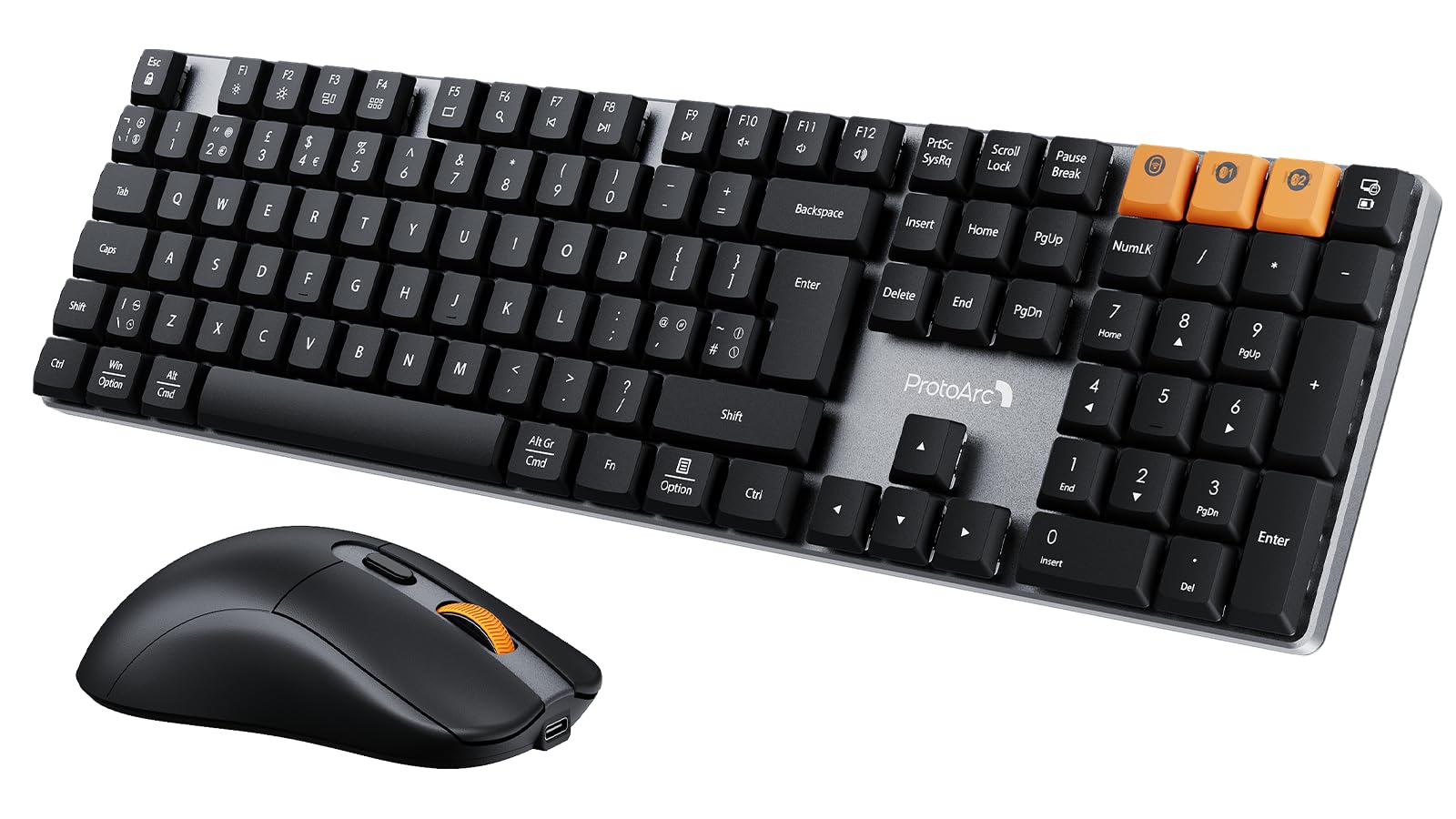
Image: The ProtoArc KM310 keyboard and mouse kit, showcasing its sleek design on a modern desk setup.
Obsah balení
- ProtoArc KM310 Mechanical Keyboard
- ProtoArc Wireless Mouse
- USB 2.4G Receiver (stored in the mouse battery compartment)
- Nabíjecí kabel USB-C
- Uživatelská příručka
Pokyny pro nastavení
Nastavení klávesnice
The keyboard supports both 2.4G wireless and Bluetooth connectivity. You can connect up to three devices simultaneously (one via 2.4G, two via Bluetooth).
Bezdrátové připojení 2.4G:
- Locate the USB 2.4G receiver, typically stored in the mouse's battery compartment.
- Zapojte USB přijímač do volného USB portu na vašem počítači.
- Zapněte klávesnici pomocí vypínače umístěného na boku nebo vzadu.
- Stiskněte Fn + 4 to switch the keyboard to 2.4G mode. The indicator light will flash briefly, then remain solid when connected.
Připojení Bluetooth (BT1 / BT2):
- Zapněte klávesnici pomocí vypínače.
- Stiskněte Fn + Q (pro BT1) nebo Fn + W (for BT2) to select a Bluetooth channel. The indicator light will flash slowly.
- Chcete-li vstoupit do režimu párování, stiskněte a podržte Fn + Q or Fn + W po dobu 3–5 sekund, dokud kontrolka nezačne rychle blikat.
- On your device (computer, laptop, tablet), enable Bluetooth and search for "ProtoArc KM310".
- Select "ProtoArc KM310" to pair. The indicator light will stop flashing and remain solid when connected.
- Repeat for a second Bluetooth device using Fn + W.
Nastavení myši
The mouse also supports both 2.4G wireless and Bluetooth connectivity.
Bezdrátové připojení 2.4G:
- Ensure the USB 2.4G receiver is plugged into your computer.
- Zapněte myš pomocí vypínače na její spodní straně.
- Press the mode switch button on the underside of the mouse until the indicator light shows 2.4G mode (usually green). The mouse should connect automatically.
Připojení Bluetooth:
- Zapněte myš pomocí vypínače.
- Press the mode switch button on the underside of the mouse to cycle through Bluetooth modes (BT1 or BT2, usually blue).
- Press and hold the mode switch button for 3-5 seconds until the indicator light flashes rapidly.
- On your device, enable Bluetooth and search for "ProtoArc Mouse".
- Select "ProtoArc Mouse" to pair. The indicator light will stop flashing and remain solid when connected.

Image: The ProtoArc KM310 keyboard and mouse connected to multiple devices (desktop, laptop, tablet) via 2.4G and Bluetooth.
Návod k obsluze
Funkce klávesnice
- Mechanické klíče: Klávesnice je vybavena nízkoprocesorovýmfile mechanical red switches for a smooth and responsive typing experience with low sound.
- UK QWERTY Layout: Standard UK QWERTY layout with a full numeric keypad.
- Multimediální klávesy: Použijte Fn key in combination with the F-keys (F1-F12) for various multimedia and shortcut functions (e.g., volume control, media playback, brightness adjustment). Refer to the keycap legends for specific functions.
- Nastavitelné sklopné nohy: The keyboard includes adjustable tilt legs on the underside, allowing you to set it at a 6° or 9° angle for improved ergonomic comfort during long typing sessions.

Obrázek: Detailní záběr view of the ProtoArc KM310 mechanical keyboard, highlighting the low-profile red switches and keycap design.

Image: The ProtoArc KM310 keyboard from a side angle, demonstrating the adjustable tilt legs set at a 9-degree angle.
Funkce myši
- Nastavitelné DPI: The mouse offers three adjustable DPI levels: 1000, 1600, and 2400. Press the DPI button (usually located behind the scroll wheel) to cycle through these settings and adjust cursor sensitivity.
- Tiché kliknutí: Designed for quiet operation, reducing click noise by up to 90%.
- Ergonomický design: The mouse features an ergonomic grip for comfortable use, reducing hand fatigue during extended periods.
- Ultralehký: Weighing approximately 63g, the mouse is designed to be ultra-light, contributing to efficient work and reduced fatigue.

Image: The ProtoArc wireless mouse illustrating its adjustable DPI settings (1000, 1600, 2400) and quiet click feature.

Image: A hand demonstrating the natural and ergonomic grip of the ProtoArc wireless mouse.

Image: A comparison showing the ProtoArc wireless mouse's ultra-lightweight design (63g) compared to a traditional mouse (100g), emphasizing reduced fatigue.
Pokyny pro nabíjení
Both the keyboard and mouse are equipped with built-in rechargeable batteries and use a USB-C charging port.
- Nabíjení: Connect the provided USB-C cable to the charging port on the keyboard/mouse and the other end to a USB power source (e.g., computer USB port, wall adapter).
- Indikátor nabíjení: An indicator light will typically show red during charging and turn off or change color when fully charged.
- Doba nabíjení: Plné nabití obvykle trvá 2–3 hodiny.
- Pohotovostní doba: The devices offer a standby time of 150-200 days on a full charge.
- Použití během nabíjení: Both devices can be used while charging.
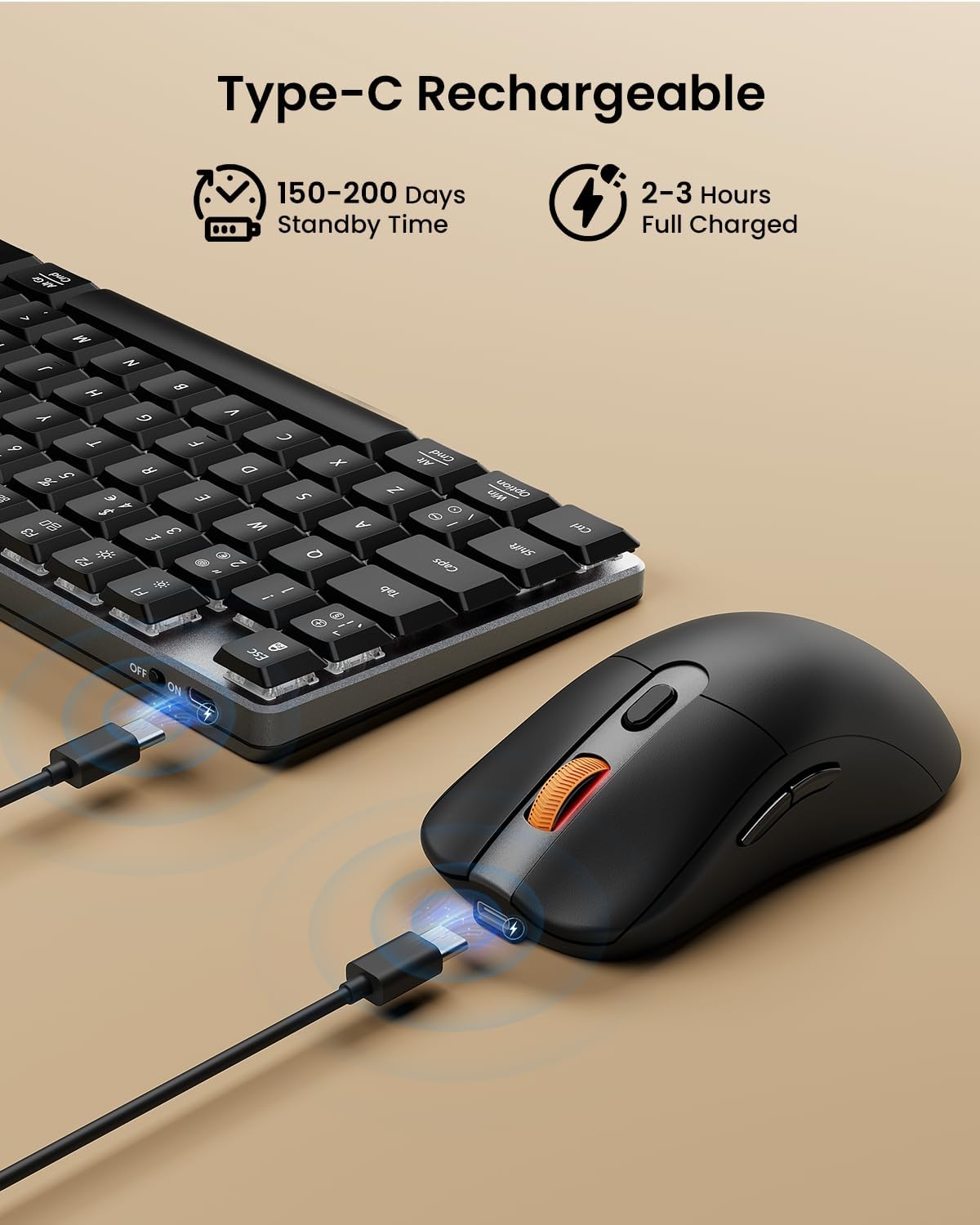
Image: The ProtoArc keyboard and mouse being charged simultaneously via USB-C cables, illustrating the charging ports and cables.
Údržba
- Čištění: Use a soft, dry cloth to clean the surfaces of the keyboard and mouse. For deeper cleaning, especially between keys, use compressed air. Avoid using harsh chemicals or abrasive materials.
- Skladování: When not in use for extended periods, turn off the devices to conserve battery life. Store them in a cool, dry place.
- Péče o baterie: Avoid fully discharging the battery frequently. Charge the devices regularly to maintain optimal battery health.
Odstraňování problémů
Klávesnice/myš nereaguje:
- Ensure the devices are turned on.
- Zkontrolujte stav baterie a v případě potřeby ji dobijte.
- Pro připojení 2.4G se ujistěte, že je USB přijímač bezpečně zapojený do funkčního USB portu. Zkuste jiný USB port.
- For Bluetooth connection, ensure Bluetooth is enabled on your device and the correct channel (BT1/BT2) is selected on the keyboard/mouse. Try re-pairing the device.
- Move the devices closer to the receiver/device to rule out interference.
Zpoždění nebo odpojení:
- Ensure there are no strong sources of interference (e.g., Wi-Fi routers, other wireless devices) nearby.
- Try connecting via the other mode (e.g., if using 2.4G, try Bluetooth, or vice-versa).
- Update your computer's Bluetooth drivers if connecting via Bluetooth.
Keys Not Working Correctly:
- Check for any debris under the keycaps.
- Ensure the keyboard is not in a special mode that might alter key functions.
Specifikace
| Značka | ProtoArc |
| Číslo modelu | KM310 |
| Barva | Černý |
| Technologie připojení | Bluetooth, 2.4G bezdrátové připojení přes USB |
| Kompatibilita operačního systému | Windows, macOS, Linux |
| Speciální funkce (klávesnice) | Rechargeable mechanical keyboard, UK QWERTY layout, Red switches, Numeric keypad, Shortcut and multimedia keys, Adjustable tilt legs |
| Special Features (Mouse) | Adjustable DPI (1000/1600/2400), Silent click, Ergonomic grip, Ultra-lightweight (approx. 63g) |
| Kompatibilní zařízení | Osobní počítač, notebook, tablet |
| Popis klávesnice | Mechanické |
| Technologie detekce pohybu | Optický |
| Zdroj napájení | Napájení z baterie (nabíjecí přes USB-C) |
| Pohotovostní doba baterie | 150-200 dní |
| Doba plného nabití | 2-3 hodin |
Záruka a podpora
ProtoArc products are designed for reliability and performance. For any questions, technical support, or warranty claims, please contact ProtoArc customer service. Details can typically be found on the official ProtoArc webwebu nebo prostřednictvím vaší nákupní platformy.
Uschovejte si prosím doklad o koupi pro účely záruky.