
AutoSky B0FBWR1MNS
AutoSky CarPlay TV Adapter User Manual
Model: B0FBWR1MNS
Značka: AutoSky
1. Úvod
The AutoSky CarPlay TV Adapter enhances your in-car infotainment system by converting wired Apple CarPlay to wireless CarPlay and enabling HDMI input for external streaming devices. This device allows for seamless integration of navigation, music, calls, and streaming applications directly onto your vehicle's display.
This manual provides detailed instructions for setting up and operating your AutoSky CarPlay TV Adapter, ensuring you can maximize its features for a connected and entertaining driving experience.
2. Co je zahrnuto
Upon unboxing your AutoSky CarPlay TV Adapter, please verify that all the following components are present:
- AutoSky CarPlay TV Adapter Unit
- Kabel USB-C na USB-A
- Kabel USB-C na USB-C
- Stručný průvodce / Uživatelská příručka

Figure 2.1: Package Contents of the AutoSky CarPlay TV Adapter.
3. Pokyny k nastavení
The AutoSky CarPlay TV Adapter is designed for easy plug-and-play installation. Follow these steps to set up your device:
- Kontrola kompatibility vozidla: Ensure your vehicle supports wired Apple CarPlay or Android Auto. This adapter converts wired connections to wireless and enables HDMI input; it does not add CarPlay or Android Auto functionality to vehicles that do not already possess it.
- Připojte adaptér:
- Locate your car's USB port that supports wired CarPlay/Android Auto.
- Connect one end of the provided USB-C cable to the AutoSky adapter.
- Connect the other end of the USB-C cable to the appropriate USB-A or USB-C port in your car using the included adapter if necessary.

Figure 3.1: Connecting the AutoSky Adapter to your vehicle's USB port.
- Počáteční spuštění: Once connected, your car's infotainment screen should display the AutoSky interface, presenting options for CarPlay/Android Auto and HDMI.
Video 3.1: Demonstrates the unboxing and initial connection process of the AutoSky CarPlay TV Adapter, showing how to plug it into the car's USB port and the immediate display of the interface on the infotainment screen.
4. Návod k obsluze
4.1. Wireless CarPlay / Android Auto Mode
- Select CarPlay/Android Auto: On your car's infotainment screen, tap the "CarPlay" or "Android Auto" icon displayed by the AutoSky adapter.
- Párování přes Bluetooth:
- Na smartphonu přejděte do nastavení Bluetooth.
- Hledat and select the AutoSky device (e.g., "AutoSky-XXXX").
- Potvrďte požadavek na párování na telefonu i na obrazovce vozu.
- Automatické připojení: Once paired, your phone will automatically connect wirelessly to CarPlay or Android Auto every time you start your car, providing access to maps, music, calls, and other compatible apps hands-free.
Figure 4.1: Wireless CarPlay interface on the car's display.
4.2. HDMI Streaming Mode
The adapter allows you to connect external HDMI devices for streaming content directly to your car's screen.
- Select HDMI: On your car's infotainment screen, tap the "HDMI" icon displayed by the AutoSky adapter.
- Připojení zařízení HDMI:
- Connect your HDMI streaming device (e.g., Fire TV Stick, Roku, gaming console) to the HDMI port on the AutoSky adapter.
- Důležité: External HDMI devices require their own power source (e.g., a USB power adapter) and an internet connection (e.g., from your phone's hotspot or another Wi-Fi source) to function. The AutoSky adapter does not provide power or internet to the HDMI device.

Figure 4.2: Connecting an external HDMI streaming device.
- Užijte si streamování: Once connected and powered, the content from your HDMI device will be mirrored on your car's infotainment screen.
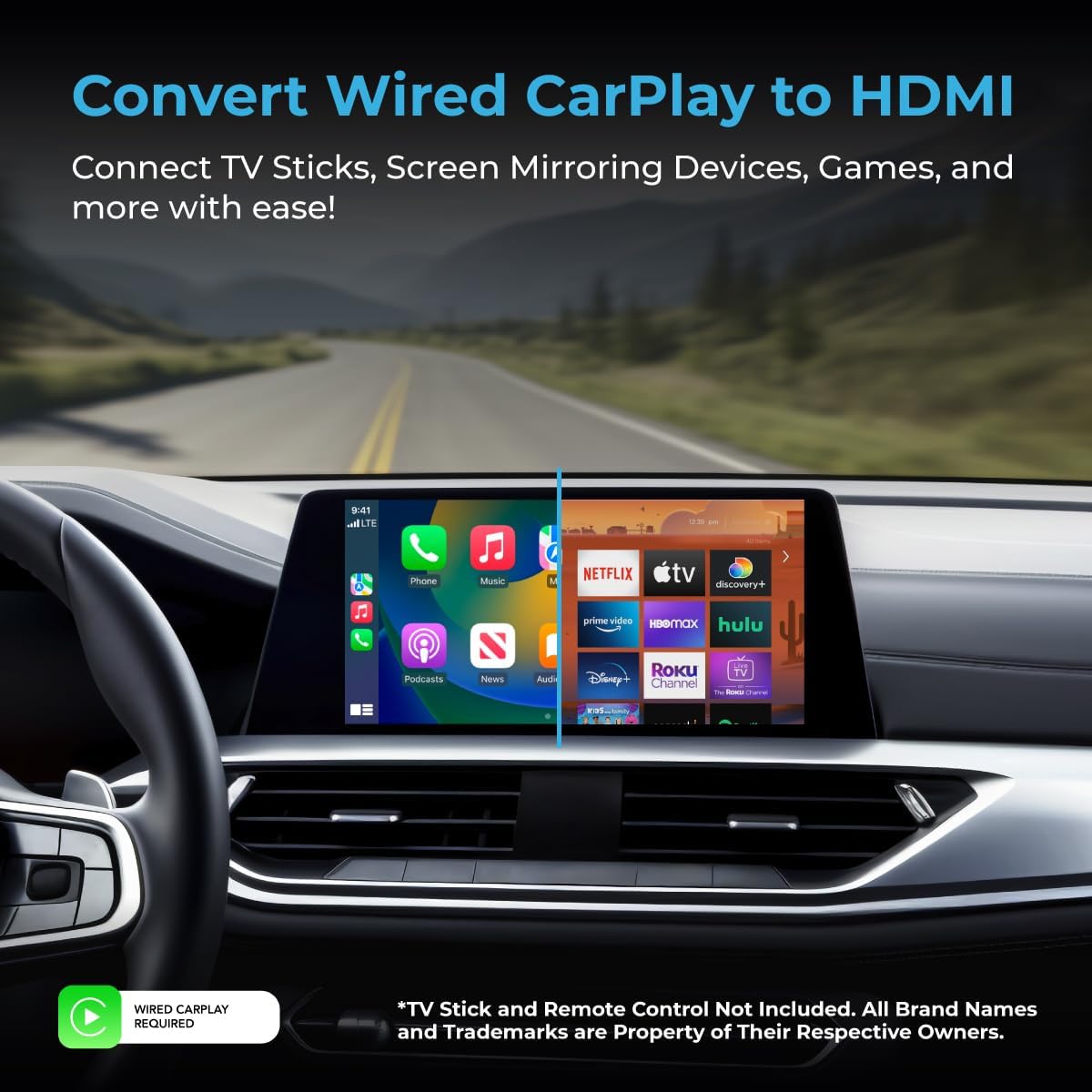
Figure 4.3: Dual functionality with CarPlay and HDMI streaming.
5. Kompatibilita
- Požadavek na vozidlo: Compatible with most vehicles that support factory-installed wired Apple CarPlay or Android Auto. This device converts existing wired functionality to wireless and adds HDMI input.
- Kompatibilita zařízení:
- Bezdrátové CarPlay/Android Auto: iPhone (iOS 10+), Android Phones (Android 11+).
- HDMI vstup: Any HDMI-compatible device such as Fire TV Stick, Roku, gaming consoles, or other video devices.
- Poznámka: The HDMI–USB-C mode supports video only and does not charge your phone.
6. Technické specifikace
| Značka | AutoSky |
| Technologie připojení | Bluetooth, HDMI, Wi-Fi |
| Typ ovladače | HDMI device (external) |
| Speciální funkce | Vstup HDMI |
| Kompatibilní zařízení | iPhone, Android Phone, HDMI devices |
| Celkový počet portů HDMI | 1 |
| Typ konektoru | USB typu A, USB typu C |
| Režim zvukového výstupu | Stereo |
| Kódování videa | H.264, H.265/HEVC, MPEG-4 |
| Barva | Černý |
7. Řešení problémů
- Žádné zobrazení na obrazovce auta:
- Ensure the adapter is securely plugged into the correct USB port that supports wired CarPlay/Android Auto.
- Verify your vehicle's infotainment system is turned on and set to the correct input.
- Restart your car and the adapter.
- Bezdrátové připojení CarPlay/Android Auto se nedaří:
- Confirm Bluetooth is enabled on your smartphone and it is paired with the AutoSky adapter.
- Ensure Wi-Fi is also enabled on your phone, as wireless CarPlay/Android Auto often uses Wi-Fi for data transfer after the initial Bluetooth handshake.
- Zapomeňte na zařízení v nastavení Bluetooth telefonu a znovu jej spárujte.
- HDMI Device Not Working:
- Ensure the HDMI device is properly connected to the adapter's HDMI port.
- Verify the HDMI device has its own power supply connected and is turned on.
- Confirm the HDMI device has an active internet connection (e.g., via your phone's hotspot).
- Check if the HDMI device requires any specific input selection on its own interface.
- Problémy se zvukem:
- Adjust the volume on both your car's infotainment system and the connected device/phone.
- Ensure your car's audio input is correctly selected (e.g., USB or Bluetooth for CarPlay/Android Auto, or the HDMI input for streaming).
8. Bezpečnostní informace
- Bezpečnost jízdy: Always prioritize safe driving. Do not operate the device or engage in activities that distract you from the road.
- Instalace: Ensure the adapter and all cables are securely placed and do not obstruct driving controls or airbags.
- Teplota: Nevystavujte zařízení extrémním teplotám, delšímu přímému slunečnímu záření nebo vlhkosti.
- Zdroj napájení: Use only appropriate USB power sources for the adapter and any connected HDMI devices.
- Čištění: Zařízení čistěte měkkým, suchým hadříkem. Nepoužívejte tekuté čisticí prostředky ani aerosoly.
9. Záruka a podpora
For warranty information and customer support, please refer to the documentation included with your product or visit the official AutoSky webwebu. Můžete také kontaktovat přímo prodejce a požádat o pomoc.
For additional support or to explore other AutoSky products, visit the AutoSky Store on Amazon.
Ask a question about this manual
Ask about setup, troubleshooting, compatibility, parts, safety, or missing instructions. Manuals+ will review the question and use this page’s manual context to help answer it.