
Xprinter XP-420B
Uživatelská příručka k tiskárně štítků Xprinter XP-420B s USB přímým termálním připojením
Model: XP-420B
1. Konec produktuview
The Xprinter XP-420B is a high-speed direct thermal label printer designed for various applications, including shipping labels. It offers a maximum print speed of 152 mm/s (6 inches/second) and a resolution of 203 DPI, ensuring clear and precise prints. Its robust double-walled clamshell design enhances durability, and the intelligent print head temperature control system ensures stable output. This printer is compatible with both Windows and Mac operating systems, making it a versatile solution for your labeling needs.
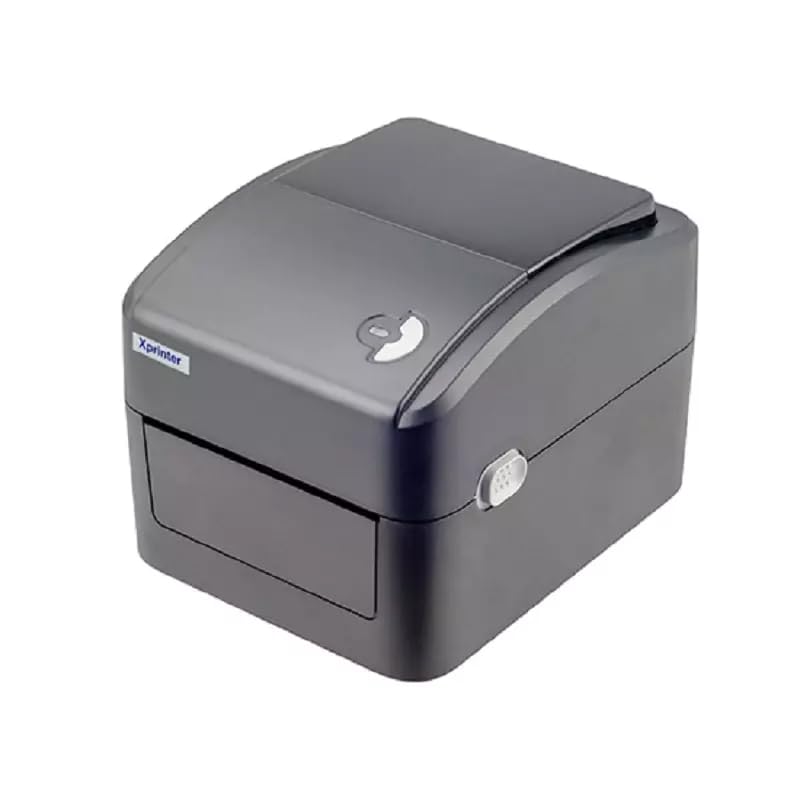
Obrázek 1: Přední strana view of the Xprinter XP-420B thermal label printer.
2. Průvodce nastavením
2.1 Vybalení a počáteční kontrola
- Opatrně vyjměte tiskárnu a veškeré příslušenství z obalu.
- Verify that all components are present: printer unit, power adapter, USB cable, and user manual.
- Inspect the printer for any visible damage that may have occurred during transit.
2.2 Připojení tiskárny
- Připojte napájecí adaptér k napájecímu portu tiskárny a poté jej zapojte do elektrické zásuvky.
- Připojte jeden konec dodaného kabelu USB k portu USB tiskárny a druhý konec k volnému portu USB v počítači.
- Power on the printer using the power switch, usually located on the side or rear.

Figure 2: Xprinter XP-420B showing USB connectivity.
2.3 Načítání štítků
- Otevřete horní kryt tiskárny stisknutím uvolňovacích západek na obou stranách.
- Place the roll of thermal labels onto the label spindle, ensuring the labels feed from the bottom of the roll.
- Feed the leading edge of the labels through the label guide until it extends slightly past the print head.
- Adjust the movable label guides to fit the width of your labels snugly, without pinching them.
- Close the top cover firmly until it latches securely.
- The printer will automatically calibrate and detect the label size.
2.4 Instalace ovladače
Before printing, you must install the appropriate printer drivers on your computer. Drivers are typically provided on a CD included with the printer or can be downloaded from the official Xprinter website. The XP-420B supports both Windows and Mac operating systems.
- Pro Windows: Run the setup executable from the driver CD or downloaded file a postupujte podle pokynů na obrazovce.
- Pro Mac: Download the Mac driver from the Xprinter website and follow the installation prompts.
3. Návod k obsluze
3.1 Základní tisk
- Ujistěte se, že je tiskárna zapnutá a připojená k počítači.
- Otevřete dokument nebo aplikaci, ze které chcete tisknout (např. software pro přepravu, textový editor).
- V nabídce aplikace vyberte možnost „Tisk“.
- Choose "Xprinter XP-420B" as your printer.
- In the printer settings or preferences, ensure the correct label size is selected. The printer supports adjustable label sizes.
- Kliknutím na tlačítko „Tisk“ odešlete úlohu do tiskárny.
3.2 Adjusting Label Size
The XP-420B allows for adjustable label sizes. This adjustment is primarily done through the printer driver settings on your computer and by physically adjusting the label guides within the printer.
- Úprava softwaru: In your printing application or printer driver settings, navigate to the "Page Setup" or "Paper Size" options. Select or define the custom dimensions for your labels (e.g., 4x6 inches for shipping labels).
- Fyzické nastavení: As described in Section 2.3, ensure the internal label guides are set correctly to the width of your loaded labels.
4. Údržba
4.1 Čištění tiskové hlavy
Regular cleaning of the print head is crucial for maintaining print quality and extending the printer's lifespan. It is recommended to clean the print head after every roll of labels or if print quality degrades.
- Vypněte tiskárnu a odpojte napájecí kabel.
- Otevřete horní kryt tiskárny.
- Pokud byla tiskárna nedávno používána, počkejte několik minut, než tisková hlava vychladne.
- Gently wipe the print head surface with an alcohol swab or a lint-free cloth lightly dampzakončené isopropylalkoholem.
- Před zavřením krytu a opětovným připojením napájení nechte tiskovou hlavu zcela vyschnout.
4.2 Obecné čištění
- Use a soft, dry cloth to wipe the exterior of the printer.
- Remove any dust or label debris from the inside of the printer using a soft brush or compressed air.
- Nepoužívejte abrazivní čisticí prostředky nebo rozpouštědla.
5. Řešení problémů
| Problém | Možná příčina | Řešení |
|---|---|---|
| Tiskárna nereaguje | Power off; USB cable disconnected; Driver issue. | Ensure power is on and connected. Check USB cable. Reinstall printer driver. |
| Špatná kvalita tisku (vybledlý tisk, čáry) | Znečištěná tisková hlava; Nesprávný typ štítku; Nízké nastavení hustoty tisku. | Clean the print head (Section 4.1). Ensure you are using direct thermal labels. Adjust print density in driver settings. |
| Štítky se nepodávají správně | Labels improperly loaded; Label guides not adjusted; Sensor obstruction. | Reload labels correctly. Adjust label guides. Clean any dust or debris from sensors. |
| Tiskárna tiskne prázdné štítky | Labels loaded upside down; Not a direct thermal label. | Ensure labels are loaded with the printable side facing up. Verify labels are direct thermal. |
6. Specifikace produktu
| Funkce | Detail |
|---|---|
| Značka | Xprinter |
| Název modelu | XP-420B |
| Technologie připojení | USB |
| Technologie tisku | Přímé tepelné |
| Rezoluce | 203 DPI |
| Maximální rychlost tisku | 152 mm/s (6 palců/sekundu) |
| Paměť | 8 MB SDRAM, 8 MB Flash |
| Tiskový výstup | Monochromatický |
| Hmotnost položky | 3 kg |
| Rozměry produktu | 20H x 6Š x 10V centimetrů |
| Kompatibilita | Windows, Mac |
7. Záruka a podpora
7.1 Informace o záruce
Tiskárna Xprinter XP-420B je dodávána s 1-letá záruka od data nákupu. Tato záruka se vztahuje na výrobní vady a poruchy při běžném používání. Uschovejte si prosím doklad o koupi pro případ uplatnění záruky.
7.2 Zákaznická podpora
For technical assistance, troubleshooting beyond this manual, or warranty service, please contact Xprinter customer support. Refer to the contact information provided with your product packaging or visit the official Xprinter webweb s nejaktuálnějšími informacemi o podpoře.
Ask a question about this manual
Ask about setup, troubleshooting, compatibility, parts, safety, or missing instructions. Manuals+ will review the question and use this page’s manual context to help answer it.