
1. Konec produktuview
The Acer PM161QJbmiuux is a lightweight and ultra-thin 15.6-inch portable monitor designed to extend your display capabilities wherever you go. Featuring a Full HD (1920x1080) IPS anti-glare panel, it delivers clear visuals with a 60Hz refresh rate and 6ms response time. Its versatile connectivity options and ergonomic design make it suitable for various applications, from professional use to entertainment.
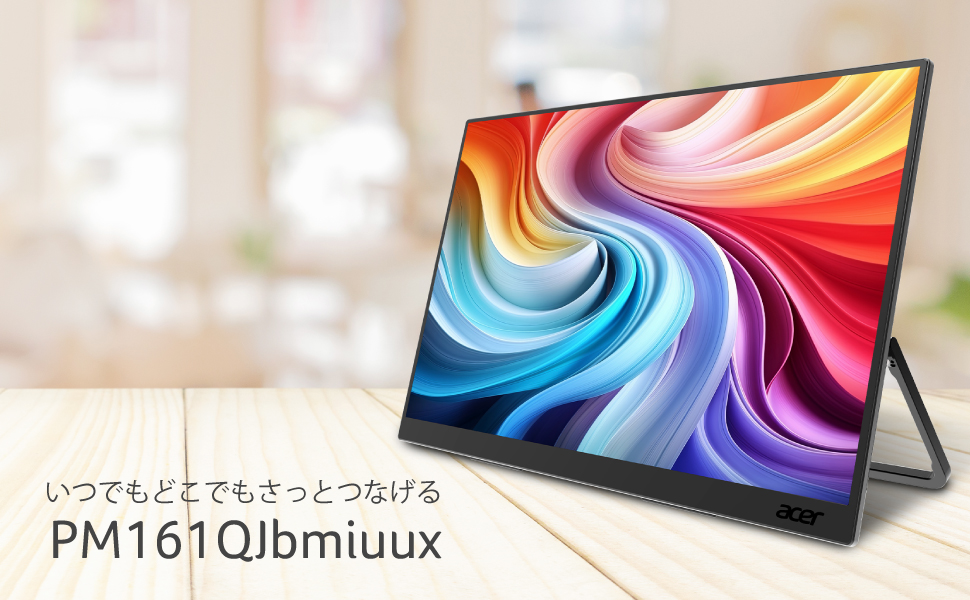
Image: The Acer PM161QJbmiuux portable monitor showcasing its 15.6-inch IPS display, 60Hz refresh rate, and USB-C/mini HDMI connectivity.
Klíčové vlastnosti:
- Zobrazit: 15.6-inch Full HD (1920x1080) IPS Anti-Glare Panel
- Přenosnost: Approximately 700g weight, 13mm ultra-thin profile
- Výkon: 60Hz Refresh Rate, 6ms (GTG) Response Time
- Konektivita: 1x mini HDMI 2.0, 2x USB 3.2 Type-C (Gen1, Max 5Gbps, PD compatible)
- Vizuální vylepšení: Adaptive-Sync, HDR10 support, NTSC 45% color reproduction
- Péče o oči: Blue Light Shield, Flicker-less technology
- Zvuk: Integrované duální reproduktory
- Ergonomie: Stepless tilt adjustment from 0 to 90 degrees
2. Pokyny k nastavení
2.1 Obsah balení
Before proceeding with the setup, ensure all items are present in the package:
- Acer PM161QJbmiuux Portable Monitor
- mini HDMI to HDMI Cable (1m)
- Kabel USB typu C (1 m)
- Průvodce nastavením
- Safety Precautions Document
- Záruční list
- Formulář žádosti o opravu
2.2 Připojení monitoru
The monitor supports connectivity via USB Type-C and mini HDMI. Choose the appropriate cable based on your source device.
- Připojení USB Type-C: Connect one end of the provided USB Type-C cable to a USB Type-C port on your laptop, smartphone, or other compatible device. Connect the other end to one of the USB 3.2 Type-C ports on the monitor. This connection can transmit video, data, and power simultaneously. If your device does not supply sufficient power, an external USB AC adapter may be required (not included).
- mini HDMI Connection: Connect one end of the provided mini HDMI to HDMI cable to the mini HDMI 2.0 port on the monitor. Connect the other end (standard HDMI) to the HDMI port on your laptop, game console, or other compatible device. For power, connect a USB Type-C cable from a power source (e.g., a USB AC adapter or a device with Power Delivery) to one of the monitor's USB Type-C ports.

Obrázek: Podrobný view of the monitor's connectivity ports, including mini HDMI and two USB Type-C ports.
3. Návod k obsluze
3.1 Zapnutí/vypnutí
Once connected to a power source and a video input, the monitor should power on automatically. If not, locate the power button (usually on the side or back) and press it to turn on the display. To power off, press and hold the power button.
3.2 Nastavení stojanu
The integrated kickstand allows for stepless tilt adjustment from 0 to 90 degrees. Gently adjust the stand to achieve your desired viewing angle for optimal comfort and productivity.

Image: The monitor's kickstand allows for flexible tilt adjustments.
3.3 Nabídka na obrazovce (OSD)
The OSD menu provides access to various display settings. Use the control buttons (typically located on the side or back of the monitor) to navigate and adjust settings such as brightness, contrast, color modes, and input source selection.
3.4 Speciální funkce
- Adaptivní synchronizace: This technology synchronizes the monitor's refresh rate with the graphics card's frame rate to eliminate screen tearing and stuttering, providing a smoother visual experience. Ensure your source device supports Adaptive-Sync and it is enabled in your system settings.
- HDR10: High Dynamic Range 10 offers enhanced contrast and color accuracy for compatible content. Activate HDR settings through your connected device's display options.
- Blue Light Shield & Flicker-less: These features are designed to reduce eye strain during prolonged use. Blue Light Shield filters out harmful blue light, while Flicker-less technology eliminates screen flickering. These are typically enabled by default or can be adjusted via the OSD menu.

Image: The Acer VisionCare™ technology, including Blue Light Shield, helps reduce eye fatigue.
4. Údržba
4.1 Čištění monitoru
Obrazovku monitoru jemně otřete měkkým hadříkem, který nepouští vlákna. V případě odolných skvrn ji lehce otřeteampen the cloth with water or a mild, non-abrasive screen cleaner. Avoid using harsh chemicals, alcohol, or abrasive materials, as these can damage the screen surface.
4.2 Obecná péče
- Nepokládejte na monitor těžké předměty.
- Nevystavujte monitor extrémním teplotám, vlhkosti ani přímému slunečnímu záření.
- Keep the monitor away from liquids and dust.
- When transporting the monitor, use appropriate protective packaging.
5. Řešení problémů
If you encounter issues with your Acer PM161QJbmiuux monitor, refer to the following common troubleshooting steps:
- Žádný displej/černá obrazovka:
- Ensure the monitor is properly connected to a power source and the video input cable is securely attached to both the monitor and the source device.
- Ověřte, zda je zdrojové zařízení zapnuté a zda vydává video signál.
- Zkuste jiný video kabel nebo port, pokud je k dispozici.
- If using USB-C, ensure the port on your device supports video output (DisplayPort Alternate Mode) and Power Delivery.
- Bez napájení:
- Check if the USB-C power source is functioning correctly.
- Ensure the USB-C cable is capable of power delivery.
- Problémy s kvalitou obrazu (rozmazaný, zkreslený, nesprávné barvy):
- Adjust the resolution and refresh rate settings on your source device to match the monitor's native resolution (1920x1080) and refresh rate (60Hz).
- Reset the monitor's OSD settings to factory defaults.
- Ujistěte se, že video kabel není poškozen.
- Z reproduktorů není slyšet žádný zvuk:
- Zkontrolujte nastavení hlasitosti na monitoru (prostřednictvím nabídky OSD) i na zdrojovém zařízení.
- Ensure the audio output is directed to the monitor in your source device's sound settings.
If these steps do not resolve the issue, please contact Acer customer support.
6. Specifikace
Detailed technical specifications for the Acer PM161QJbmiuux portable monitor:
| Funkce | Specifikace |
|---|---|
| Číslo modelu | PM161QJbmiuux |
| Velikost obrazovky | 15.6 palců |
| Typ panelu | IPS |
| Rezoluce | Full HD (1920 x 1080 pixelů) |
| Poměr stran | 16:9 |
| Povrch obrazovky | Antireflexní |
| Obnovovací frekvence | 60 Hz |
| Doba odezvy | 6 ms (GTG) |
| Jas | 250 cd/㎡ |
| Poměr kontrastu (typický) | 800:1 |
| Kontrastní poměr (max.) | 100,000,000:1 |
| Reprodukce barev | NTSC 45%, Approx. 16.77 million colors |
| Video vstup | 1x mini HDMI 2.0 |
| USB porty | 2x USB 3.2 Type-C (Gen1, Max 5Gbps, PD compatible) |
| Reproduktory | Dual Speakers (1W + 1W Stereo) |
| Rozměry (D x Š x V) | 1.3 cm x 35.5 cm x 21.1 cm |
| Hmotnost | 0.7 kg |
| Speciální funkce | HDR10, Blue Light Shield, Flicker-less, Adaptive-Sync |

Image: Physical dimensions and port layout of the monitor.
7. Záruka a podpora
7.1 Informace o záruce
The Acer PM161QJbmiuux portable monitor comes with a 3letá záruka výrobce. Please note that the display panel itself is covered by a 1-year warranty. Retain your purchase receipt and warranty card for service claims.
7.2 Zákaznická podpora
For technical assistance, troubleshooting, or warranty inquiries, please contact Acer customer support:
- Support Information Page: https://www.acer.com/jp-ja/support/
- Provozní doba: 10:00 - 19:00 JST, 365 days a year (excluding company-specified holidays)