
1. Úvod
This manual provides detailed instructions for the SVITOO P11 11-inch Android 16 Tablet. It covers initial setup, operation, maintenance, and troubleshooting to ensure optimal performance and user experience. Please read this manual thoroughly before using your device.
2. Obsah balení
Ověřte, zda jsou v balení produktu obsaženy všechny níže uvedené položky:
- SVITOO P11 11-inch Tablet
- Bluetooth klávesnice
- Bezdrátová myš
- Stylus Pen
- OTG Interface Cable
- Charger and Charging Cable
- Tablet Case and Stand

Obrázek 2.1: SVITOO P11 Tablet with its complete accessory bundle, including a keyboard, mouse, stylus, charger, and protective case.
3. Vlastnosti produktu
3.1 Operační systém
The SVITOO P11 Tablet runs on the latest Android 16 operating system, offering enhanced multitasking capabilities, improved power efficiency, and robust data protection features. The system is designed for a smooth and secure user experience.

Obrázek 3.1: The Android 16 interface on the SVITOO P11 Tablet, showcasing its modern design and application compatibility.
3.2 Výkon
Equipped with an Octa-Core T7250 processor clocked at 2.0 GHz, the tablet delivers powerful performance for various tasks. It features 20 GB RAM (4GB physical, with up to 16GB virtual expansion) and 128 GB of internal storage, expandable up to 1 TB via a microSD card. This configuration supports seamless multitasking, streaming, gaming, and productivity without significant lag or overheating.

Obrázek 3.2: Visual representation of the tablet's internal components, highlighting the UNISOC T7250 processor and memory configuration.
3.3 Displej a zvuk
The 11-inch IPS display offers a resolution of 1280 x 800 pixels, providing clear visuals. It features Widevine L1 certification for high-definition content streaming on platforms like Netflix and Prime Video. Anti-glare technology helps reduce eye strain during extended use. Dual stereo speakers enhance the audio experience, and wireless screen mirroring is supported for sharing content.

Obrázek 3.3: The tablet's display quality, emphasizing its features for an immersive viewzkušenosti.
3.4 Baterie
A robust 8800 mAh battery powers the tablet, featuring NTC protection for temperature regulation to prevent overheating. This large capacity provides up to 14 hours of video playback, 10 hours of gaming, or 15 hours of navigation on a single charge, ensuring extended usage.

Obrázek 3.4: Illustration of the tablet's 8800mAh battery, indicating its long-lasting power for various activities.
3.5 Kamery
The tablet is equipped with a 13 MP main rear camera and an 8 MP front camera, suitable for capturing photos, video calls, and scanning documents.

Obrázek 3.5: Nadview of the tablet's camera specifications and capabilities.
3.6 Konektivita
The P11 Tablet supports dual-band Wi-Fi (2.4G and 5G) for stable internet connectivity and Bluetooth 5 for connecting wireless accessories. It also includes GPS functionality, which requires a Wi-Fi connection for optimal use.
4. Nastavení
4.1 Počáteční nabíjení
Before first use, fully charge the tablet using the provided charger and USB cable. Connect the charger to a power outlet and the USB cable to the tablet's USB port. The battery indicator on the screen will show charging progress.
4.2 Zapnutí/vypnutí
- Zapnutí: Press and hold the Power button located on the side of the tablet until the SVITOO logo appears.
- Vypnutí: Stiskněte a podržte tlačítko Napájení, dokud se na obrazovce nezobrazí nabídka napájení. Vyberte „Vypnout“ a potvrďte.
- Restartovat: V nabídce napájení vyberte „Restartovat“ a potvrďte.
4.3 Průvodce počátečním nastavením
Po prvním zapnutí vás tablet provede průvodcem počátečním nastavením. Postupujte podle pokynů na obrazovce:
- Vyberte preferovaný jazyk.
- Připojte se k síti Wi-Fi.
- Set up your Google account (or skip for later).
- Review a přijměte obchodní podmínky.
- Nastavte zámek obrazovky (PIN, vzorec nebo heslo).
4.4 Připojení příslušenství
The SVITOO P11 Tablet comes with a Bluetooth keyboard, wireless mouse, and stylus. To connect them:
- Bluetooth klávesnice/myš: Turn on the keyboard/mouse and put it into pairing mode (usually by pressing a dedicated button or a combination of keys). On your tablet, go to Nastavení > Připojená zařízení > Bluetooth, turn Bluetooth on, and select the accessory from the list of available devices to pair.
- Stylus: Stylus obvykle nevyžaduje párování přes Bluetooth a lze jej používat přímo na obrazovce.
5. Návod k obsluze
5.1 Základní navigace
Tablet používá pro navigaci dotyková gesta:
- Klepněte na: Vyberte položku nebo otevřete aplikaci.
- Klepnutí a podržení: Přístup k kontextovým nabídkám nebo přesun ikon.
- Výpad: Procházejte stránky, seznamy nebo přepínejte mezi domovskými obrazovkami.
- Přiblížení/zvětšení prsty: Přiblížení nebo oddálení obrázků a web stránky.
5.2 Instalace a správa aplikací
- Instalace aplikací: Open the Google Play Store app, search for your desired app, and tap "Install."
- Odinstalovat aplikace: Tap and hold an app icon on the home screen or app drawer, then drag it to "Uninstall" or select "App info" and choose "Uninstall." Alternatively, go to Nastavení > Aplikace > Zobrazit všechny aplikace, vyberte aplikaci a klepněte na „Odinstalovat“.
5.3 Připojení Wi-Fi a Bluetooth
- Wi-Fi: Přejít na Nastavení > Síť a internet > Internet. Turn on Wi-Fi, select your network, and enter the password if required.
- Bluetooth: Přejít na Nastavení > Připojená zařízení > Bluetooth. Turn on Bluetooth and pair with desired devices.
5.4 Používání kamer
Open the Camera app from your home screen or app drawer. You can switch between the front and rear cameras, select different modes (photo, video), and adjust settings like flash and timer.
5.5 Správa úložiště
To expand storage, insert a microSD card into the designated slot. You can manage your storage by going to Nastavení > Úložiště na view využití a uvolnění místa.
5.6 Widevine L1 for HD Streaming
The tablet supports Widevine L1, enabling high-definition video playback on streaming services that require this certification. Ensure your internet connection is stable for the best streaming quality.
6. Údržba
6.1 Čištění zařízení
K čištění obrazovky a těla tabletu použijte měkký hadřík, který nepouští vlákna. V případě odolných šmouh je lehceampOmyjte hadřík vodou nebo roztokem na čištění obrazovky. Nepoužívejte agresivní chemikálie ani abrazivní materiály.
6.2 Péče o baterii
- Vyhněte se extrémním teplotám, protože mohou snížit životnost baterie.
- Nenechávejte tablet nabíjet příliš dlouho po úplném nabití.
- Používejte pouze dodanou nabíječku nebo certifikovanou kompatibilní nabíječku.
- Pro dlouhodobé skladování nabijte baterii přibližně na 50 % a zařízení vypněte.
6.3 Aktualizace softwaru
Pravidelně kontrolujte a instalujte aktualizace softwaru, abyste zajistili, že váš tablet má nejnovější funkce, bezpečnostní záplaty a vylepšení výkonu. Přejděte na Nastavení > Systém > Aktualizace systému pro kontrolu aktualizací.
6.4 Optimalizace úložiště
Pravidelně odstraňujte nepotřebné files, cache data, and uninstall unused apps to maintain optimal performance. You can use the built-in storage management tools in Nastavení > Úložiště.
7. Řešení problémů
This section addresses common issues you might encounter with your SVITOO P11 Tablet.
7.1 Zařízení se nezapíná
- Ujistěte se, že je baterie nabitá. Připojte nabíječku a před zapnutím počkejte několik minut.
- Stiskněte a podržte tlačítko napájení po dobu alespoň 10–15 sekund, abyste vynutili restart.
7.2 Problémy s připojením k Wi-Fi
- Vypnutí a zapnutí Wi-Fi v Nastavení > Síť a internet.
- Restartujte Wi-Fi router.
- Zapomeňte na síť a znovu se připojte: Přejděte na Nastavení > Síť a internet > Internet, tap the gear icon next to your network, and select "Forget." Then reconnect.
7.3 Pomalý výkon
- Zavřete nepoužívané aplikace běžící na pozadí.
- Vymazat data mezipaměti často používaných aplikací (Nastavení > Aplikace > Zobrazit všechny aplikace > [Název aplikace] > Úložiště a mezipaměť > Vymazat mezipaměť).
- Free up internal storage by deleting unnecessary filenebo jejich přesunutím na kartu microSD.
- Restartujte tablet.
7.4 Aplikace padá nebo nereaguje
- Force stop the app: Go to Nastavení > Aplikace > Zobrazit všechny aplikace > [Název aplikace] > Vynutit zastavení.
- Clear the app's cache and data (this will reset the app to its initial state): Settings > Apps > See all apps > [App Name] > Storage & cache > Clear storage / Clear data.
- Odinstalujte a znovu nainstalujte aplikaci.
7.5 Obnovení továrního nastavení (poslední možnost)
Pokud problémy přetrvávají, může obnovení továrního nastavení vyřešit mnoho problémů souvisejících se softwarem. Varování: Tímto smažete všechna data v tabletu. Před pokračováním si zálohujte důležitá data.
- Přejít na Nastavení > Systém > Možnosti resetování.
- Vybrat Vymazat všechna data (obnovení továrního nastavení).
- Potvrďte své rozhodnutí a v případě potřeby zadejte PIN/vzor/heslo.
- Tablet se restartuje a zahájí proces resetování.
8. Specifikace
| Funkce | Specifikace |
|---|---|
| Číslo modelu | P11 |
| Operační systém | Android 16 |
| Procesor | Octa-Core T7250 (2.0 GHz) |
| BERAN | 20 GB (4GB physical installed) |
| Interní úložiště | 128 GB |
| Rozšiřitelné úložiště | Až 1 TB přes microSD kartu |
| Velikost obrazovky | 11 palce |
| Rozlišení displeje | 1280 x 800 pixelů |
| Typ zobrazení | IPS LCD |
| Obnovovací frekvence | 90 Hz |
| Maximální jas | 350 nitů |
| Widevine Certification | Widevine L1 |
| Zadní kamera | 13 MP |
| Přední kamera | 8 MP |
| Kapacita baterie | 8800 XNUMX mAh |
| Výdrž baterie (průměrná) | 14 hours (video playback) |
| Konektivita | Wi-Fi (2.4G + 5G), Bluetooth 5, GPS |
| USB porty | 1 (typ C) |
| Jack pro sluchátka | 3.5 mm |
| Rozměry (D x Š x V) | 28.23 x 17.84 x 0.98 cm |
| Hmotnost | 1.49 kilogramu |
9. Záruka a podpora
SVITOO is committed to providing reliable products and excellent customer service.
- Záruka: Your SVITOO P11 Tablet comes with a 1-year manufacturer's warranty and legal guarantee.
- Zásady vrácení: Je poskytována 30denní lhůta pro vrácení zboží.
- Zákaznická podpora: We offer 24/7 customer support. Responses are guaranteed within 24 hours, including weekends.
- Vrácení ze záruky: Free returns are provided in case of a valid warranty claim.
- Faktura: An invoice with stated VAT is available upon request.
For any assistance, please contact SVITOO customer service through the platform where you purchased the product or refer to the contact information provided in your product packaging.
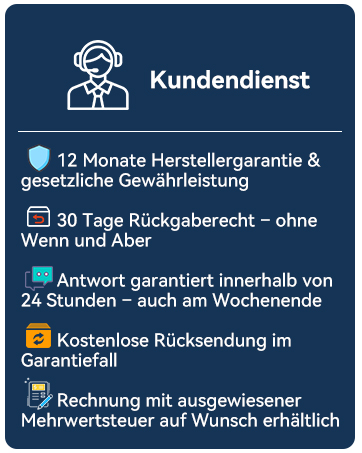
Obrázek 9.1: Nadview of SVITOO's customer service commitments.