
ILEBYGO B0F83Q1HHT
ILEBYGO Mini Projector B0F83Q1HHT User Manual
Model: B0F83Q1HHT
1. Úvod
Thank you for choosing the ILEBYGO Mini Projector B0F83Q1HHT. This portable projector is designed to provide a versatile entertainment experience with its Android 13 operating system, WiFi 6, Bluetooth 5.0, 1080P Full HD resolution with 4K support, 320 ANSI lumens brightness, 270-degree rotation, auto keystone correction, and autofocus. This manual provides essential information for setting up, operating, and maintaining your projector.
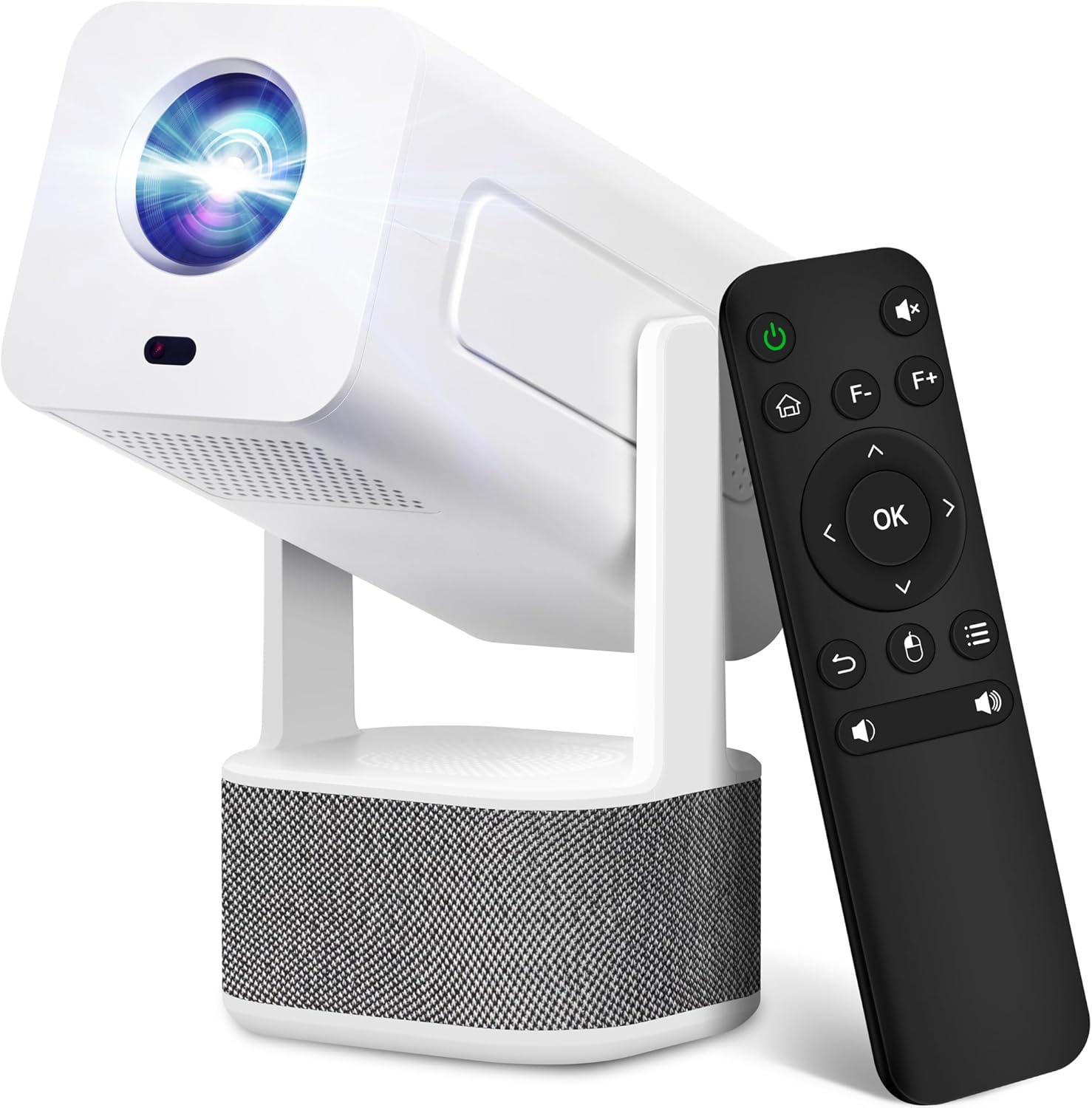
Image 1.1: ILEBYGO Mini Projector and Remote Control
The ILEBYGO Mini Projector B0F83Q1HHT offers a projection size ranging from 30 to 200 inches, making it suitable for various environments from small rooms to outdoor settings. Its dual 5W speakers deliver integrated audio, and multiple connectivity options ensure compatibility with a wide range of devices.
2. Co je v krabici
Zkontrolujte prosím obsah balení. Pokud některé položky chybí nebo jsou poškozené, kontaktujte zákaznickou podporu.
- 1x ILEBYGO Mini Projector
- 1x Uživatelská příručka
- 1x napájecí adaptér
- 1x Dálkové ovládání
3. Průvodce nastavením
3.1. Zapnutí
- Připojte napájecí adaptér ke vstupnímu portu stejnosměrného proudu na projektoru.
- Zapojte napájecí adaptér do elektrické zásuvky.
- Stisknutím tlačítka napájení na projektoru nebo na dálkovém ovladači zapněte zařízení.

Image 3.1: Projector Connectivity Ports (DC, HDMI, USB, Audio)
3.2. Počáteční umístění a úprava
The projector features a 270-degree rotatable design, allowing flexible placement.
- Umístěte projektor na stabilní povrch.
- Adjust the projector's angle to direct the image onto your desired projection surface (wall, screen, ceiling).
- The projector will automatically perform keystone correction and autofocus to optimize the image clarity and shape.
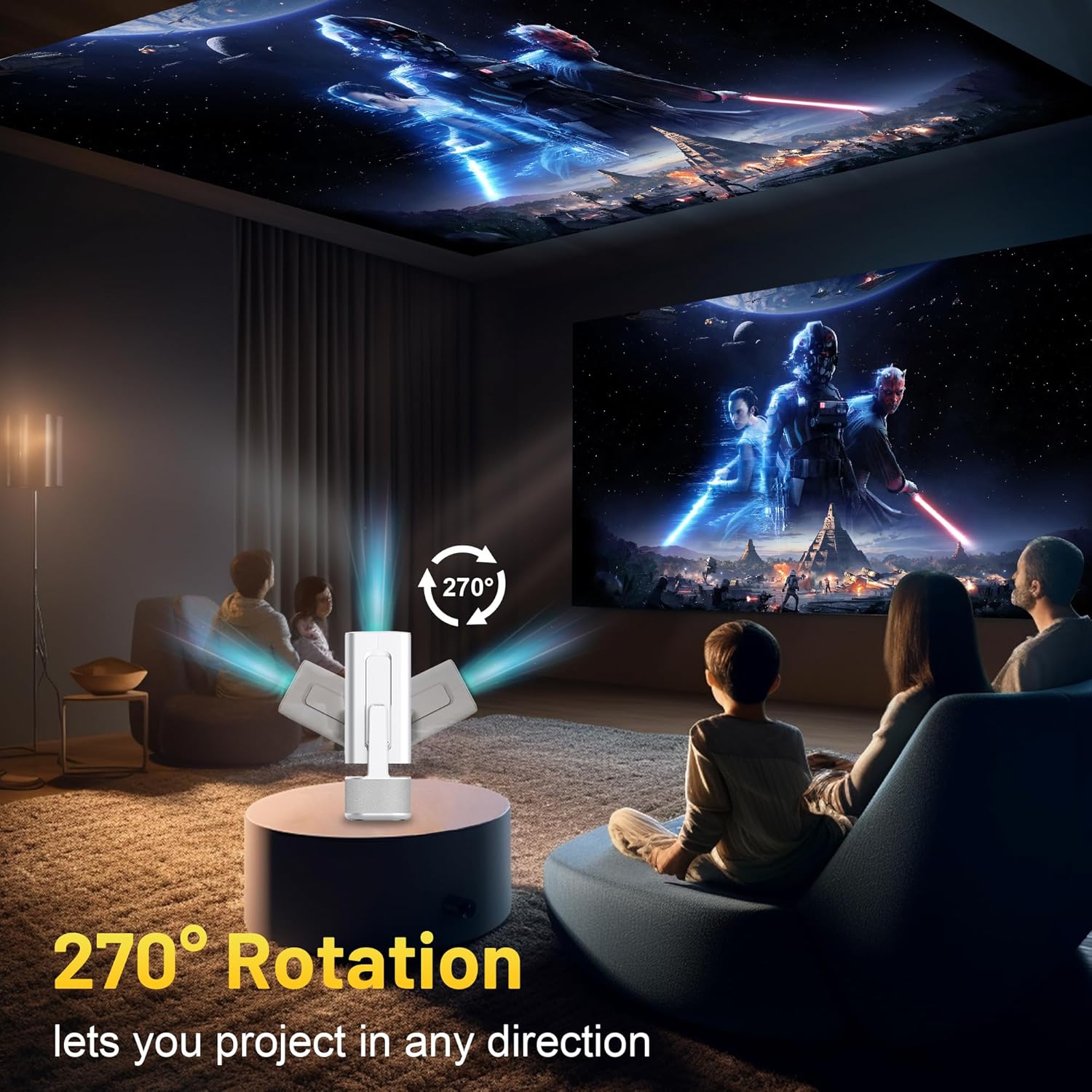
Image 3.2: 270-Degree Rotation Capability
3.3. Síťové připojení (Wi-Fi)
To access online content and streaming services, connect the projector to a Wi-Fi network.
- Na domovské obrazovce přejděte do sekce „Nastavení“.
- Vyberte možnost „Síť a internet“.
- Zapněte Wi-Fi a vyberte ze seznamu požadovanou síť.
- Pokud se zobrazí výzva, zadejte heslo k Wi-Fi a připojte se.

Image 3.3: Dual Band WiFi 6 and Bluetooth 5.0
3.4. Párování Bluetooth
Pair Bluetooth devices like external speakers or headphones for enhanced audio.
- Na domovské obrazovce přejděte do sekce „Nastavení“.
- Vyberte možnost „Připojená zařízení“ nebo „Bluetooth“.
- Zapněte Bluetooth.
- Přepněte své zařízení Bluetooth do režimu párování.
- Vyberte zařízení ze seznamu dostupných zařízení na promítací ploše projektoru, které chcete spárovat.
4. Návod k obsluze
4.1. Navigace
Use the included remote control to navigate the projector's interface. The directional buttons, 'OK' button, 'Back' button, and 'Home' button are primary controls.
4.2. App Usage (Android 13)
The projector runs on Android 13 and comes with pre-installed streaming applications.
- From the home screen, select the desired application (e.g., Netflix, YouTube, Prime Video).
- V případě potřeby se přihlaste pomocí přihlašovacích údajů k účtu.
- Browse and play content as you would on any Android smart device.
- Additional apps can be downloaded from the Google Play Store.

Image 4.1: Built-in Android 13 System with Apps
4.3. Zrcadlení/Casting obrazovky
Mirror content from your smartphone, tablet, or computer wirelessly.
- Ujistěte se, že projektor i vaše zařízení jsou připojeny ke stejné síti Wi-Fi.
- On the projector, select the screen mirroring/casting application (e.g., Miracast, AirPlay).
- On your mobile device, enable screen mirroring or casting and select the projector from the list of available devices.
4.4. External Device Connection (HDMI, USB)
Connect external devices such as laptops, gaming consoles, or USB drives.
- HDMI: Connect an HDMI cable from your device to the HDMI port on the projector. Select the HDMI input source from the projector's input menu.
- USB: Insert a USB drive into the USB port. The projector's file Správce se obvykle otevře automaticky a umožní vám procházet a přehrávat média files.

Image 4.2: Multi-Device Compatibility
4.5. Úprava obrazu
The projector features automatic adjustments for convenience.
- Automatická korekce lichoběžníkového zkreslení: The projector automatically corrects vertical image distortion. If manual adjustment is needed, navigate to 'Settings' > 'Projection Settings' > 'Keystone Correction'.
- Automatické zaostření: The image will automatically focus when the projector is moved or powered on. Manual focus adjustment can be found in 'Settings' > 'Projection Settings' > 'Focus'.
- Lupa: Adjust the projection size from 50% to 100% without moving the projector. This setting is typically found in 'Settings' > 'Projection Settings' > 'Zoom'.

Image 4.3: Auto Keystone Correction and Autofocus
5. Údržba
5.1. Čištění
- Čočka: Používejte měkký hadřík bez žmolků, speciálně určený pro optické čočky. Vyhněte se abrazivním materiálům nebo agresivním chemikáliím.
- Vnější: Vnější povrch projektoru otřete měkkým, suchým hadříkem. Nepoužívejte tekuté čisticí prostředky přímo na zařízení.
- Větrání: Ujistěte se, že větrací otvory jsou čisté a bez prachu a překážek, abyste zabránili přehřátí.
5.2. Skladování
Pokud projektor nepoužíváte, skladujte jej na chladném a suchém místě mimo dosah přímého slunečního záření a extrémních teplot. Používejte originální obal nebo ochranné pouzdro, abyste zabránili hromadění prachu a fyzickému poškození.
6. Řešení problémů
Běžné problémy a jejich řešení naleznete v tabulce níže.
| Problém | Možná příčina | Řešení |
|---|---|---|
| Žádná síla | Power cable not connected; Power outlet malfunction | Ujistěte se, že je napájecí kabel bezpečně připojen. Zkuste jinou zásuvku. |
| Žádný obrázek | Incorrect input source; Device not connected; Projector in standby mode | Select correct input source (HDMI, USB). Ensure external device is powered on and connected. Press power button to wake projector. |
| Rozmazaný obrázek | Out of focus; Keystone not corrected | Allow autofocus to adjust. Manually adjust focus in settings if needed. Check keystone correction settings. |
| Žádný zvuk | Volume too low; Muted; External audio device not connected/paired | Increase volume. Unmute projector. Ensure Bluetooth audio device is paired and connected, or external speakers are properly connected via audio jack. |
| Problémy s připojením Wi-Fi | Incorrect password; Network interference; Router issues | Ověřte heslo Wi-Fi. Přemístěte projektor blíže k routeru. Restartujte router. |
| Selhání párování Bluetooth | Device not in pairing mode; Interference; Device too far | Ensure Bluetooth device is in pairing mode. Keep devices close. Turn off other Bluetooth devices to reduce interference. |
7. Specifikace
| Funkce | Detail |
|---|---|
| Značka | ILEBYGO |
| Model | B0F83Q1HHT |
| Rozlišení displeje | 1920 x 1080 (Full HD), podpora 4K |
| Jas | 320 ANSI Lumens |
| Technologie připojení | Bluetooth 5.0, HDMI, USB, Wi-Fi 6 (2.4G+5G) |
| Operační systém | Android 13 |
| Speciální funkce | Auto Keystone Correction, Autofocus, 270° Rotation, Built-in Dual 5W Speakers |
| Velikost projekce | 30''-200'' |
| Poměr stran | 16:9 / 4:3 |
| Hmotnost položky | 2.72 libry |
| Rozměry balení | 13.54 x 5.39 x 5.2 palce |
8. Záruka a podpora
The ILEBYGO Mini Projector B0F83Q1HHT comes with a standard manufacturer's warranty. Please refer to the warranty card included in your package for specific terms and conditions.
For technical support, troubleshooting assistance, or warranty claims, please contact ILEBYGO customer service through the retailer's platform or the contact information provided in your product documentation.
Ask a question about this manual
Ask about setup, troubleshooting, compatibility, parts, safety, or missing instructions. Manuals+ will review the question and use this page’s manual context to help answer it.