
1. Úvod
This user manual provides detailed instructions for the KTC M27P6 27-inch MiniLED Gaming Monitor. Please read this manual thoroughly before operating the device to ensure proper usage and optimal performance. Keep this manual for future reference.
The KTC M27P6 is a high-performance gaming monitor featuring a 27-inch MiniLED panel with 1152 local dimming zones, offering exceptional contrast and brightness up to HDR1400. It supports dual display modes: 4K resolution at 160Hz and Full HD resolution at 320Hz, providing versatility for various gaming and professional needs. Key features include a 1ms GtG response time, Adaptive Sync technology, and comprehensive connectivity options including USB-C with 65W power delivery and KVM functionality.

Obrázek: Overview of KTC M27P6 monitor's key features including MiniLED, 1152 local dimming zones, dual mode 4K@160Hz/FHD@320Hz, USB-C, KVM, HDR1400, 145% sRGB, Fast IPS, and Adaptive-Sync.
2. Bezpečnostní informace
- Monitor vždy umístěte na stabilní, rovný povrch, aby nedošlo k jeho pádu.
- Nevystavujte monitor dešti ani vlhkosti, abyste předešli úrazu elektrickým proudem nebo požáru.
- Keep the monitor away from direct sunlight, heat sources, or extreme temperatures.
- Zajistěte dostatečné větrání kolem monitoru. Neblokujte větrací otvory.
- Používejte pouze napájecí adaptér a kabely dodané nebo doporučené výrobcem.
- Unplug the power cord from the outlet if the monitor will not be used for a long period.
- Nepokoušejte se monitor opravovat sami. Veškerý servis svěřte kvalifikovanému servisnímu personálu.
- Nedotýkejte se obrazovky ostrými předměty.
3. Obsah balení
Ověřte, zda jsou v balení přítomny všechny součásti. Pokud některé položky chybí nebo jsou poškozené, obraťte se na prodejce.
- KTC M27P6 27-inch MiniLED Gaming Monitor
- Stojan na monitor (základna a rameno)
- Napájecí adaptér
- Napájecí kabel
- HDMI kabel
- Kabel DisplayPort
- USB-C kabel
- USB-B to USB-A Cable (for KVM/USB Hub)
- Uživatelská příručka (tento dokument)
- Záruční list
4. Monitor Overview
4.1 Přední View
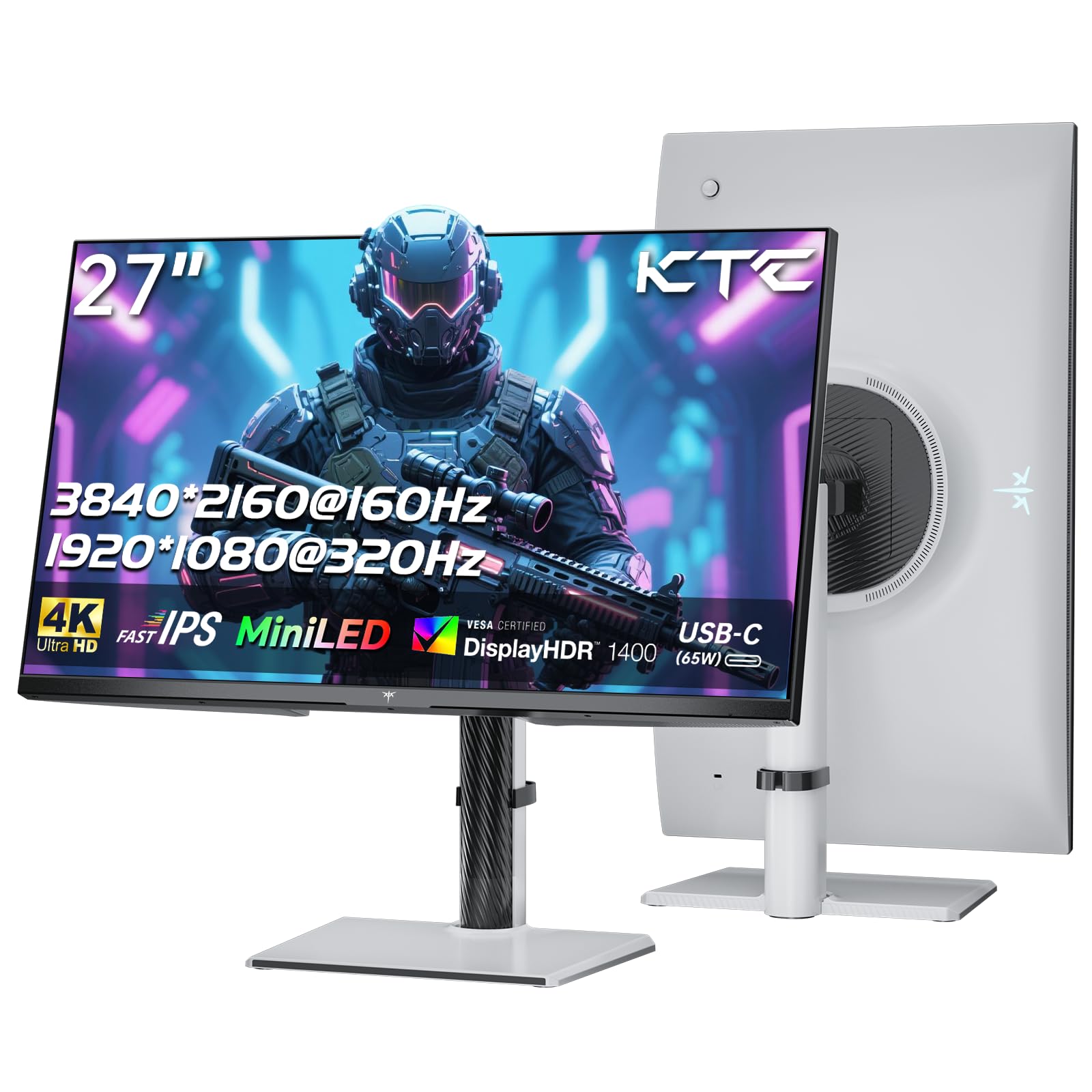
Obrázek: Přední strana view of the KTC M27P6 27-inch MiniLED Gaming Monitor.
The front of the monitor features the 27-inch MiniLED display panel. The KTC logo is typically located at the bottom center bezel.
4.2 Zadní View a porty

Obrázek: Zadní view of the KTC M27P6 monitor, highlighting the various input/output ports and the adjustable stand.
The rear of the monitor houses the input/output ports and the stand attachment point. The ports include:
- Příkon: Pro připojení napájecího adaptéru.
- Porty HDMI 2.1 (x2): For connecting to devices supporting HDMI 2.1 (4K@160Hz / FHD@320Hz).
- Porty DisplayPort 1.4 (x2): For connecting to devices supporting DisplayPort 1.4 (4K@160Hz / FHD@320Hz).
- Port USB-C (x1): Full-function port supporting video input (4K@160Hz / FHD@320Hz) and 65W Power Delivery.
- USB-B Upstream Port (x1): For connecting the monitor's USB hub to your computer, enabling the downstream USB-A ports and KVM functionality.
- USB-A 3.0 Downstream Ports (x3): Pro připojení periferií, jako jsou klávesnice, myši nebo USB disky.
- 3.5mm audio výstup: Pro připojení sluchátek nebo externích reproduktorů.
Video: Overview of the KTC M27P6 monitor's features and design, including its connectivity options and adjustable stand.
5. Nastavení
5.1 Sestavení stojanu
- Opatrně vyjměte komponenty monitoru a stojanu z obalu.
- Attach the stand arm to the monitor panel by aligning the mounting points and securing with screws (if applicable).
- Attach the stand base to the stand arm, ensuring it is firmly connected.
- Sestavený monitor umístěte na stabilní, rovný povrch.
The monitor also supports VESA mounting (100x100mm) for use with compatible wall mounts or monitor arms. Ensure the VESA mount is rated for the monitor's weight.

Image: Diagram illustrating the multi-angle adjustment capabilities of the KTC M27P6 monitor stand, including height, tilt, swivel, and pivot.
5.2 Propojovací kabely
- Připojení napájení: Připojte napájecí adaptér k napájení monitoru a poté zapojte napájecí kabel do elektrické zásuvky.
- Připojení videa:
- For PC/Gaming Console: Connect one end of the HDMI or DisplayPort cable to your device's output and the other end to the corresponding port on the monitor.
- For USB-C Compatible Devices: Connect the USB-C cable from your device to the monitor's USB-C port for video, data, and power delivery.
- USB Hub/KVM Connection: To use the monitor's USB-A ports and KVM functionality, connect the USB-B to USB-A cable from the monitor's USB-B upstream port to a USB-A port on your computer.
- Audio připojení: If using external headphones or speakers, connect them to the 3.5mm audio out port on the monitor.
6. Návod k obsluze
6.1 Zapnutí/vypnutí
Press the power button (usually located on the back or bottom of the monitor) to turn the monitor on or off. The power indicator light will illuminate when the monitor is on.
6.2 Navigace v nabídce OSD
The On-Screen Display (OSD) menu allows you to adjust various monitor settings. Use the joystick or buttons (refer to your monitor's physical layout) to navigate the OSD menu:
- Press Joystick/Button: Enter OSD menu or confirm selection.
- Pohyb joysticku nahoru/dolů: Procházejte možnostmi nabídky.
- Pohyb joysticku doleva/doprava: Adjust values or move to sub-menus.
- Tlačítko Konec: Exit the current menu or OSD.
6.3 Dual Mode Switching (4K@160Hz / FHD@320Hz)
The KTC M27P6 supports seamless switching between two display modes: 4K (3840x2160) at 160Hz and Full HD (1920x1080) at 320Hz. This allows you to optimize performance based on your content (e.g., high-resolution graphics for AAA games or ultra-high refresh rate for competitive FPS games).
To switch modes, access the OSD menu and navigate to the "Display" or "Gaming" settings. Select the desired resolution and refresh rate. Your connected device must also support these resolutions and refresh rates for optimal performance.

Image: Illustration of the KTC M27P6 monitor's seamless dual mode switching capability, showing a 4K@160Hz gaming scene and a FHD@320Hz gaming scene.
6.4 Adaptivní synchronizace
The monitor supports Adaptive Sync (AMD FreeSync and NVIDIA G-Sync compatible) to eliminate screen tearing and stuttering, providing a smoother gaming experience. Ensure Adaptive Sync is enabled in the monitor's OSD settings and in your graphics card control panel.

Image: Visual representation of Adaptive Sync technology, showing how it prevents screen tearing by synchronizing the monitor's refresh rate with the GPU's frame rate.
6.5 Funkce KVM
The integrated KVM (Keyboard, Video, Mouse) switch allows you to control multiple computers or devices connected to the monitor using a single keyboard and mouse. To use KVM:
- Connect your primary computer to the monitor via DisplayPort/HDMI and the USB-B upstream cable.
- Connect your secondary device (e.g., laptop via USB-C) to the monitor.
- Connect your keyboard and mouse to the USB-A downstream ports on the monitor.
- Switch between connected devices using the KVM hotkey or OSD menu option.
6.6 Color Settings and HDR1400
The monitor features a MiniLED panel with 1152 local dimming zones and VESA DisplayHDR 1400 certification, providing high contrast and vibrant colors. You can adjust color settings (brightness, contrast, color temperature, gamma) through the OSD menu. For HDR content, ensure HDR is enabled in your operating system and the monitor's OSD. The monitor supports 10-bit color depth and a wide color gamut (145% sRGB / 99% DCI-P3).

Image: Visual comparison demonstrating the enhanced dynamic range and detail provided by HDR1400 on the KTC M27P6 monitor.
7. Údržba
- Čištění obrazovky: Jemně otřete obrazovku měkkým hadříkem, který nepouští vlákna. V případě odolných skvrn dampen the cloth with a small amount of screen cleaner (non-ammonia based). Do not spray cleaner directly onto the screen.
- Čištění Casing: K otření monitoru použijte měkký, suchý hadřík casing. Nepoužívejte abrazivní čisticí prostředky nebo rozpouštědla.
- Větrání: Ensure the ventilation openings on the monitor are clear of dust and debris to prevent overheating.
8. Řešení problémů
| Problém | Možná příčina | Řešení |
|---|---|---|
| Na obrazovce není žádný obraz | Odpojený napájecí kabel; Odpojený video kabel; Nesprávný vstupní zdroj. | Zkontrolujte připojení napájecího a video kabelu. V nabídce OSD vyberte správný vstupní zdroj. |
| Obraz je rozmazaný nebo zkreslený | Nesprávné rozlišení; Vadný videokabel. | Set the display resolution to the native 3840x2160 or 1920x1080. Try a different video cable. |
| Trhání nebo zasekávání obrazovky ve hrách | Adaptive Sync not enabled; Graphics card driver issues. | Enable Adaptive Sync in monitor OSD and graphics card settings. Update graphics drivers. |
| USB porty nefungují | USB-B upstream cable not connected; Driver issues. | Ensure the USB-B upstream cable is connected from the monitor to your computer. Check computer's USB drivers. |
| Nezní žádný zvuk z audio výstupu | Incorrect audio output selected; Volume too low. | Check audio output settings on your computer. Adjust monitor and device volume. |
9. Specifikace
| Funkce | Detail |
|---|---|
| Značka | KTC |
| Název modelu | M27P6 |
| Velikost obrazovky | 27 Pollici (27 inches) |
| Typ panelu | MiniLED, Fast IPS |
| Resolution (Native) | 3840 x 2160 (4K UHD) |
| Max Refresh Rate (4K) | 160 Hz |
| Max Refresh Rate (FHD) | 320 Hz |
| Doba odezvy | 1ms GtG |
| Místní stmívací zóny | 1152 zóny |
| Certifikace HDR | Displej VESA HDR 1400 |
| Jas | 1400 cd / m² (vrchol) |
| Kontrastní poměr | 1,000,000:1 (dynamický) |
| Barevný gamut | 145 % sRGB, 99 % DCI-P3 |
| Barevná hloubka | 10bitový |
| Adaptivní synchronizace | Kompatibilní s AMD FreeSync a NVIDIA G-Sync |
| Viewúhel | 178 stupňů |
| Konektivita | 2x HDMI 2.1, 2x DisplayPort 1.4, 1x USB-C (65W PD), 1x USB-B Upstream, 3x USB-A 3.0 Downstream, 1x 3.5mm Audio Out |
| Podpora KVM | Ano |
| Úpravy stojanu | Výška, sklon, otočení, otočení |
| VESA Mount | 100 x 100 mm |
| Rozměry (DxŠxV) | 21.1P x 61.7d x 54.7v cm |
10. Záruka a podpora
KTC products are covered by a limited warranty. Please refer to the warranty card included in your package for specific terms and conditions. For technical support, troubleshooting assistance, or warranty claims, please contact KTC customer service or visit the official KTC webmísto.
You can find more information and contact details on the KTC official store page: KTC Store.