
1. Úvod
This manual provides instructions for the setup, operation, maintenance, and troubleshooting of your CRUA 27-inch 240Hz QHD IPS Gaming Monitor. This monitor features a 2560x1440 QHD resolution, a 240Hz refresh rate, an IPS panel for wide viewing angles, AMD FreeSync support, a blue light filter for eye protection, and built-in speakers. Please read this manual thoroughly before using the product.
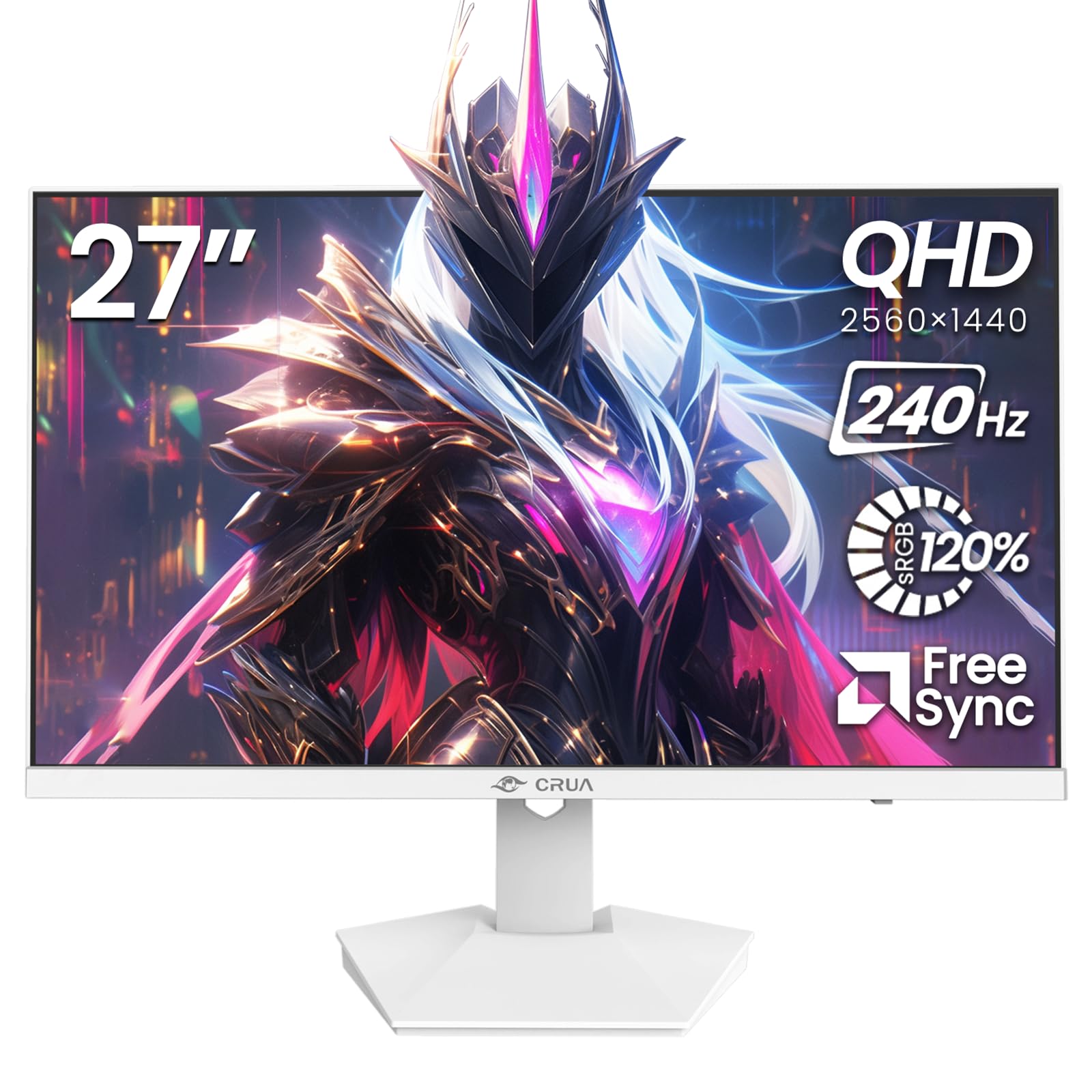
Obrázek: Přední strana view of the CRUA 27-inch 240Hz QHD IPS Gaming Monitor.
2. Obsah balení
Ověřte, zda jsou v balení přítomny všechny položky:
- CRUA 27-inch 240Hz QHD IPS Gaming Monitor
- Stojan na monitor (základna a krk)
- Napájecí adaptér a kabel
- HDMI kabel
- Kabel DisplayPort (DP)
- Uživatelská příručka (tento dokument)
3. Nastavení
3.1 Sestavení stojanu
- Opatrně vyjměte monitor z obalu a položte jej displejem dolů na měkký, čistý povrch, abyste zabránili poškrábání.
- Připevněte krk stojanu k panelu monitoru. Ujistěte se, že bezpečně zacvakne na místo.
- Připevněte základnu stojanu k hrdlu stojanu. Utáhněte všechny šrouby, pokud jsou součástí dodávky.
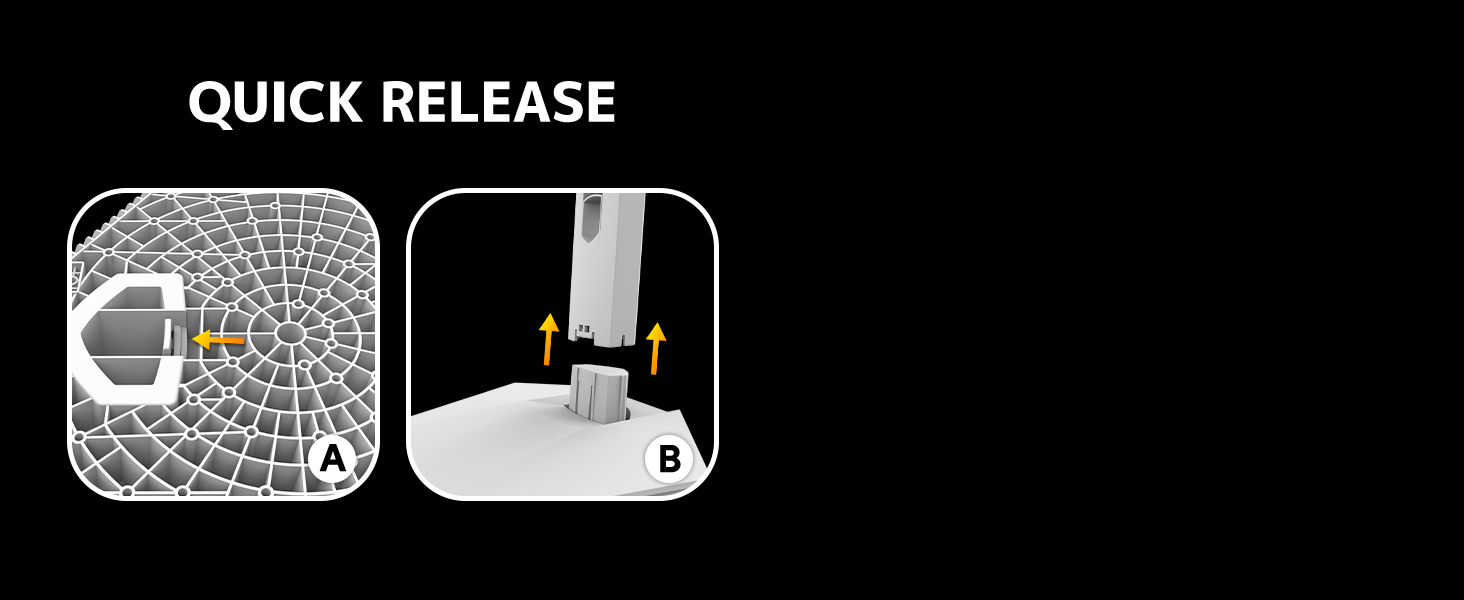
Image: Diagram illustrating the quick release stand assembly.
3.2 Montáž na stěnu (volitelné)
The monitor supports VESA wall mounting (75mm x 75mm). To wall mount:
- Pokud je již stojan připevněn k monitoru, odstraňte jej.
- Připevněte k monitoru nástěnný držák kompatibilní s VESA (není součástí dodávky) pomocí vhodných šroubů.
- Pro bezpečnou instalaci dodržujte pokyny dodané s držákem na zeď.

Obrázek: Zadní view of the monitor showing VESA mount points (75x75mm) and built-in speakers.
3.3 Připojení k počítači
Připojte monitor k počítači jedním z následujících způsobů:
- DisplayPort (DP 1.4): For optimal performance, especially at 240Hz QHD resolution, use the included DisplayPort cable.
- HDMI (HDMI 2.0): Use an HDMI cable for QHD resolution at up to 144Hz.
Připojte napájecí adaptér k napájecímu vstupu monitoru a poté jej zapojte do elektrické zásuvky.

Obrázek: Zadní view of the monitor displaying the input ports, including HDMI and DisplayPort.
4. Návod k obsluze
4.1 Zapnutí/vypnutí
Press the power button located on the back of the monitor to turn it on or off. The power button may resemble a joystick for OSD navigation.
4.2 Nabídka na obrazovce (OSD)
The OSD menu allows you to adjust various monitor settings. Use the joystick-like button on the back of the monitor to navigate the menu:
- Zmáčknout tlačítko: Otevře nabídku OSD.
- Pohyb nahoru/dolů: Prochází možnostmi nabídky.
- Pohyb vlevo/vpravo: Adjusts selected settings or enters sub-menus.
- Stiskněte znovu: Potvrzuje výběr nebo opouští podnabídku.
4.3 Nastavení zobrazení
V nabídce OSD můžete upravit:
- Jas/kontrast: Upravte celkový jas a kontrastní poměr.
- Nastavení barev: Fine-tune color temperature, hue, and saturation. The monitor offers 120% sRGB color coverage for accurate and vibrant visuals.
- Vstupní zdroj: Ručně vyberte mezi vstupy HDMI a DisplayPort.

Image: Details on true color accuracy, including 120% sRGB, 8-bit color depth, and 16.7 million colors.
4.4 Herní funkce
- Obnovovací frekvence: The monitor supports up to 240Hz refresh rate for smooth motion. Ensure your graphics card and cable support this rate.
- AMD FreeSync: Enable FreeSync in the OSD menu and on your AMD graphics card settings to eliminate screen tearing and stuttering.

Image: Visual comparison demonstrating the smoothness of 240Hz refresh rate versus 60Hz.

Image: Illustrates the effect of Adaptive Sync (FreeSync) on reducing screen tearing and stuttering.
4.5 Ochrana očí
The monitor includes a built-in blue light filter to reduce eye strain during extended use. This feature can be enabled or adjusted through the OSD menu.
5. Údržba
Pro zachování výkonu a vzhledu monitoru:
- Čištění obrazovky: Obrazovku jemně otřete měkkým hadříkem, který nepouští vlákna. Na odolné skvrny použijte čisticí roztok určený pro monitory nanesený na hadřík, nikoli přímo na obrazovku.
- Čištění Casing: K otření monitoru použijte měkký, suchý hadřík casing. Vyhněte se abrazivním čisticím prostředkům nebo rozpouštědlům.
- Vypnout: Před čištěním vždy vypněte monitor a odpojte jej ze zásuvky.
6. Řešení problémů
| Problém | Možná příčina | Řešení |
|---|---|---|
| Na obrazovce není žádný obraz | Monitor is off or not receiving signal. | Ensure power cable is connected and monitor is on. Check video cable connection (HDMI/DP) to both monitor and computer. Select correct input source via OSD. |
| Blikání nebo trhání obrazu | FreeSync not enabled or incompatible settings. | Enable FreeSync in the monitor OSD and your graphics card control panel. Ensure your graphics card drivers are up to date. |
| Poor picture quality (blurry, incorrect colors) | Incorrect resolution, color settings, or faulty cable. | Set display resolution to 2560x1440. Adjust brightness, contrast, and color settings in the OSD. Try a different video cable. |
| Žádný zvuk z vestavěných reproduktorů | Volume too low, incorrect audio output selected. | Increase monitor volume via OSD. Ensure the monitor is selected as the audio output device in your computer's sound settings. |
| Mrtvé pixely | Výrobní vada. | Refer to warranty information for pixel policy. Contact customer support if within warranty. |
7. Specifikace
| Funkce | Specifikace |
|---|---|
| Číslo modelu | CR270I |
| Velikost obrazovky | 27 palce |
| Typ panelu | IPS |
| Rezoluce | 2560 x 1440 (QHD) |
| Obnovovací frekvence | 240 Hz |
| Poměr stran | 16:9 |
| Barevný gamut | 120% sRGB |
| Jas | 300 cd/m² |
| Kontrastní poměr | 1000:1 |
| Viewúhel | 178° (horizontálně/vertikálně) |
| Video vstupy | HDMI 2.0, DisplayPort 1.4 |
| Zvuk | Vestavěné reproduktory |
| VESA Mount | Rozměr 75 mm x 75 mm |
| Rozměry produktu | 1.78 x 24 x 14 palce |
| Hmotnost položky | 12.62 libry |
8. Záruka a podpora
CRUA provides high-quality computer monitors and premium services. If you have any questions or require assistance, please contact CRUA customer support. Refer to your purchase documentation for specific warranty terms and contact information.