
Zavedení
The Grandstream GWN7062E is a high-performance Wi-Fi 6 dual-band router designed for small offices, home offices, and remote work environments. It delivers wireless speeds up to 3Gbps and supports up to 128 concurrent client devices. Key features include secure VPN access, MU-MIMO technology, beamforming, and mesh network support for expanded coverage and reliable performance. Powered by a 1.3GHz dual-core processor, the GWN7062E integrates enterprise-grade security features and can be managed via Grandstream’s cloud and on-premise platforms.
Obsah balení
Ověřte, zda jsou v balení přítomny všechny položky:
- Router GWN7062E
- Napájecí adaptér
- Ethernetový kabel
- Průvodce rychlou instalací
Konec produktuview
Přední panel
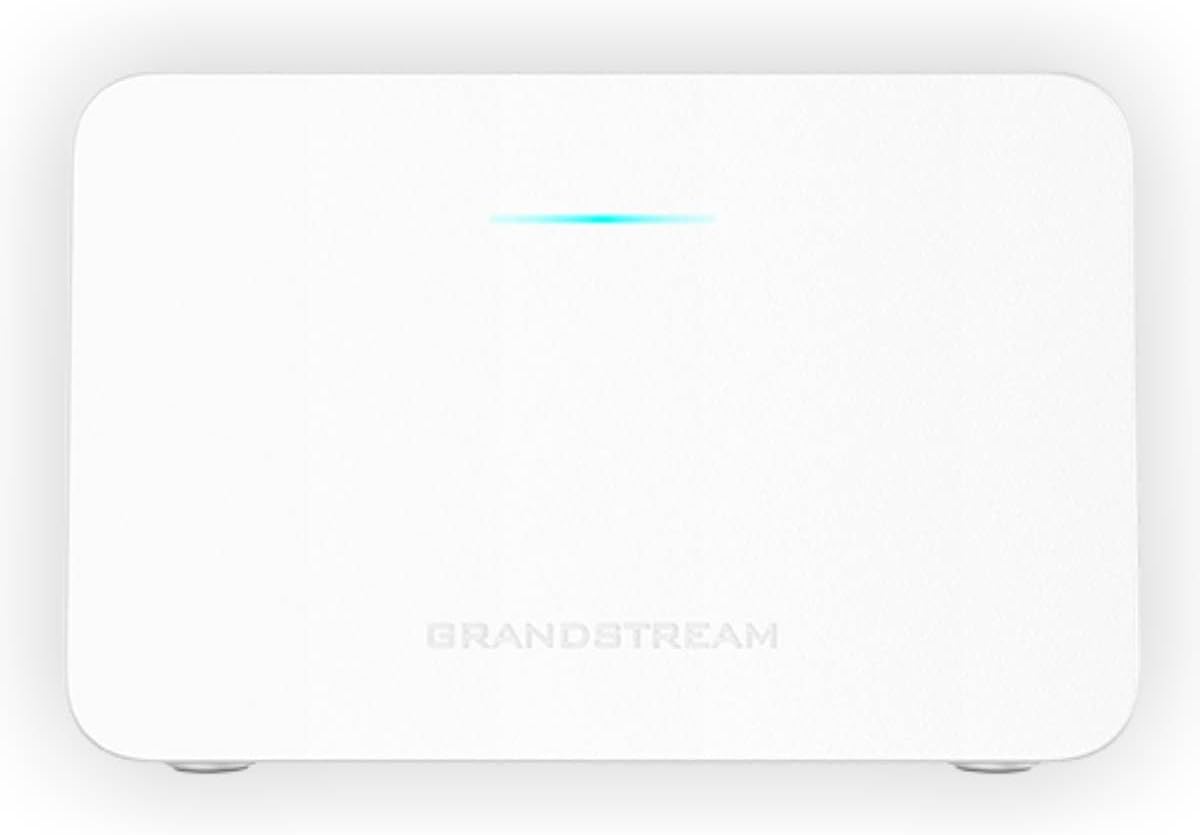
Obrázek 1: Přední strana view of the GWN7062E router with a single LED indicator.
The front panel of the GWN7062E features a single LED indicator. This LED provides status information about the device's operation, including power status, internet connectivity, and Wi-Fi activity. Refer to the Quick Installation Guide for specific LED behavior interpretations.
Zadní panel
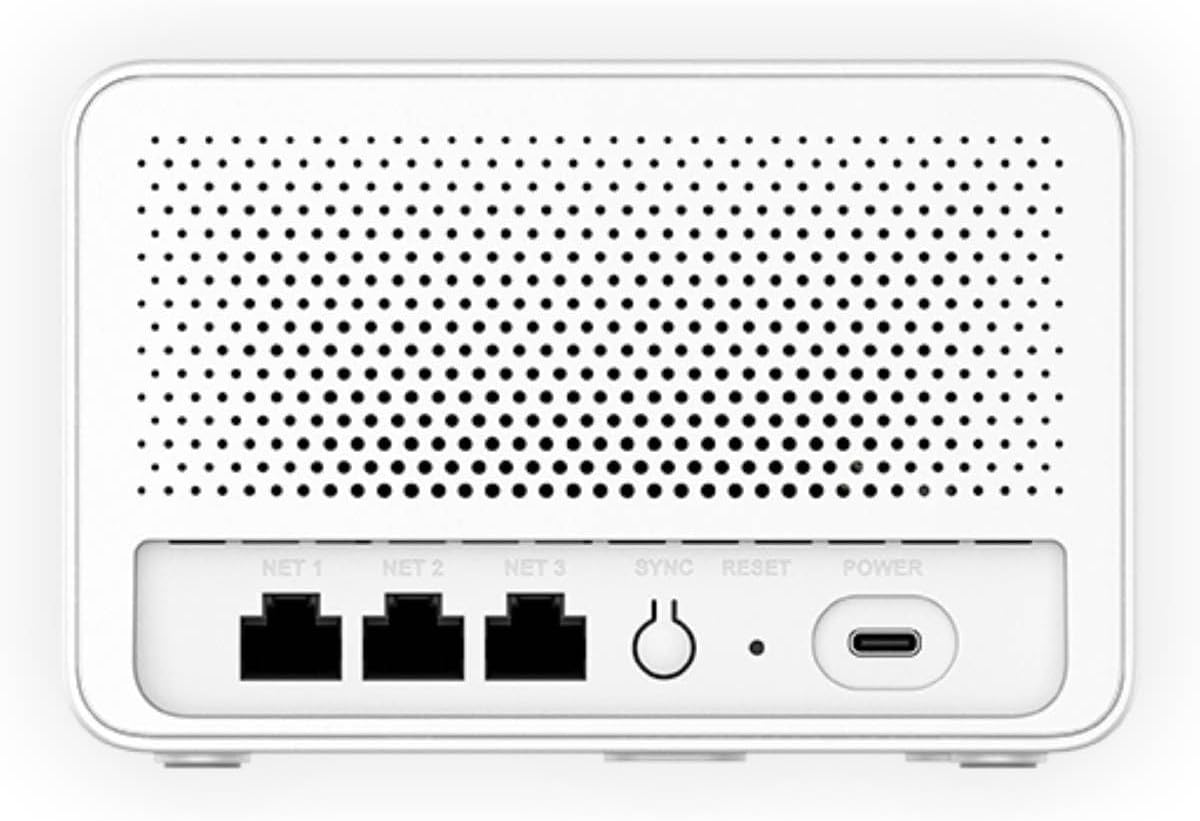
Obrázek 2: Zadní view of the GWN7062E router showing Ethernet ports, SYNC, RESET, and POWER ports.
The rear panel provides all necessary connection points and control buttons:
- NET 1, NET 2, NET 3: Gigabit Ethernet ports for WAN and LAN connections. Typically, NET 1 is used for the WAN (Internet) connection, while NET 2 and NET 3 serve as LAN ports for wired devices.
- SYNCHRONIZOVAT: Button used for mesh networking synchronization with other Grandstream routers.
- RESETOVÁNÍ: Button to restore the router to factory default settings. Press and hold for approximately 10 seconds while the device is powered on.
- MOC: USB-C port for connecting the included power adapter.
Nastavení
Instalace hardwaru
- Připojte napájení: Connect the included power adapter to the POWER port on the rear of the GWN7062E and then plug the adapter into a power outlet. The LED indicator on the front panel will illuminate.
- Připojení k internetu: Connect one end of the provided Ethernet cable to the WAN port (typically NET 1) on the GWN7062E and the other end to your modem or internet service provider's device.
- Připojení zařízení (volitelné): For wired connections, connect Ethernet cables from your computers or other network devices to the LAN ports (NET 2 or NET 3) on the GWN7062E.
Počáteční konfigurace
After hardware installation, configure your router using the web rozhraní:
- Připojení k routeru:
- Bezdrátový: Connect your computer or mobile device to the default Wi-Fi network (SSID) broadcast by the GWN7062E. The default SSID and password are usually printed on a label on the bottom of the router.
- Kabelové: Ensure your computer is connected to a LAN port (NET 2 or NET 3) of the GWN7062E.
- Přístup Web uživatelské rozhraní: Otevřete a web prohlížeč a zadejte výchozí IP adresu (např. http://192.168.1.1) or the router's domain name (if applicable, check the label) in the address bar.
- Přihlásit se: Enter the default username and password. These credentials are typically found on the router's label.
- Průvodce počátečním nastavením: Follow the on-screen instructions of the setup wizard to change the default administrator password, configure your internet connection settings, and set up your Wi-Fi network name (SSID) and password. It is highly recommended to change all default credentials for security.
Návod k obsluze
Nastavení sítě Wi-Fi
To customize your wireless network settings:
- Log in to the GWN7062E web rozhraní.
- Navigate to the 'Wi-Fi' or 'Wireless Settings' section.
- You can configure the 2.4GHz and 5GHz bands separately. Change the SSID (network name) and set a strong WPA2/WPA3 password for each.
- Save your changes. Your devices will need to reconnect using the new SSID and password.
Pokročilé funkce
- Podpora VPN: The GWN7062E includes built-in VPN support, allowing remote employees to securely access corporate networks. Configuration options are available in the 'VPN' section of the web rozhraní.
- Síťové sítě: Expand your Wi-Fi coverage by integrating the GWN7062E with other Grandstream routers to form a mesh network. Use the SYNC button or the web interface to establish mesh connections.
- Firewall Features: Utilize the router's rich firewall capabilities, including Denial of Service (DoS) protection, network blocklists, and URL content filtering, to enhance network security. These settings are typically found under 'Security' or 'Firewall' in the web rozhraní.
- Síť pro hosty: Vytvořte samostatné hostující Wi-Fi sítě, které návštěvníkům poskytnou přístup k internetu, aniž by to ohrozilo zabezpečení vaší hlavní sítě.
Údržba
- Aktualizace firmwaru: Regularly check for and install firmware updates from the Grandstream webwebu nebo prostřednictvím routeru web interface. Firmware updates provide new features, performance improvements, and security patches.
- Obnovení továrního nastavení: If you encounter persistent issues or forget your administrator password, you can perform a factory reset. With the router powered on, press and hold the RESET button on the rear panel for approximately 10 seconds. This will erase all custom configurations and restore the device to its original factory settings.
- Čištění: Keep the router in a clean, dust-free environment. Use a soft, dry cloth to clean the exterior. Do not use liquid cleaners or aerosols. Ensure ventilation openings are not obstructed.
Odstraňování problémů
| Problém | Možné řešení |
|---|---|
| Žádné připojení k internetu |
|
| Nelze přistupovat Web Rozhraní |
|
| Wi-Fi Network Not Visible |
|
| Pomalá rychlost Wi-Fi |
|
Specifikace
| Funkce | Detail |
|---|---|
| Značka | Grandstream |
| Název modelu | GWN7062E |
| Bezdrátové Standardní | Wi-Fi 6 (802.11ax) |
| Bezdrátová propustnost | Až 3 Gbps |
| Třída frekvenčního pásma | Dvoupásmové (2.4 GHz a 5 GHz) |
| Technologie MIMO | 2.4G 2x2:2 and 5G 3x3:2 MU-MIMO |
| Concurrent Devices | Up to 128 wireless client devices |
| Procesor | 1.3GHz Dual-Core |
| Porty | 3 Gigabit Ethernet ports (NET 1, NET 2, NET 3), 1 USB-C Power port |
| Speciální funkce | VPN Support, Mesh Networking, Enterprise-Grade Security, Firewall Features |
| Bezpečnostní protokol | WPA2-PSK, WPA3, WPA2-Enterprise, WPA-Enterprise |
| Hmotnost položky | 16 unce |
| Zahrnuté komponenty | GWN7062E router, Power Adapter, Ethernet Cable, Quick Installation Guide |
Záruka a podpora
For warranty information and technical support, please contact Grandstream directly. Details regarding product warranty periods and support channels are typically available on the official Grandstream website or within the product's packaging.
Výrobce: Grandstream
Kontaktní údaje výrobce: Refer to the official Grandstream webweb s nejaktuálnějšími kontaktními údaji a zdroji podpory.