
Zavedení
This manual provides detailed instructions for the setup, operation, maintenance, and troubleshooting of your Axtel One BT Stereo Wireless Headset. This headset is designed for professional use, offering reliable Bluetooth connectivity, noise-cancelling microphones, and high-definition speakers for clear communication and audio playback.
Obsah balení
Ověřte, zda jsou v balení přítomny všechny položky:
- Axtel One BT Stereo Wireless Headset
- USB-A dongle
- Nabíjecí stanice
- Nabíjecí kabel USB-C
- Uživatelská příručka (tento dokument)

Image: Axtel One BT Stereo Wireless Headset placed on its charging base, showing the headset and base as a complete unit.
Konec produktuview
Familiarize yourself with the components of your Axtel One BT Stereo Wireless Headset.

Obrázek: Boční view of the Axtel One BT Stereo Wireless Headset with the microphone boom extended, highlighting the earcups and headband.
Komponenty headsetu:
- Nastavitelná čelenka: Pro pohodlné nošení.
- Polštářky do uší: Vegan leather and memory foam for comfort.
- Rameno mikrofonu: Flexible arm with dual noise-cancelling microphones.
- Ovládací tlačítka: Located on the earcup for call management (answer/reject/mute) and volume.
- Port USB-C: For direct charging of the headset.
- Busy Light Indicator: Signals availability during calls.
Charging Station & USB-A Dongle:

Image: The Axtel One BT Charging Station, a black stand designed to hold and charge the headset.
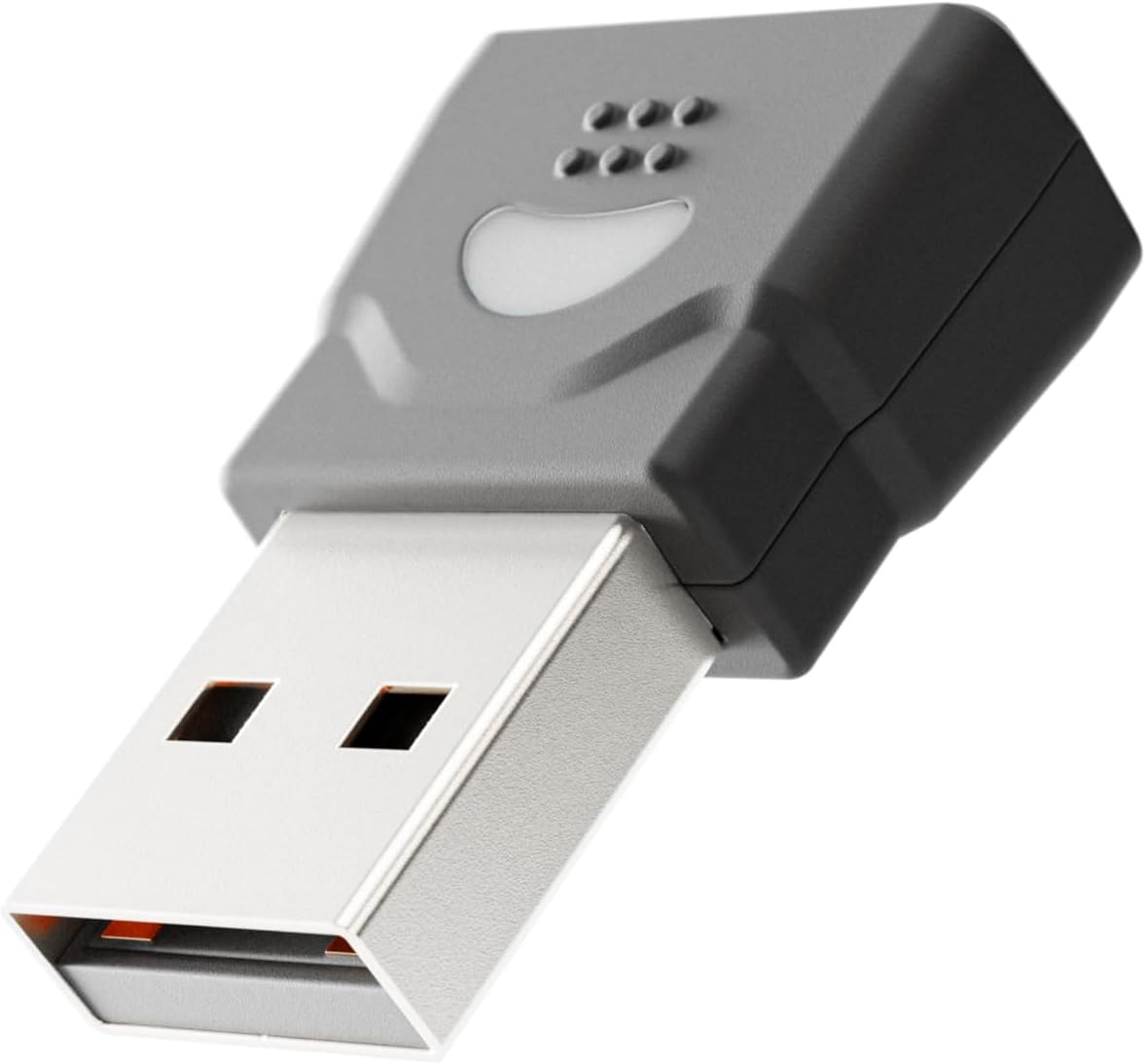
Image: The compact USB-A dongle, used for connecting the headset to a computer without built-in Bluetooth.
- Nabíjecí stanice: Provides a convenient dock for charging and storing the headset.
- USB-A adaptér: Enables wireless connection to computers without Bluetooth or for enhanced stability.
Nastavení
1. Nabíjení náhlavní soupravy
Before initial use, fully charge your headset. A full charge takes approximately 2 hours and provides up to 40 hours of talk or music time. A 20-minute fast charge can provide several hours of use.
- Použití nabíjecí stanice: Connect the USB-C charging cable to the charging station and then to a power source (e.g., computer USB port or wall adapter). Place the headset onto the charging station. The headset's indicator light will show charging status.
- Přímé nabíjení přes USB-C: Connect the USB-C charging cable directly to the USB-C port on the headset and then to a power source.
2. Connecting to a Computer via USB-A Dongle (Plug & Play)
For seamless connection to your computer, use the included USB-A dongle.
- Vložte USB-A dongle do volného USB-A portu v počítači.
- The dongle's indicator light will blink, then turn solid when connected to the headset.
- Power on your headset. It will automatically pair with the dongle.
- Your computer should recognize the headset as an audio device. You may need to select "Axtel One BT" as your default audio input/output device in your system settings.
3. Connecting via Bluetooth (Mobile Devices / Computers with Bluetooth)
To connect to a mobile device or a computer with built-in Bluetooth:
- Zkontrolujte, zda je náhlavní souprava vypnutá.
- Press and hold the Power button on the headset until the indicator light flashes blue and red, indicating pairing mode.
- Na svém zařízení (chytrý telefon, tablet, počítač) přejděte do nastavení Bluetooth a povolte Bluetooth.
- Select "Axtel One BT" from the list of available devices.
- Once paired, the headset's indicator light will turn solid blue.
Návod k obsluze
Zapnutí/vypnutí
- Zapnutí: Stiskněte a podržte tlačítko Napájení po dobu 2 sekund.
- Vypnout: Stiskněte a podržte tlačítko Napájení po dobu 3 sekund.
Ovládání hovorů
The headset features integrated controls for managing calls.
- Přijmout/ukončit hovor: Stiskněte jednou tlačítko Volat.
- Odmítnout hovor: Stiskněte a podržte tlačítko Volat po dobu 2 sekund.
- Ztlumit/zapnout mikrofon: Press the Mute button (usually located on the microphone boom or earcup) once during a call.
Ovládání zvuku
- Zvýšit hlasitost: Stiskněte tlačítko pro zvýšení hlasitosti.
- Snížit hlasitost: Stiskněte tlačítko pro snížení hlasitosti.
Microsoft Teams and UC Platform Compatibility
The Axtel One BT Stereo Headset is optimized for Microsoft Teams and compatible with other Unified Communications (UC) platforms such as Zoom, Skype, and Webex. For optimal performance, ensure the headset is selected as the default audio device within the application settings.
Indikátor zaneprázdněného stavu
The integrated busy light indicator automatically illuminates when you are on a call, signaling to others that you are occupied and minimizing interruptions.
Údržba
Čištění
- Wipe the headset and charging station with a soft, dry, anti-static cloth.
- Nepoužívejte agresivní chemikálie, čisticí rozpouštědla ani silné čisticí prostředky.
Péče o baterie
- Chcete-li prodloužit životnost baterie, vyhněte se častému úplnému vybíjení sluchátek.
- Pokud sluchátka delší dobu nepoužíváte, skladujte je na chladném a suchém místě.
Earcup Maintenance
The vegan leather and memory foam ear cushions are designed for comfort and can be swapped for hygiene and durability. Refer to the manufacturer's website or support for instructions on replacing ear cushions.
Odstraňování problémů
| Problém | Možná příčina | Řešení |
|---|---|---|
| Z sluchátek se nehlásí žádný zvuk | Headset not powered on; Not paired; Incorrect audio device selected; Volume too low. | Ensure headset is powered on. Re-pair the headset. Check computer/device audio settings and select "Axtel One BT". Increase headset and device volume. |
| Mikrofon nefunguje | Ztlumený mikrofon; Vybráno nesprávné vstupní zařízení; Rameno mikrofonu není správně umístěno. | Unmute the microphone. Check computer/device audio settings and select "Axtel One BT" as input. Ensure microphone boom is close to your mouth. |
| Nelze se připojit přes Bluetooth | Headset not in pairing mode; Device Bluetooth off; Out of range; Interference. | Put headset in pairing mode (flashing blue/red). Ensure device Bluetooth is on. Move headset closer to device. Turn off other Bluetooth devices temporarily. |
| Problémy s nabíjením | Cable or charging station not connected properly; Faulty cable/port; Headset not seated correctly on station. | Check all cable connections. Try a different USB port or power adapter. Ensure headset is firmly seated on the charging station. |
| Špatná kvalita zvuku | Weak signal; Interference; Low battery. | Move closer to the connected device. Avoid sources of strong electromagnetic interference. Charge the headset fully. |
Specifikace
| Název modelu | ONE BT Stereo with charging base |
| Číslo modelu | AXH-ONEBTD |
| Technologie připojení | Bezdrátové (Bluetooth) |
| Umístění uší | Přes ucho |
| Form Factor | Na uchu |
| Barva | Černý |
| Velikost ovladače reproduktoru | 40mm HD reproduktory |
| Mikrofon | Dual Noise-Cancelling Microphones (ENC) |
| Kapacita baterie | 500 XNUMX mAh |
| Doba hovoru | Až 40 hodin |
| Čas hudby | Až 40 hodin |
| Pohotovostní doba | Až 8.5 dní |
| Doba nabíjení | Up to 2 hours (via USB-C) |
| Acoustic Protection Technology | Yes, < 118 dB(A) |
| Digitální zpracování signálu (DSP) | Ano |
| Automatické řízení zisku (AGC) | Ano |
| Indikátor zaneprázdněného stavu | Ano |
| Materiál polštáře | Memory foam with vegan leather finish |
| Kompatibilita platformy | Compatible with major communication platforms (MS Teams, Zoom, Skype, Webex) |
| USB-A dongle | Součástí balení |
| Výrobce | Axtel |
Informace o záruce
The Axtel One BT Stereo Wireless Headset comes with a Dvouletá omezená záruka výrobce. This warranty covers defects in materials and workmanship under normal use. Please retain your proof of purchase for warranty claims. For full terms and conditions, please refer to the official Axtel webwebu nebo kontaktujte zákaznickou podporu.
Podpora
If you encounter any issues not covered in the troubleshooting section or require further assistance, please contact Axtel customer support. You can find contact information on the official Axtel webmísto.
Online zdroje: For the latest drivers, firmware updates, and FAQs, visit the Axtel support page.