
1. Úvod
This manual provides instructions for the Quntis 20.5-inch Monitor Light Bar. This device is designed to provide precise, eye-care illumination for your workspace, featuring radar motion sensing, auto-dimming, and remote control capabilities. Please read this manual thoroughly before use to ensure proper operation and safety.
2. Obsah balení
Ověřte, zda jsou v balení obsaženy všechny níže uvedené položky:
- Monitor Light Bar (20.5 inches)
- Bezdrátové dálkové ovládání
- Napájecí kabel USB Type-C
- Uživatelská příručka
- AAA Batteries (3x) for Remote Control (Note: Batteries may not be included in all regions. Please check packaging.)
- Allen Key (for clamp adjustment, if applicable)
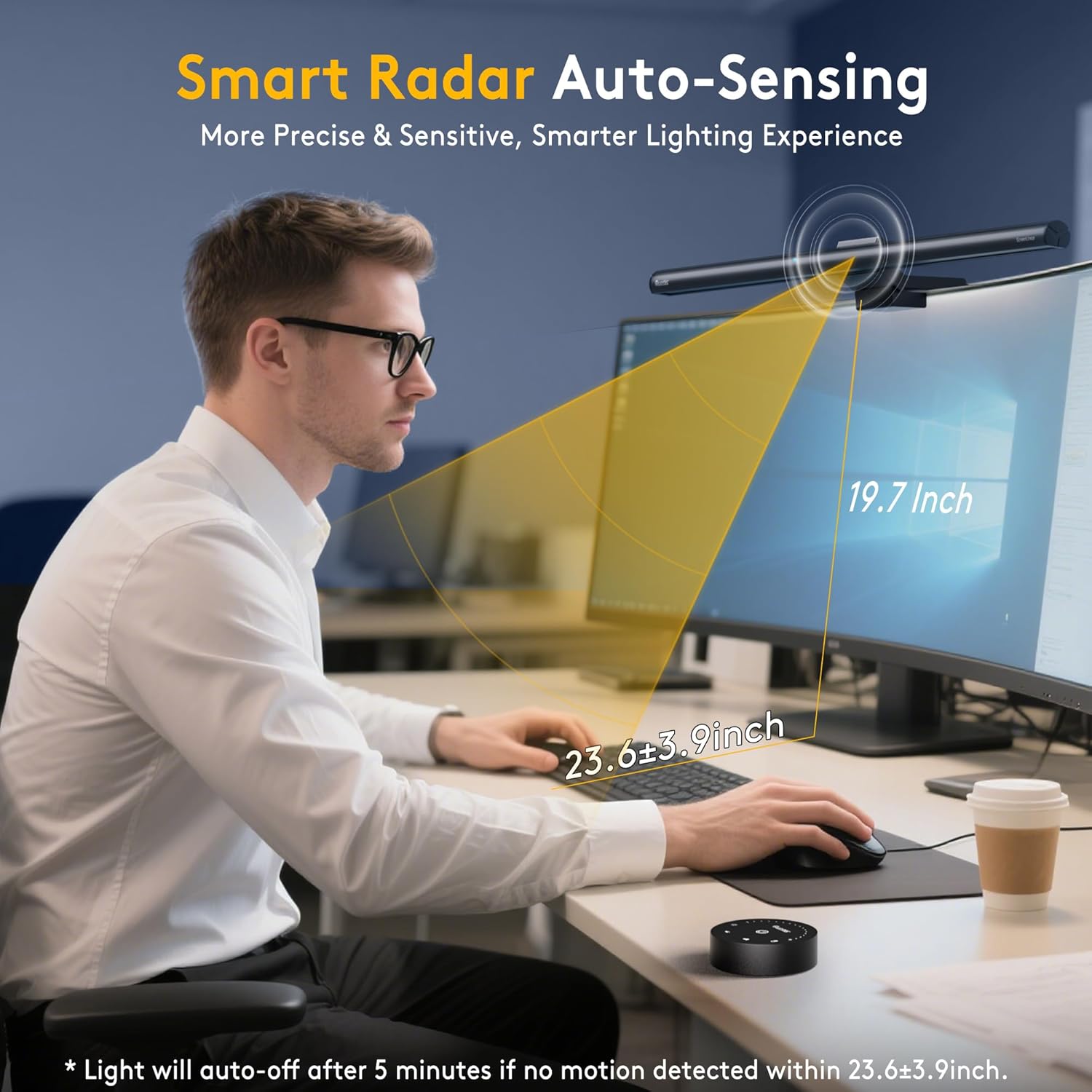
Image: All components included in the Quntis monitor light bar package.
Video: Unboxing and installation guide for the Quntis ScreenLinear Radar Monitor Light Bar.
3. Nastavení
3.1 Instalace baterií dálkového ovladače
- Remove the protective film from the remote control.
- Gently twist and open the bottom cover of the remote control.
- Vložte tři baterie AAA, dbejte na správnou polaritu (+/-).
- Close the bottom cover securely.
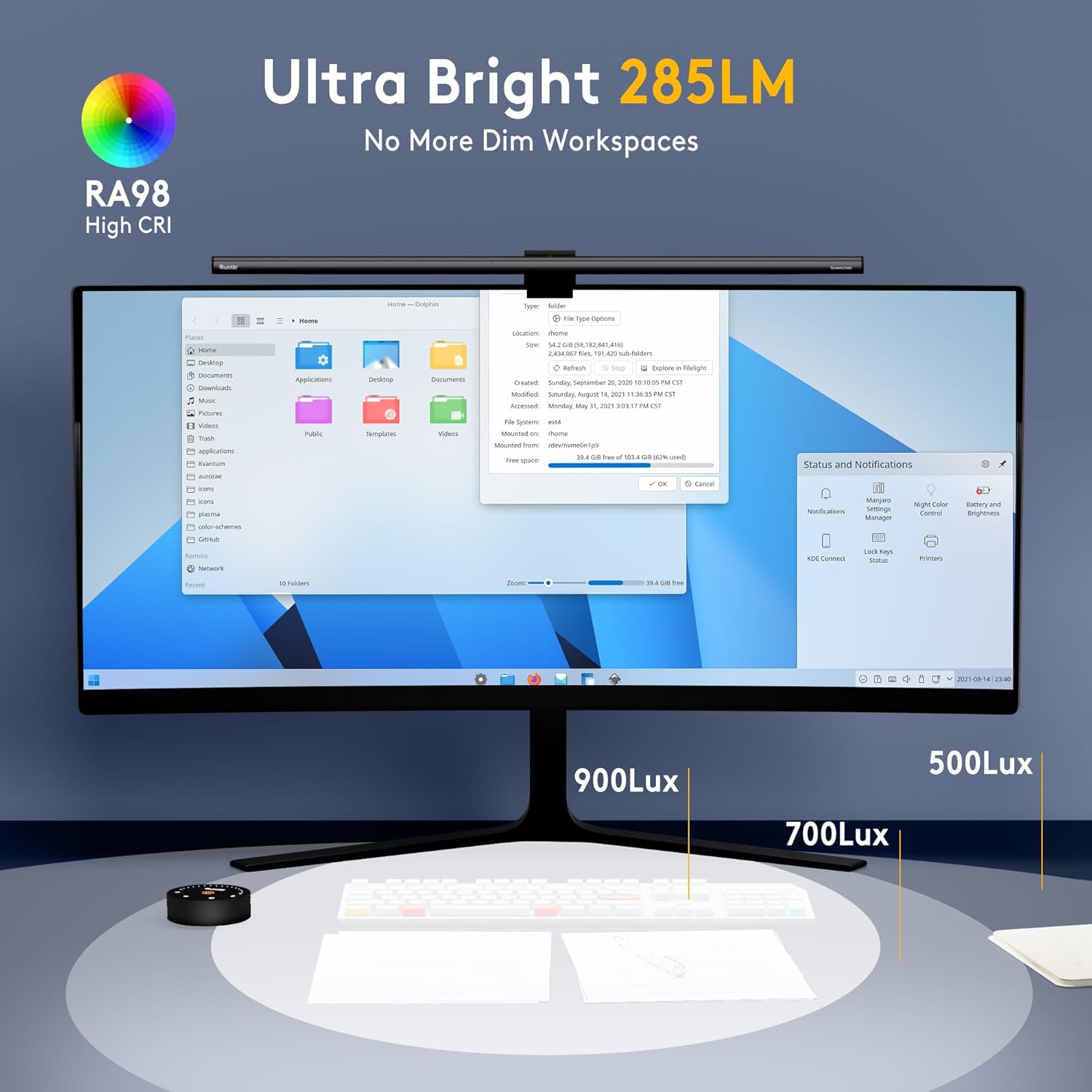
Image: Installing AAA batteries into the remote control.
3.2 Montáž světelné lišty
- Upravte třamp to fit the thickness of your monitor. The clamp is designed for various monitor types, including curved, ordinary, and irregular screens.
- Place the light bar securely on top of your monitor. Ensure the counterweight block provides stable balance.
- Connect the USB Type-C power cable to the light bar and then to a USB power source (e.g., computer USB port, USB wall adapter).
Obrázek: Podrobný view nastavitelného clamp mechanism for various monitor types.
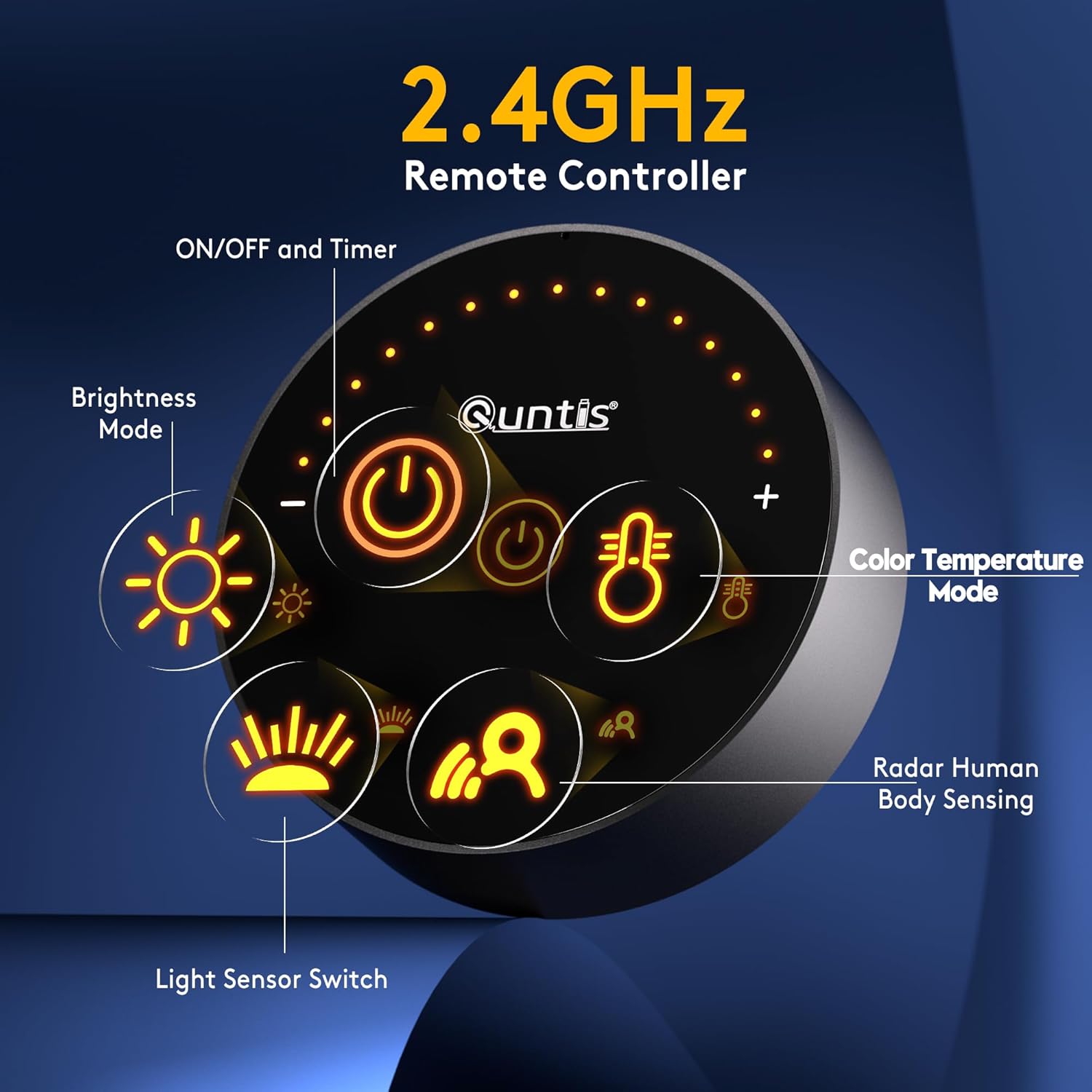
Image: The monitor light bar mounted on a screen, highlighting the reserved space for a webvačka.
4. Provoz
4.1 Zapnutí/vypnutí
- Press the power button on the remote control to turn the light bar on or off.
4.2 Nastavení jasu
- Klepněte na: Tap the brightness buttons (+/-) on the remote control for incremental adjustments.
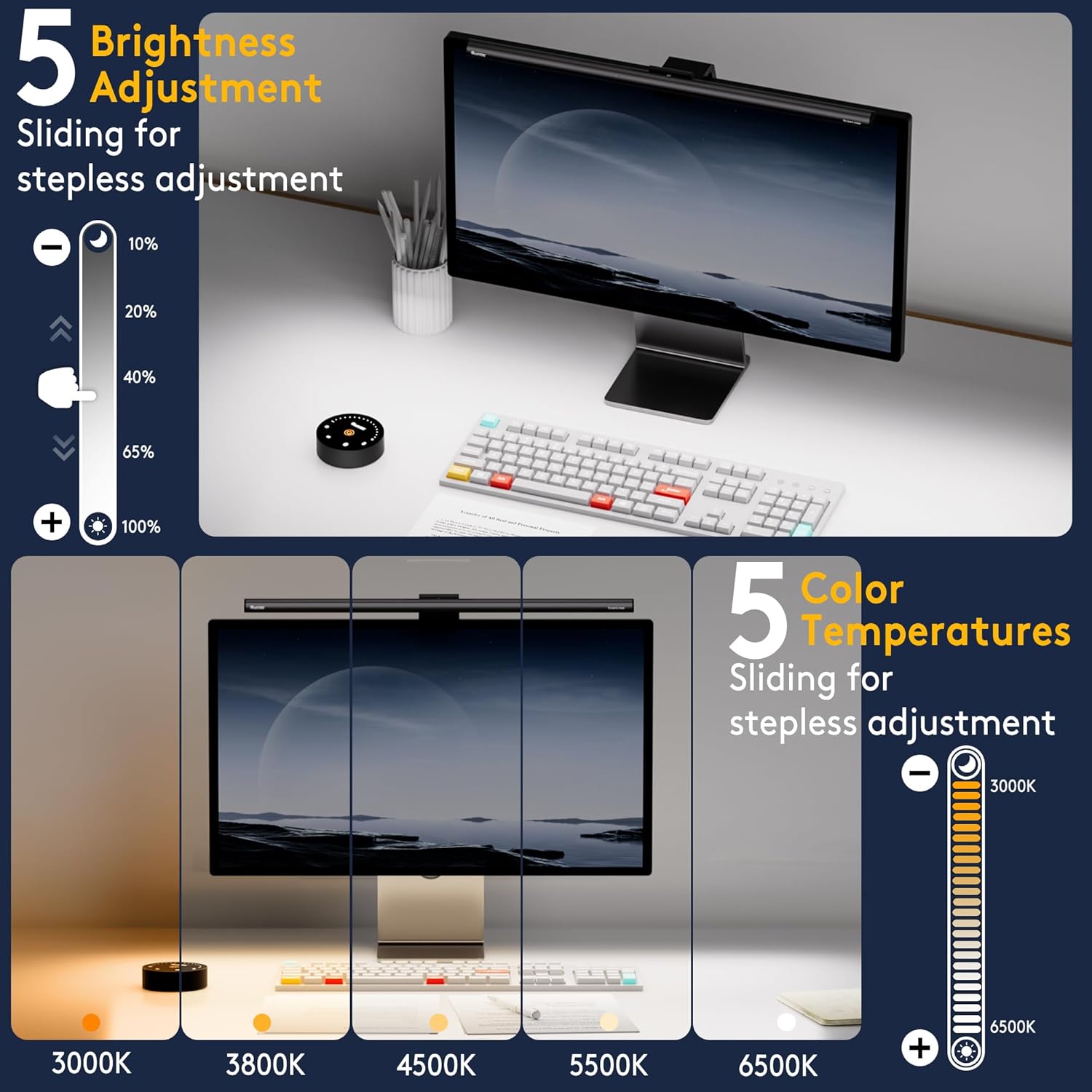
- Dlouhé stisknutí: Long press the brightness buttons (+/-) for stepless dimming, allowing fine-tuned brightness levels from 10% to 100%.

Image: The remote control interface for adjusting brightness and color temperature.
4.3 Nastavení teploty barev
- Klepněte na: Tap the color temperature buttons (+/-) on the remote control for incremental adjustments.
- Dlouhé stisknutí: Long press the color temperature buttons (+/-) for stepless adjustment of color temperature, ranging from 3000K (warm white) to 6500K (cool white).
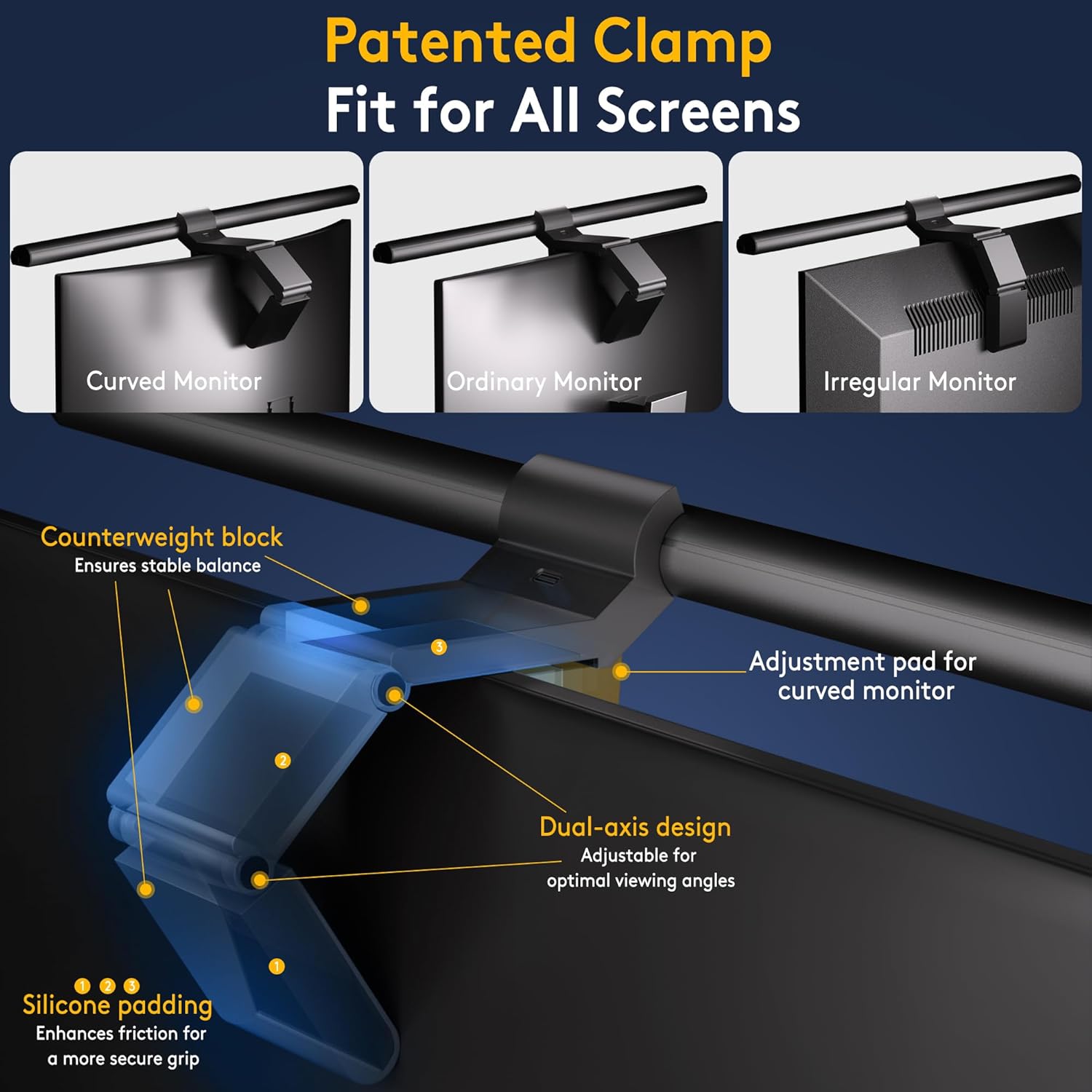
Image: Visual representation of various color temperature settings available on the light bar.
4.4 Auto-Dimming Function
- Press the auto-dimming button (sun icon) on the remote control to activate this feature. The integrated light sensor will automatically adjust the brightness based on ambient light conditions.
4.5 Radar Motion Sensor
- Press the radar motion sensor button (person icon) on the remote control to enable this function. The light bar will automatically turn on when movement is detected within a 23.6" ±3.9" range and turn off 5 minutes after no movement is detected.
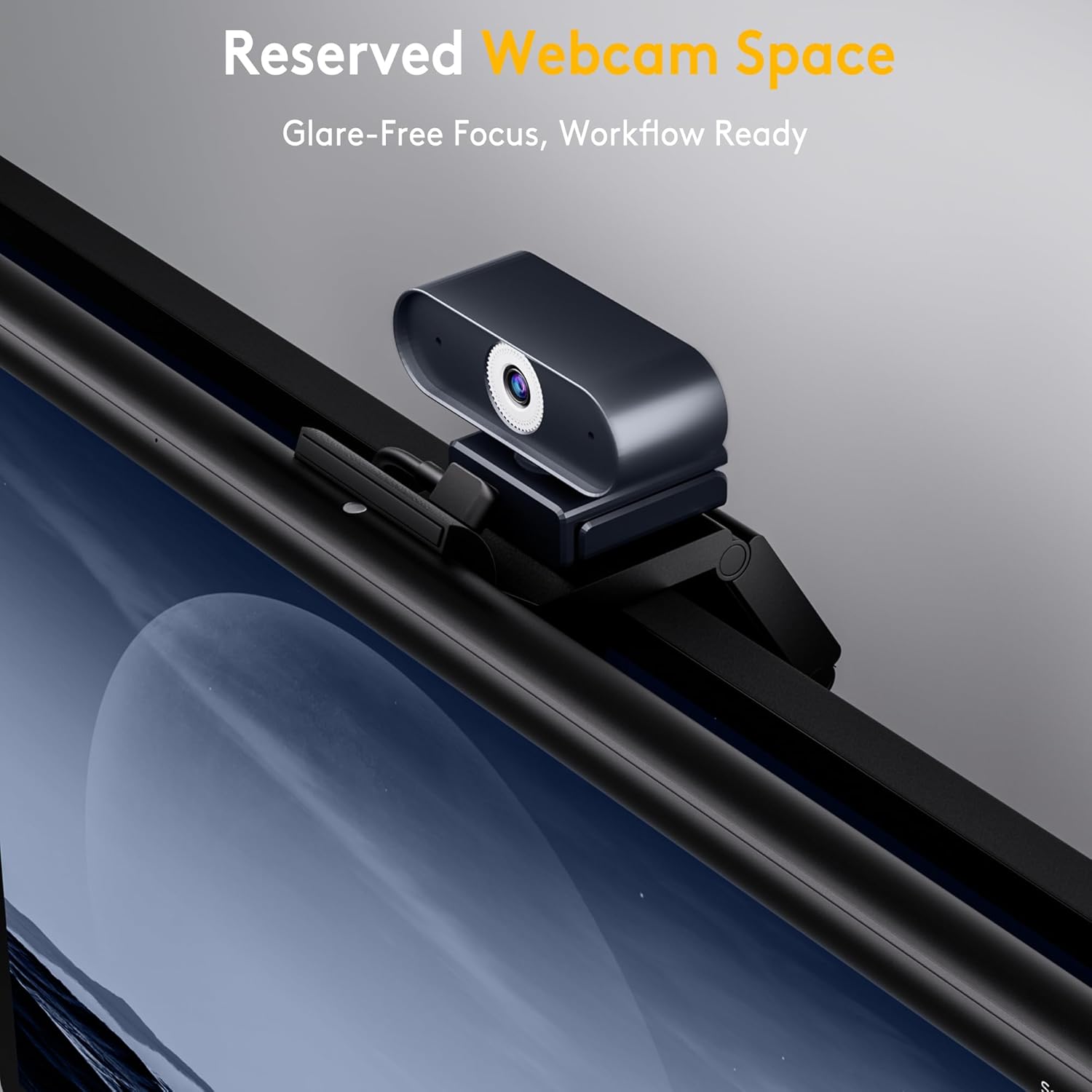
Image: The radar motion sensor detecting a user and automatically activating the light.
4.6 2-Hour Auto-Off Timer
- Press the timer button on the remote control to activate the 2-hour auto-off timer. This feature promotes healthy eye habits by reminding you to take breaks.
5. Klíčové vlastnosti
- Přesné osvětlení: Provides over 900lx of center brightness for wide, precise illumination.
- Inteligentní senzor pohybu: Automatically turns on/off based on user presence (23.6" ±3.9" range, 5-minute auto-off).
- Intelligent Auto-Dimming: Adjusts brightness to ambient surroundings.
- 2hodinový časovač: Promotes eye health by reminding users to take breaks.
- Přizpůsobitelné osvětlení: Stepless adjustment of brightness (10%-100%) and color temperature (3000K-6500K) via remote control.
- Prostorově úsporný Clamp: Securely mounts on most curved (1000R to 1800R) and non-flat top monitors.
- Webcam Mount Compatibility: Integrated design allows easy attachment of a webcam without blocking the lens.
- Vysoký index podání barev (CRI): Ra98 for faithful reproduction of real-world colors.
- Asymmetric Light Design: Illuminates the desk without causing screen glare.
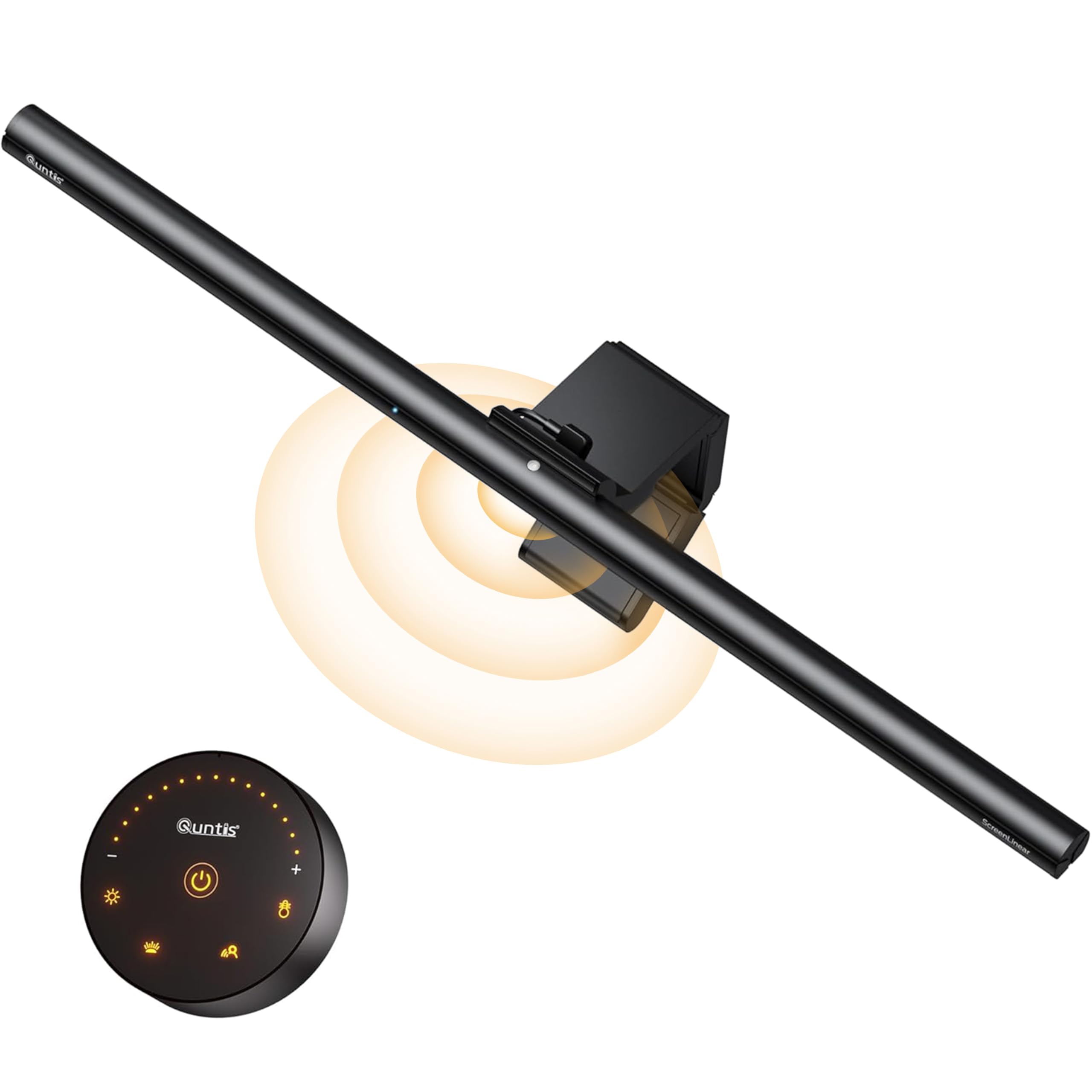
Image: The monitor light bar illuminating a workspace with ultra-wide coverage.
Video: Konecview of the Quntis ScreenLinear Radar Professional Monitor Light Bar features, including eye-care technology, smart auto-sensing, and remote control.
6. Specifikace
| Funkce | Detail |
|---|---|
| Značka | Quntis |
| Číslo modelu | LI-HY-0209-GY |
| Barva | Šedá |
| Rozměry produktu | 0.78"H x 20.08"Š x 0.78"V |
| Hmotnost položky | 2.35 libry |
| Materiál | Hliník |
| Zdroj napájení | Elektrický kabel |
| svtage | 5 V (DC) |
| Wattage | 5 wattů |
| Typ žárovky | LED |
| Rozsah teploty barev | 3000–6500 tisíc |
| Jas | Over 900lx (center brightness) |
| Rozsah snímače pohybu | 23.6" ±3.9" |
| Speciální funkce | Adjustable Brightness & Color Temperature, Auto-Dimming & Timer, Memory Function, Radar Motion Sensor, Ultra-wide Illumination |
| Typ montáže | Desktop (Hanging) |
7. Údržba
- Čištění: Disconnect the power before cleaning. Use a soft, dry cloth to wipe the light bar and remote control. Avoid using abrasive cleaners or solvents.
- Výměna baterie: Replace the AAA batteries in the remote control when the indicator light dims or the remote becomes unresponsive.
- Skladování: If storing the device for an extended period, remove the batteries from the remote control and store the light bar in a cool, dry place.
8. Řešení problémů
| Problém | Možná příčina | Řešení |
|---|---|---|
| Světelná lišta se nezapne. | Žádné napájení. Baterie v dálkovém ovladači jsou vybité nebo nesprávně vložené. | Ujistěte se, že je kabel USB bezpečně připojen k funkčnímu zdroji napájení. Vyměňte baterie v dálkovém ovladači a dbejte na správnou polaritu. |
| Dálkové ovládání nereaguje. | Slabé nebo vybité baterie. Rušení. | Vyměňte baterie. Ensure no obstructions between the remote and the light bar. Try re-pairing if applicable (refer to manufacturer's specific pairing instructions if available). |
| Auto-dimming or motion sensor not working. | Funkce není aktivována. Snímač je zablokovaný. Ambient light too high/low for auto-dimming to register significant change. | Ensure the respective function is enabled via the remote control. Clear any obstructions from the sensor area on the light bar. Test in varying light conditions or adjust manually. |
| Světlo bliká nebo je nestabilní. | Nestabilní napájení. Uvolněné spojení. | Zkuste jiný zdroj napájení USB nebo kabel. Re-seat the USB cable connection. |
9. Záruka a podpora
The Quntis 20.5-inch Monitor Light Bar comes with a 1-letá záruka od data nákupu. Tato záruka se vztahuje na výrobní vady a poruchy při běžném používání. Nevztahuje se na škody způsobené nesprávným použitím, nehodami, neoprávněnými úpravami nebo nesprávnou instalací.
For warranty claims, technical support, or product inquiries, please contact Quntis customer service through their official website or the retailer where the product was purchased. Please have your proof of purchase and model number (LI-HY-0209-GY) ready.
Další podporu a informace o produktu naleznete na Quntis Store on Amazon.