
1. Úvod
This manual provides essential information for the safe and efficient use of your BOOX Go 7 ePaper Tablet. Please read it thoroughly before operating the device and retain it for future reference.

Figure 1.1: BOOX Go 7 ePaper Tablet
2. Bezpečnostní informace
- Nevystavujte zařízení extrémním teplotám, přímému slunečnímu záření nebo vysoké vlhkosti.
- Zabraňte pádu zařízení nebo jeho vystavení silným nárazům.
- K nabíjení používejte pouze dodaný USB kabel.
- Keep the device away from water and liquids, despite its water-repellent features.
- Nepokoušejte se zařízení rozebírat ani opravovat sami. Kontaktujte autorizovaný servisní personál.
3. Obsah balení
Ověřte, zda jsou v balení přítomny všechny položky:
- BOOX Go 7 ePaper Tablet
- USB kabel
- Stručný průvodce (může se lišit v závislosti na regionu)

Figure 3.1: BOOX Go 7 Package Contents
4. Zařízení skončiloview
4.1 Fyzické komponenty
Familiarize yourself with the main components of your BOOX Go 7 tablet:
- E Ink Screen: 7-inch monochrome display with 300 ppi resolution.
- Přední světlo: Adjustable illumination for reading in various lighting conditions.
- Tlačítka pro otáčení stránek: Ergonomically designed buttons for easy navigation.
- Port USB-C: Pro nabíjení a přenos dat.
- Vypínač: Nachází se na horním okraji.
- Vestavěný mikrofon: Pro audio vstup.
- Vestavěné duální reproduktory: Pro audio výstup.

Figure 4.1: Page-Turn Buttons and Water-Repellent Protection
5. Nastavení
5.1 Počáteční nabíjení
Before first use, fully charge your BOOX Go 7 tablet. Connect the provided USB-C cable to the device and a compatible power adapter (not included) or a computer's USB port. The charging indicator will show the charging status.
5.2 Zapnutí/vypnutí
- Zapnutí: Press and hold the Power button until the BOOX logo appears.
- Vypnutí: Stiskněte a podržte tlačítko Napájení a poté z možností na obrazovce vyberte možnost „Vypnout“.
- Spánek/probuzení: Krátce stiskněte tlačítko Napájení.
5.3 Síťové připojení (Wi-Fi)
- Na domovské obrazovce přejetím prstem shora dolů přejdete na panel Rychlé nastavení.
- Klepnutím na ikonu Wi-Fi povolíte Wi-Fi.
- Klepnutím a podržením ikony Wi-Fi otevřete nastavení Wi-Fi.
- Vyberte požadovanou síť ze seznamu a v případě potřeby zadejte heslo.
- Po připojení bude ikona Wi-Fi signalizovat úspěšné připojení.
6. Návod k obsluze
6.1 Základní navigace
- Dotyková obrazovka: Tap, swipe, and pinch to navigate menus, open applications, and interact with content.
- Tlačítka pro otáčení stránek: Use the physical buttons on the side to turn pages in documents and books.
6.2 Reading Documents and Books
The BOOX Go 7 supports various document formats. Open your desired file from the library. Use the page-turn buttons or swipe gestures to navigate through pages. Adjust font size, contrast, and frontlight settings for optimal reading comfort.
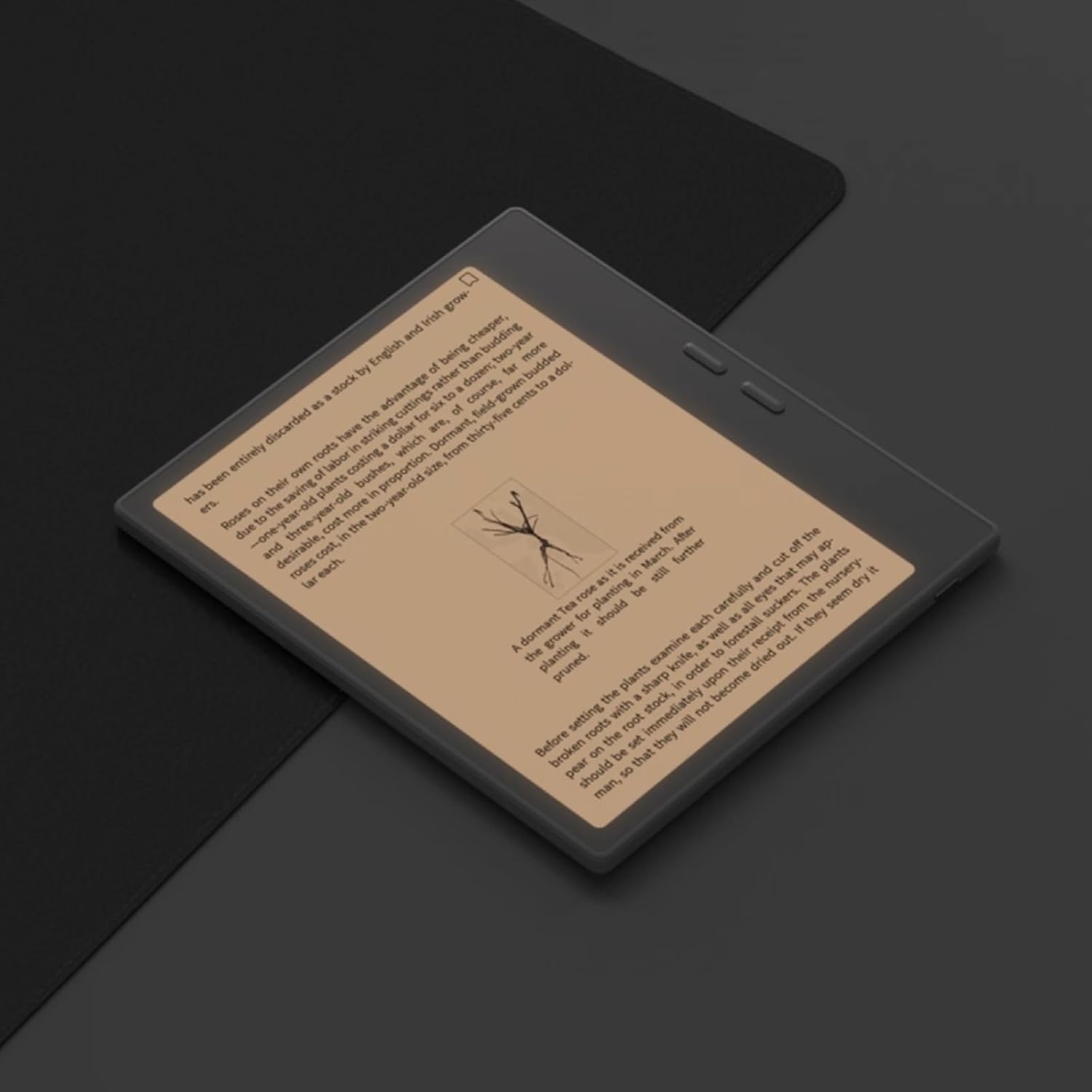
Figure 6.1: Reading with Frontlight
6.3 Using Android Applications
As an Android 13 device, the BOOX Go 7 allows installation of various applications from the Google Play Store. Navigate to the App Store, search for your desired application, and install it. Note that some applications may not be fully optimized for ePaper displays.

Figure 6.2: Various Android Applications on BOOX Go 7
6.4 Zaznamenávání poznámek a kreslení
Utilize the stylus (if included or purchased separately) for note-taking, sketching, and annotating documents. The device offers various templates and tools for creative and organizational tasks.

Figure 6.3: Stylus Use for Note-Taking

Figure 6.4: Handwriting to Text Conversion
7. Údržba
7.1 Čištění zařízení
Use a soft, lint-free cloth to gently wipe the screen and body of the device. Do not use harsh chemicals, abrasive cleaners, or excessive moisture.
7.2 Aktualizace softwaru
Regularly check for and install software updates to ensure optimal performance and access to new features. Connect to Wi-Fi and navigate to Nastavení > Systém > Aktualizace systému pro kontrolu dostupných aktualizací.
8. Řešení problémů
- Zařízení se nezapne: Ujistěte se, že je zařízení nabité. Připojte jej ke zdroji napájení a zkuste to znovu.
- Obrazovka nereaguje: Perform a soft reset by holding the Power button for 10-15 seconds.
- Problémy s připojením Wi-Fi: Verify your Wi-Fi password and router settings. Try restarting your router and the device.
- Pády aplikací: Ensure applications are updated to their latest versions. Clear the app's cache or reinstall if issues persist.
9. Specifikace
| Značka | BOX |
| Název modelu | Jdi 7 |
| Kapacita úložiště | 64 GB |
| Velikost obrazovky | 7 palce |
| Maximální rozlišení displeje | 300 Pixels per inch |
| Operační systém | Android 13 |
| Barva | Noir (černá) |
| Velikost nainstalované paměti RAM | 4 GB |
| Speciální funkce | USB OTG support, Expandable storage, Stylus support |
| Modelový rok | 2025 |
| Typ baterie | Lithium-iontová |
| Energetický obsah baterie | 8.8 watthodin |
| Značka procesoru | Qualcomm |
| Popis procesoru | Qualcomm Snapdragon |
| Fotoaparát | Žádná kamera |
| Typ snímače | Gyroskop |
| Item Dimensions (LxWxT) | 15.6L x 0.6W x 13.7T centimeters |
| Metoda zadávání | Touchscreen with stylus |
| Popis grafické karty | Integrovaný |
| Kompatibilní zařízení | Stylus |
| Typ zobrazení | Elektronický inkoust |
| Rozlišení obrazovky | 1280 x 800 pixelů |
| Poměr stran | 16:10 |
| Připojení k hardwaru | USB |
| Bezdrátová technologie | Bluetooth, Wi-Fi (802.11ax) |
| Celkový počet portů USB | 1 |

Figure 9.1: BOOX Go 7 Energy Label (Odkaz EPREL)
10. Informace o záruce
The BOOX Go 7 ePaper Tablet comes with a 2letá omezená záruka. This warranty covers manufacturing defects under normal use. For specific terms and conditions, please refer to the warranty card included in your package or contact customer support.
The standard return policy allows for returns within 30 days of purchase for refund or replacement.
11. Podpora
For technical assistance, troubleshooting, or warranty claims, please contact BOOX customer service. You can find support resources and submit inquiries through the official BOOX help center.
- Aktualizace firmwaru: BOOX commits to at least 3 years of firmware updates for each product.
- Cloudové úložiště: 10 GB of free cloud storage is provided for each user.
- Doba odezvy: Dotazy zákazníků jsou obvykle zodpovězeny do 24 hodin.
Pro více informací navštivte BOOX Brand Store on Amazon.