
Zavedení
This manual provides detailed instructions for the setup, operation, maintenance, and troubleshooting of your 3nStar SC415 Handheld Barcode Scanner. The SC415 is designed for efficient and reliable data collection, capable of reading both 1D and 2D barcodes, including those displayed on mobile device screens. Its autosense feature and included base allow for versatile handheld and hands-free operation.
Komponenty produktu
- 3nStar SC415 Handheld Barcode Scanner
- USB kabel
- Scanner Base for hands-free operation
Nastavení
Pro nastavení skeneru čárových kódů 3nStar SC415 postupujte takto:
- Připojte kabel USB: Insert the USB cable into the port at the bottom of the scanner. Connect the other end of the USB cable to an available USB port on your computer or POS system.
- Instalace ovladače: The scanner is typically plug-and-play. Your operating system should automatically detect and install the necessary drivers. Wait for the installation to complete.
- Umístěte základnu: Place the scanner base on a stable, flat surface. The base allows for hands-free scanning using the autosense feature.
- Place Scanner in Base: Gently place the SC415 scanner into the base. Ensure it is seated securely. The scanner will automatically switch to autosense mode when placed in the base.
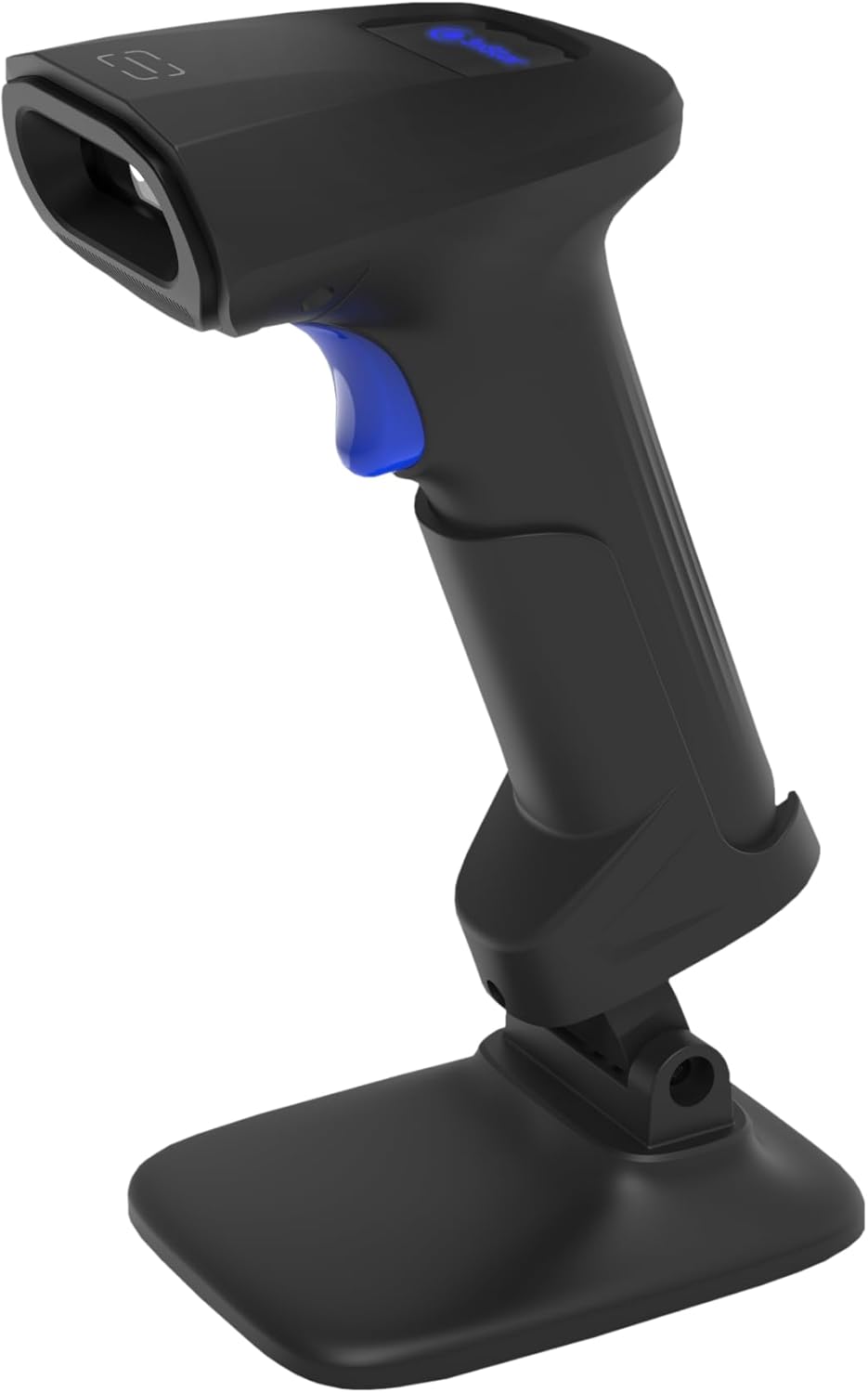
Image: The 3nStar SC415 barcode scanner securely placed in its dedicated base, ready for hands-free operation. The base provides stability and enables the autosense scanning mode.
Návod k obsluze
The SC415 scanner offers flexible operation modes:
Ruční skenování
- Držte skener: Uchopte skener pohodlně v ruce.
- Aim at Barcode: Point the scanning window towards the barcode you wish to read.
- Stiskněte spoušť: Press the trigger button located on the handle. A red aiming beam will appear.
- Potvrzení skenování: Once the barcode is successfully read, the scanner will emit an audible beep and/or a visual indicator (e.g., LED flash). The data will be transmitted to your connected device.

Image: The 3nStar SC415 barcode scanner shown in a handheld position, illustrating how to grip the device for manual scanning. The blue trigger button is visible for activation.
Autosense (Hands-Free) Scanning
When the scanner is placed in its base, it automatically enters autosense mode:
- Umístit položku: Present the barcode of the item in front of the scanner's window.
- Automatické skenování: The scanner will automatically detect the barcode and read it without requiring you to press the trigger.
- Potvrzení skenování: A successful scan will be indicated by an audible beep and/or visual cue.
Scanning Mobile Phone Screens
The SC415 is capable of reading barcodes directly from mobile device screens. Ensure the screen brightness is adequate and avoid glare for optimal performance.
Údržba
Správná údržba zajišťuje dlouhou životnost a optimální výkon vašeho skeneru:
- Čištění skenovacího okna: Použijte měkký hadřík bez žmolků, lehceampened with water or a mild, non-abrasive cleaner, to wipe the scanning window. Avoid using harsh chemicals, solvents, or abrasive materials, as these can damage the window.
- Čištění Casing: Otřete vnější část casinměkkým, suchým hadříkem.
- Kontrola kabelů: Periodically check the USB cable for any signs of wear, cuts, or damage. Replace if necessary.
- Skladování: Pokud skener nepoužíváte, skladujte jej v čistém a suchém prostředí mimo dosah extrémních teplot a přímého slunečního záření.
Odstraňování problémů
If you encounter issues with your SC415 scanner, refer to the following common problems and solutions:
| Problém | Možná příčina | Řešení |
|---|---|---|
| Skener se nezapíná | USB kabel není připojen nebo je vadný. | Ensure the USB cable is securely connected to both the scanner and the host device. Try a different USB port or cable. |
| Skener nečte čárové kódy | Barcode damaged or poorly printed. Incorrect aiming. Scanner not configured for barcode type. | Ensure the barcode is clear and undamaged. Aim the scanner directly at the center of the barcode. Refer to the programming guide (if available) to ensure the scanner supports the barcode type. |
| No data transmitted after scan | Incorrect interface settings. Host device not ready to receive input. | Verify the scanner is recognized by the host device (e.g., check Device Manager). Ensure the application on your computer is active and ready to receive keyboard input. |
| Autosense mode not working | Scanner not properly seated in base. Autosense feature disabled. | Ensure the scanner is firmly placed in its base. If issues persist, consult the full programming manual for autosense activation settings. |
Pokud tyto kroky váš problém nevyřeší, kontaktujte prosím zákaznickou podporu.
Specifikace
Key technical specifications for the 3nStar SC415 Handheld Barcode Scanner:
| Funkce | Detail |
|---|---|
| Model | SC415 |
| Rychlost skenování | 60 Pages per second |
| Technologie připojení | USB kabel |
| Zdroj napájení | Elektrický kabel |
| Kompatibilní zařízení | Desktop, Laptop, POS systems |
| Hmotnost položky | 4.5 unce |
| Rozměry balení | 8.66 x 5.12 x 4.33 palce |
| Výrobce | 3nStar |
Informace o záruce
The 3nStar SC415 Handheld Barcode Scanner is covered by a manufacturer's warranty. For specific details regarding warranty duration and terms, please refer to the warranty card included with your product or visit the official 3nStar webmísto.
Zákaznická podpora
For further assistance, technical support, or inquiries regarding your 3nStar SC415 scanner, please contact 3nStar customer service. You can find contact information on the official 3nStar webwebu nebo prostřednictvím dokumentace k vašemu produktu.
Navštivte 3nStar Store for more information on 3nStar products.