
Zavedení
Thank you for choosing the KOORUI S3241XO 31.5-inch 4K OLED Gaming Monitor. This manual provides essential information for setting up, operating, and maintaining your monitor. Please read it thoroughly before use to ensure optimal performance and safety.
Bezpečnostní informace
- Nevystavujte monitor dešti ani vlhkosti, abyste předešli požáru nebo úrazu elektrickým proudem.
- Neotevírejte monitor casing. Uvnitř nejsou žádné součásti, které by mohl uživatel opravit. Veškerý servis svěřte kvalifikovanému servisnímu personálu.
- Umístěte monitor na stabilní, rovný povrch, aby nedošlo k jeho pádu.
- Zajistěte dostatečné větrání kolem monitoru. Neblokujte větrací otvory.
- Používejte pouze napájecí adaptér a kabely dodané výrobcem.
- Během bouřek nebo pokud jej nebudete delší dobu používat, odpojte monitor ze zásuvky.
- Nepokládejte těžké předměty na napájecí kabel ani kabely monitoru.
Obsah balení
Ověřte, zda jsou v balení přítomny všechny položky:
- KOORUI S3241XO 31.5-inch 4K OLED Gaming Monitor
- Kabel HDMI 2.1
- DisplayPort 1.4 Cable (1.8m)
- USB 3.0 AB kabel
- Kabel typu C
- Síťový napájecí kabel
- Napájecí adaptér
- Uživatelská příručka
Nastavení
1. Sestavení monitoru
Pro sestavení stojanu monitoru a jeho připevnění k panelu displeje postupujte podle těchto kroků.

Image: The KOORUI S3241XO monitor with its stand, showcasing the display and connectivity options.
2. Připojení k zařízením
The monitor offers various connectivity options. Ensure your device supports the required output.
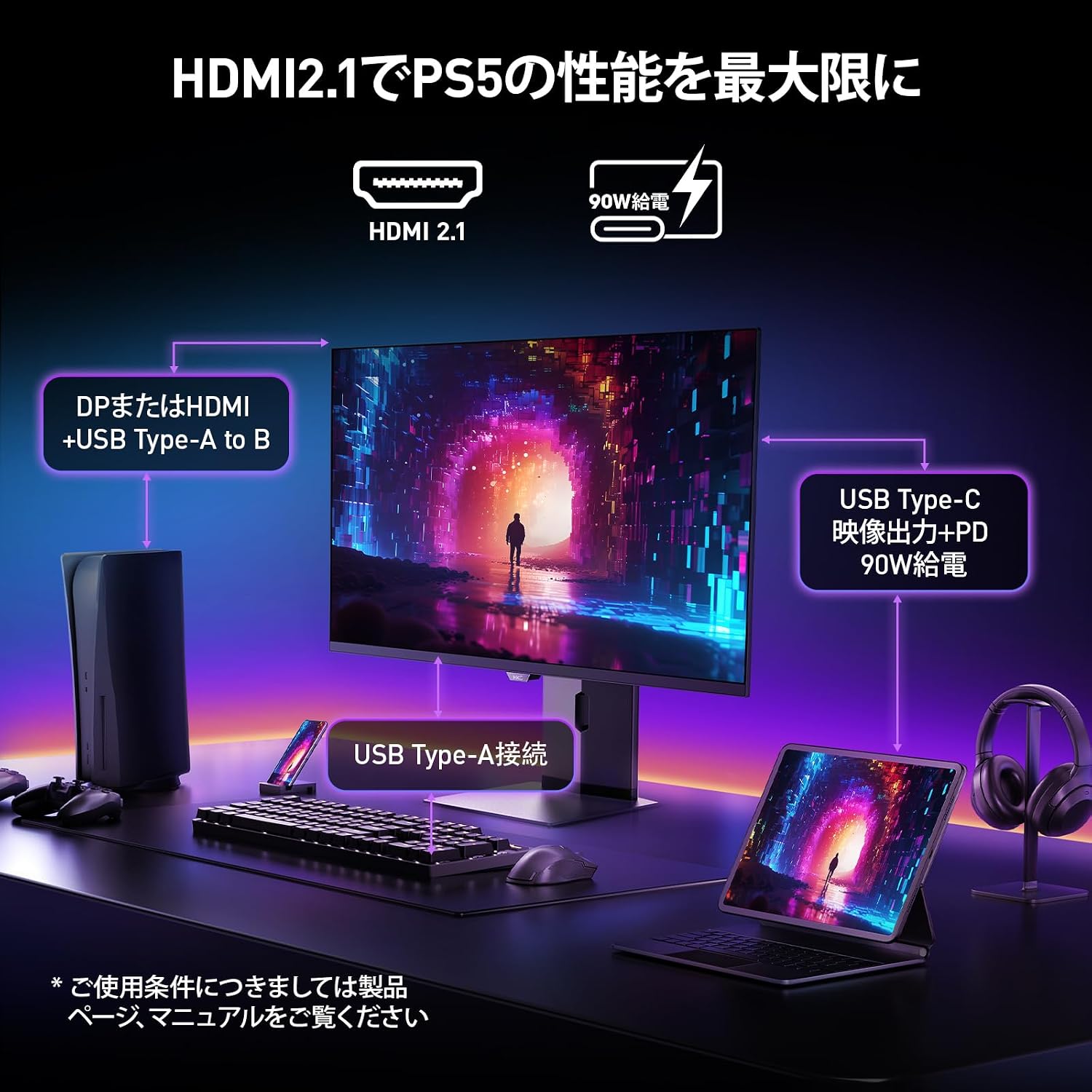
Image: A diagram illustrating how to connect various devices like a PS5, laptop, and peripherals to the monitor using HDMI 2.1, USB Type-C, and USB Type-A ports.
Port Overview:

Obrázek: Podrobný view of the monitor's rear input/output ports with numerical labels for identification.
- Napájecí kabel: Connect the AC power cable to the monitor and a power outlet.
- USB typu B (pro odesílání): Connect to your computer to enable the monitor's USB-A ports.
- USB 3.1 typu A (x2): Pro připojení periferií USB.
- HDMI 2.1 (x2): Connect to devices supporting HDMI 2.1 for 4K 240Hz output.
- DisplayPort 1.4: Connect to devices supporting DisplayPort 1.4 for 4K 240Hz output.
- Type-C (with PD): Connect to compatible devices for video input and power delivery (up to 90W).
- Sluchátkový výstup: Pro připojení sluchátek nebo externích reproduktorů.
Návod k obsluze
1. Zapnutí/vypnutí
Press the power button, usually located on the back or bottom of the monitor, to turn it on or off.
2. Nabídka na obrazovce (OSD).
Use the joystick or buttons on the monitor to navigate the OSD menu. The OSD allows you to adjust various settings.
Klíčová nastavení OSD:
- Nastavení obrazu: Upravte jas, kontrast, ostrost a teplotu barev.
- Barevné režimy: Select from various preset color modes, including a professional color mode for accurate color reproduction (99% DCI-P3, 100% sRGB, Delta E<2, True 10-bit color).
- Vstupní zdroj: Manually select the input source (HDMI 1, HDMI 2, DisplayPort, Type-C).
- Herní vlastnosti: Access specific gaming modes (RPG, FPS, RCG) and settings like FreeSync and G-Sync compatibility.
- Doba odezvy: The monitor features a 0.03ms (OD) response time for rapid image transitions.
- HDR True Black 400: Optimizes black levels for enhanced detail in dark scenes.
- DIC (Digital Image Control) Mode: Enable or disable DIC to prevent ghosting and improve image quality.

Image: Visual representation of the monitor's color accuracy and wide color gamut.

Image: Illustrates the difference in motion clarity at various refresh rates, highlighting the 240Hz 0.03ms response.

Image: Demonstrates the enhanced black levels and detail in dark scenes provided by the KOORUI QD OLED technology compared to a typical LCD.

Image: Shows the effect of Digital Image Control (DIC) mode on reducing ghosting for smoother visuals.
3. Ergonomické úpravy
Stojan monitoru umožňuje různá nastavení pro optimalizaci viewzkušenosti:
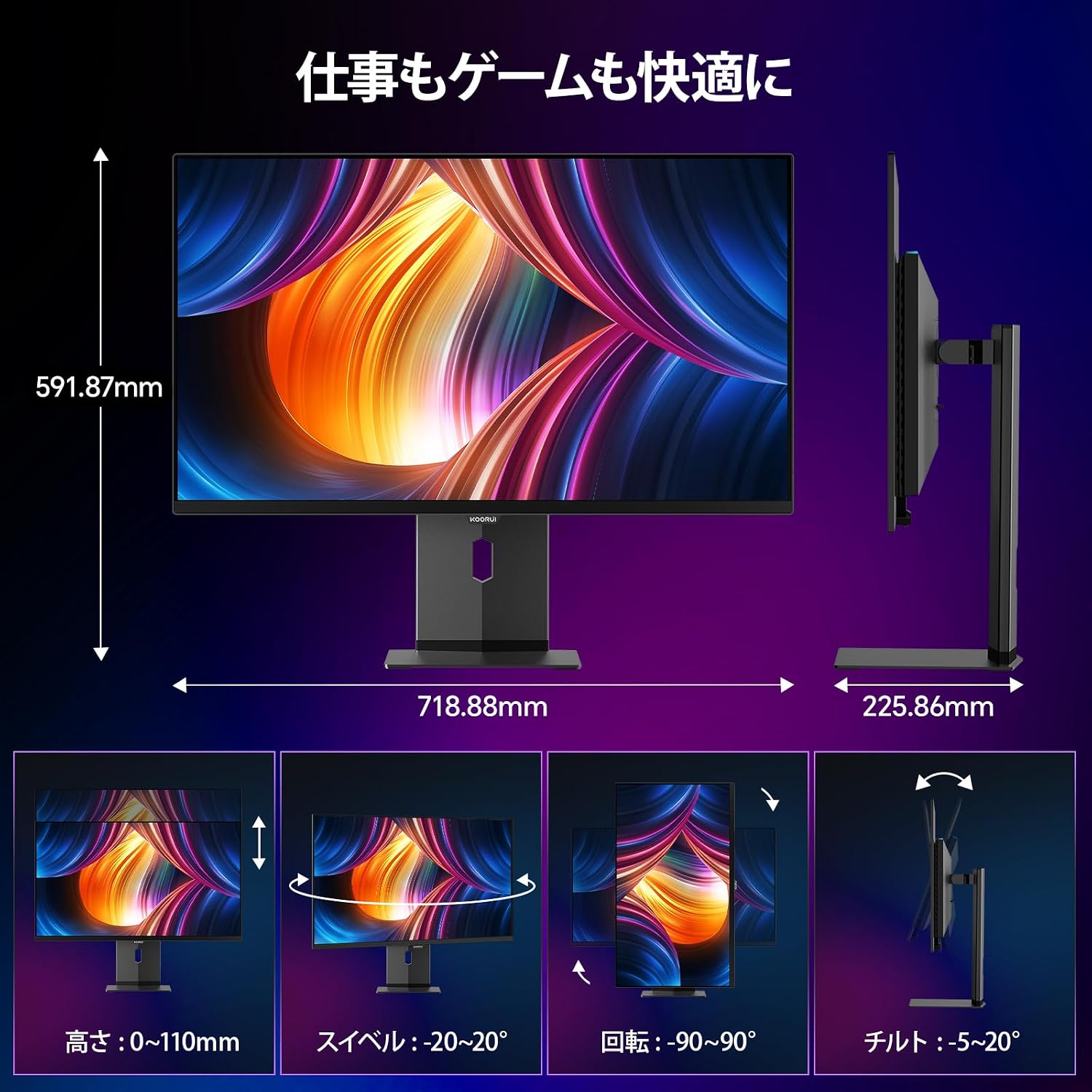
Image: Illustrations of the monitor's adjustable features: height, swivel, pivot (rotation), and tilt.
- Nastavení výšky: Adjust the display height by up to 110mm.
- Náklon: Tilt the screen from -5° to 20° for comfortable viewing úhly.
- Otočný: Swivel the monitor -20° to 20° horizontally.
- Otočení (rotace): Rotate the screen -90° to 90° for portrait or landscape orientation.
Údržba
1. Čištění monitoru
- Před čištěním monitor vždy odpojte.
- Lehce používejte měkký hadřík, který nepouští vlákna dampvodou nebo jemným, neabrazivním čističem obrazovek.
- Nestříkejte čisticí prostředek přímo na obrazovku.
- Avoid using benzene, thinner, or any volatile solvents, as they may damage the screen surface.
2. Funkce péče o zrak
The monitor includes features to reduce eye strain during prolonged use:
- Hardware Blue Light Cut: Reduces harmful blue light emissions without affecting color accuracy.
- Flicker Guard: Eliminuje blikání obrazovky pro pohodlnější viewzkušenosti.

Image: Demonstrates the effectiveness of hardware blue light reduction in preserving natural colors.

Image: Illustrates the difference between Flicker Guard off and on, showing reduced screen flickering.
3. Panel Protection Features
To prevent OLED burn-in, the monitor incorporates proprietary panel protection technologies:
- Posun pixelů: Periodically shifts pixels slightly to prevent static images from causing burn-in.
- Detekce na hlavním panelu: Detects static elements like the taskbar and adjusts their brightness to minimize burn-in risk.
- Graphene Sheet + Custom Heatsink: Advanced thermal management to maintain optimal operating temperature.

Image: Visual explanation of pixel shift, taskbar detection, and thermal management for panel protection.
Odstraňování problémů
Pokud se s monitorem setkáte s problémy, podívejte se na následující běžné problémy a jejich řešení:
| Problém | Možná příčina | Řešení |
|---|---|---|
| Na obrazovce není žádný obraz | Power cable disconnected, incorrect input source, device not powered on. | Zkontrolujte připojení napájení, vyberte správný vstupní zdroj pomocí nabídky OSD a ujistěte se, že je připojené zařízení zapnuté. |
| Blikání obrazu | Flicker Guard disabled, cable issue, graphics card driver issue. | Enable Flicker Guard in OSD, try a different cable, update graphics drivers. |
| Špatná kvalita barev | Incorrect color mode, cable issue. | Adjust color settings in OSD, try a different cable. |
| Žádný zvuk ze sluchátek | Headphones not properly connected, audio settings on device/monitor. | Ensure headphones are fully plugged in, check audio output settings on your computer and monitor. |
| USB porty nefungují | USB Type-B upstream cable not connected. | Connect the USB Type-B cable from the monitor to your computer. |
Specifikace
| Funkce | Specifikace |
|---|---|
| Značka | KOORUI |
| Číslo modelu | S3241XO |
| Velikost obrazovky | 31.5 palců |
| Typ panelu | OLED (QLED) |
| Rezoluce | 4K UHD (3840 x 2160 pixelů) |
| Obnovovací frekvence | 240 Hz |
| Doba odezvy | 0.03 ms (odhadovaná vzdálenost) |
| Poměr stran | 16:9 |
| Kontrastní poměr | 1,500,000:1 |
| Jas | 280 cd/m² |
| Barevný gamut | 99 % DCI-P3, 100 % sRGB |
| Barevná hloubka | Skutečných 10 bitů (1.07 miliardy barev) |
| Podpora HDR | DisplejHDR400 True Black |
| Adaptivní synchronizace | FreeSync and G-Sync Compatible |
| Konektivita | 2x HDMI 2.1, 1x DisplayPort 1.4, 1x Type-C (with 90W PD), 2x USB-A 3.1, 1x USB-B, 1x Headphone Jack |
| Ergonomie | Height Adjustment (110mm), Tilt (-5° to 20°), Swivel (-20° to 20°), Pivot (-90° to 90°) |
| VESA Mount | 100 x 100 mm |
| Rozměry (Š x V x H) | Approx. 71.9 x 59.2 x 22.6 cm (with stand) |
| Hmotnost | Přibl. 8.3 kg |
| Spotřeba energie | 264 wattů (max.) |
Záruka a podpora
The KOORUI S3241XO monitor comes with a 3letá záruka výrobce. The LCD panel itself is covered by a 1-year warranty. For warranty claims or technical support, please contact KOORUI customer service.
KOORUI also offers a free recycling service for monitors. Please refer to the official KOORUI website or contact support for details on how to utilize this service.
Pro další pomoc prosím navštivte KOORUI Brand Store.