
BNCF NewBook 11
BNCF NewBook 11 2-in-1 Laptop User Manual
Model: NewBook 11 | Brand: BNCF
Zavedení
This manual provides essential information for setting up, operating, maintaining, and troubleshooting your BNCF NewBook 11 2-in-1 Laptop. Please read this guide thoroughly to ensure optimal performance and longevity of your device.
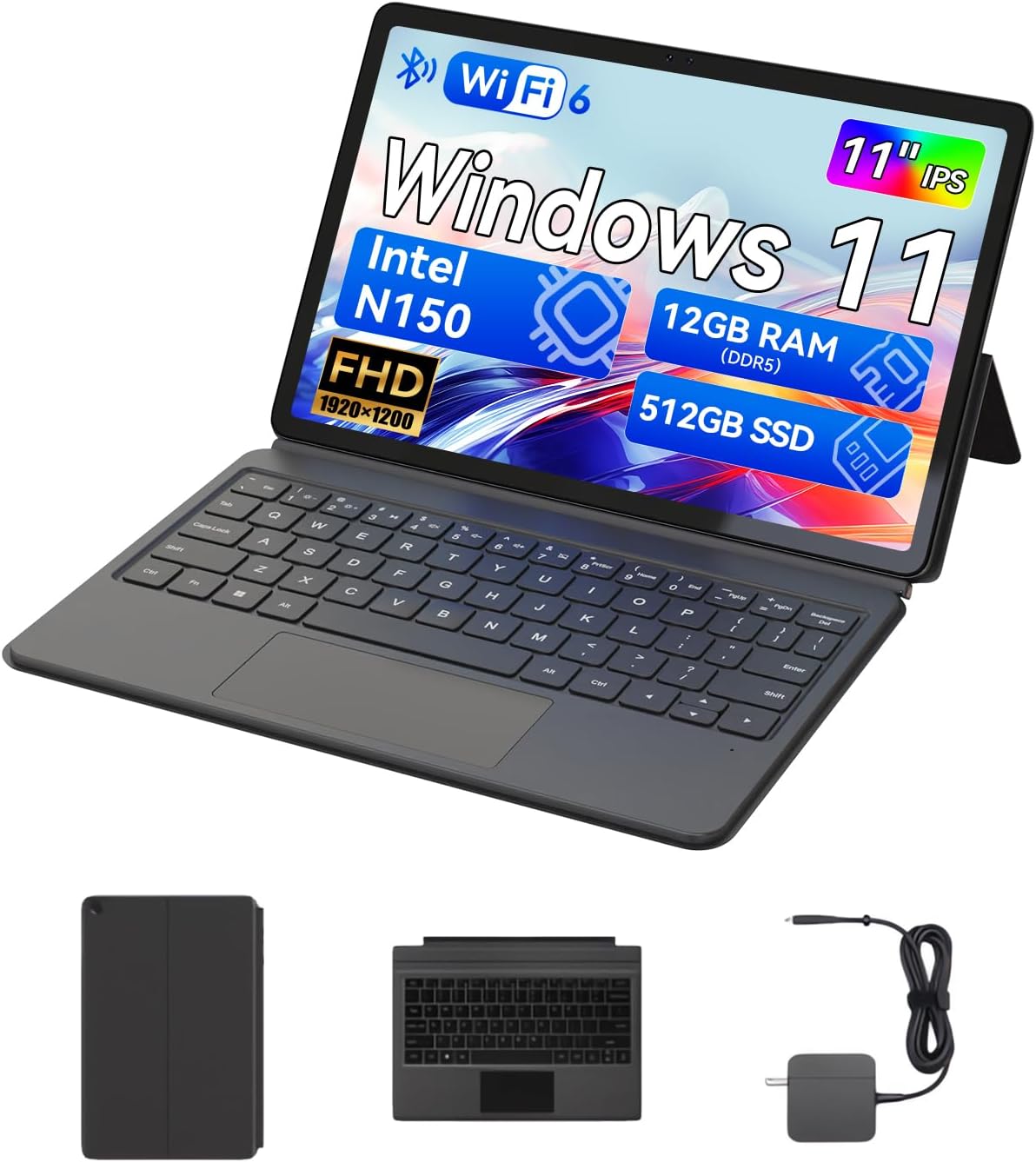
The BNCF NewBook 11 2-in-1 Laptop, shown here in its laptop configuration, featuring an 11-inch display, detachable keyboard, and kickstand.
1. Průvodce nastavením
1.1 Vybalení a úvodní kontrola
Upon receiving your BNCF NewBook 11, carefully unpack all components. Ensure the following items are present:
- BNCF NewBook 11 2-in-1 Laptop
- Magnetická klávesnice
- Kickstand
- Napájecí adaptér (12V/3A)
- Uživatelská příručka (tento dokument)
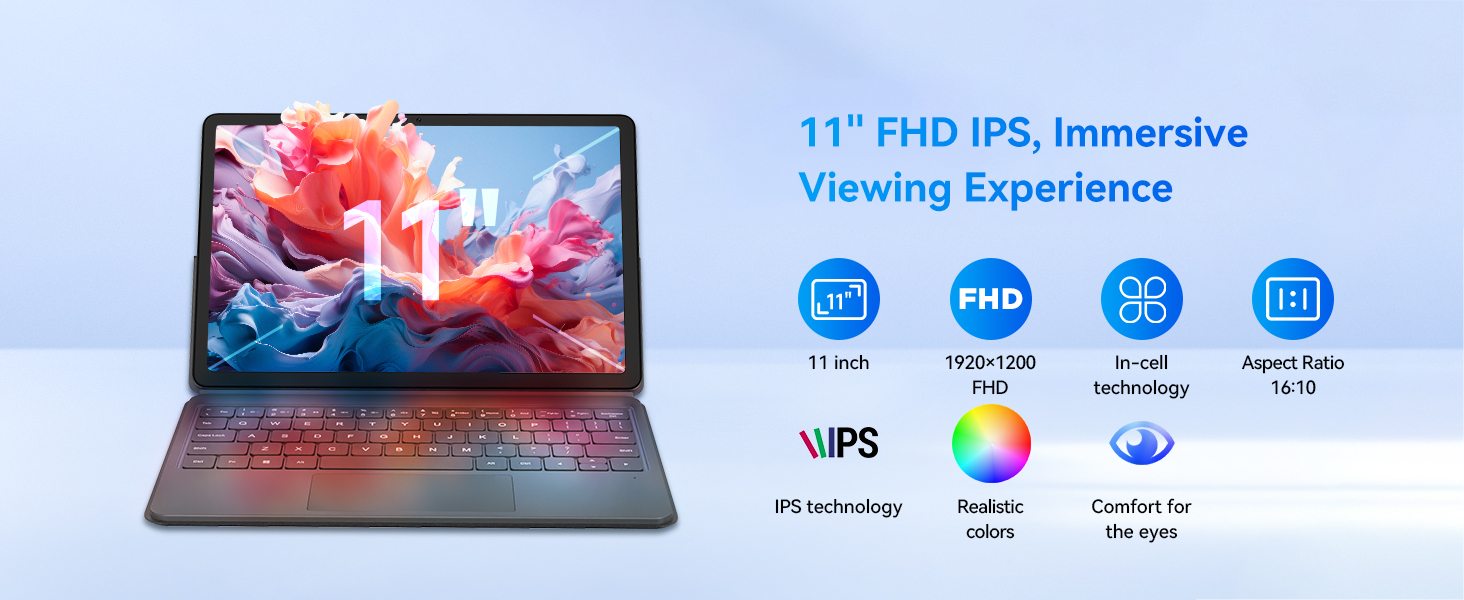
Illustration of the items included in the BNCF NewBook 11 package, including the main unit, keyboard, kickstand, and power adapter.
1.2 Nabíjení zařízení
Before first use, fully charge your NewBook 11. Connect the provided power adapter to the Type-C charging port on the device and then to a power outlet. The charging indicator will illuminate.
1.3 Attaching the Keyboard and Kickstand
The magnetic keyboard and kickstand are designed for easy attachment and detachment:
- Klávesnice: Align the magnetic connector on the keyboard with the docking port at the bottom edge of the tablet. The magnets will secure it in place.
- Stojan: The kickstand attaches magnetically to the back of the tablet. Position it to achieve your desired viewing angle. Note that frequent adjustments may require re-aligning the kickstand.

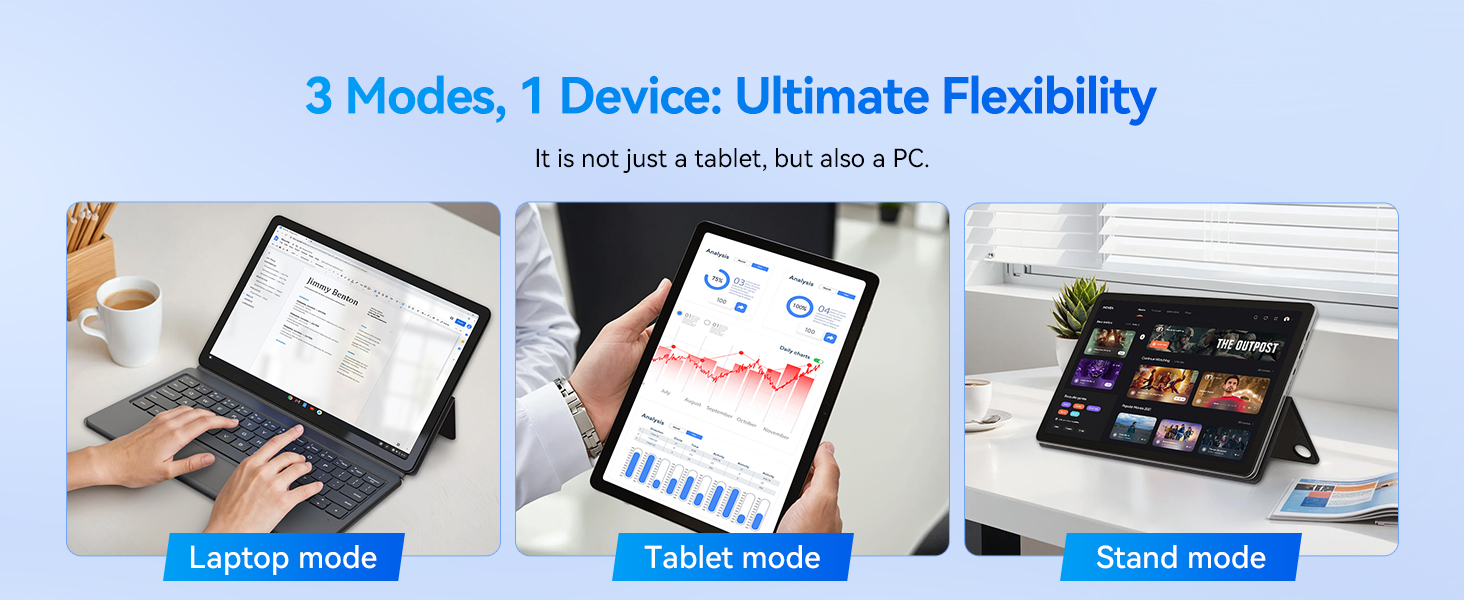
The BNCF NewBook 11 demonstrating its three flexible modes: laptop, tablet, and stand, enabled by the magnetic keyboard and kickstand.
1.4 Počáteční zapnutí a nastavení systému Windows 11
Press and hold the power button located on the side of the device until the screen illuminates. Follow the on-screen instructions to complete the Windows 11 initial setup, including language selection, network connection, and user account creation.
2. Návod k obsluze
2.1 Funkce 2 v 1
The BNCF NewBook 11 offers versatile usage modes:
- Režim notebooku: With the keyboard and kickstand attached, use the device as a traditional laptop for productivity tasks.
- Režim tabletu: Detach the keyboard to use the device as a standalone tablet for touch-based interactions, browsing, or media consumption.
- Režim stojanu: Use the kickstand to prop up the tablet without the keyboard, ideal for watching videos or presentations.
2.2 Dotyková obrazovka a displej
The 11-inch FHD IPS In-Cell touchscreen (1920x1200 resolution) provides clear visuals and responsive touch input. Utilize multi-touch gestures for navigation within Windows 11.
The 11-inch FHD IPS In-Cell display of the NewBook 11, designed for clear and vibrant visuals.
2.3 Konektivita
The device features various ports and wireless options:
- Porty USB-C (2): One for charging/data, one full-featured.
- Port USB 3.0 (1): Pro připojení periferií.
- Micro HDMI Port (1): For external display output (supports 1080P HD).
- 3.5mm Audio Jack (1): Pro sluchátka nebo externí reproduktory.
- Wi-Fi 6: For high-speed wireless internet connectivity (2.4/5GHz).
- Bluetooth 5.0: Pro připojení bezdrátového příslušenství.
Detailní view of the BNCF NewBook 11's ports and external features, highlighting its comprehensive connectivity options.
2.4 Kamery
The device includes dual cameras: a 5MP front camera and an 8MP rear camera, suitable for video calls and basic photography.
3. Údržba a péče
3.1 Čištění
- Obrazovka: Použijte měkký hadřík bez žmolků, speciálně určený pro elektroniku. DampV případě potřeby lehce opláchněte vodou nebo čističem obrazovek. Vyhněte se agresivním chemikáliím.
- Tělo: Wipe the metal chassis with a soft, dry cloth.
3.2 Péče o baterii
Chcete -li prodloužit životnost baterie:
- Vyhněte se častému úplnému vybíjení baterie.
- Nevystavujte zařízení extrémním teplotám.
- Use only the provided BNCF power adapter for charging.
3.3 Chladicí systém
The NewBook 11 features an active cooling system with a PC-level fan and dual-copper heat pipe. Ensure the air vents are not obstructed to maintain optimal performance and prevent overheating.
An illustration of the internal active cooling system, showing the PC-level fan and copper heat pipe designed to maintain stable device temperature.
4. Řešení problémů
This section addresses common issues you might encounter with your BNCF NewBook 11.
4.1 Zařízení se nezapíná
- Ensure the device is fully charged. Connect the power adapter and wait a few minutes before attempting to power on again.
- Stiskněte a podržte tlačítko napájení po dobu 10–15 sekund pro provedení tvrdého resetu.
4.2 Krátká výdrž baterie
- Upravte jas obrazovky na nižší nastavení.
- Zavřete nepotřebné aplikace na pozadí.
- Ensure Wi-Fi and Bluetooth are turned off when not in use.
- Check for Windows updates, as power management improvements may be included.
4.3 Display Issues (e.g., Washed Out Colors)
- Check display settings in Windows 11 (Settings > System > Display) for color calibration options.
- Ujistěte se, že jsou ovladače grafické karty aktuální.
4.4 Keyboard or Trackpad Not Responding
- Ensure the magnetic keyboard is securely attached to the tablet's docking port.
- Detach and reattach the keyboard.
- Restartujte zařízení.
- If issues persist, contact BNCF support.
4.5 General Performance Slowdown
- Zavřete nepoužívané aplikace a karty prohlížeče.
- Check for sufficient free storage space on the 512GB SSD.
- Spusťte kontrolu systému na přítomnost malwaru.
- Ujistěte se, že máte Windows 11 aktualizovaný na nejnovější verzi.
5. Specifikace
| Funkce | Detail |
|---|---|
| Název modelu | NewBook 11 |
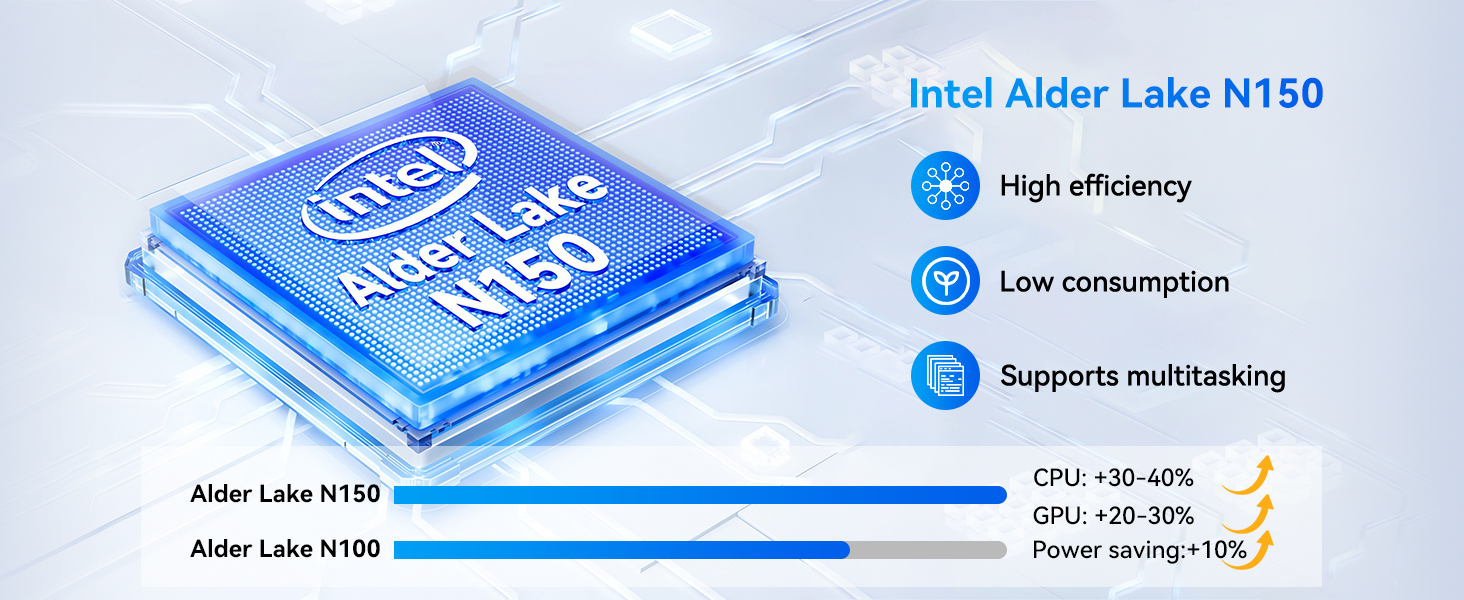
| Procesor | Intel Alder Lake N150 (Quad-core, up to 3.6 GHz) |
| Grafika | Grafika Intel UHD |
| BERAN | 12 GB DDR5 |
| Skladování | 512GB NVMe SSD |
| Operační systém | Windows 11 Pro |
| Zobrazit | 11-inch FHD IPS In-Cell Touchscreen (1920x1200 pixels) |
| Kamery | Přední: 5MP, Zadní: 8MP |
| Bezdrátové připojení | Wi-Fi 6 (2.4/5GHz), Bluetooth 5.0 |
| Porty | 2x Type-C (charging/data, full-featured), 1x USB 3.0, 1x Micro HDMI, 1x 3.5mm Audio Jack |
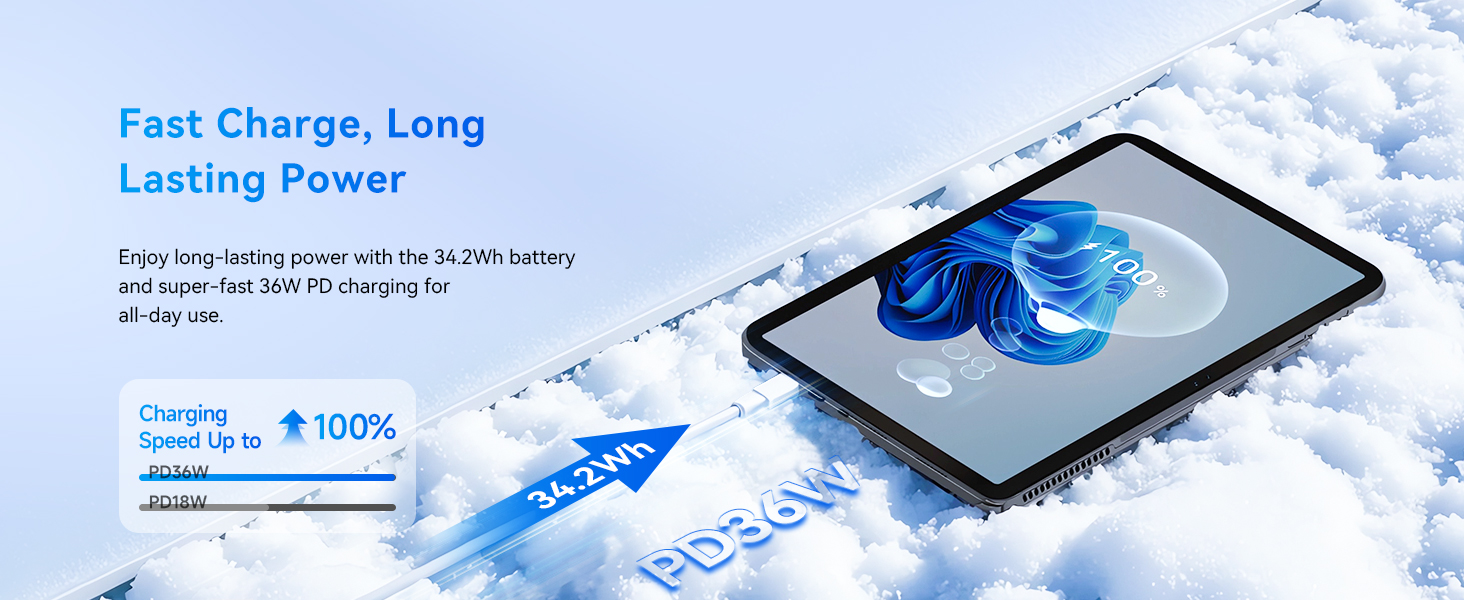
| Baterie | 34.2Wh, supports PD 36W fast charging |
| Rozměry (tablet) | 10.12 x 6.61 x 0.38 palce |
| Weight (Tablet) | 635 g (1.4 lb) |
| Weight (Total with Keyboard/Kickstand) | 1106 g (2.44 lb) |
6. Záruka a podpora
BNCF is committed to providing high-quality products and customer satisfaction.
6.1 Informace o záruce
Your BNCF NewBook 11 comes with a jednoletá záruka. This warranty covers manufacturing defects and ensures that your device meets BNCF's quality standards. For specific details regarding the RMA (Return Merchandise Authorization) policy, please refer to the official BNCF webwebu nebo kontaktujte zákaznickou podporu.
6.2 Technická podpora
BNCF offers doživotní technickou podporu for its products. If you encounter any issues or have questions regarding your device, please contact BNCF customer service. You can expect a response within 24 hours.

BNCF provides a one-year warranty and dedicated support to ensure customer satisfaction.
Ask a question about this manual
Ask about setup, troubleshooting, compatibility, parts, safety, or missing instructions. Manuals+ will review the question and use this page’s manual context to help answer it.